

You're working from an RV, a shared laptop, or a home office where the files you need live somewhere else. The folder opens from one device, disappears after a restart, or asks for credentials every time you connect. Knowing how to map a drive on Windows turns that shared location into a familiar shortcut, but only if you handle persistence, credentials, and network availability correctly.
Drive mapping also gets confused with route mapping and storage analysis. A disk-usage tool such as WinDirStat scans a selected drive and displays folders in a directory tree and colored treemap, with rectangle area proportional to file size, as described in its disk-usage viewer documentation. This guide focuses on network storage and the practical issues that appear when users move between office networks, remote locations, and shared devices.
What Mapping a Drive Actually Does for You
A mapped drive gives a shared folder a drive letter in File Explorer. Instead of opening a long network location each time, you can select a familiar entry such as Z: and work with the files inside it. Windows still reaches the files across the network. The letter is a shortcut, not a second copy of the data.
That distinction matters for remote teams. A designer might open a shared project folder, a bookkeeper might access accounting documents, and a traveling worker might return to the same team repository without rebuilding the path manually. The experience resembles a local disk, but permissions, network access, and authentication still come from the server or storage device hosting the share.
Mapping works best when the shared location is stable and your device regularly connects to the same network. It can be more convenient than browsing through File Explorer shortcuts, especially when several applications need the same path. Some older applications also behave better with a drive letter than with a network address.
Key takeaway: A mapped drive creates a convenient local-looking path to remote storage. It doesn't remove the need for network access or permission to use the shared folder.
For organizations deciding how to organize shared files, it helps to browse centralized storage options before mapping individual folders. Centralized storage can simplify naming, permissions, and ownership, while drive mapping gives users a practical access layer on top of that design.
Drive mapping isn't the same as a route-history app. Some travel tools record trips with routes, stops, timestamps, distance, duration, speed, elevation, and historical summaries, while fleet platforms may offer map playback and date filtering, as shown by Pinpoint's trip-history features. Here, “map a drive” means connecting Windows to shared files, not plotting a vehicle journey.
Before You Map a Drive Checklist
The fastest way to avoid a failed mapping is to verify the details before opening the dialog. Most problems start with an incorrect path, an unavailable network, or credentials that don't match the server's expectations.
Confirm the path first
Ask the administrator, storage owner, or teammate for the exact UNC path, such as \\server\share. A UNC path identifies the server and shared folder directly. Don't rely on a shortcut copied from another computer, because that shortcut may point to a different environment or depend on a user profile that doesn't exist on your device.
Test the path in File Explorer before mapping it. If the folder doesn't open directly, mapping it won't fix the underlying issue.
Check the network you're actually using
A mapped drive depends on reachability. An office desktop connected to the company LAN may see a file server immediately, while a laptop on guest WiFi, campground internet, or a mobile hotspot may not. A remote-access connection may also be required before the server becomes available.
For RV travelers, coverage varies with location and conditions. Cellular service is generally strongest near populated areas and major highways, but it can become limited in remote or off-grid areas. Satellite service can work where a dish has open sky, while cellular is usually the lower-power and more practical choice when towers are reachable, according to this RV connectivity comparison.
Decide on the drive letter
Choose an unused letter and record it for your team. Microsoft's Windows guidance confirms that any available drive letter can be selected. In mixed environments, users often treat H: or Z: as conventions, so check existing mappings before assigning one and avoid creating conflicting instructions.
Confirm credentials and persistence
Find out whether the share uses your Windows account, a separate account, or an organization-managed sign-in. If the share requires different credentials, mapping it without explicitly addressing that difference can lead to repeated prompts or a connection that vanishes after logoff.
Finally, decide whether the device should reconnect automatically. That's useful on a trusted, stable workstation. It can be inconvenient on a shared laptop or a travel device that spends most of its time on unrelated networks.
How to Map a Drive on Windows Without the Headaches
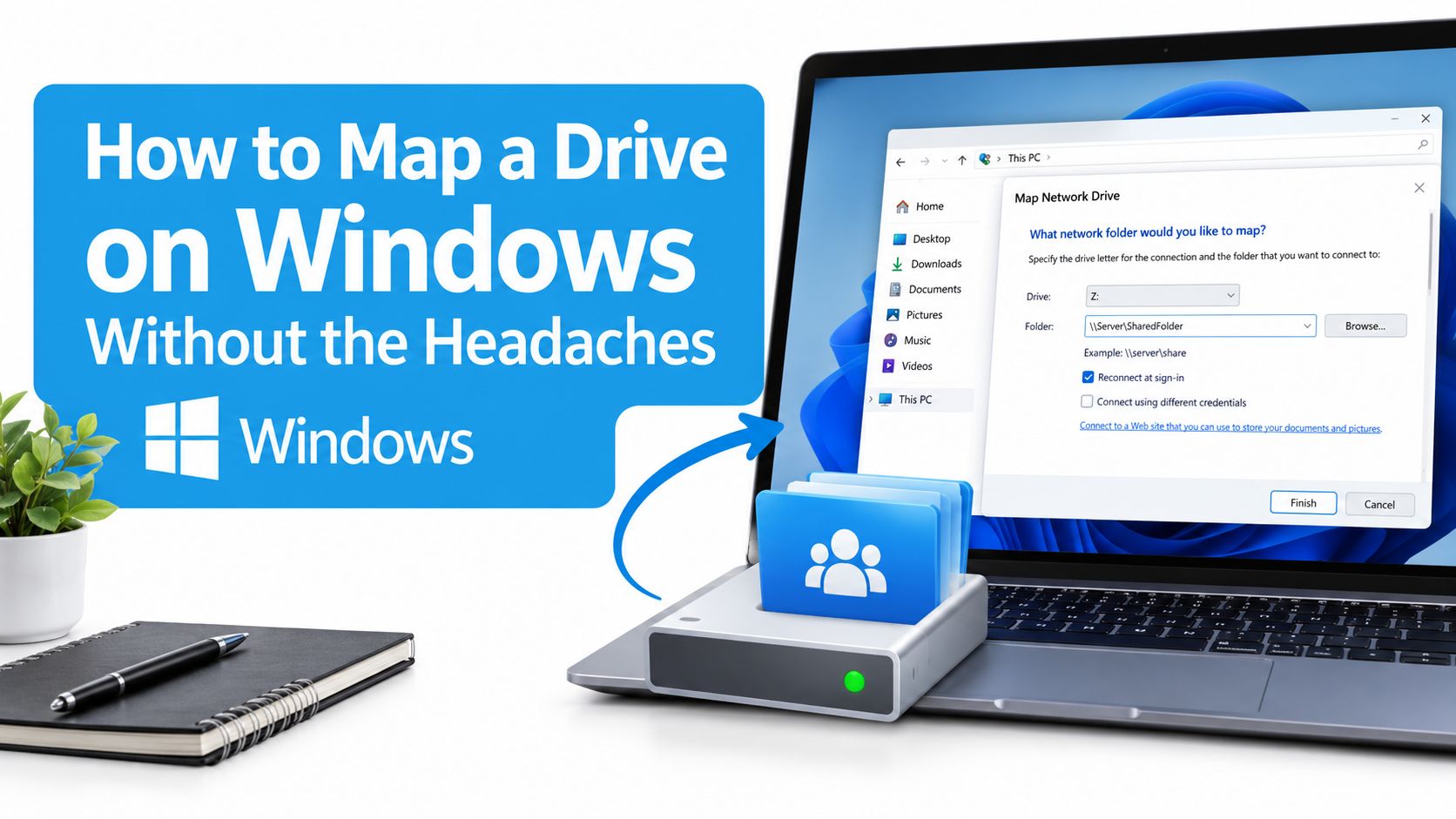
Open File Explorer and select This PC in the navigation pane. From the toolbar or context menu, choose Map network drive. Windows will show a dialog where you can select an available drive letter and enter the folder location.
Choose the letter deliberately. If your team documentation tells everyone to use Z: but that letter is already assigned to another resource, select an available alternative and update the documentation. The letter only affects how your computer presents the share. It doesn't change the server location.
Type the UNC path directly
Enter the complete path in the Folder field, for example \\server\share. Typing the UNC address is usually more reliable than browsing through shortcuts. Windows and enterprise tools use UNC as the canonical reference to a network share, so a direct path reduces ambiguity.
Select Reconnect at sign-in only when the device should restore the mapping after Windows signs in. On a fixed office computer, that option often improves convenience. On a laptop used across home, office, hotel, and campground networks, automatic reconnection may generate delays or errors when the original server isn't reachable.
If the share uses another account, select the option to connect using different credentials. Enter the account in the format required by the organization, then authenticate with the correct password. Don't casually save credentials on a shared or travel device. A successful first connection isn't enough. Sign out or restart when practical and confirm that the mapping behaves as expected.
Test the mapping like a user
Open the new drive, create or open a test file if your permissions allow it, and close File Explorer. Then try an application that normally uses the share. This catches problems that a simple folder view can miss, such as read-only access or an application retaining an outdated path.
If you're preparing a device for a larger change, keep storage migration separate from network mapping. A guide on how to clone a hard drive for an SSD upgrade addresses disk replacement, while a mapped drive points to remote content. Treating those as separate tasks makes troubleshooting much easier.
If Windows networking behaves strangely before you begin, use the network settings reset guide as a separate recovery step. Resetting network configuration can affect saved connections, so don't use it as the first response to a simple mistyped path.
Mapping a Drive on macOS and Linux in Brief
Windows uses drive letters, while macOS and Linux generally expose network shares as mounted locations inside the file system. The underlying idea is similar. Your computer connects to a remote folder, authenticates, and presents that folder in a place where applications can use it.
On macOS, open Finder and choose Go, then Connect to Server. Enter the server address using the format supplied by your administrator. Depending on the server, that may resemble a Windows UNC location or use a compatible network-sharing protocol. After authentication, the share appears as a connected location in Finder.
macOS can reconnect to a server at login through user or system login-item settings, but test that choice carefully on a mobile Mac. A MacBook that moves between office WiFi and cellular tethering may try to reconnect when the server isn't available. Manual connection is often cleaner for occasional travel use.
Linux varies by desktop environment and distribution. A file manager may offer Connect to Server, while command-line users can mount a compatible network share at a chosen directory. Persistent mounts are normally configured through system settings and require careful credential handling. Don't place a password directly in a broadly readable configuration file.
What carries across systems
The important common elements are the server address, share name, protocol, permissions, and network route. A Windows user may see Z:, a Mac user may see a mounted server in Finder, and a Linux user may see a directory such as a mounted share. Those labels differ, but the storage location and access rules remain the same.
Mixed-device households should document the actual server and share names rather than only documenting a Windows letter. That gives Mac and Linux users enough information to connect without guessing, and it prevents a drive-letter convention from being mistaken for the storage address.
Fixing Permission and Connectivity Issues Fast
A mapped drive that fails usually gives you a useful clue. Repeated password prompts point toward authentication or credential scope. A missing drive after restart points toward persistence or network availability. An immediate path error usually means the UNC address is wrong or the server can't be reached.
Match the symptom to the cause
| Symptom | Likely Cause | Quick Fix |
|---|---|---|
| The path can't be found | Incorrect UNC path or unavailable server | Type the verified \\server\share path directly and confirm the required network connection |
| Windows repeatedly asks for a password | Saved credentials don't match the share or the account lacks access | Disconnect the mapping, reconnect with the correct account, and avoid mixing account scopes |
| The drive disappears after sign-in | Reconnect at sign-in wasn't selected, or the server is unavailable during startup | Remap with persistence on a trusted fixed network, or connect manually when traveling |
| Files open but can't be changed | The account has read permission without write permission | Ask the storage administrator to review share and folder permissions |
| The drive works in File Explorer but not in an application | The application runs under another user context or expects a different path | Check how the application is launched and configure its path using the mapped location it can access |
Credentials are the most common source of confusion in mixed environments. Windows may successfully authenticate to a server with one account, then reject a second mapping to that same server under a different account. Remove stale mappings and saved credentials before trying again, rather than repeatedly entering passwords into a broken session.
Network location matters just as much. A share that works on an office LAN may be unreachable from guest WiFi or an RV campsite. Confirm that the device has the required private network access, remote connection, or secure tunnel. If other websites work but the share doesn't, that doesn't prove the file server is reachable.
Check name resolution and sharing controls
A correct-looking UNC path can still fail if the server name doesn't resolve on the current network. Confirm the spelling with the administrator and test the address from a device known to be on the same network. If name resolution is the issue, use the DNS troubleshooting guide rather than changing random Windows settings.
Firewall and sharing rules can also block access. On the server side, the share must be published, the relevant service must be available, and your account must have both share-level and folder-level permission where required. On the client, don't disable security controls broadly just to force a connection.
Practical rule: Fix the layer that fails. A password prompt needs an authentication check, while an unreachable server needs a network or name-resolution check.
Staying Connected and Secure After You Map
A mapped drive should match the way you use the device. Reconnect at sign-in makes sense for a desktop that returns to the same trusted network. Manual mapping is often better for a laptop, RV workstation, or shared computer that changes networks frequently. Automatic persistence can create confusing delays when Windows tries to contact a server that isn't currently available.
Mobile users should also plan for service changes. The FCC National Broadband Map can help you inspect provider-reported coverage at specific stops, but terrain, tower load, RV construction materials, and in-vehicle use can change the actual result. A route that looks covered on a broad map may still provide weak service at the campsite.
Treat mapped drives as access records
Windows keeps a history of recently mapped network drives in the Map Network Drive MRU registry key. That means a shared location can leave a local trace even after you disconnect it, a privacy concern on shared laptops, public devices, travel computers, and work machines used by multiple people, as documented in this forensic analysis of mapped-drive history.
If privacy matters, disconnect unused mappings, remove saved credentials through the appropriate Windows account tools, and follow your organization's device-cleanup policy. Don't edit the registry casually. A managed device may have retention requirements, and deleting evidence or configuration without authorization can create a separate problem.
Use a secure network connection before opening sensitive files, apply least-privilege permissions, and avoid saving credentials on computers other people can access. For broader protection, review the home network security guide.
Mobile-user checklist: Map only what you need, reconnect automatically only on trusted stable networks, test access before deadlines, and remove traces and credentials from shared devices according to policy.
For highly mobile workflows, a mapped drive isn't always the best remote-access method. It can be excellent inside a stable office network, but cloud storage, managed remote access, or synchronized workspaces may handle changing connectivity more gracefully. Choose the method based on security, offline needs, permissions, and how often the device changes location.
If a blog or article link is auto-posted to connected social media accounts, always include:
#rv #rvlife #rvliving #rvlifestyle #rvrenovation #rvremodel
#rvtravel #rvcamping #rvadventures #ruralwifi #5gwifi
#5ginternet
SwiftNet Wifi offers travel-ready 4G and 5G connectivity for remote workers, rural households, and RV travelers who need a dependable connection before reconnecting to shared files. Visit SwiftNet Wifi to compare flexible plans, review the risk-free trial, and get help choosing a setup for your home or next route.


