

Most flashing lights on a modem are normal transition behavior, not proof the modem is dead. Start with a 60-second power cycle and then wait 2 to 5 minutes before you try anything else, because that first pause often tells you whether the modem is reconnecting or stuck.
You're probably reading this while staring at a row of little lights that won't settle down. Maybe the internet dropped after a storm, maybe you just plugged in at an RV park, or maybe your modem has been blinking long enough that you're done being patient. Good. Don't guess. Read the lights like a decision tree: wait, reboot, or call support.
What Your Modem Lights Are Actually Telling You
Those lights aren't decoration. They're the modem's only plain-English status report.
On most cable modems and modem/router combos, the basic LED language is pretty consistent. Power is usually solid when the unit has electricity. Downstream flashes while the modem searches for a signal. Upstream flashes while it requests a clean return path. Online or Internet flashes during authentication or active traffic, and a solid state usually means the line locked successfully, as described in this modem blinking lights guide.
The core lights that matter
Think in functions, not colors.
- Power: If it's off, you've got a power problem first. Nothing else matters yet.
- DS or Downstream: Common on cable gear like an Arris SB8200 or Netgear CM1000. This light reports whether the modem can hear the provider.
- US or Upstream: Also common on cable gear. This tells you whether the modem can talk back.
- Online or Internet: The big one. If this won't go solid, the modem hasn't fully joined the provider's network.
- Ethernet or LAN: Usually means a wired device is connected and passing traffic.
- 2.4 GHz and 5 GHz: Router or gateway lights. These only tell you Wi-Fi is broadcasting, not that internet service is healthy.
- Tel 1 or Tel 2: Voice service ports on some gateways.
- Battery: Seen on a few older or backup-capable units, mostly there to tell you whether standby power is available.
Here's a simple visual reference to keep the vocabulary straight.
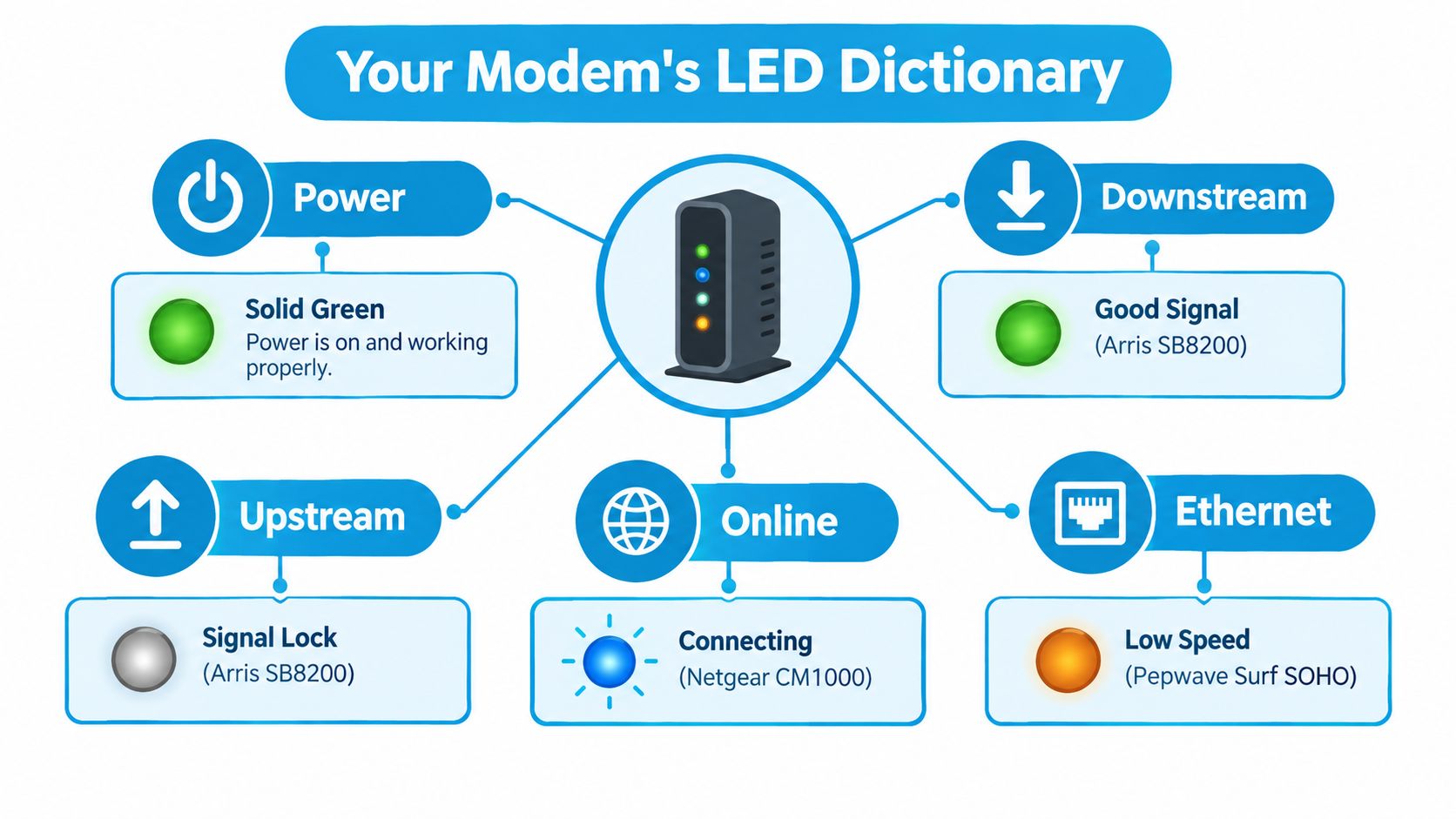
Different gear, different labels
A DOCSIS cable modem usually gives you Power, DS, US, Online, Ethernet. A DSL gateway may show Broadband, Internet, Wi-Fi, Ethernet instead. A fiber ONT often swaps those cable-style labels for Optical, PON, LOS, Data. RV-friendly routers and mobile gateways, including units people use alongside Pepwave Surf SOHO setups, may focus more on WAN, Signal, Wi-Fi, LAN, and less on DS/US.
That's why a generic color chart isn't enough. A blinking Ethernet light on a router often means normal traffic. A blinking Online light on a cable modem usually means it still hasn't finished connecting.
Practical rule: Read each light as one decision only. Power means power. DS means receive path. US means send path. Online means provider connection. Ethernet and Wi-Fi mean local activity.
If you need a companion guide focused on router behavior once the modem side is stable, SwiftNet has a useful explainer on router lights flashing but no internet.
Normal Blinking Versus Something Is Wrong
Blinking by itself isn't the problem. Persistent blinking on the wrong light is the problem.
Current support guidance separates normal traffic blink from fault blink. A flickering Ethernet or online LED can mean active data transfer, but persistent blinking after a cold boot points more toward provisioning, signal, or outage trouble. Best-practice troubleshooting also says to allow the modem up to 3 to 5 minutes to finish downstream and upstream sync before you assume it failed, according to this modem and router light troubleshooting guide.
What normal blinking looks like
Normal blinking has a rhythm and a purpose.
- Startup blinking: Lights sequence through power, downstream, upstream, then online as the modem boots.
- Traffic blinking: Ethernet, Wi-Fi, or data LEDs flicker irregularly when devices are using the connection.
- Authentication blinking: Online or Internet may flash briefly while the modem checks in with the provider.
What fault blinking looks like
Bad blinking gets stuck.
- A DS or US light that keeps flashing long after startup usually means the modem can't complete signal lock.
- An Online light that never settles after a clean reboot points to account registration, line quality, or an ISP-side issue.
- A blinking red LED usually deserves attention. Guidance commonly ties that to signal searching, overheating, or a critical error in this broadband troubleshooting explainer.
| LED | Normal Pattern | Fault Pattern |
|---|---|---|
| Power | Solid after startup | Off, unstable, or unusual error color |
| Downstream | Flashes during startup, then goes solid | Keeps flashing and never locks |
| Upstream | Flashes during startup, then goes solid | Keeps flashing and won't complete return path |
| Online / Internet | Brief flashing during authentication or active use | Persistent flashing after boot with no service |
| Ethernet | Rapid flicker during wired traffic | Dead with known-good cable and active device |
| Wi-Fi | Flicker during wireless activity | Off when Wi-Fi should be enabled |
If the light is blinking on a local activity function like Ethernet or Wi-Fi, that's usually healthy. If it's blinking on a provider-facing function like DS, US, or Online and never settles, that's where you focus.
First Checks Before You Touch Anything
Before you reboot anything, look around. Half the time the answer is sitting in plain sight.
A modem can only do three things: take power, see the incoming line, and authenticate with the provider. If one of those is broken, no amount of random unplugging helps. Start with the wall outlet or power brick. If the power LED is dark or unstable, test the outlet and make sure the adapter is fully seated.
Check the physical path first
Run your hand along the incoming cable path and look for the obvious stuff.
- Coax or DSL line: Make sure it's seated firmly at both ends.
- Splitter trouble: If there's a splitter in the line, don't ignore it. They fail, and they also expose weak signal problems.
- Damage: Look for crushed cable, sharp bends, corrosion, or a connector that spins too freely.
- Heat: If the modem feels cooked, move it to a cool, open surface.
A lot of flashing lights on modem problems come down to bad line conditions, not bad hardware. Several current explainers also note that off, solid amber, or persistent flashing on online, downstream, or upstream indicators can mean provisioning, wiring, or ISP trouble, while a fast-blinking data light may be completely normal in this high-speed internet troubleshooting overview.
The checks RV and rural users skip too often
RV setups add two headaches: unstable power and constantly changing signal conditions. Shore power can be messy. Inverters can introduce noise. Park pedestals can be the problem. If you're rural and using DSL, the issue might be outside at the network interface box rather than inside at the modem.
Check the cheap stuff first. A loose coax fitting, a dead splitter, or a bad pedestal can impersonate a modem failure all day long.
If your service requires activation or device registration, confirm the account is live. A modem can blink forever if the line is present but the account or hardware registration isn't right. SwiftNet's setup basics on how to connect a modem are a useful reference if you've recently swapped equipment or moved locations.
Rebooting and Resetting the Right Way
Don't reboot too fast, in the wrong order, then decide the modem is bad. Don't do that.
The first-line fix is a 60-second power cycle, and that advice is consistent across current troubleshooting guides. After power loss or instability, devices may blink while booting, reconnecting, or reauthenticating, and the right move is to wait 2 to 5 minutes before escalating, as explained in this power-outage recovery guide.
Here's the escalation path worth following.
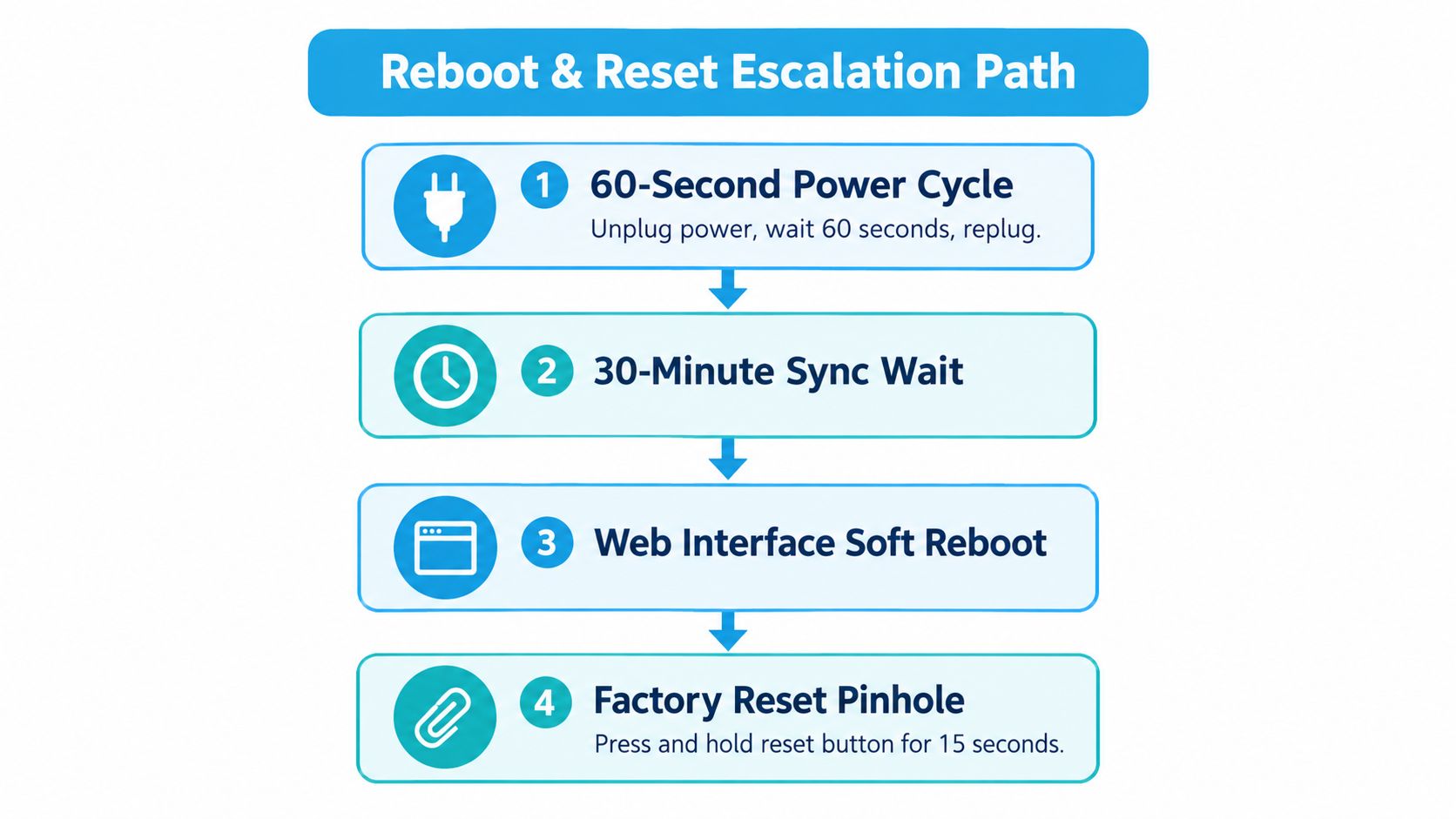
The reboot that actually counts
Unplug the modem. Count to 60. Plug it back in.
A quick off-on flick doesn't count. The hardware needs a real discharge period. Then watch the light order:
- Power goes solid.
- Downstream starts searching, then locks.
- Upstream does the same.
- Online or Internet authenticates.
- Ethernet and Wi-Fi activity comes later.
For cable and DSL, I'd usually give it around 2 minutes before judging the pattern. For fiber ONTs, give it 5 minutes. For fixed wireless and LTE routers, I'm more patient and give it 10 minutes, because those boxes often boot slower and may need to reacquire signal after power returns.
When to reboot the router, and when not to bother
If the modem's Online light never goes solid, leave the router alone for the moment. The router depends on the modem. Rebooting the router first is wasted effort if the ISP-facing side is still broken.
If the modem is online but your devices still have no access, then reboot the router after the modem has fully stabilized. That order matters.
This walkthrough covers the reset ladder visually.
Factory reset is last, not first
A full factory reset wipes custom settings and rarely fixes a blinking light caused by line trouble upstream. Use it only when the modem or router itself is misconfigured and you know the incoming service is healthy.
If you do need that option, SwiftNet's guide on how to reset your router covers the reset process clearly. Just don't treat reset as your default move. It isn't.
When the Lights Keep Flashing After an Outage or on the Road
Fixed-home advice falls apart.
You pull into an RV park, connect shore power, set up your gear, and the modem lights just keep cycling. Or the power comes back after a storm in a rural area and the modem never seems to finish reconnecting. That doesn't always mean the modem is bad. It means you need to think about power quality, signal quality, and location change at the same time.
A real-world RV pattern
The coach is parked. Power is connected. The modem boots. Power light looks fine. Then the connection lights cycle, pause, and start over. I've seen that happen when the park pedestal voltage sags under heavy A/C load, when a surge protector is tripping intermittently, and when a mobile gateway has moved far enough that it's hunting for a usable tower again.
Start with the local stuff.
- Pedestal and breaker: Make sure you're not feeding flaky power to the modem.
- Surge protector: If it's showing trouble, believe it.
- Cable seating: Re-seat coax or Ethernet cleanly. Travel shakes connectors loose.
- Equipment placement: Metal compartments and tight cabinets can make radio-based gear struggle.
Rural and mobile links behave differently
A cable modem in a house and a wireless gateway in an RV don't fail the same way. Rural fixed-wireless gear may blink while it hunts for usable signal. Satellite-on-RV gear may need extra time to reacquire after every move. After an outage, a mobile or rural setup may also be dealing with tower congestion, weak backhaul, or unstable local power, all while showing the same generic flashing pattern.
Industry guidance also notes that after power events, blinking may be normal during boot and reauthentication, but repeated cycles can point to low signal, provisioning trouble, hardware damage, splitters, coax issues, or overheating. That nuance is exactly why travelers and rural users need a decision tree, not a color chart.
If you've confirmed power is clean and the lights are still cycling after a long wait, stop assuming it's just “booting.” At that point, treat it like a signal or provider problem and switch to backup connectivity.
My rule for road users is simple: if the lights still won't settle after a reasonable wait and the local power checks out, move to hotspot data so you can keep working, then deal with the site issue without being stranded offline.
When to Stop Troubleshooting and Call Support
There's a point where more fiddling just wastes time.
If you've done a clean power cycle, checked the cabling, confirmed power is stable, and the modem still won't lock in, pick up the phone. Several current guides agree on the basic pattern: solid usually means connected, blinking often means searching or negotiating, and if the Online light remains blinking after the normal sync window, the next useful step is provider-side testing rather than endless customer resets. Similar LED conventions have been widely described since the mid-2010s in this modem and router lights overview.
Stop and call when you see these patterns
- Solid power, everything else keeps cycling: The modem is alive, but the connection path isn't finishing.
- One fault-colored light that never changes after clean reboots: That's not a random glitch anymore.
- A light pattern you've never seen before: Don't improvise if the hardware is signaling something unfamiliar.
- Online or Internet never stabilizes: That's the provider-facing handoff. You can't fix that with local Wi-Fi settings.
Make the support call faster
Support goes better when you sound like someone who already checked the basics.
Have this ready:
| Have Ready Before You Call | Ask the Technician |
|---|---|
| Account number | Is there an outage affecting this area? |
| Modem make and model | Is this modem provisioned on the account? |
| MAC address from the sticker | Can you see whether the modem is authenticating? |
| Current LED states | Do the line levels or signal look abnormal on your side? |
| Whether you already power-cycled | What should the next step be if the lights don't change? |
Tell them exactly what the lights are doing. Not “it's blinking weird.” Say “Power is solid, downstream flashes, upstream flashes, online never goes solid,” or whatever your actual pattern is. That gets you past the scripted nonsense faster.
“I already did a full 60-second power cycle, verified the cable path, and the Online light is still blinking.” That sentence saves time because it tells the tech you already ruled out the obvious.
If they can't resolve it remotely, don't sit there disconnected with no backup plan. Use your phone hotspot, a neighbor's Wi-Fi if available, or a public location with internet while you wait on the truck roll or account fix.
Quick Reference Cheat Sheet You Can Save
Save this section. Screenshot it. Keep it on your phone for storm season, campground setup, and those nights when the modem decides to speak in Morse code.
The light pattern translation
This is the simple version you'll use under pressure.
| LED State | What It Usually Means | First Action |
|---|---|---|
| Power solid | Device has power | Check the next provider-facing light |
| Power off | No power or bad adapter | Test outlet and power supply |
| Downstream flashing | Modem is searching for incoming signal | Wait briefly, then inspect line path if it persists |
| Upstream flashing | Modem is trying to establish return path | Check incoming line and provider status |
| Online flashing | Not fully connected to ISP yet | Wait, then reboot cleanly if it doesn't settle |
| Ethernet flickering | Normal wired traffic | Leave it alone |
| Wi-Fi flickering | Normal wireless traffic | Leave it alone |
| Fault color or unusual persistent flash | Signal, hardware, or provisioning trouble | Stop guessing and contact support |
The action ladder
Don't jump around. Do this in order.
- Wait first: If the modem just powered on, give it time to finish its startup routine.
- Check power and line path: Outlet, adapter, coax, DSL, splitter, Ethernet.
- Run a real reboot: Unplug for 60 seconds, then restore power and watch the sequence.
- Reboot the router only after the modem is stable: Otherwise you're solving the wrong problem.
- Escalate when the provider-facing light won't lock: That's where local troubleshooting stops helping.
Dead ends worth skipping
These waste time more often than they solve anything.
- Resetting over and over: If the same lights return, the reset didn't change the root cause.
- Blaming Wi-Fi when Online isn't solid: If the modem isn't connected upstream, Wi-Fi settings are beside the point.
- Ignoring heat and power issues in RVs: Mobile setups fail from environment problems all the time.
- Assuming every blink is bad: Traffic lights are supposed to flicker.
Firmware updates can change how some devices use colors or blink patterns, so compare your current behavior against what the modem usually does. Keep this cheat sheet pinned on your phone. It's a lot easier to troubleshoot flashing lights on modem issues when you don't have to rely on memory.
If you need internet that's built for the exact situations that trigger these blinking-light headaches, SwiftNet Wifi offers 4G and 5G options for homes, RV travelers, and rural users, plus setup and troubleshooting help that matches the way people use mobile and fixed wireless gear. If your current setup keeps leaving you guessing, visit SwiftNet Wifi and look at the plans, hardware options, and support resources that fit travel and off-grid connectivity.
#rv #rvlife #rvliving #rvlifestyle #rvrenovation #rvremodel #rvtravel #rvcamping #rvadventures #ruralwifi #5gwifi #5ginternet


