

You're parked at a campground, tethered to a 5G router, ten minutes from a client call. Or maybe you're in a rural home where the camera looks fine, but the last storm left your connection touchy. That's the shape of video calls for a lot of people now. The webcam matters, but it won't save a meeting if your uplink stalls, your mic picks up every passing truck, or your background looks like a storage bay.
The best practices for video calls start before you click Join. They come from a repeatable routine that covers your connection, your room, your gear, your behavior on the call, and what you'll do if conditions suddenly change. That's even more true if you work from an RV, a truck cab, or a rural property where network conditions can shift during the day.
A useful setup doesn't have to be complicated. It just needs to be consistent. Check the time zone. Check the bandwidth. Check the light. Check the audio. Quiet the space. Keep a backup path ready.
If you're preparing for an interview instead of a client meeting, many of the same habits apply. This guide on video interview prep for job seekers is a good companion read.
1. Optimize Your Internet Connection Before Video Calls
A sharp camera won't matter if the network underneath it is unstable. For most remote workers, especially in RVs and rural areas, call quality lives or dies on the upload side of the connection, not just the download speed shown on a plan page.
One industry summary says fewer than 15% of the world's 87 million meeting spaces are properly equipped for video conferencing, even though 98% of meetings now include a remote participant. The same source estimates at least 3 Mbps upload and download per simultaneous HD participant, which means a 10-person room with 5 remote attendees needs at least 15 Mbps dedicated to that call alone according to this video conferencing infrastructure summary. That matters because a call can look “fine” until someone else on the same connection starts streaming, syncing, or backing up files.
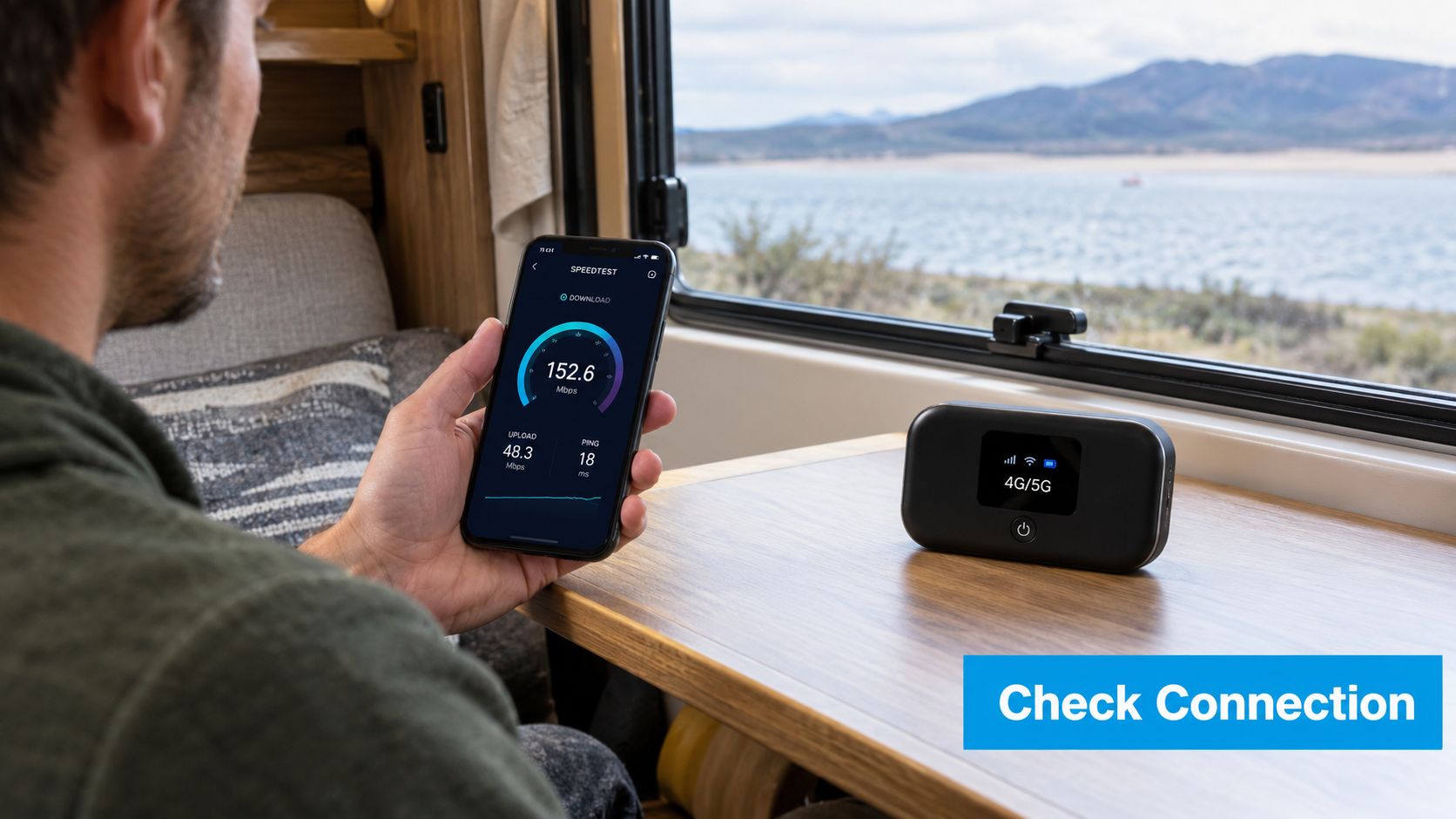
What to check before you join
Run a speed test a few minutes before an important meeting. Then look beyond the number. If results swing wildly between tests, or if the ping and responsiveness feel inconsistent, assume the call may wobble under load.
For practical setup details on call bandwidth, SwiftNet's guide to internet speed for Zoom is worth reviewing before a high-stakes meeting.
- Pause background traffic: Stop cloud backups, app updates, streaming video, and large downloads before the call.
- Improve device placement: In an RV, move your router or hotspot near a window if that improves cellular signal. In a truck, stepping outside the cab can produce a cleaner call than trying to push video through glass and metal.
- Favor the strongest link: If 5G is available and stable, it will usually handle video calls better than a weaker 4G signal.
Practical rule: Don't judge your setup by yesterday's speed. Judge it by what the network is doing right now.
2. Use Proper Lighting to Improve Video Appearance
A call from an RV at 7:30 a.m. can look sharper than one from a home office at noon if the light is set up correctly. Lighting changes how alert, prepared, and readable you look on screen long before anyone notices your background or camera angle.
Start with direction. Put the main light in front of your face, not behind you. A window works well when it is stable and indirect. A lamp works better when daylight keeps shifting because of clouds, trees, campsite position, or the way the rig is parked.
In small mobile spaces, the best seat for work is often not the best seat for video. I usually pick the call spot based on light first, then comfort. A side-window dinette or a front-facing seat with a lamp just behind the laptop can produce a cleaner image than the softest chair in the vehicle.

Set it once, then check the result
Good video lighting does not require much gear. One lamp slightly above screen height and a little off-center is enough for many setups. Warm or neutral bulbs usually render skin tones better than stark blue-white bulbs, especially on laptop webcams that already struggle in dim rooms.
The trade-off is consistency versus convenience. Daylight can look great, but it shifts during the call. A small clip-on light or desk lamp gives you a repeatable result, which matters if you move between a rural home office, a campground, and a truck stop parking area.
Open the meeting app preview before you join. Look for three common problems. Deep shadows under the eyes from ceiling lights, one bright side of the face from a single window, or a dark silhouette caused by a bright window behind you. Fixing those takes less than a minute and saves everyone from staring at a grainy, underexposed image.
Here's a useful visual walkthrough before you settle on your setup:
For a travel-ready routine, keep the lighting check simple:
- Put your strongest light in front of you.
- Use a lamp when daylight is unpredictable.
- Preview the image at the same time of day the call will happen. Morning and evening can change the same spot completely.
3. Choose a Clean, Professional Background
A call from the road often looks less professional because of framing than because of location. A campground picnic table, an RV dinette, or a spare room in a rural house can all work if the camera sees one controlled slice of the space.
That choice matters because background clutter creates work for everyone else on the call. Eyes drift to open cabinets, laundry piles, moving traffic outside the window, or a TV running in the next room. Guidance on video call backgrounds recommends a clean, minimally distracting setup, and the practical standard is simple. If someone notices the room before they notice you, the setup needs adjustment.

In small spaces, pick a repeatable angle instead of trying to clean the whole area. I've found that one reliable chair position and one reliable camera direction solve more problems than a last-minute tidy-up. In an RV, that might mean facing a cabinet wall instead of the bed. In a truck, it often means parking so the side window gives a neutral view instead of a bright, busy windshield shot.
Blur and virtual backgrounds help, but they come with trade-offs. Blur is usually the safer fallback because it hides a lot without pushing your device as hard. Full virtual backgrounds can look fine on a strong laptop, then break apart around hair, hats, or hands on an older machine or a weaker connection. If you travel often, a real background you can set in under a minute is usually the more dependable workflow.
A quick field check works well:
- Sit down and open the camera preview.
- Scan the frame edges, not just your face.
- Remove anything that moves, flashes, or looks accidental.
- Leave one intentional object in view if the space feels too bare.
The goal is not a staged office. The goal is a stable, low-distraction frame you can recreate in different places without wasting time before every call.
4. Test Audio and Video Before Joining Calls
A five-minute test prevents fifteen minutes of public troubleshooting. That's one of the most reliable best practices for video calls because it catches the simple failures people miss all the time. Wrong mic selected. Camera still tied up by another app. Bluetooth headset connected, but not chosen as the input.
For one-on-one video calls, seven major conferencing apps commonly recommend about 1.2 to 2.6 Mbps downstream and 1.0 to 3.2 Mbps upstream. Group calls are often sized around 2.0 to 8.0 Mbps downstream and 1.0 to 3.2 Mbps upstream, and real-world tests found these tools often stayed within those ranges, with one outlier showing Zoom averaging only 0.3 Mbps upstream in this conferencing bandwidth comparison. That's a good reminder that consistency matters as much as raw speed.

What a fast pre-call test should include
Open the exact platform you'll use and test inside that platform. System settings can say your microphone works while the meeting app is still listening to the wrong device.
If you're choosing a platform for different kinds of meetings, SwiftNet's overview of best video conferencing software can help you compare options. And if clear speech is part of the challenge, this guide on accent reduction for remote presentations is useful prep.
- Check framing: Make sure your full face is visible and centered.
- Check playback: Say a few sentences at normal volume and listen for room echo or clipping.
- Check the fallback device: If you plan to use earbuds or a headset, test those too.
Small test calls also make unfamiliar spaces easier to trust. If you're parked at a new campground or using a rural backup connection, test on a lower-stakes call first before you bet an interview or client presentation on it.
5. Mute When Not Speaking and Manage Background Noise
You join from an RV park that seemed quiet ten minutes ago. Then a generator kicks on two sites over, your laptop fan ramps up, and someone on the call starts hearing an echo from your speakers. That is usually how audio problems show up. Not as one big failure, but as a few small distractions that keep pulling attention away from the meeting.
A simple mute habit fixes a lot of this. One etiquette guide recommends staying muted by default and unmuting when you speak, while also noting that quieter, smaller discussions can work better with everyone unmuted so conversation stays natural as described in this guide to video conferencing etiquette.
The trade-off is speed versus control.
For a presentation, interview, client review, or any call where one person speaks at a time, mute on entry and keep it that way until you need the floor. In a short team check-in with four people in quiet rooms, open mics can be fine if everyone avoids typing and side conversations. The right choice depends less on etiquette rules and more on how predictable your environment is.
Mobile and rural setups usually need the stricter version. Campgrounds, truck stops, shared houses, farm properties, and coffee shops can change minute to minute. A barking dog, passing diesel engine, or metal roof catching rain can take over your mic before you have time to react.
Use this as a quick decision filter:
- Unstable environment: Stay muted except when speaking.
- Shared or reflective room: Use a headset to cut echo and room pickup.
- Interactive small meeting in a quiet space: Leave unmuted if the group agrees and the conversation benefits from faster back-and-forth.
One more practical step helps more than people expect. Learn where the mute shortcut is on your app, headset, or keyboard before the call starts. Fast recovery matters when conditions change mid-meeting. If a train passes, a neighbor starts mowing, or wind picks up outside the rig, muting in one second is better than apologizing for the next thirty.
6. Position Your Camera at Eye Level
A low camera angle makes even a well-run call feel less prepared. In travel setups, it usually happens for a simple reason. The device ends up wherever there was space.
Eye-level framing solves two problems at once. It gives other people a more natural view of your face, and it lets you look toward the lens without lifting your chin or folding over the screen. Video conferencing etiquette recommends placing the camera at or near eye level and looking into the lens while speaking, and that advice holds up in real use.
The fastest fix is usually a physical one. Raise the device until the lens lines up with your eyes in your normal sitting position. Then do a ten-second check before you join. If your shoulders look tense, your head is tipped back, or too much ceiling shows, adjust again.
Different spaces call for different compromises:
- Laptop at a kitchen table or dinette: Put it on books or a small stand, then use an external keyboard if the screen ends up too high to type comfortably.
- Phone in an RV or vehicle: Use a stable mount near eye level, not a dashboard prop that points up from below.
- Monitor in a home office or rural spare room: Keep the camera close to the center of the screen so your gaze does not drift far off to the side.
Comfort matters more than perfection. A slightly imperfect frame that you can hold for an hour beats a perfect angle that makes you hunch after ten minutes.
I also treat this as part of the recovery plan. If I have to move from a picnic table to the rig because wind picks up, or from a weak campground table setup to the truck cab for a more reliable call, I reset camera height before I rejoin. Stable, eye-level framing helps the call feel consistent even when the location changes.
7. Dress Appropriately for the Occasion
You may join from a campground picnic table one day and a client office parking lot the next. Clothing helps the call read as intentional, even when the location changes at the last minute.
The goal is simple. Match the meeting, not the backdrop. A team sync can be relaxed. A sales call, interview, or partner review usually needs one step more polish than your travel-day default.
I keep a small call kit instead of relying on whatever is clean in the moment. In an RV or small rural setup, that usually means two wrinkle-resistant shirts, one neutral layer, and a lint roller stored on a slim hanger or packed flat in a fabric cube. That setup takes little space and avoids the rushed grab from an overhead bin or cramped closet.
Fabric matters on camera more than people expect. Fine stripes, tight checks, and some performance knits can create a distracting shimmer on video, especially on lower-quality cameras or unstable connections. Mid-tone solids usually hold up better. Soft blue, olive, charcoal, and muted burgundy tend to read cleanly without reflecting too much light.
A practical rule works well here: keep one outfit ready for internal calls and one for external calls.
If your day involves driving, heat, dust, or setup changes, choose clothes that recover fast. Knit blazers, overshirts, and structured quarter-zips travel better than stiff jackets, and they look presentable after being folded behind a seat or hung from a shallow RV wardrobe bar. White shirts can blow out under bright windows. Very dark black can lose detail in dim cabins. Neutral mid-range colors are easier to manage.
Getting fully dressed helps, too. People sit differently when they are ready for the meeting, and that shows up on screen. Clothes will not fix weak audio or poor framing, but they remove one more avoidable problem from the call routine.
8. Practice Active Listening and Engagement Etiquette
A stable connection and a clean setup still fall apart if attention feels split. On video, people notice it fast. Eyes keep drifting to a second screen. Replies come a beat late. Someone starts typing without saying why, and the room assumes they checked out.
That reaction is not just personal preference. In a 2024 U.S. survey, 70% of Americans said eating or chewing loudly on a video call is inappropriate, 63% disapproved of interacting with someone nearby without informing the caller, 61% disapproved of taking calls on speakerphone in a shared environment, 57% said crowded-place calls were inappropriate, 54% said late-night calls were inappropriate, and 50% said early-morning calls were inappropriate in these video conferencing etiquette findings.
For travel-ready work, etiquette is part of the workflow, not just manners. If you are calling from an RV park, a campground picnic table, or a borrowed corner in a rural house, people do not need a perfect setting. They need clear signals that you are present, listening, and managing the situation.
A few habits help right away. Look at the camera when you deliver a key point, then return to the screen to read reactions. Keep notes close to the camera instead of off to the side. If you need to type, say, "I'm writing down the action items," so the sound and eye movement have context.
The trade-off is simple. Heavy note-taking can make you look distracted. Constant eye contact with the camera can make you miss cues on screen. The better approach is to alternate on purpose.
Here is what works well on real calls:
- Close side apps before the meeting starts: Email, chat, and open tabs pull attention faster than people expect.
- Use visible listening cues: Nod, pause, and let the speaker finish, especially when latency makes overlap more likely.
- State interruptions quickly: If a dog barks, someone knocks, or a campground vehicle rolls by, acknowledge it in one sentence and return to the discussion.
- Name your limits early: If you are on a travel day or weak mobile connection, say that at the start so slower responses do not read as disinterest.
Small signals carry a lot of weight on screen. In practice, good etiquette acts like a recovery layer. If the connection softens, the audio clips for a second, or your environment changes mid-call, people stay with you because your attention has been clear the whole time.
9. Ensure Stable Bandwidth With Network Priority Settings
A call can look fine at 8:59 and fall apart at 9:03. Someone in the house starts streaming. A laptop wakes up and resumes cloud backup. An RV router jumps towers for a moment. The issue is usually contention, not the internet plan printed on the bill.
Treat bandwidth as part of your call workflow. Before an important meeting, decide which traffic gets first claim on the connection and which devices can wait. That one habit prevents a lot of mid-call scrambling, especially in rural homes and travel setups where capacity changes by the hour.
If your router supports Quality of Service, set video conferencing traffic to high priority. If it does not, use the manual version. Pause photo backup, stop large downloads, and take unused devices off the network for the length of the meeting. On mobile internet, I have found this matters more than chasing a faster plan, because upload competition is often what breaks audio first.
A wired connection still helps when you can use one. In an RV or older house, WiFi has more opportunities to fluctuate because of distance, walls, metal framing, and interference from nearby devices. Ethernet is less convenient, but it removes one failure point.
SwiftNet has a clear explainer on what network jitter is, and it is worth understanding because calls can sound rough even when speed tests look acceptable.
Three settings are usually enough:
- Prioritize meeting traffic: Use QoS rules for Zoom, Teams, Meet, or your work laptop if your router allows device-based priority.
- Protect upload capacity: Pause cloud sync, security camera uploads, and automatic OS updates during the call window.
- Trim the network on purpose: Disconnect TVs, tablets, and guest devices that do not need to be online right then.
Keep a fallback ready too. If the picture starts breaking up, turn off HD video first. If that is not enough, switch to audio-only for a few minutes and keep the meeting moving. That trade-off is better than staying on unstable video and forcing everyone to guess at every third sentence.
10. Schedule Calls With Time Zone Considerations and Advance Notice
A call can have clean audio, stable video, and still feel poorly run if it lands at 7 a.m. for one person and during school pickup for another. Scheduling affects call quality earlier than the meeting itself.
That shows up fast on the road. An RV traveler can cross a time zone in one afternoon, keep the laptop clock on the old setting, and send an invite that is technically correct in one calendar but wrong for the people joining. Rural teams run into a different version of the same problem. The workday often has harder edges because errands, school runs, and limited service windows take more planning.
Good scheduling lowers friction before anyone clicks Join.
A 2025 meeting-fatigue study found shorter video meetings were less tiring than longer ones, according to this report on meeting fatigue research. The useful takeaway is practical. Keep the slot as short as the agenda allows, and give people enough notice to prepare instead of dropping a default hour onto the calendar.
A simple workflow works well here: check your current time zone, send the invite with the zone written out, and add a brief note about the purpose and expected length. If travel is involved, verify the meeting time again the day before. I also like to avoid scheduling important calls right after a planned drive segment or campground check-in, because delays there tend to ripple into the meeting.
Three habits prevent most avoidable mix-ups:
- Write the time zone plainly: Include the local time and zone in the invite text, especially for external calls.
- Send enough notice to prepare: A little lead time gives people room to review documents, test location plans, or suggest a better slot.
- Use async backup when the timing is awkward: A recording, written recap, or pre-read can save a teammate from joining at a bad local hour.
The trade-off is straightforward. Live meetings are better for decisions and nuance. Written updates and recordings are often better for distributed teams when the calendar cost is too high.
10-Point Video Call Best Practices Comparison
| Item | Implementation complexity | Resource requirements | Expected outcomes | Ideal use cases | Key advantages |
|---|---|---|---|---|---|
| Optimize Your Internet Connection Before Video Calls | Low, basic tests and repositioning | Speed test tools, hotspot/router, occasional relocation | Reduced lag, fewer drops, smoother AV | RV/rural mobile users before important calls | Quick impact, works across providers |
| Use Proper Lighting to Improve Video Appearance | Low | Window access or desk/ring light | Clearer, more professional appearance on camera | Low-light RVs, evening calls, limited natural light | Cost-effective visual improvement |
| Choose a Clean, Professional Background | Low–Medium | Tidying, simple decor or virtual background (CPU/bandwidth cost) | Fewer distractions, stronger professional impression | Small spaces, privacy-sensitive settings | Improves perception, protects privacy |
| Test Audio and Video Before Joining Calls | Low | Built-in platform tests, headset/camera | Catches device issues, prevents interruptions | Presentations, interviews, mission-critical meetings | Fast preventive check, builds confidence |
| Mute When Not Speaking and Manage Background Noise | Very low | Platform mute controls, optional headset, noise suppression | Reduced background noise, clearer meetings | Noisy environments, large group calls | Simple etiquette, immediate benefit |
| Position Your Camera at Eye Level | Low | Monitor/laptop riser, books, tripod/stand | Better eye contact, flattering framing | One-on-one calls, presentations, interviews | Improves perceived professionalism |
| Dress Appropriately for the Occasion | Low–Medium | Appropriate clothing, basic wardrobe planning | Increased credibility and confidence | Client calls, interviews, formal meetings | Signals professionalism, aids mental readiness |
| Practice Active Listening and Engagement Etiquette | Medium | Focus, minimized distractions, habit formation | Stronger engagement, fewer misunderstandings | Team meetings, client discussions, collaborative sessions | Builds rapport, improves meeting effectiveness |
| Ensure Stable Bandwidth with Network Priority Settings | Medium–High | Router with QoS, technical setup, admin access | More consistent video quality under congestion | Multi-user RVs/homes, limited bandwidth situations | Prioritizes call traffic, reduces interruptions |
| Schedule Calls with Time Zone Considerations and Advance Notice | Low–Medium | Calendar tools with timezone support, scheduling apps | Fewer missed meetings, better attendance | Distributed teams, travelers crossing time zones | Respects participants' time, reduces coordination overhead |
Turn the Setup Into a Repeatable Call Routine
The strongest video-call setups aren't the fanciest ones. They're the ones you can repeat under different conditions. That matters if you work from a rural property with variable service, an RV parked under trees, a truck stop, or a temporary rental with unfamiliar WiFi. The more mobile your work life is, the more your process matters.
Start with time. Confirm the time zone before the day gets away from you. Then check the connection you're using for the meeting, not the one that worked yesterday. If it's an important call, run the test close to the start time so you catch current conditions, not old assumptions.
Next, protect the bandwidth. Pause background syncing, close streaming apps, and disconnect devices that don't need the network during the meeting. If your router allows traffic prioritization, use it. If a wired connection is available, take it. Good video calls depend on stable uplink, low jitter, and fewer competing uploads, not just a decent speed-test screenshot.
Then clean up the human side. Put the camera at eye level. Face the light. Frame yourself well. Pick the cleanest background available. Test the mic and speakers inside the platform you'll use. Stay muted when the room is noisy. In quieter, smaller calls, unmute often enough that the conversation still feels natural.
There's also a useful trade-off to remember with cameras and inclusion. APA findings from 279 videoconference meetings linked lower fatigue to muting microphones and stronger group belongingness, while related commentary noted that camera-on meetings don't make everyone feel equally included and that adding video doesn't necessarily increase focus in the APA paper on videoconference fatigue and belonging. In practice, that means rigid “camera always on” rules usually aren't as smart as people think. Use judgment based on the meeting, the people involved, and whether video is helping or just adding pressure.
Finally, keep a recovery plan ready. If the platform freezes, know whether you'll switch to audio-only, move closer to the router, reconnect through a hotspot, or continue by phone and chat. The best practices for video calls aren't just about preventing problems. They're about recovering quickly when conditions change.
Remote workers and travelers should save a compact pre-call checklist and use it every time. If you rely on mobile internet, test any SwiftNet 4G Bronze hotspot or 5G Diamond router setup before high-stakes meetings, and review plan details or support options through SwiftNet Wifi. When the article link is auto-posted on connected social accounts, include these hashtags after it: #rv #rvlife #rvliving #rvlifestyle #rvrenovation #rvremodel #rvtravel #rvcamping #rvadventures #ruralwifi #5gwifi #5ginternet
SwiftNet Wifi offers 4G and 5G internet options built for households, RV travelers, truck drivers, and rural remote workers who need a dependable connection for calls like these. If your current setup struggles with video meetings on the road or off the grid, visit SwiftNet Wifi to review plans, equipment, and support resources before your next important call.


