

You're parked under a line of cottonwoods, the evening air is turning cold, and your work call starts in ten minutes. The campground Wi-Fi shows full bars, but the connection stalls whenever a neighbor starts streaming. Your phone has a signal, yet the laptop keeps dropping the tether. Then the navigation app loses its route just as you're trying to find the dump station.
That's the RV connectivity problem. It isn't finding a plan with a large data allowance. You need a connection that works at the campsite you occupy, during the hours you use it, and you need to know whether the failure is coming from the cellular tower or the Wi-Fi link inside your RV.
Why an RV Internet Hotspot Matters More Than Ever
After a storm, a canyon can reduce cellular service to a thin, unstable signal. At a crowded holiday campground, the tower may slow after 6 p.m., even when your plan still shows plenty of data. Inside the RV, metal walls and distance can weaken the Wi-Fi connection reaching your laptop. Those are two separate radio problems, and an RV internet hotspot only helps if you test both.
An RV internet hotspot has become practical travel infrastructure. The RV Industry Association's owner profile reports that 8.1 million U.S. households owned an RV in its latest profile. The same data shows a younger, more active ownership base: the median owner age fell from 53 in 2021 to 49 in 2025, while adults aged 35 to 54 represented 46% of owners.
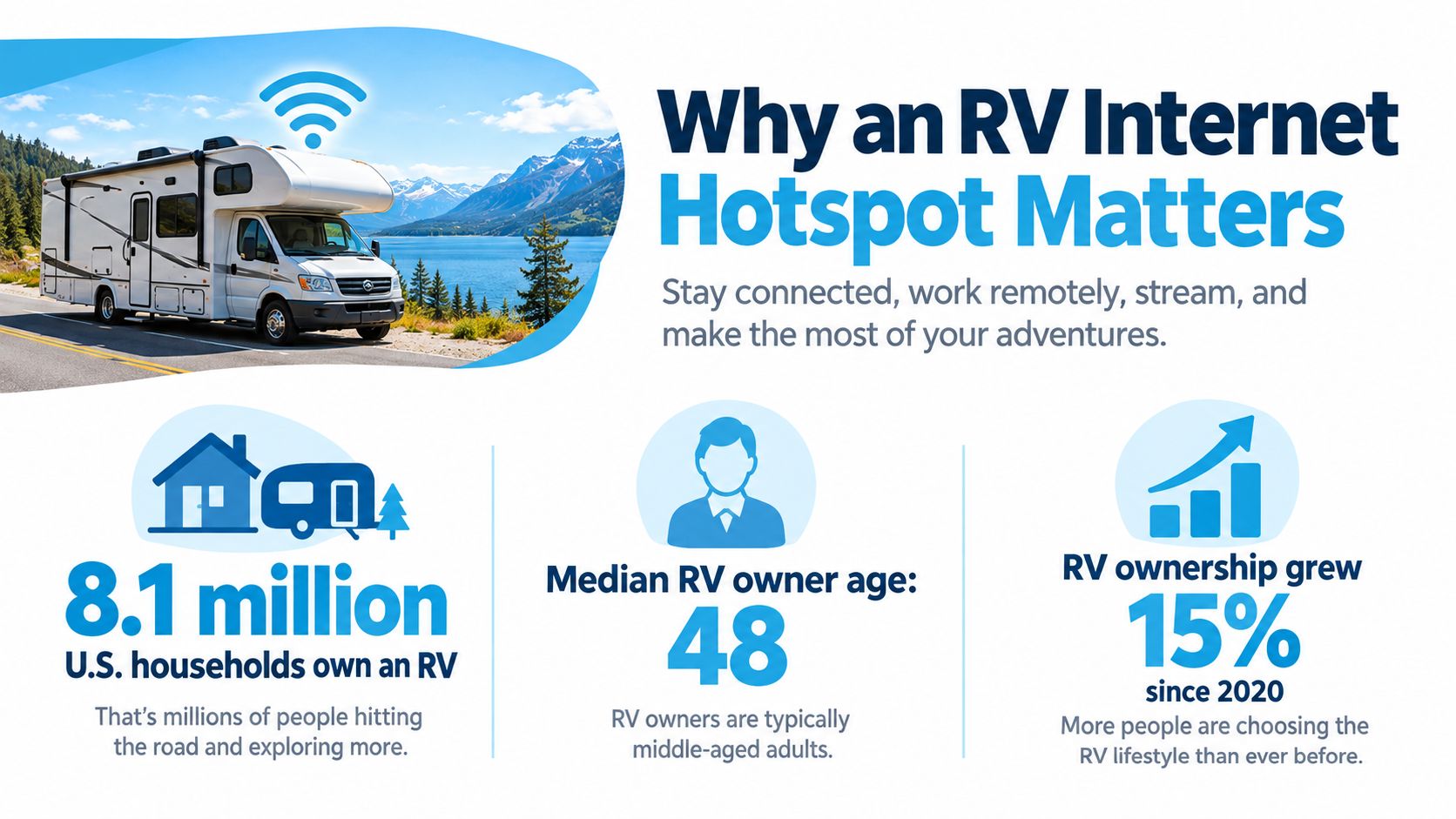
Usage matters more than ownership alone. According to the same RV Industry Association data, the median household used its RV for 30 days per year in 2025, compared with 20 days in 2021, a 50% increase. More time on the road creates more opportunities to need maps, reservations, weather alerts, family calls, medical portals, cloud files, and remote-work meetings.
A separate 2026 camper connectivity survey found that 73% of active campers and RVers use some form of internet while traveling. 23% rely only on a smartphone, and 4% disconnect completely. Internet availability influenced camping-location decisions for 68% of respondents, while nearly three in four reported losing access entirely during travel.
Practical rule: If losing internet would disrupt work, routing, reservations, or emergency communication, treat connectivity as equipment rather than an amenity.
An occasional email check can tolerate weak backup service. Video meetings, large uploads, streaming, navigation, and several devices require a setup with a fallback. A hotspot cannot overcome every canyon, overloaded tower, or interior wall. Reliable results come from choosing suitable hardware, positioning it well, and measuring the cellular and onboard Wi-Fi radios separately.
Choosing the Right RV Internet Access Option
There are four practical ways to get online from an RV. None wins in every situation, and the cheapest option often works well until your usage becomes demanding.
Phone tethering is the easiest starting point. Turn on the phone's personal hotspot, connect a laptop or tablet, and use the existing mobile plan. It's useful for a quick reservation or a travel day, but the phone shares its data allowance with on-device activity, its battery drains quickly, and heat can become a problem in a sunny cab or dashboard. Some phone plans also treat hotspot data differently from regular smartphone data.
A dedicated mobile hotspot separates the connection from your phone. It can serve several devices, preserve your phone battery, and, on compatible hardware, connect to external antennas. A standalone unit is usually more practical for daily work than tethering, though it still depends on the carrier's tower, plan rules, and the device's internal Wi-Fi range.
A cellular router suits a semi-permanent RV installation. It can provide stronger internal Wi-Fi coverage, Ethernet ports for fixed devices, firewall controls, VPN support, and antenna connections. The trade-off is size, power consumption, installation effort, and less pocket-friendly portability. For a deeper look at the decision, compare this guide to the best internet option for an RV.
Campground Wi-Fi costs little or nothing and can be perfectly adequate for a quick lookup. It's a poor primary connection when the park fills up, because every guest shares the same upstream capacity. It also requires more security discipline than a private cellular connection. Before visiting a destination such as Caddo Lake camping in Texas State Parks, check both the campground's amenities and the cellular coverage along your route.
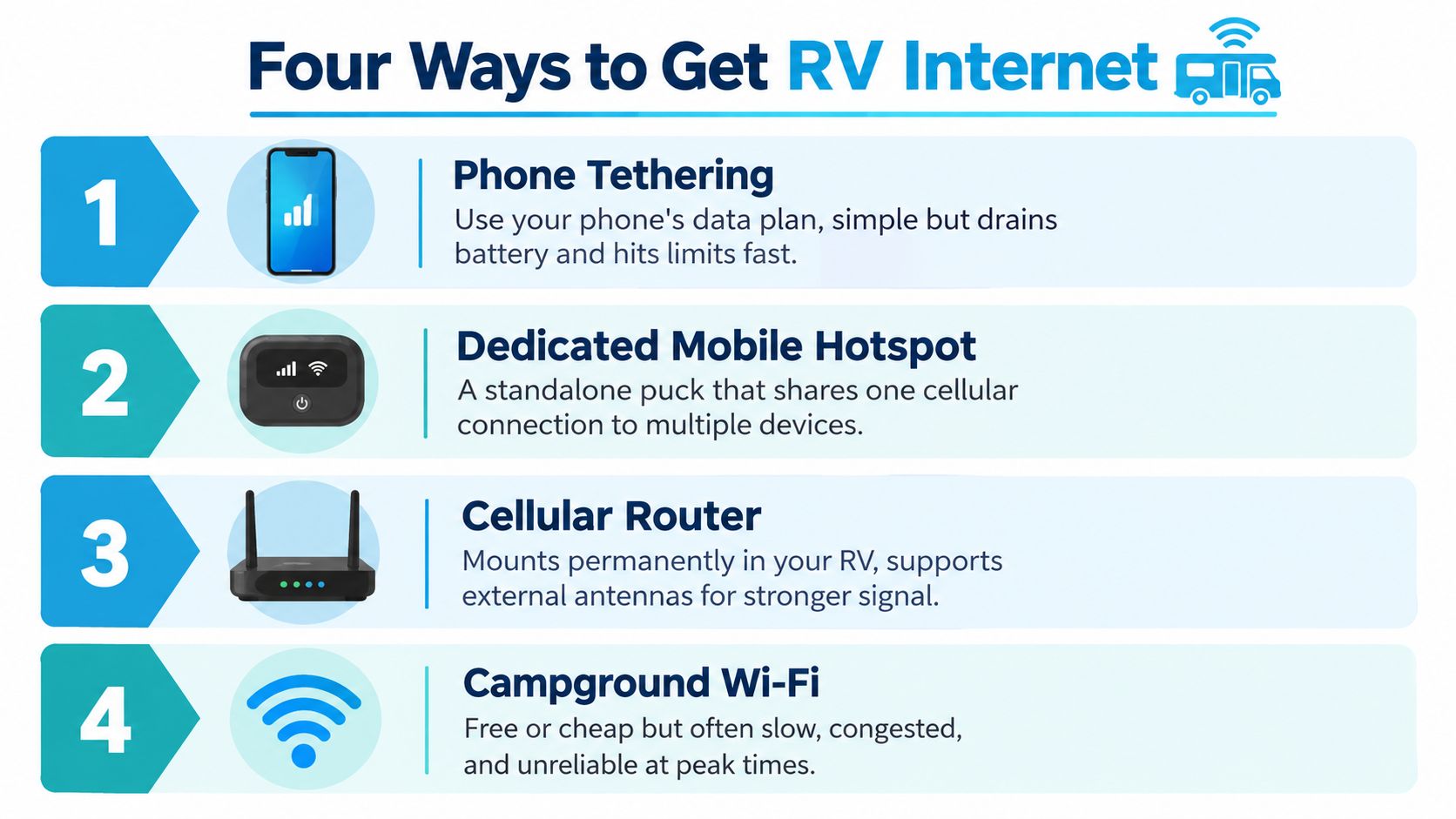
RV internet access options at a glance
| Option | Typical cost | Best for | Main limitation |
|---|---|---|---|
| Phone tethering | Existing phone plan | Short sessions and backup access | Battery drain, heat, and phone-plan limits |
| Dedicated mobile hotspot | Device plus hotspot plan | Daily portable connectivity | Separate hardware and data plan |
| Cellular router | Router plus cellular plan | Multiple devices and permanent RV setups | More installation and power requirements |
| Campground Wi-Fi | Often included with the stay | Light browsing and emergency backup | Congestion, privacy, and inconsistent reach |
My usual recommendation is to match the device to the failure you can tolerate. A phone is a fine backup. A dedicated hotspot is a practical middle ground. A router makes sense when several people, wired devices, or a larger RV interior depend on the connection. Campground Wi-Fi belongs in the backup column, not the foundation column.
Hardware, Antennas, and First-Time Setup
The right hardware starts with the ports and controls you'll use. Check whether the hotspot or router supports the cellular bands used by your chosen carrier, accepts an external antenna, offers Ethernet output, and has enough battery or power flexibility for your travel style. A removable SIM or virtual SIM can simplify carrier changes, but the plan still controls what the device may do.
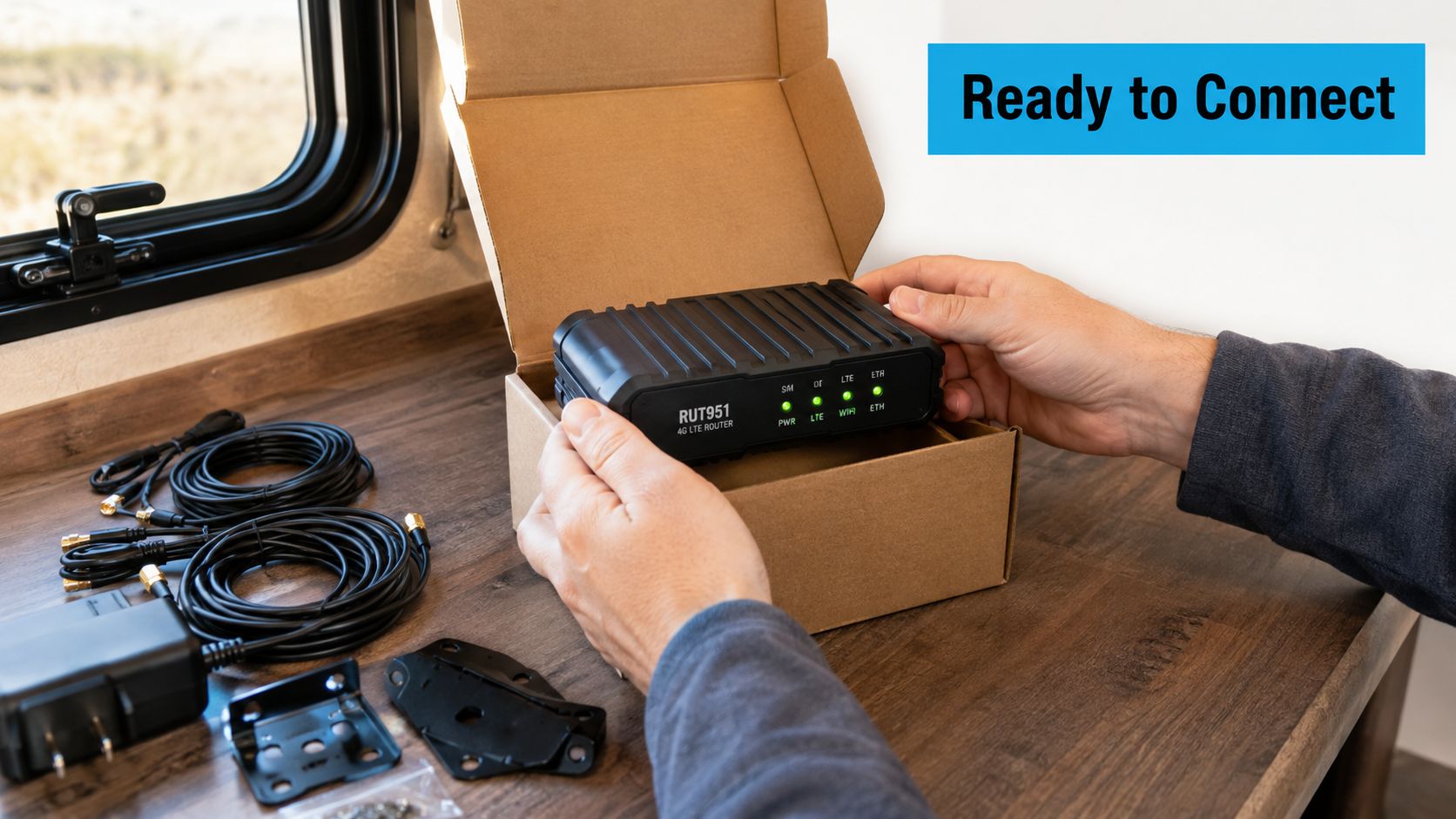
An antenna doesn't create capacity where the tower has none. It can improve the radio path between your device and the tower by giving the modem a better position, cleaner reception, or a more suitable directional pattern. An omnidirectional antenna is useful when you move frequently and don't know where the tower sits. A directional antenna can earn its place at a fixed campsite when you can aim toward a known tower and have a clear path.
Fiberglass and plastic RV shells are generally easier on cellular signals than metal bodies. Metal roofs, cabinets, and storage compartments can weaken reception, so start with the hotspot near a window or in an exterior compartment that doesn't enclose it in metal. Keep the device ventilated. A hot modem may become unstable long before the signal bars look unusual.
A repeatable deployment routine
Activate the physical SIM or virtual SIM before leaving home, then confirm that the device registers on the network. Change the administrator password immediately, create a distinctive Wi-Fi name, set a strong Wi-Fi password, and leave the firewall enabled. If the device offers band selection, start with automatic selection and only lock a band after testing it at the campsite.
Connect one laptop first, rather than bringing every phone, television, and tablet online at once. Confirm that the laptop is using the hotspot and not another remembered network. If the setup needs an external antenna, connect it before judging the modem's performance, and keep the cable run short where possible. This cellular router and external antenna guide covers the physical trade-offs in more detail.
The small habits matter. Label power cables, save the admin credentials securely, and keep a backup connection on a phone from a different network when your work cannot wait.
Carriers, Plans, and Reading the Fine Print
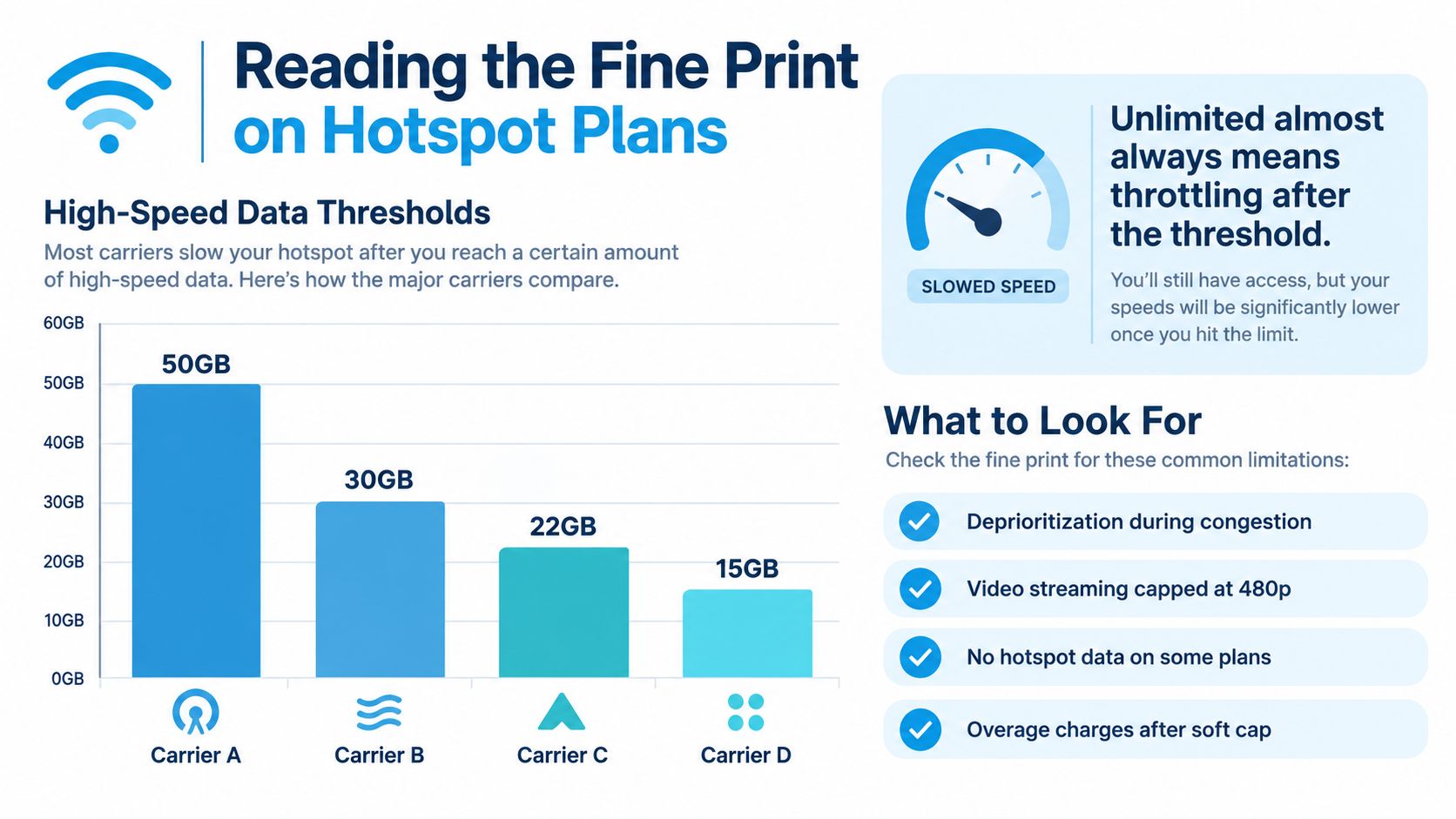
“Unlimited” describes a billing label, not a guaranteed workday. A plan may provide a high-speed allowance and then reduce priority, throttle speed, suspend high-speed access, or apply another restriction. The FCC explanation of data caps distinguishes a soft cap, which can trigger reduced speeds or other limits, from a hard cap, which can stop additional high-speed use or require a new allowance.
Public comparisons often describe hotspot allowances in the roughly 30 to 60 GB range before reduced priority or throttling, as summarized in this comparison of RV internet options. Treat those figures as plan-specific, not as a promise from every major carrier. Before signing up, isolate four terms:
- Premium or hotspot data: Find out which allowance applies specifically to hotspot use.
- Measurement unit: Confirm whether the threshold is expressed in gigabytes and whether on-device data is counted separately.
- Post-cap speed: Ask whether service becomes slower, lower priority, or unavailable for high-speed use.
- Billing treatment: Check for throttling, suspension, overage billing, or a new allowance requirement.
Common RV workloads and their data cost
| Activity | Approx. data per hour | Hours per 50 GB |
|---|---|---|
| HD video meeting | Roughly 1 to 3 GB | Roughly 17 to 50 hours |
| Operating-system updates | Varies by update | Not predictable |
| Cloud synchronization | Varies by files | Not predictable |
| Video streaming | Varies by quality | Not predictable |
A single HD video meeting can consume roughly 1 to 3 GB per hour, according to the plan data provided for RV connectivity. Several users streaming, synchronizing photos, downloading operating-system updates, and attending meetings can consume an allowance much faster than casual browsing suggests.
A virtual SIM plan that can switch between AT&T, Verizon, and T-Mobile may help when your route crosses different carrier footprints, but switching networks doesn't remove congestion or create signal in a canyon. Compare the available Wi-Fi hotspot plans by their post-cap behavior and trial terms. A transparent slowdown policy and a trial period are more useful than the word “unlimited” printed on the front page.
Measuring Real Performance and Tuning the Signal
An RV internet hotspot has two separate radio links. The first is the cellular link from the modem to the tower. The second is the local Wi-Fi or Ethernet link from the hotspot to your laptop. Strong Wi-Fi bars can coexist with a weak cellular connection, and a fast cellular link can look slow if the laptop sits far from the router or connects over a congested local band.
Start at the exact campsite with Wi-Fi extenders, antennas, boosters, and band-locking disabled. Connect the test laptop directly to the hotspot, preferably with Ethernet when available, or with 5 GHz Wi-Fi. Confirm that the laptop isn't using another network, then run three to five tests for each configuration and compare the averages, as recommended by this RV mobile internet testing guide.
Record more than download speed:
- Download and upload throughput
- Ping latency
- Jitter
- Packet loss
- Time of day
- Device location and connection method
Test in the morning, around midday, during the evening, and during the period when you expect to work or stream. A tower can perform well during a quiet morning and struggle after campers return from day trips. One peak result tells you almost nothing about a dependable evening video call.
Field note: Never change the antenna, booster, placement, and band at the same time. You won't know which change helped, and you may mistake a different test path for better service.
After the clean baseline, add one intervention. Move the hotspot near a window and repeat the same tests. Then connect the antenna and repeat them. If you have a directional antenna, aim it and test again. Try band selection only after recording the automatic result. This turns troubleshooting into a controlled comparison rather than a collection of hopeful adjustments.
Keep a simple campsite notebook. Write down the location, device position, cellular readings, test averages, and the time of day. Over several trips, the notes reveal whether your limiting factor is tower congestion, obstruction, placement, or the local Wi-Fi link.
Coverage Maps Are Not Enough
A large colored area on a coverage map answers whether a provider estimates service outdoors or in a vehicle. It doesn't tell you whether the modem will work inside your RV, whether the tower is congested after dinner, or whether a canyon wall blocks the usable signal.
The FCC mobile broadband map represents outdoor or in-vehicle coverage and relies on provider-reported modeled estimates. It isn't a guarantee of speed under congestion, terrain, device limitations, or building conditions. That distinction becomes important when an RV sits behind trees, inside a metal shell, or at the edge of a service area.
A 2025 mobility analysis found mobile service across more than 70% of U.S. land area and 92% of road miles, but fewer than 20% of land area had high signal strength. The analysis also put rural coverage at approximately 70%, compared with nearly universal urban coverage. Those figures explain why a route can appear connected while a specific remote campsite remains frustrating.
The index-card validation routine
Before committing to a location or plan, compare multiple carrier footprints along the full route. Check the planned campsite, not only the nearest town. If possible, test at the site during peak evening hours, then compare throughput rather than relying on bars.
Pay special attention to the task you need to complete. A brief connection may handle email or a text message while failing a video call, cloud backup, large upload, or remote desktop session. If work is essential, arrange a fallback before arrival, such as a second carrier, a different campsite position, or a noncellular emergency option.
Nationwide coverage can coexist with unreliable remote work. The map and the campsite are two different questions.
The best carrier is the one that delivers usable performance where you stop, not necessarily the one with the largest national footprint. Route planning, site testing, and a repeatable evening check will tell you more than a broad marketing map.
Security, Troubleshooting, and a Campside Departure Checklist
Campground Wi-Fi is a shared access network. Treat it as untrusted, especially when you're working with client files, banking, health information, or account credentials. The campground Wi-Fi guidance from T-Mobile recommends disabling automatic joining and considering a VPN on public networks.
Use a private hotspot or router whenever practical, and apply these controls to any equipment you manage:
- Disable auto-join: Stop phones and laptops from connecting to familiar public networks without your approval.
- Use WPA2 or WPA3: Set a unique Wi-Fi password and replace default administrator credentials.
- Enable the firewall: Keep the router's firewall active, and disable remote administration from the WAN.
- Update devices: Install operating-system, browser, and router updates before travel.
- Protect sensitive sessions: Use a VPN for work, banking, and other sensitive activity on public campground Wi-Fi.
A cellular hotspot reduces exposure to the campground's local network, but it doesn't solve weak tower signal, congestion, or plan limits. Keep guest devices separate from the RV's internal network when the router supports guest isolation. Confirm that clients receive private LAN addresses and cannot open the router's administration page from the guest network.
Common field failures
The connection slows every evening. The tower may be congested, or your plan may have reached a priority threshold. Compare peak-hour results with your baseline and check the plan's post-cap terms.
There's no signal after moving. The new campsite may sit outside the useful footprint or behind terrain. Test another window position, compare a different carrier, and don't assume the previous site predicts the new one.
Bars are weak inside a metal RV. Move the hotspot near a window or use a supported external antenna. Strong local Wi-Fi bars won't compensate for a poor cellular path.
Video calls fail despite a good speed test. Check upload speed, latency, jitter, and packet loss during the call period. A short download burst can look excellent while interactive traffic remains unstable.
Before unhitching, confirm that connected devices have private addresses, guest devices cannot reach administration pages, and the firewall remains enabled. Run one peak-hour throughput and latency test, note the hotspot's position and signal readings, and save the result with the campsite details. That small departure routine gives you a useful baseline for the next stop instead of another guess.
SwiftNet Wifi offers portable 4G and 5G hotspot and router options for RV travelers, using virtual SIM access to AT&T, Verizon, and T-Mobile networks, with plans starting at $49.99 per month and a 7-day risk-free trial. If you want to compare a multi-carrier setup against your current campground Wi-Fi or phone tethering, visit SwiftNet Wifi and review the hardware, coverage approach, and plan terms before your next departure.


