

You're parked beside a quiet lake, your laptop is connected, and the video call starts well. Then you step outside the RV with your phone, move toward the picnic table, or close the metal door behind you. The connection slows or disappears. At the same time, your router settings show both “5G” and “2.4G,” making it unclear whether the problem is your cellular plan, your Wi-Fi band, or both.
The terminology causes unnecessary equipment mistakes. 5G cellular brings an internet connection from a mobile network to your router, while 5 GHz Wi-Fi distributes that connection locally to laptops, phones, TVs, and other devices. The best setup for an RV or rural home usually needs both a reliable cellular connection and a dual-band Wi-Fi router configured for the space.
Clearing Up the 5G Cellular and 5 GHz Wi-Fi Confusion
“5G vs 2.4G” sounds like a comparison between two internet services, but it usually combines two different technologies. 5G is a cellular network generation, similar to 4G LTE, that connects your modem or router to a carrier network. 5 GHz is a Wi-Fi radio band that connects nearby devices to that router.
The distinction is easiest to understand by separating your network into two parts:
- Wide-area network, or WAN: The cellular connection travels from a nearby tower to your router. Here, 5G cellular coverage, signal conditions, carrier availability, and router hardware matter.
- Local-area network, or LAN: The router broadcasts Wi-Fi inside your RV, home, truck, or campsite. Here, you choose between the 2.4 GHz and 5 GHz bands.
- Connected devices: Your laptop, phone, streaming device, printer, and smart-home equipment use the local Wi-Fi connection. They don't connect directly to the cellular tower through ordinary Wi-Fi.
A strong 5G cellular signal won't automatically create strong 5 GHz Wi-Fi in every corner of a motorhome. Your router could receive excellent cellular service while a laptop behind a wall or at the rear of the RV struggles to maintain a 5 GHz connection. The reverse can also happen. Your local Wi-Fi may look strong, but the router's cellular connection may be weak or congested.
Practical rule: Treat cellular service and Wi-Fi as two separate links. Test each one before replacing equipment.
For rural workers and travelers, this means choosing equipment based on the actual job. The cellular side needs suitable tower coverage and a router that can use the available mobile networks. The Wi-Fi side needs dual-band capability so nearby work devices can use 5 GHz while distant or older devices can remain on 2.4 GHz.
Before buying a new modem or antenna because a Wi-Fi device drops connection, check whether the device is too far from the router for 5 GHz. Before blaming Wi-Fi because every device is slow, check the cellular connection entering the router. This distinction is also central to planning rural 5G coverage, because wide-area service and local wireless distribution solve different problems.
How the 2.4 GHz and 5 GHz Wi-Fi Bands Work
In an RV, the best band depends on where the device sits, what blocks the signal, and how much throughput the task requires. 2.4 GHz travels farther and generally handles walls and obstacles better, while 5 GHz supports wider channel use and higher local throughput but loses strength more quickly across distance and solid materials.
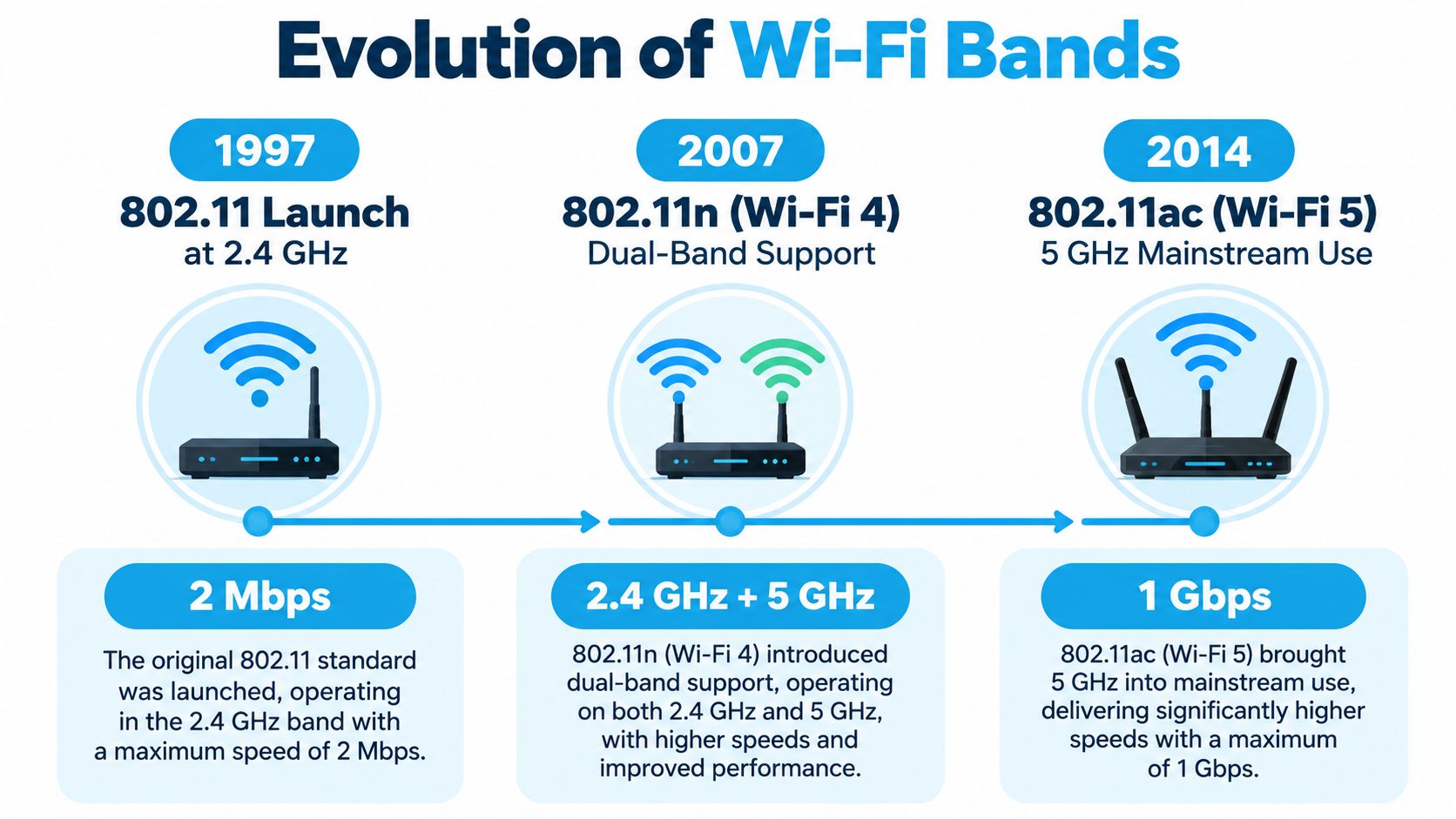
Wi-Fi's history reflects that trade-off. Wi-Fi reached the market in 1997 with the IEEE 802.11 standard, using unlicensed 2.4 GHz spectrum and supporting up to 2 Mbit/s. IEEE 802.11a brought 5 GHz support in 1999, with speeds up to 54 Mbps. IEEE 802.11n followed in 2009, combining both bands in one mainstream standard with data rates up to 600 Mbit/s. The IEEE overview of Wi-Fi's evolution documents this progression.
Why lower frequency helps at the edge
A 2.4 GHz connection is usually the safer choice when the router and device are separated by RV cabinetry, timber framing, brick, or several interior walls. In a motorhome, the metal body creates another obstruction. The difference can become obvious when a device moves from the main cabin to an exterior step, awning, or nearby campsite.
Use 2.4 GHz when reach and obstacle penetration matter more than peak speed. It suits sensors, printers, cameras, and work devices located farther from the router. The cost is a more crowded band with fewer usable channels, especially around neighboring networks and household equipment.
Why 5 GHz needs more room
5 GHz becomes more useful as the device moves closer to the access point. Its wider channel options can support faster local transfers, video calls, file uploads, and streaming when the signal remains strong. In a rural home, place high-demand workstations near the router or access point, then reserve 2.4 GHz for distant rooms, outbuildings, and devices that prioritize consistent reach.
The same rule applies in an RV. A laptop at the dinette may perform well on 5 GHz, while that laptop at the rear bed may work more reliably on 2.4 GHz. Let the router's band steering make the choice when it behaves well, or assign bands manually when roaming devices switch too aggressively. These Cisco Meraki band steering tips provide useful background for reviewing that behavior.
Older laptops may support only one band. A dual-band USB Wi-Fi adapter can give compatible hardware access to both local networks, provided the adapter and operating system support the required Wi-Fi standard.
Comparing Speed Range and Interference Across Bands
The practical 5g vs 2.4g decision comes down to three questions: How far is the device from the router? How many obstacles sit between them? How much local capacity does the device need? A nearby work laptop and a distant outdoor camera shouldn't necessarily use the same band.
| Feature | 2.4 GHz Band | 5 GHz Band |
|---|---|---|
| Typical priority | Reach, compatibility, and obstacle penetration | Throughput, lower congestion, and nearby high-demand devices |
| Typical indoor range | About 150 feet | About 50 to 75 feet |
| Typical outdoor range | Up to about 300 feet | Shorter than 2.4 GHz in comparable conditions |
| Typical over-the-air speed ceiling | Up to about 100 Mbps typical maximum | Up to about 1 Gbps |
| Spectrum | 83 MHz of usable spectrum in most of the world | Twenty-three defined 20 MHz channels |
| Channel congestion | Easier to overload, with only three non-overlapping channels in most regulatory domains | More room for channel selection and bonding |
| Good fit | IoT devices, distant rooms, outdoor areas, basic browsing | Nearby laptops, TVs, video calls, streaming, and gaming |
The range figures and the decline in signal as frequency rises are consistent with the Ookla global Wi-Fi analysis. The speed comparison is based on the figures cited in Apple's Wi-Fi deployment guidance. These are useful reference points, not promises of the speed you'll see at a specific campsite or farmhouse.
Speed depends on distance
A nearby laptop connected over 5 GHz can usually make better use of a fast incoming connection than the same laptop connected over a congested 2.4 GHz network. That makes 5 GHz the sensible first choice for remote work, large downloads, streaming, and interactive applications when the device sits close to the router.
The router's cellular connection still sets the upper limit for internet access. If the cellular link is slow, changing a laptop from 2.4 GHz to 5 GHz won't create additional internet capacity. It can, however, remove a local Wi-Fi bottleneck between the router and the laptop.
Congestion changes the answer
The 2.4 GHz band provides 83 MHz of usable spectrum in most of the world, while 5 GHz defines twenty-three 20 MHz-wide channels, which reduces contention and makes channel bonding more practical on 5 GHz, as explained in this 2.4 GHz and 5 GHz band comparison.
In an RV park, several nearby routers may compete for the same limited 2.4 GHz airtime. A 5 GHz network can be cleaner, although neighboring campers can still affect it. In a rural home, interference may be less severe, but walls and distance may make the lower band more dependable.
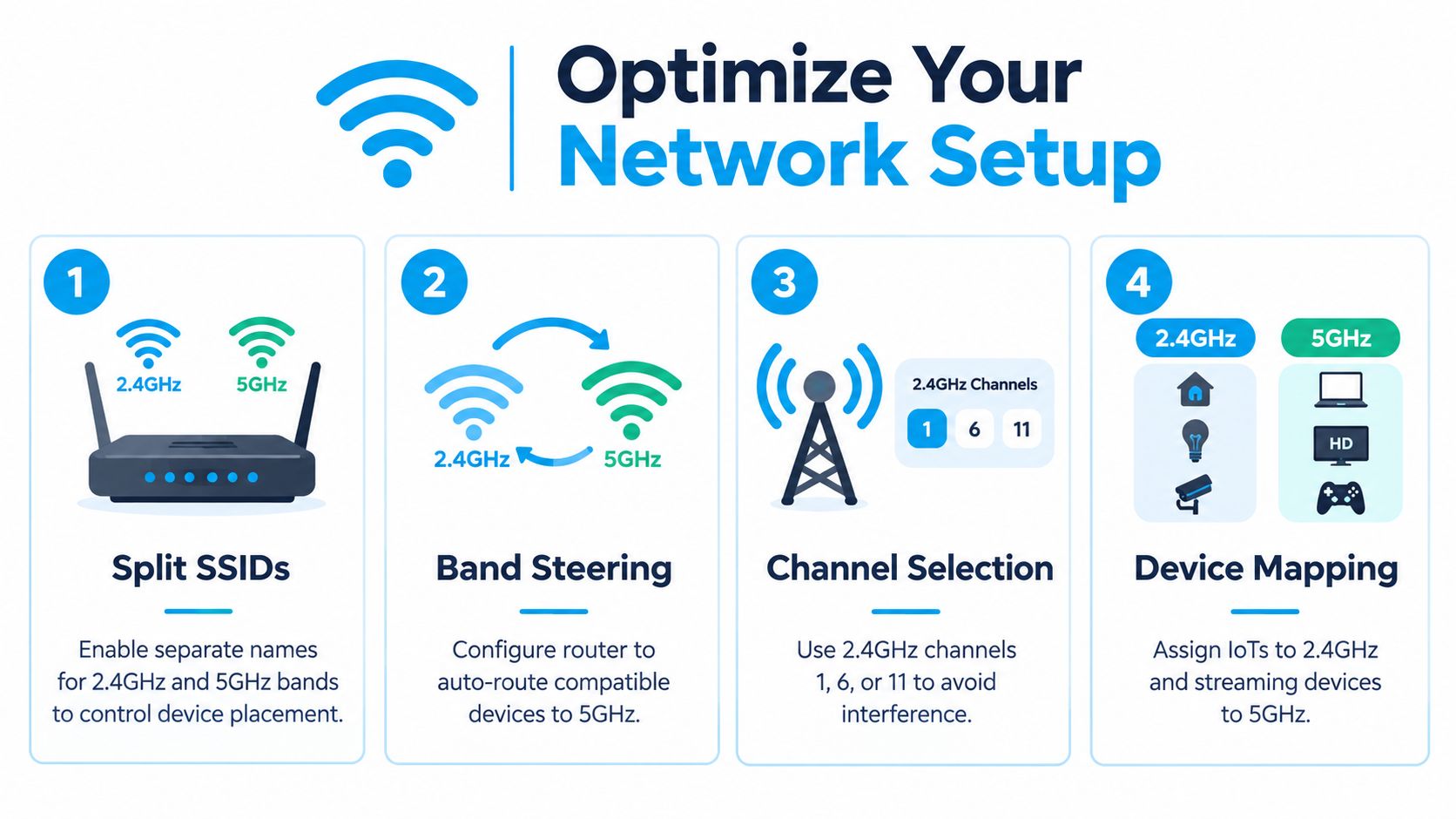
For 2.4 GHz, most regulatory domains provide only three non-overlapping Wi-Fi channels, 1, 6, and 11. Nearby networks using adjacent channels can still interfere and reduce performance, which is why channel selection matters in a crowded campground. The channel guidance from BroadbandNow explains this limitation.
Real-World Scenarios for RV Travelers and Rural Homes
A band decision makes sense only after you map the living space. The right setup for a compact motorhome won't necessarily suit a farmhouse with several rooms, and a remote worker may need different priorities from a traveler who mainly checks messages outdoors.
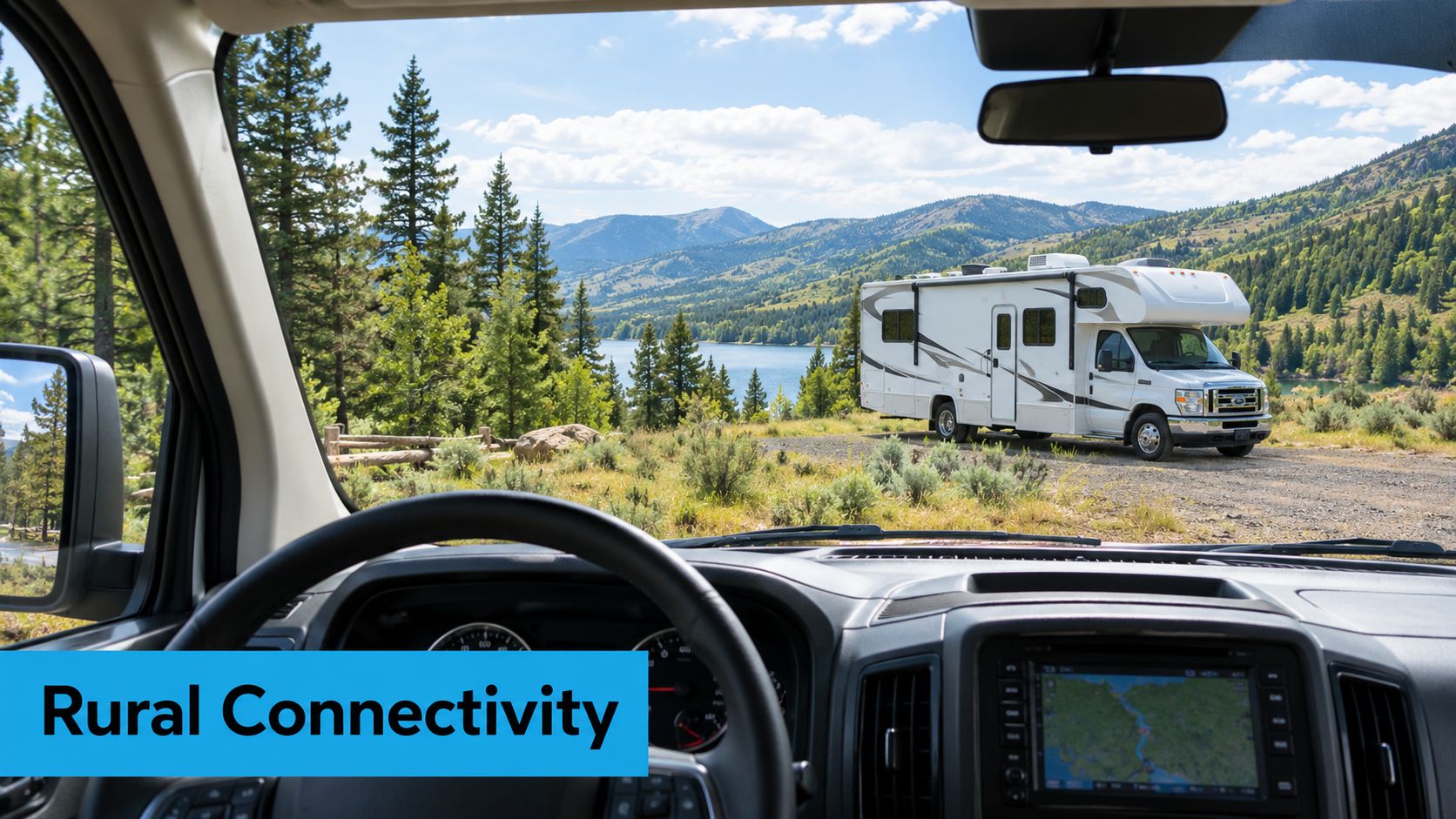
Inside an RV or motorhome
Start with the work area. If the router sits near the dinette and your laptop stays there, connect the laptop to 5 GHz. That arrangement gives the device a shorter local path and reduces the chance that nearby campground networks will compete for the same airtime.
The situation changes when you move outside. An awning camera, phone at the picnic table, or tablet near the camp chairs may need 2.4 GHz because the signal has to pass through the vehicle structure and travel farther. A dual-band router can keep both options available without forcing every device onto the same band.
Metal walls, cabinets, appliances, and the router's placement all matter. Avoid hiding the router inside a cupboard or behind large equipment. Put it as centrally and openly as the RV layout allows, then test the actual locations where you work, sleep, and spend time outdoors.
In a rural farmhouse
A farmhouse often presents the opposite problem. The router may receive strong cellular service near an exterior wall or upstairs window, while the office sits behind timber framing, brick, or multiple interior walls. A 5 GHz connection may perform well in the office but fail in a distant room.
Use 5 GHz for devices in the same part of the home as the router, especially a work computer or television. Use 2.4 GHz for a distant printer, thermostat, camera, or basic browsing device when the longer path matters more than speed. If the property extends beyond the practical reach of one router, repositioning or adding a properly designed access point may solve more than repeatedly changing bands.
For a remote worker with mixed devices
A work laptop, phone, printer, smart speaker, and security camera create different demands. Put the laptop and phone on 5 GHz when they're near the router. Keep low-bandwidth devices on 2.4 GHz if they sit farther away or have limited compatibility.
Independent measurements show that 5 GHz usually has much lower interference than 2.4 GHz, while 2.4 GHz remains widely used because it penetrates obstacles better and stays usable at longer range, as reported in this analysis of Wi-Fi adoption and interference. That isn't a contradiction. It means the best band depends on the device's location and job.
A reliable network doesn't put every device on the fastest band. It puts each device on the band that matches its distance, compatibility, and workload.
Optimizing Your Network Setup for Maximum Reliability
A dual-band router works best when you configure it deliberately rather than accepting every default. The goal isn't to force all devices onto 5 GHz. The goal is to prevent distant, older, or low-demand devices from competing with the laptop or TV that needs the most local capacity.
Build a clear device plan
- Separate the network names when necessary. Give the 2.4 GHz and 5 GHz networks distinct names if automatic band steering keeps moving a work device to an unsuitable band. This lets you test each connection and assign devices intentionally.
- Use 5 GHz for nearby priority devices. Connect your work laptop, television, and phone to 5 GHz when they sit close enough to maintain a stable signal. The higher local capacity is useful for streaming, calls, uploads, and interactive work.
- Reserve 2.4 GHz for reach and compatibility. Put distant cameras, smart devices, printers, and outdoor equipment on 2.4 GHz when they need better obstacle penetration or longer coverage.
- Test before changing several settings. Walk through the RV or home with the same device and check where 5 GHz becomes unreliable. If a connection drops at a predictable wall or doorway, the problem is probably local coverage rather than the incoming cellular service.
Automatic steering can still work in a well-planned home, but mobile environments introduce movement, changing obstacles, and nearby networks. If the router repeatedly shifts a laptop during a call, separate network names give you more control. For voice-call symptoms such as choppy audio or repeated reconnects, this guide to Teams audio troubleshooting offers a useful diagnostic reference.
Place the router for both links
Cellular reception and Wi-Fi distribution may favor different positions. A window or high location may improve the router's connection to a mobile tower, while a central position may distribute Wi-Fi better inside the RV. Test both priorities instead of assuming the strongest Wi-Fi location also provides the strongest cellular service.
In a rural home, keep the router open and away from dense obstructions. In an RV, don't bury it under a seat or inside a metal-lined compartment. Guidance on 5G router range can help you evaluate placement before buying more hardware.
The incoming service also needs enough capacity for the local network. The 4G Bronze hotspot plan is suited to a portable setup, while the 5G Diamond router plan is designed for a router-based connection. Neither plan changes the physical behavior of 2.4 GHz and 5 GHz Wi-Fi, so local placement and device assignment still matter.
Frequently Asked Questions About Wi-Fi and Cellular Bands
Can older devices connect to 5 GHz Wi-Fi?
Some can, and some cannot. Compatibility depends on the device's Wi-Fi hardware and supported standards, not on whether your cellular plan uses 5G. If an older printer, camera, or laptop cannot see the 5 GHz network, connect it to 2.4 GHz or add compatible external Wi-Fi hardware.
Why does 5 GHz keep dropping inside my RV?
Distance, walls, cabinetry, and metal fixtures are the first things to check. Move the router into a more open position, test the device nearby, and compare the same device on 2.4 GHz. If 2.4 GHz stays connected while 5 GHz fails near a particular wall or doorway, that location is beyond the practical range of the faster band.
Channel congestion can cause similar symptoms. In a crowded campground, scan nearby networks and select the least occupied permitted channel. The BroadbandNow Wi-Fi channel guidance provides channel-planning context. For priority devices, prefer 5 GHz DFS-free channels 36 to 48 when radar detection could trigger a channel change. In the United States, channels 52 to 64 and 100 to 144 require DFS, while 36 to 48 and 149 to 165 are common non-DFS options, as outlined in this NXP application note on 5 GHz channels.
Does a 5G cellular plan guarantee fast 5 GHz Wi-Fi?
No. A 5G cellular plan covers the connection from the tower to the router. 5 GHz Wi-Fi covers the shorter connection from the router to nearby devices. Both links need adequate signal and capacity, and either can limit performance.
Use 5 GHz for nearby laptops, streaming devices, and work equipment that need higher throughput. Use 2.4 GHz for devices farther away or behind more obstacles. Check the cellular signal separately when every device feels slow, since strong Wi-Fi cannot compensate for weak tower service.
A dual-band router gives you more assignment choices, but it cannot fix poor placement, incompatible hardware, local interference, or limited cellular coverage.
SwiftNet Wifi offers portable and router-based 4G and 5G internet options for RV travelers, remote workers, and rural households, including the 4G Bronze hotspot and 5G Diamond router plans. Visit SwiftNet Wifi to match your cellular setup with a dual-band Wi-Fi strategy.
#rv #rvlife #rvliving #rvlifestyle #rvrenovation #rvremodel #rvtravel #rvcamping #rvadventures #ruralwifi #5gwifi #5ginternet


