

Your video call freezes just as you're explaining the part that matters. The laptop is fine, the router shows a signal, and the meeting app is still open, but the connection has dropped or stalled. In an RV, rural home, or truck cab, that's often not a freak accident. It's a setup that was never tested for the conditions you work in.
A dependable remote work setup isn't just a desk and a fast download speed. It's a stack: usable hardware, a connection that fits your location, secure network settings, and a backup plan you've tried before a deadline. Remote work has remained a lasting part of the U.S. labor market: the share of workers usually working from home rose from 5.7% in 2019 to 17.9% in 2021, then eased to 13.8% by 2023, still more than twice its pre-pandemic level, according to Census Bureau data on work-from-home trends.
| Remote work participation at a glance | Value | Source |
|---|---|---|
| U.S. workers usually working from home in 2019 | 5.7% | Census Bureau |
| U.S. workers usually working from home in 2021 | 17.9% | Census Bureau |
| U.S. workers usually working from home in 2023 | 13.8% | Census Bureau |
For furniture and layout ideas, Woodstock Furniture home office advice can help you think through the physical workspace. The connection still needs its own plan, especially if your office moves with you.
Why Your Remote Work Setup Keeps Letting You Down
A connection can look healthy on a phone and still fail during a work call. The router might be tucked behind a television, the cellular signal may fluctuate when the vehicle turns, or someone else's cloud backup may consume the upload capacity your meeting needs. A speed-test result taken at a quiet moment won't reveal every one of those problems.
The same goes for hardware and security. A laptop balanced on a small table can make a long workday uncomfortable, while a router using default credentials can leave the network exposed. Each weak point may seem minor until several line up at once: a crowded Wi-Fi channel, a video meeting, and an urgent file transfer.
Build for the place you work
Start with the conditions you have, not the office setup you wish you had. In a fixed home, the router's location and household traffic matter. In an RV or truck cab, the signal can change as you move, and space, power, and weather affect where equipment can live. Rural workers may have to choose between fixed wireless, satellite, or cellular service rather than assume fiber is available.
Then treat the setup as a system. Your computer needs a stable path to the router, the router needs a connection that can handle your work, and your work accounts need protection even if the network is shared with personal devices. A backup connection only helps if you know how to switch to it, and a fast primary link only helps if it stays usable during a call.
Practical rule: Don't judge a work connection by the signal bars or one speed-test screenshot. Test it where you sit, during the hours you work, with the devices you actually use.
That approach changes the question from “How fast is my internet?” to “Can I finish the workday if conditions shift?” The next choices, from chair and headset to cellular backup and router settings, should answer that.
The Workspace and Hardware Foundation
A good setup starts with a work surface that stays usable for the whole shift. Choose a dedicated spot if you can, even if it's a compact corner in a shared home or RV. Put the screen where you can see it without leaning forward, keep glare out of your line of sight, and use a lamp to light your face for calls rather than relying on a bright window behind you.
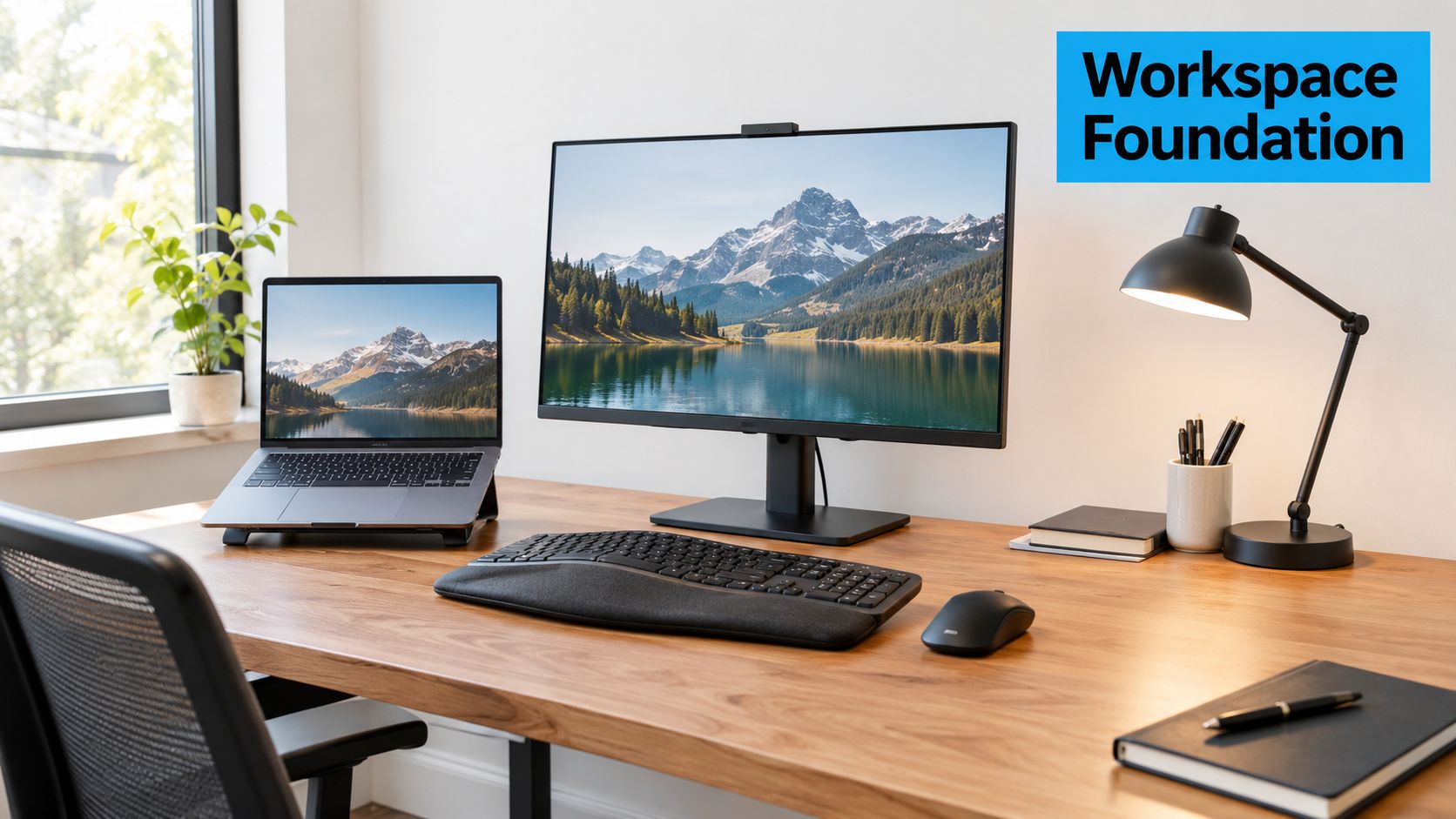
For sustained screen time, an external monitor can make documents and calls easier to manage than a laptop display alone. A keyboard and mouse let you place your hands more comfortably, while a supportive chair helps you avoid holding the same awkward position all day. In a truck cab or RV, the ideal office furniture may not fit. Prioritize a stable surface, a secure place for equipment while traveling, and a chair or seat position that doesn't force you to reach for the keyboard.
Spend on the parts you use all day
Audio has an outsized effect on how professional a call feels. A comfortable headset with a clear microphone usually does more to improve conversations than buying a high-end webcam while keeping a laptop mic several feet away. Test the headset in the room where you work. Fans, road noise, and hard surfaces can make an otherwise good microphone sound poor.
A webcam upgrade makes sense when your built-in camera gives a distracting angle or poor image in ordinary lighting. It won't rescue an unsteady connection, and it shouldn't come ahead of a reliable headset or a usable chair. Keep the gear list short: computer, external display if useful, keyboard, mouse, headset, lamp, and a way to secure or store equipment if you work on the move.
For help comparing desk and seating choices, compare home office furniture options with an eye toward fit, comfort, and the space you have. A useful arrangement matters more than matching furniture.
A short video can also help you assess a desk-based layout before buying or rearranging equipment. Consider the room, camera angle, and lighting as you watch.
Choosing the Right Connection for Where You Actually Work
There isn't one winning connection for every remote worker. Fiber often makes a strong primary link in a serviced home, but it doesn't help much if it isn't available at your address. Cellular can travel with you, but coverage and performance change by location. Satellite can reach places with few wired choices, though placement, weather, and latency need to be considered for interactive calls.
The FCC's fixed-broadband benchmark is now 100 Mbps download and 20 Mbps upload, replacing the earlier 25/3 Mbps benchmark in March 2024, as summarized in this report on the FCC benchmark change. That benchmark gives you a reference point, not a guarantee that every household or mobile setup will perform well. Video calls, backups, and other users compete for capacity, and upload matters when you're sending files or transmitting video.
| Connection options compared for remote work | Typical download | Typical upload | Portability | Best fit |
|---|---|---|---|---|
| Home fiber | Often strong, subject to the plan and local network | Often strong, check the service details | Low | Fixed home with fiber available |
| Cable | Varies by plan and neighborhood use | Check the plan, upload may be the constraint | Low | Fixed home where cable is reliable |
| DSL | Varies by line and distance | Check the plan | Low | Areas where wired alternatives are limited |
| Fixed wireless | Varies by provider, signal, and location | Check the plan and local performance | Low | Home with a usable fixed wireless signal |
| Satellite | Varies by service and conditions | Check the plan and call performance | Limited | Remote locations without workable wired service |
| Phone hotspot | Varies by carrier, signal, and plan limits | Varies by carrier and signal | High | Backup or occasional mobile work |
| 4G/5G router | Varies by signal, plan, and router placement | Varies by signal and plan | High | Rural homes, RVs, and mobile work |
The table is a starting point, not a promise about performance. Ask providers about data limits, roaming, coverage where you'll work, and what happens when the network is congested. For RV travel, check likely overnight stops and work destinations rather than relying on a broad coverage map alone. A virtual-SIM or multi-carrier device may make it easier to use more than one carrier, but it can't create a strong signal where none is available.
Choose a primary and a fallback
Use the most dependable service available at your main work location as the primary connection. Keep a separate hotspot or mobile router as a backup if a lost workday would be costly, and test the switch before you need it. If you're weighing mobile options, this guide to internet for remote work can help frame the trade-offs between home service and connectivity on the road.
A connection's advertised peak speed doesn't tell you how it handles a live meeting in a crowded campground or a rural area at a busy time. Choose for reliable access, usable upload, and a realistic fallback, then optimize placement and settings once the service is active.
Optimizing Wi‑Fi, 4G, and 5G for Real Performance
A router's location can make a capable service feel unreliable. For a 4G or 5G router, start near a window or exterior wall, then test a few positions while watching the router's signal information. Raising the unit and keeping it away from metal, appliances, and dense obstructions can help. If the signal remains weak or unstable, an external antenna may be worth considering, but match the antenna to the router and bands it supports rather than buying one at random.
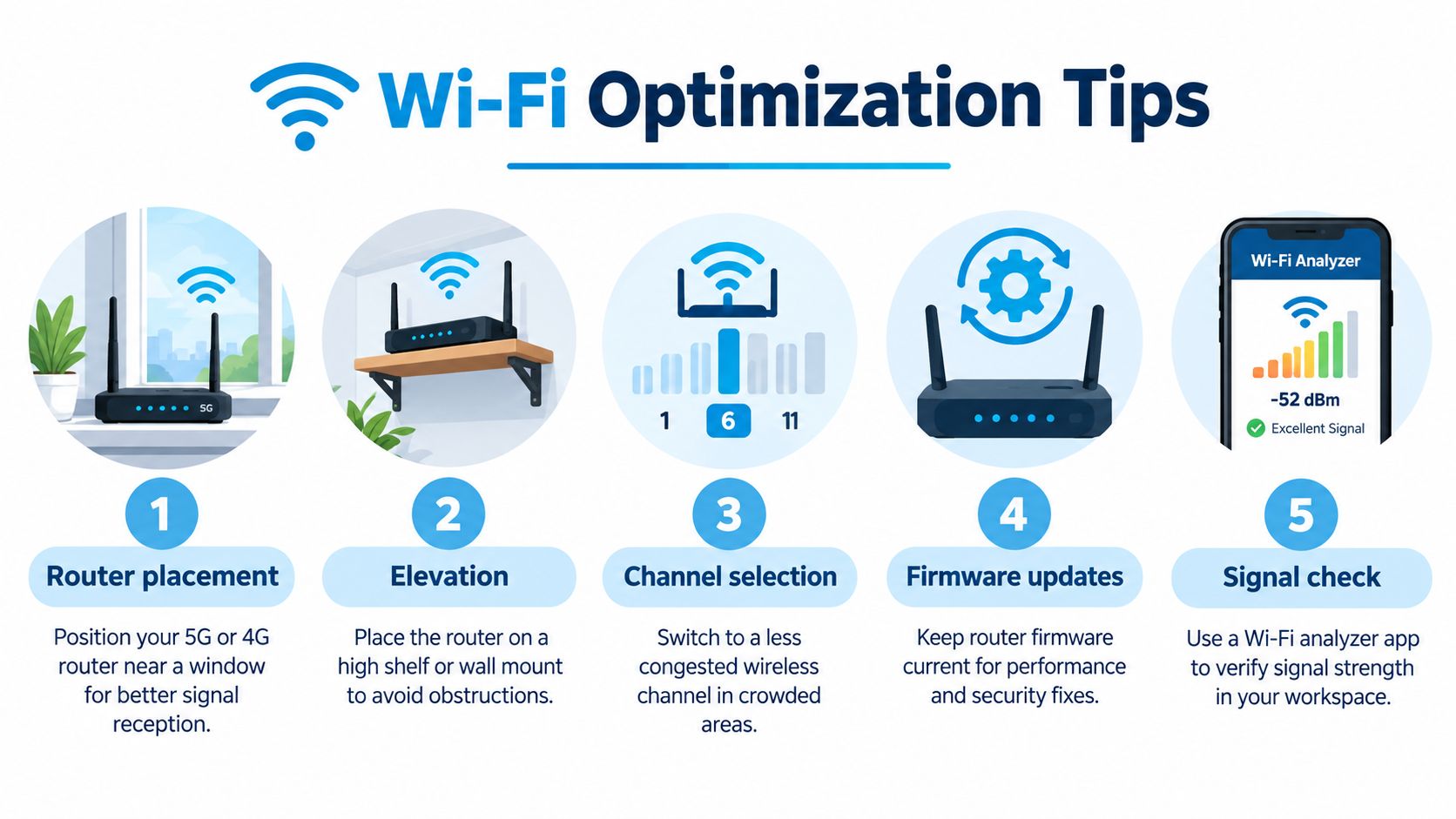
For Wi-Fi, put the work computer close enough to the router for a steady signal. In crowded RV parks or apartment buildings, switching to a less congested channel can help. If the router supports it, keep work equipment on a separate network from televisions, cameras, and entertainment devices. A wired Ethernet connection is often the simplest way to reduce local Wi-Fi variability at a fixed desk.
Make the link fit the work
Check your router's signal metrics if it provides them. RSRP gives an indication of received cellular signal strength, while SINR helps show how clean that signal is relative to interference. Compare readings from different positions, but confirm the result by running a call and checking upload stability. A promising number on its own doesn't prove that a meeting will hold up.
An HD one-on-one video call typically uses about 2–4 Mbps download and 2–3 Mbps upload, while gallery-view group calls can reach about 8 Mbps download, according to remote-work bandwidth guidance for video calls. Leave room for other people and devices on the network. A large cloud backup can compete with a meeting for upload capacity, even when the download test looks healthy.
Keep router firmware current, and review Wi-Fi settings when you change location or add equipment. If your router supports automatic failover between two SIMs or between cellular and another connection, configure it and test the handoff. Don't assume that a second SIM will switch without interruption; devices and plans differ, and the change may interrupt a call. A practical setup includes a clear fallback, such as joining by phone audio while the router reconnects.
Layered Security That Does Not Slow You Down
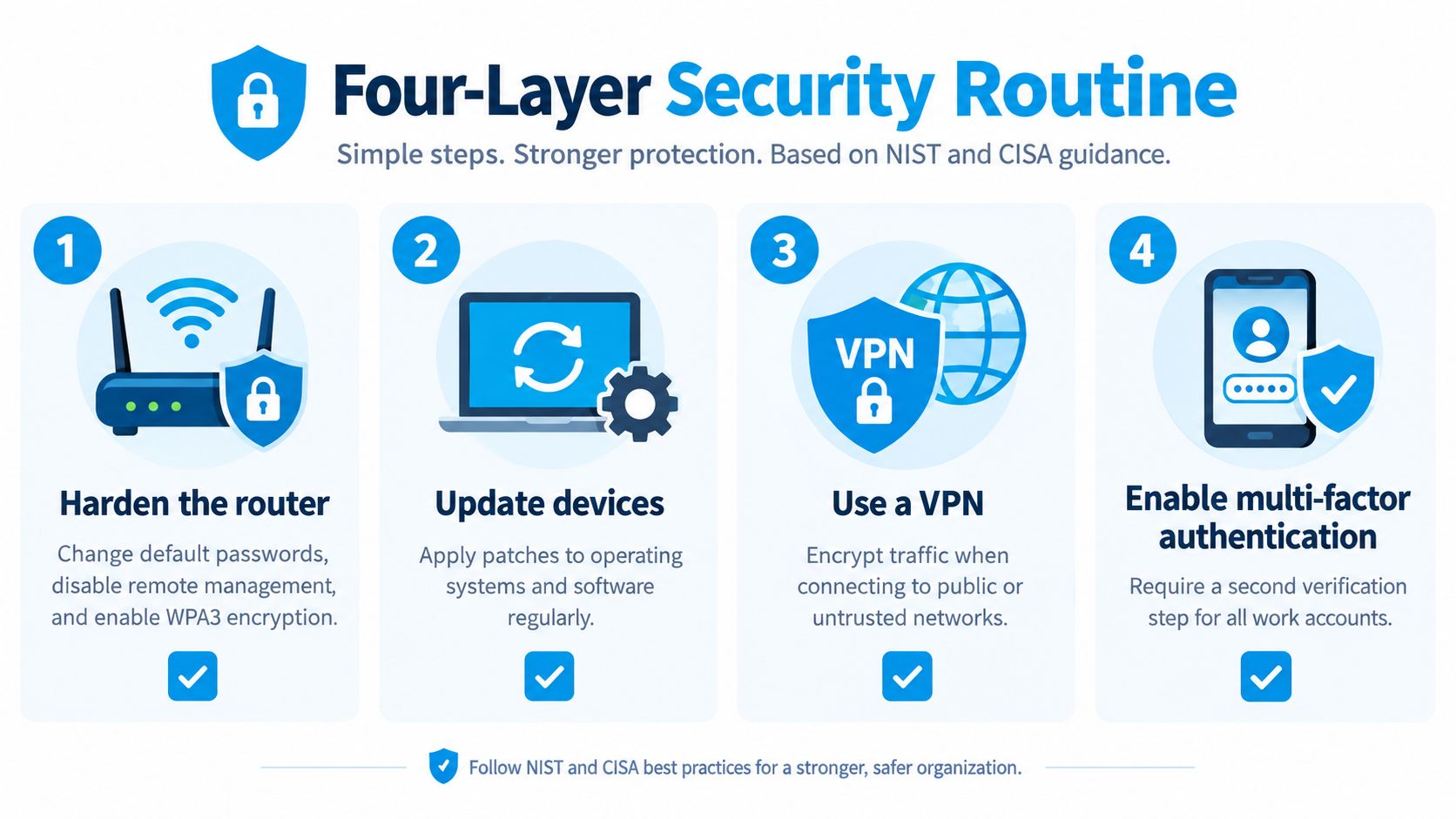
A strong signal doesn't protect work accounts or company files. Treat security as part of the remote work setup, especially when the router also serves household or vehicle devices. NIST and CISA guidance includes strong Wi-Fi encryption, network segmentation, multi-factor authentication, patching, and VPN use; the same cited report notes that 23% of organizations identified technology or connectivity difficulties as a remote-work challenge in a 2024 CIPD survey (NIST's guidance for securing devices at home and work).
Harden the network first
Change the router's default administrator password and use WPA2 or WPA3 encryption. Disable obsolete WEP or WPA modes, and choose a network name that doesn't reveal your location or router model. Turn off remote administration if you don't need it. Store the admin password securely rather than leaving it on a note beside the router.
Next, separate untrusted devices. Put smart TVs, cameras, and other IoT equipment on a guest network or separate subnet so they can't directly reach your work computer. This matters in a small space where one router may support both work and entertainment. Don't share the work network name and password with guests when a separate guest network is available.
Protect accounts and devices
Use your employer's VPN or zero-trust access service where provided, and enable mandatory multi-factor authentication for work accounts. Keep operating-system and application updates automatic where practical, and protect devices with a password or biometrics. Agree on a simple way to report suspicious activity to your employer rather than waiting to see whether it goes away.
In an RV park, shared public spaces bring practical risks beyond network settings. Keep screens and devices out of casual view, and confirm that your VPN connects before an important meeting. A quick check before work starts is less disruptive than troubleshooting authentication while a call is underway. For more on the role of a VPN on untrusted networks, see this guide to VPN protection on public Wi-Fi.
The Acceptance Test That Actually Proves It Works
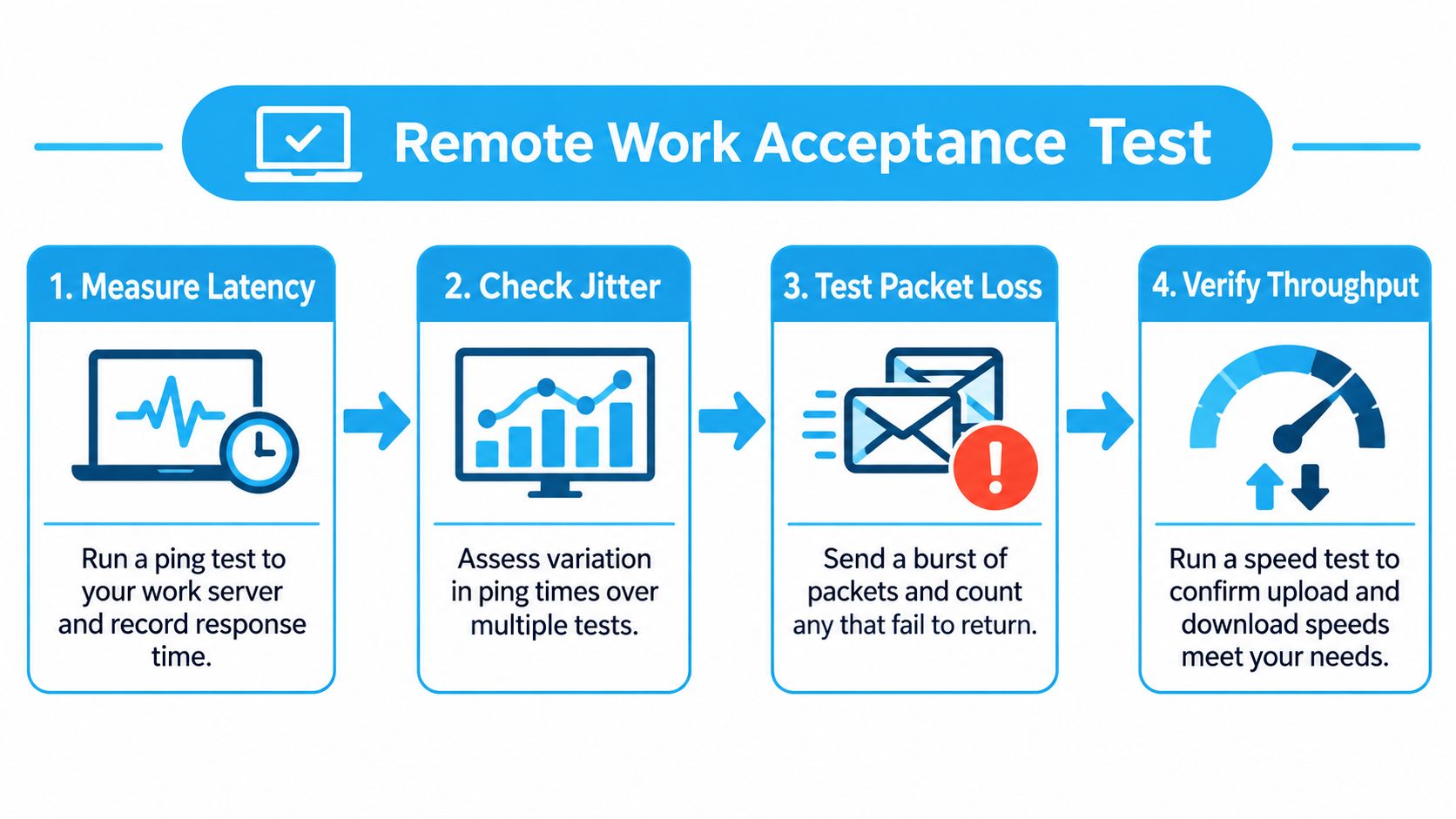
A single speed test measures a moment, not a workday. To find the weak points, test the connection where you work and when you plan to use it. Repeat the check at different times, with other household or vehicle devices active, and record latency, packet loss, and upload alongside download. Keep the results so you can compare them after moving the router, changing carriers, or traveling to another location.
Run a real-work scenario
Start a video call, then transfer a file or run a cloud backup in the background. Notice whether audio breaks up, whether video freezes, and whether the other person can hear you clearly. Repeat the test with the equipment and network conditions you expect during a normal workday. A test with nobody else online can miss congestion and upload saturation.
Measure latency to your work application or a nearby test endpoint, and watch for variation between readings. Packet loss means some data doesn't reach its destination, which can create pauses or degraded calls. Upload performance matters because your camera, microphone, and outgoing files all send data from your connection. A guide to testing internet speed can help you gather results, but don't treat a speed test alone as an acceptance test.
Peer-reviewed measurement work indicates that some conferencing applications can take as long as 50 seconds to recover after a bandwidth disruption, while approximately 300–400 ms of end-to-end delay is a practical ceiling for interactive calls (research on conferencing performance during network disruption). That's why even a brief dropout can derail a conversation.
Test recovery, not just the connection
Deliberately interrupt the connection briefly and time how long it takes for the meeting and work applications to recover. Try your fallback connection too. Write down the steps that worked: pause nonessential traffic, reposition the router or antenna, switch to a backup hotspot, or move the call to audio-only. If possible, connect the main work computer by Ethernet to remove local Wi-Fi as a variable.
Repeat this test before a trip, after a major setup change, and periodically during regular work. Your worst observed recovery time and the fallback steps are more useful than a screenshot that only shows peak speed.
Sustaining the Setup Without Burning Out
A remote work setup has to support a human schedule, not just keep devices online. In a shared home or small RV, define where work happens and how people know when you're in a meeting. Agree on quiet periods, use a headset when space is shared, and make a clear stopping routine so your desk doesn't become a permanent reminder that you're still available.
The strain is real: a 2025 study reported that 69% of employees experienced burnout from digital tools and 17.7% struggled to unplug (research on digital-tool burnout and disconnecting after work). Equipment can make work possible, but it can't set team expectations for you. Ask your manager to clarify response times, meeting norms, and how performance is evaluated so constant availability doesn't become the unspoken standard.
Keep a simple maintenance rhythm
Use a short review every quarter, or after a move or equipment change:
- Recheck the connection: Repeat your acceptance test and note changes in latency, upload, or recovery.
- Confirm the fallback: Test the hotspot or second connection before you need it.
- Refresh security: Apply updates, review access, and change passwords when appropriate.
- Protect offline work: Cache files you'll need, and agree on audio-only or asynchronous options for weak-signal periods.
- Reset boundaries: Review meeting hours, notification settings, and end-of-day habits with your team.
A sustainable setup includes the way you work when the network fails. Keep essential documents available offline, tell colleagues how to reach you if a video call drops, and use audio-only meetings when video becomes unstable. Those habits help protect focus and keep work moving without pretending every location has perfect service.
SwiftNet Wifi offers 4G/5G home and mobile internet options for rural households, RV travelers, and remote workers who need a primary connection or a backup. Visit SwiftNet Wifi to explore the hotspot and router options, then confirm coverage, plan terms, and compatibility with your work requirements before choosing. #rv #rvlife #rvliving #rvlifestyle #rvrenovation #rvremodel #rvtravel #rvcamping #rvadventures #ruralwifi #5gwifi #5ginternet


