

You've parked the RV, opened your laptop, and settled in to check tomorrow's route. Your phone shows full bars, but the laptop won't load a page. Before you buy another box with antennas, you need to know whether you're missing an internet connection or a way to share the connection you already have.
Do you need a router for WiFi? Usually, you need routing and wireless access-point functions, but you don't always need a separate router. A phone hotspot or an all-in-one gateway may already handle those jobs. The right choice depends on where your internet comes from and what you want to connect.
Wifi and Internet Are Not the Same Thing
Your phone's cellular connection belongs to the phone until you enable a supported way to share it. In that campsite example, the laptop isn't automatically connected just because the phone beside it has service. It's like having water in a tank but no hose running to the sink.
Internet access is the supply. WiFi is the local wireless connection. Cable, fiber, DSL, satellite, and cellular service can supply internet, while networking equipment distributes that connection to your devices.
Separate the supply from the sharing
A modem connects to the internet service coming into your setup. A router directs traffic between your local devices and that upstream connection. A wireless access point, usually built into a home WiFi router, provides the radio connection your laptop or television joins.
Those jobs can live in separate boxes or share one enclosure. That's why looking at the equipment's functions is more useful than counting devices on a shelf.
This diagram shows the distinction between receiving internet service and sharing it wirelessly.
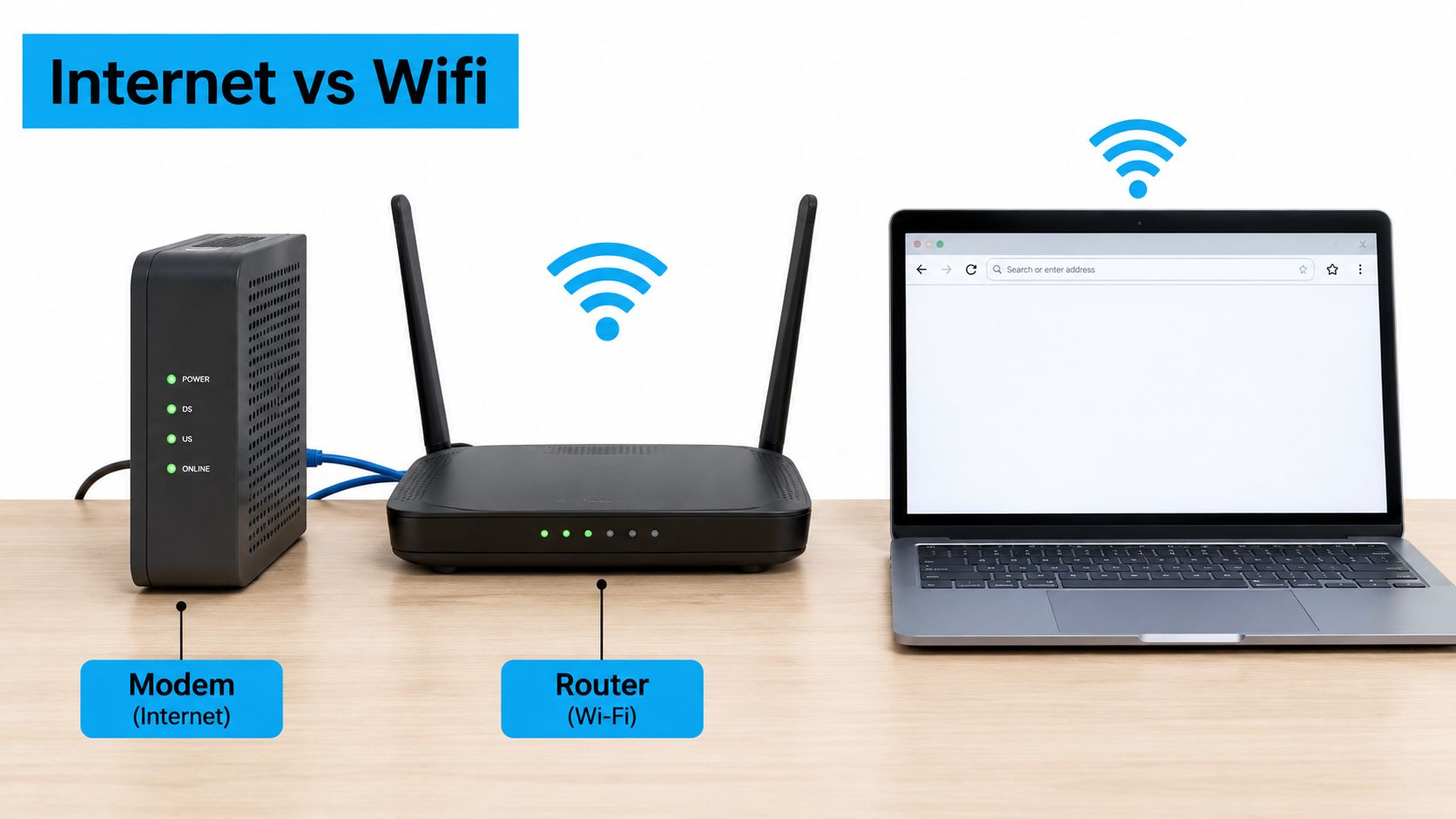
The distinction also explains a confusing situation: a device can be connected to a local network without having working internet access. Joining the network doesn't prove that the connection beyond it is available.
Practical rule: Ask where the internet comes from before asking which router to buy.
Ask what actually needs connecting
Start with these questions:
- Internet source: Will you use a fixed broadband connection, cellular service, or an existing network?
- Devices: Are you connecting a travel laptop, or sharing access among televisions, cameras, phones, and work equipment?
- Location: Does everything stay together, or must the network reach different rooms or work areas?
- Existing equipment: Does the box you already own provide WiFi?
There are also exceptions to ordinary shared WiFi. Compatible devices can use WiFi Direct to communicate without a separate household router, such as a laptop connecting directly to a printer. That's a local device connection, not automatically an internet connection, as explained in the Wi-Fi Alliance's Wi-Fi Direct overview.
For a rural workshop or business space with different connectivity needs, you can explore business wireless solutions from RDE Technologies while assessing the supply and distribution separately. Define the job first, then choose equipment that performs it.
When a Router Is Required at Home or on a Rural Property
At a fixed home, the practical threshold is usually sharing a connection across an everyday household network. The FCC's home network guidance states that the majority of households with home internet service use WiFi through their home router. A conventional setup generally needs a wireless router or a gateway that combines modem and router functions.
A compatible standalone modem can provide internet to a directly connected computer without a separate router. That arrangement may suit a narrow use case, but it doesn't provide the shared wireless network most households expect.
When the existing gateway is enough
Suppose your provider installed a gateway and your phone already connects to its WiFi. You don't need another router merely because the service paperwork calls that box a modem. Check its functions before shopping.
Look for the network name and wireless settings in its documentation or management interface. If it already provides the household's WiFi and handles connected devices, the routing role is covered.
| Household situation | What to establish first |
|---|---|
| A computer connected directly to a standalone modem | Whether that limited wired arrangement meets your needs |
| Phones, televisions, and laptops sharing service | Whether the existing equipment already provides a shared wireless network |
| A provider-supplied gateway with working WiFi | Whether there's a specific problem to solve before adding hardware |
| Service reaching the house but not the intended workspace | Whether the difficulty is local coverage or the incoming connection |
Consider a farmhouse where someone works from a home office while other family members stream in the evening. The network has to serve devices with different demands at the same time. A router doesn't increase the internet service available, but it provides the shared network those devices use.
The same applies to a home office with a local printer and security cameras. Their requirements extend beyond opening a webpage on a nearby laptop. You need a network that remains available where the equipment operates.
Rural service changes the input, not the goal
A rural property may receive internet through satellite or cellular service rather than a cable connection. The household still needs a way to distribute that service, but the supplied equipment may already include that capability.
Don't assume that changing the internet source means replacing every part of the local network. First identify what the current gateway does and what the replacement service includes.
- For the house: Identify every room where dependable access matters.
- For work equipment: Check whether wired connections would suit stationary devices.
- For outbuildings: Treat coverage beyond the house as a separate design question rather than assuming an indoor router will reach.
- For busy evenings: Test the network under the household's normal mix of activities.
The useful question isn't whether your property needs a router. It's whether the routing and wireless equipment you already have can support the network you use.
Router Needs for RVs, Trucks and Mobile Work
An RV traveler stopping to check email has a different problem from someone running a workday from a motorhome. Start with a hypothetical morning at a campsite: you enable your phone's hotspot, connect your laptop, and send a few messages. If that arrangement meets your needs, there's no reason to add equipment just to make the setup look more like home.
By afternoon, the requirements might change. Someone wants to watch television while you join a video meeting, and another device needs a connection. That's the point to assess dedicated equipment, not because a phone hotspot is wrong, but because your shared network now has a bigger job.
Match the setup to the day
For an RV owner, a dedicated cellular gateway can be a practical choice when several devices need an always-available connection. Evaluate its supported connections, Ethernet ports, and antenna options rather than assuming every dedicated device offers the same capabilities.
A truck driver may care more about a straightforward setup that fits the cab and works at stopping locations. If that's your use case, the guide to mobile internet for truckers provides a focused starting point for planning around travel.
A remote worker should test the activities that matter to the job. Opening an email isn't the same test as joining a meeting while work applications are active.
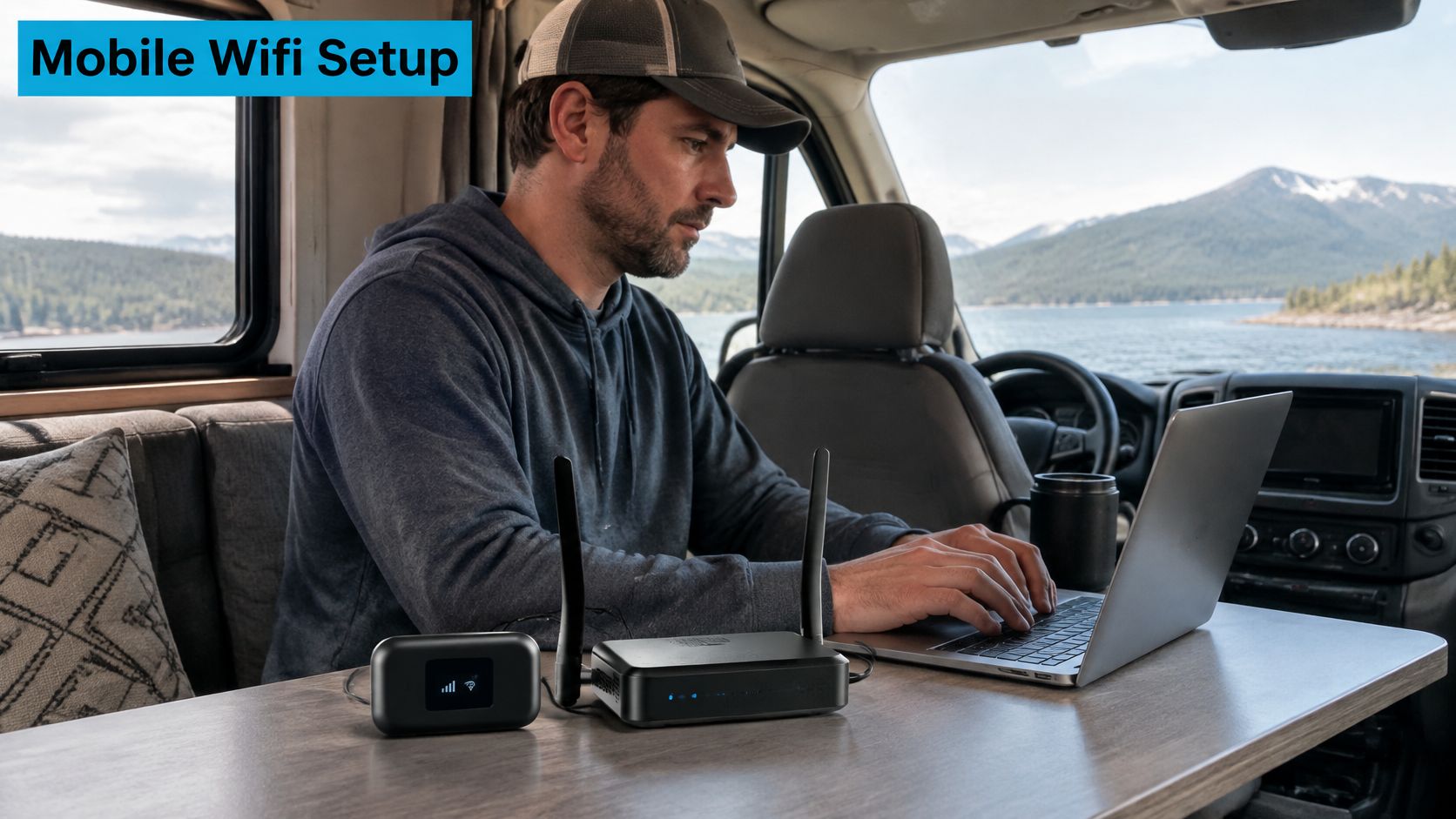
A mobile workspace makes equipment placement and connection sharing part of the daily routine.
Check the service behind the device
Mobile hotspot service isn't interchangeable with fixed wireless access. Reliability, speeds, data caps, and fees can differ, and provider reporting varies by service and location. The FCC's broadband data and mapping context is a reminder to examine the actual service category, not just a broad availability label.
Before choosing equipment or a plan, verify the details that affect travel:
- Carrier restrictions: Confirm that the plan permits the intended device and use.
- Data limits: Read the terms for hotspot use and any applicable restrictions.
- Exact location: Test from the campsite or parking position where you'll work.
- Hardware connections: Check for Ethernet, supported external antennas, and bridge mode if you'll connect other networking equipment.
A better local network can make sharing easier. It can't replace a usable connection to the mobile network.
For mobile work, treat a dedicated router as a way to meet defined needs, not as a guaranteed cure. Your stopping location and service terms still matter.
Comparing Modems, Hotspots, Routers and Combo Units
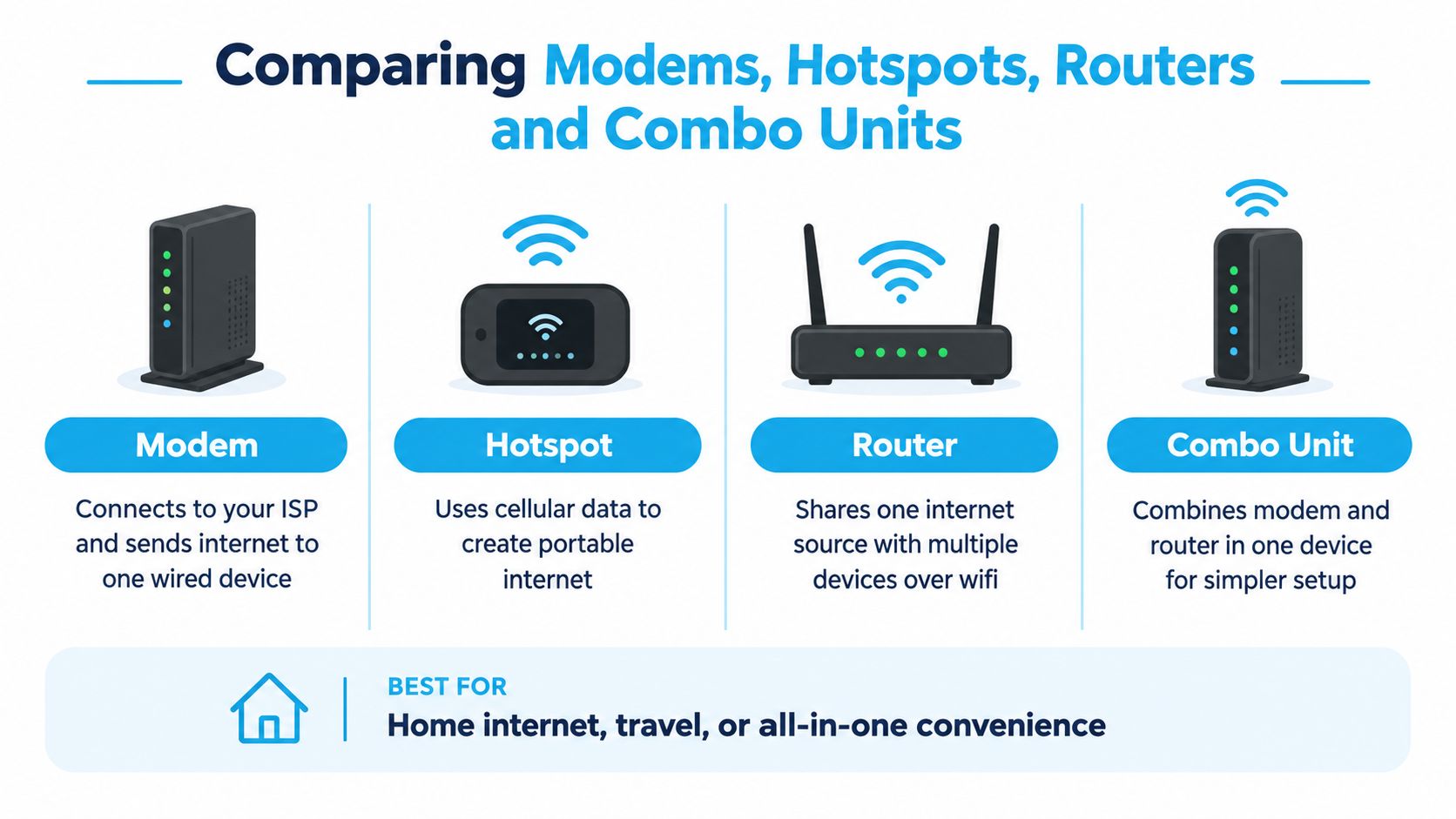
The labels on networking equipment can hide overlapping functions. A product sold as a hotspot may already perform the work you associate with a router, while a standalone router may have no way to receive cellular service by itself.
The key technical distinction is the access point, the component that provides the wireless connection. A conventional household router isn't strictly required if another device already performs that function. Cisco's explanation of wireless routers helps distinguish wireless access from the routing functions commonly bundled with it.
The comparison below separates the common device categories.
Which Setup Fits Which Situation
| Setup | What It Does | Best For | Main Limitation |
|---|---|---|---|
| Standalone modem | Receives compatible internet service and passes it to connected equipment | A wired setup or a separate-router arrangement | Doesn't provide WiFi by itself |
| Phone hotspot | Shares the phone's cellular connection wirelessly | Light travel use with equipment you already carry | Depends on phone features and plan permissions |
| Dedicated cellular hotspot | Receives mobile data and provides a portable local network | Travel-focused sharing | Ports, antennas, and supported device capacity vary |
| Standalone WiFi router | Distributes an existing internet connection | Managing a shared home or RV network | Needs an upstream internet source |
| Combo gateway | Combines modem, router, and wireless functions | An integrated setup with fewer separate devices | Compatibility and configuration options need checking |
Compare the features you'll actually use
Don't choose from the device name alone. Ask how many devices it supports, whether it's practical to move, and whether its physical connections match your equipment. A portable hotspot and a home gateway can both provide WiFi while serving quite different routines.
Ethernet ports matter if you want wired connections for stationary equipment. External antenna support matters only if the specific device supports the antenna arrangement you intend to use. Neither feature should be assumed from a product photograph.
A combo unit reduces the number of separate components you manage. Separate devices may be useful when you want to choose the internet-facing equipment and local networking equipment independently. For cable-based setups, the guide to coaxial cable and router connections can help clarify which box connects where.
For another way to review the equipment, use this video alongside the comparison.
SwiftNet Wifi is a cellular option to consider alongside phone hotspots and provider-supplied gateways. Its 4G Bronze hotspot and 5G Diamond router plans use AT&T, Verizon, and T-Mobile connectivity through virtual SIM technology; confirm the current equipment and service terms when matching a plan to your setup.
For a more involved installation, the Purple Access guide to WiFi design offers an additional planning resource. Use it to organize questions about the space and intended use, rather than treating a device's advertised speed as the whole decision.
Setting Up a Router Alongside an Existing Connection
You already have working internet, but the back room has poor coverage. Or you want cellular backup for work. Those are different problems, and adding another router in its default mode isn't automatically the right answer.
Choose the new device's role before connecting it. You might keep the existing gateway unchanged, add wireless coverage through an access point or compatible mesh system, or establish a separate cellular connection for backup or independent use.
Avoid an unnecessary routing layer
Double NAT can occur when a new router operates behind an existing router and both translate traffic between networks. Think of it as making traffic pass through separate reception desks before reaching the outside connection.
That arrangement may complicate inbound connections, gaming, VPNs, cameras, and port forwarding. Conflicting address-assignment settings can cause further trouble, so don't leave multiple devices managing the same local network without a deliberate configuration. The CNET modem-versus-router guide provides context for identifying the roles of existing equipment.
If the original gateway will remain in charge, an added device's access-point mode can provide WiFi without adding another routing layer. If the new router will take over routing, the upstream gateway may need a supported bridge configuration instead. Those choices depend on the equipment, so follow the relevant manuals rather than switching modes at random.
Before changing settings: Decide which device will manage the network and which device will only provide wireless access.
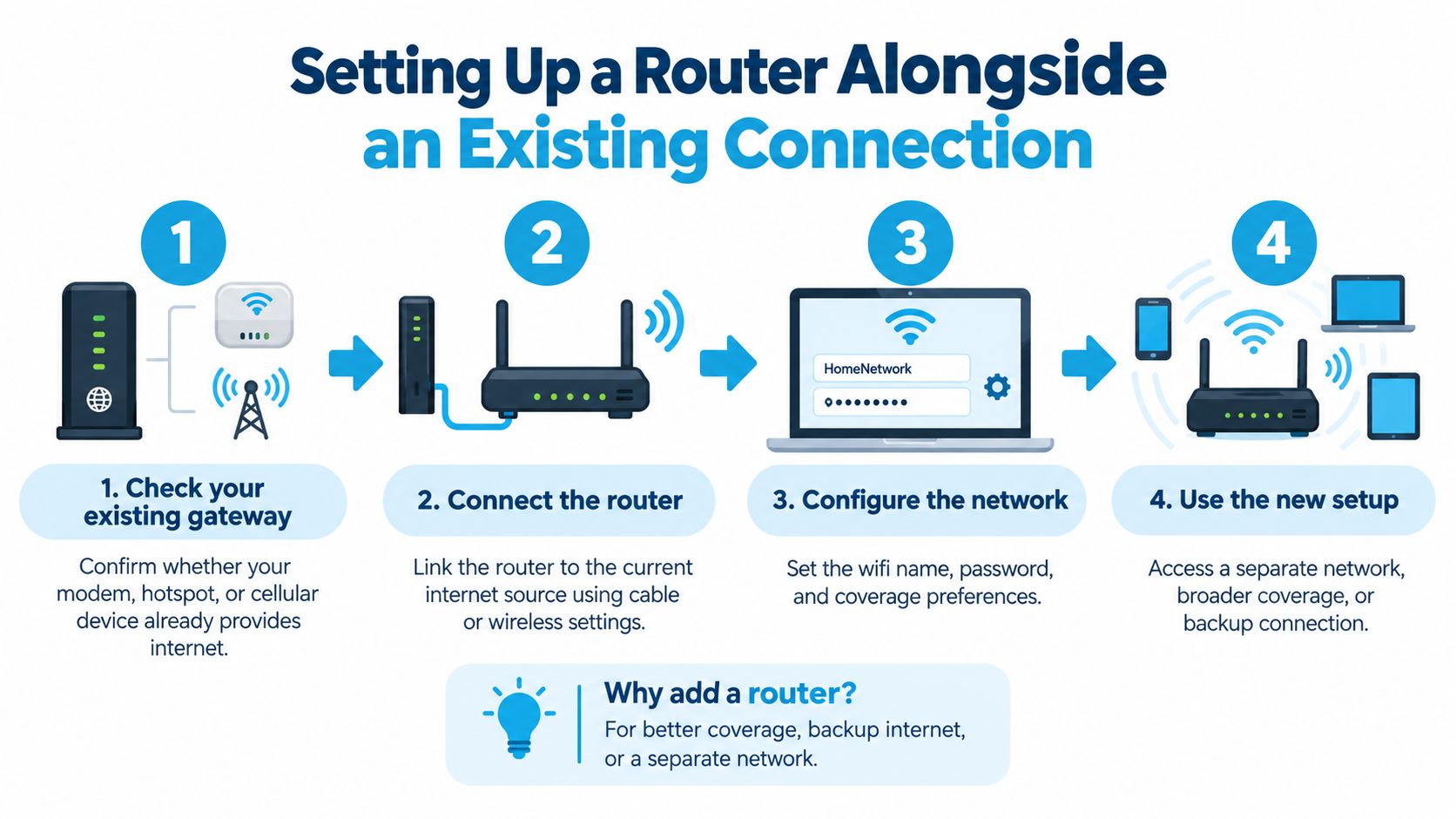
This setup overview shows the main stages of adding equipment.
Work through the connection in order
- Check the existing connection. Test internet access at the intended location before adding hardware. Establish whether you're fixing weak local coverage or an unreliable upstream connection.
- Choose the new device's role. Decide whether it will extend coverage, replace the current router, or provide independent cellular service. Backup requires a supported failover arrangement or a deliberate manual switching process.
- Connect and configure it appropriately. Use the supported connection method, then select access-point, bridge, or router mode to match the design. Set the wireless name and password, and check which device assigns local addresses.
- Verify everyday use. Connect your actual devices and test the applications you depend on. Include work VPN access, calls, cameras, or gaming where relevant, not just a quick webpage load.
The walkthrough on how to set up the WiFi router can help organize the physical setup and connection checks.
More hardware won't necessarily improve the result. Placement, interference, the connection between network components, and the incoming signal still determine what your devices can use. Keep the configuration as simple as the job allows.
Choosing Your Setup and Taking the Next Step
The most useful purchase is the one that solves a problem you've identified. Don't replace a working gateway because you think WiFi always requires another box. Don't expect a coverage upgrade to fix an unsuitable internet plan, either.
Start by writing down your normal use, not your idealized version of it. Include the television that streams while you work, the camera that stays connected, and the devices other people bring along.
Choose by need rather than label
- Occasional travel: Keep the phone hotspot if it handles your laptop use and the plan permits it.
- A shared home or RV network: Consider dedicated equipment when your connected devices and daily routine justify it.
- Coverage problems only: Assess placement and access-point or mesh options before replacing the internet service.
- Work that can't tolerate an outage: Decide whether you need a separate connection and how you'll switch to it.
There's also a radio-band trade-off that affects where equipment belongs. 2.4 GHz generally reaches farther, while 5 GHz typically supports faster connections over shorter distances, as described in Nokia's WiFi technical comparison. A dual-band setup lets compatible devices use the band that suits their position and needs.
That doesn't mean you should select a band once and forget about placement. Test from the desk, seating area, or sleeping space where you use the device. A connection that works beside the gateway doesn't answer whether your intended workspace is covered.
Buy after a practical test
For a household, compare performance where the service enters the network with performance where you work. For an RV or truck, test at the actual stopping location. If you're evaluating backup, rehearse switching connections before an important call.
Teams coordinating several work devices can use WiFi purchasing advice for IT teams from Purple to structure their buying questions. The same basic discipline helps a small mobile workspace: define the requirement, inspect the equipment, and verify the result.
So, do you need a router for WiFi? You usually need the functions, not necessarily an additional device. Once you've identified what your existing equipment already does, you can choose between keeping it, extending its coverage, or changing the internet source without buying blindly.
#rv #rvlife #rvliving #rvlifestyle #rvrenovation #rvremodel #rvtravel #rvcamping #rvadventures #ruralwifi #5gwifi #5ginternet
Test the signal where you'll connect, then visit SwiftNet Wifi to compare its cellular hotspot and router options for home, RV, or mobile use. Plans start at $49.99 per month and include a 7-day risk-free trial, giving you an opportunity to check the service with your own devices before deciding whether it fits your routine.


