

You're parked at a quiet campground, your laptop is open, and the campground Wi-Fi keeps dropping just as a video call starts. Or you're at a rural home waiting for fiber, or a truck stop trying to send a file before getting back on the road. A phone hotspot can get you online, but only if you treat the phone, the connection, and the place you're working as one system.
Knowing how to set up a mobile hotspot is the easy part. The useful part is choosing the right tethering method, protecting your data allowance, and keeping the phone cool and connected through the work session.
What a Mobile Hotspot Actually Does
A mobile hotspot takes an internet connection from a cellular network and shares it with nearby devices over Wi-Fi. Your phone or a dedicated hotspot device acts as the bridge: it connects to a cell tower, then lets a laptop, tablet, or other device join its local network.
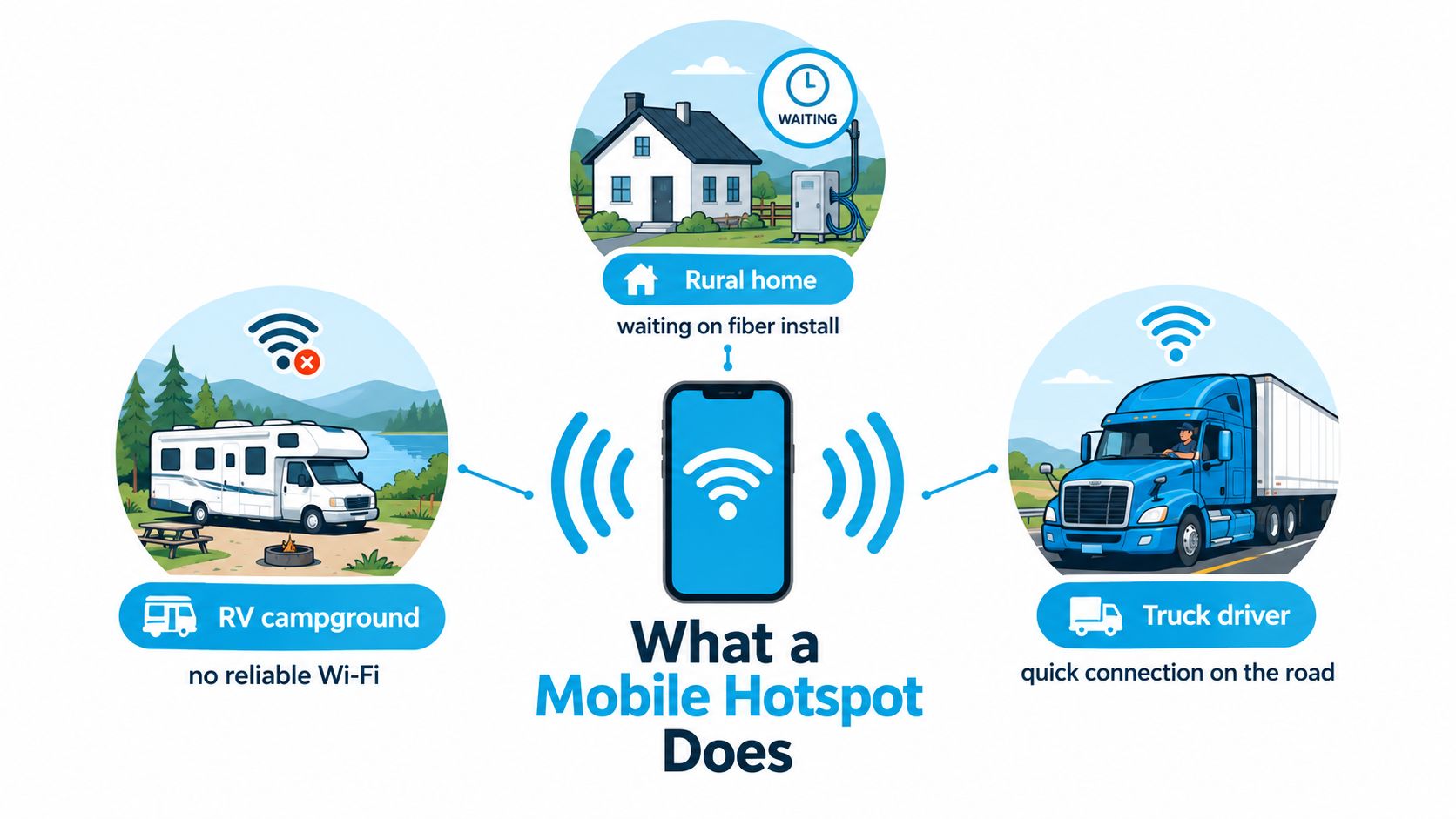
One mistake causes a lot of confusion: an iPhone hotspot doesn't rebroadcast Wi-Fi the phone is already using. Apple's Personal Hotspot shares the iPhone's cellular internet connection, not a campground or home Wi-Fi connection. If cellular reception is poor, changing the campground Wi-Fi password won't fix the hotspot. On a dual-SIM iPhone, the feature uses the line selected for cellular data, so check that line before starting demanding work (Apple's guide to sharing an iPhone internet connection).
That cellular connection is why hotspots matter to rural residents, remote workers, RV travelers, and truck drivers. A rural-library briefing reported that typical hotspot devices support approximately 8–10 connected devices. It also reported that, in 2017, mobile broadband at 5 Mbps download and 1 Mbps upload was available across 99.1% of rural U.S. locations, compared with 73.6% for wired broadband at 25/3 Mbps (the rural-library hotspot briefing). Those figures help explain the appeal of mobile access where wired service is hard to get, but they don't promise the same speeds at every campsite, roadside stop, or home.
The connection has two sides: your phone needs a usable cellular signal, and your other device needs a reliable local link to the phone.
Coverage, tower congestion, signal obstructions, and your carrier's tethering policy all shape the result. For a plain-language overview of the technology, see what a mobile hotspot is and how it works.
Turning On Your iPhone or Android Hotspot
Start by confirming that cellular data works on the phone itself. If the phone can't load a webpage over its mobile connection, the laptop won't get internet by joining its hotspot.
On iPhone, open Settings, tap Personal Hotspot, and turn on Allow Others to Join. Set a password that isn't easy to guess, then open the client device's Wi-Fi list, select the iPhone's network name, and enter that password. Apple recommends keeping the connected device within roughly 30 feet (10 meters) for a reliable local connection. If Personal Hotspot doesn't appear, don't waste time hunting through menus indefinitely. Your carrier may not include tethering, may require an add-on, or may need to enable the feature on your account (Apple's Personal Hotspot availability guidance).
On Android, go to Settings, then Network and Internet, then Hotspot and Tethering. Menu labels vary by device, but Google documents Wi-Fi hotspot, Bluetooth tethering, and USB tethering. For Wi-Fi, open the client's Wi-Fi list, choose the phone's hotspot name, and enter the password (Google's Android hotspot and tethering instructions).
Don't leave the network open. Android may offer a “Security: None” option, but that gives nearby people a chance to use your data, and it can expose unprotected traffic. Use a password, and check the carrier terms before assuming the hotspot will work without extra charges or restrictions. Google also warns that some carriers limit tethering or charge extra, so the missing menu or unexpected prompt may be a plan issue, not a phone fault.
Wi-Fi vs USB vs Bluetooth Tethering
Wi-Fi is convenient, but it isn't automatically the right choice. Pick the connection method based on what you're doing, how many devices need access, and whether the phone can stay plugged in.
| Method | Typical Speed | Battery Impact | Best For | Trade-Offs |
|---|---|---|---|---|
| Wi-Fi hotspot | Depends on cellular signal and local Wi-Fi conditions | Can drain and heat the phone | Sharing with multiple devices | Convenient, but adds a wireless link and can warm the phone |
| USB tethering | Can be faster and more power-efficient for stationary use | Often favorable when the phone is connected to power | A laptop staying in one place | Needs a cable and usually suits one connected device |
| Bluetooth tethering | Slower than other options | Lighter on battery | A single device when conserving power | Less suitable for bandwidth-heavy tasks |
For a laptop at a desk, campsite table, or truck cab, USB is my first choice. It avoids a second wireless hop and can keep the phone charging, which is handy during a long session. Bluetooth is the fallback when a single device needs a light connection and speed isn't the priority. Use Wi-Fi when you need to share the connection with several devices, then keep an eye on heat and battery.
A historical PCWorld benchmark is useful for its testing approach, not as a prediction of today's network speeds. Testers ran three speed tests at six locations and averaged 18 download measurements per pairing. A Verizon MiFi averaged roughly 1.5 Mbps down and 0.5 Mbps up over Wi-Fi and USB, while a Cradlepoint/AT&T USB pairing ran about twice as fast (PCWorld's mobile hotspot comparison).
More bars on the phone don't guarantee a good work session. The cellular connection can be strong while the local Wi-Fi link struggles, or the phone can create a strong Wi-Fi signal while the cellular backhaul is weak. If you're stationary, compare USB and Wi-Fi in the spot where you'll work.
Reading Your Plan Before You Burn Through It
The word “unlimited” doesn't tell you how much high-speed tethering you get. Check the hotspot allowance, what happens when it runs out, and whether tethered use draws from a separate bucket or your general data budget.
Google Fi gives a concrete example of how different the terms can be: Unlimited Standard includes 25 GB of high-speed hotspot tethering, while Unlimited Premium includes 50 GB. After the applicable limit, speeds drop to 256 kbps until the next billing cycle. On the Flexible plan, hotspot tethering is charged at $10 per GB (Google Fi's hotspot and tethering details). At a reduced speed like that, a video call is not a realistic backup plan.
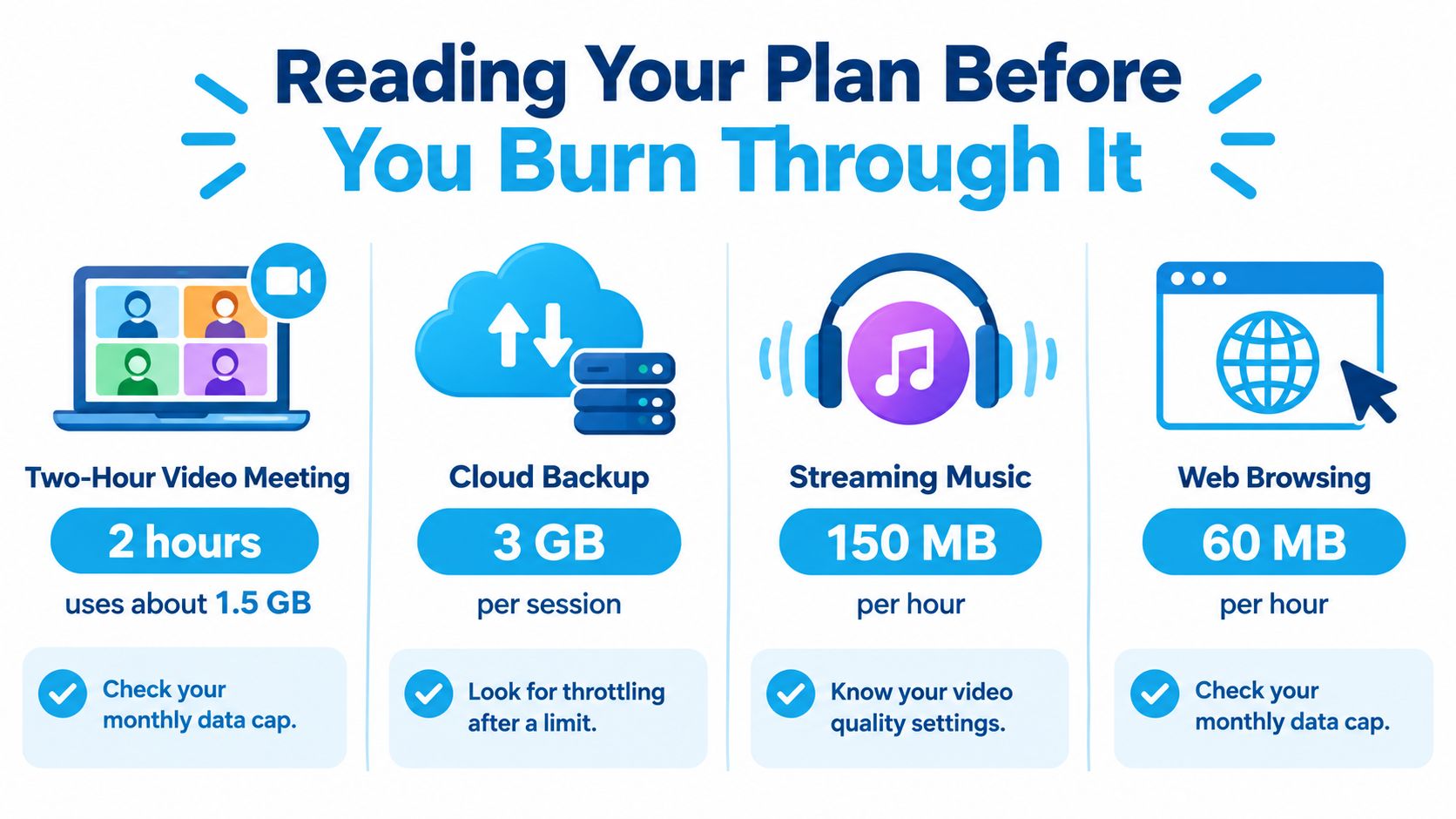
Forecast usage by the work you'll do, not by the word "unlimited." A video meeting, cloud backup, operating-system update, and streaming session can consume very different amounts of data. The image above gives illustrative task estimates, but actual use changes with video quality, file size, app settings, and what else the laptop does in the background. A laptop can download updates or sync folders while you're focused on a call.
Before connecting, disable automatic updates, pause cloud sync, and mark the connection as metered where your operating system allows it. Then monitor hotspot-specific usage, rather than relying only on the phone's general data counter. If your plan doesn't separate tethering, check the carrier's usage details often enough to catch a large transfer before it eats into your allowance.
A two-hour call is predictable. A laptop update that starts on its own isn't.
Use a data guide such as how much data you may need to think through your typical workload, then compare that estimate with the plan's high-speed tethering limit. RV travelers and truck drivers who wait to check the cap until a call freezes are checking too late. Forecast first, especially if the hotspot is standing in for home internet.
A Work-Session Protocol for RVs, Cabins, and the Open Road
A stable hotspot session is an operating routine, not a toggle. Before a call or upload, check the phone's position, temperature, power, connection method, and security. Moving the phone to a better reception spot can help more than changing a setting while it sits in a weak-signal corner.
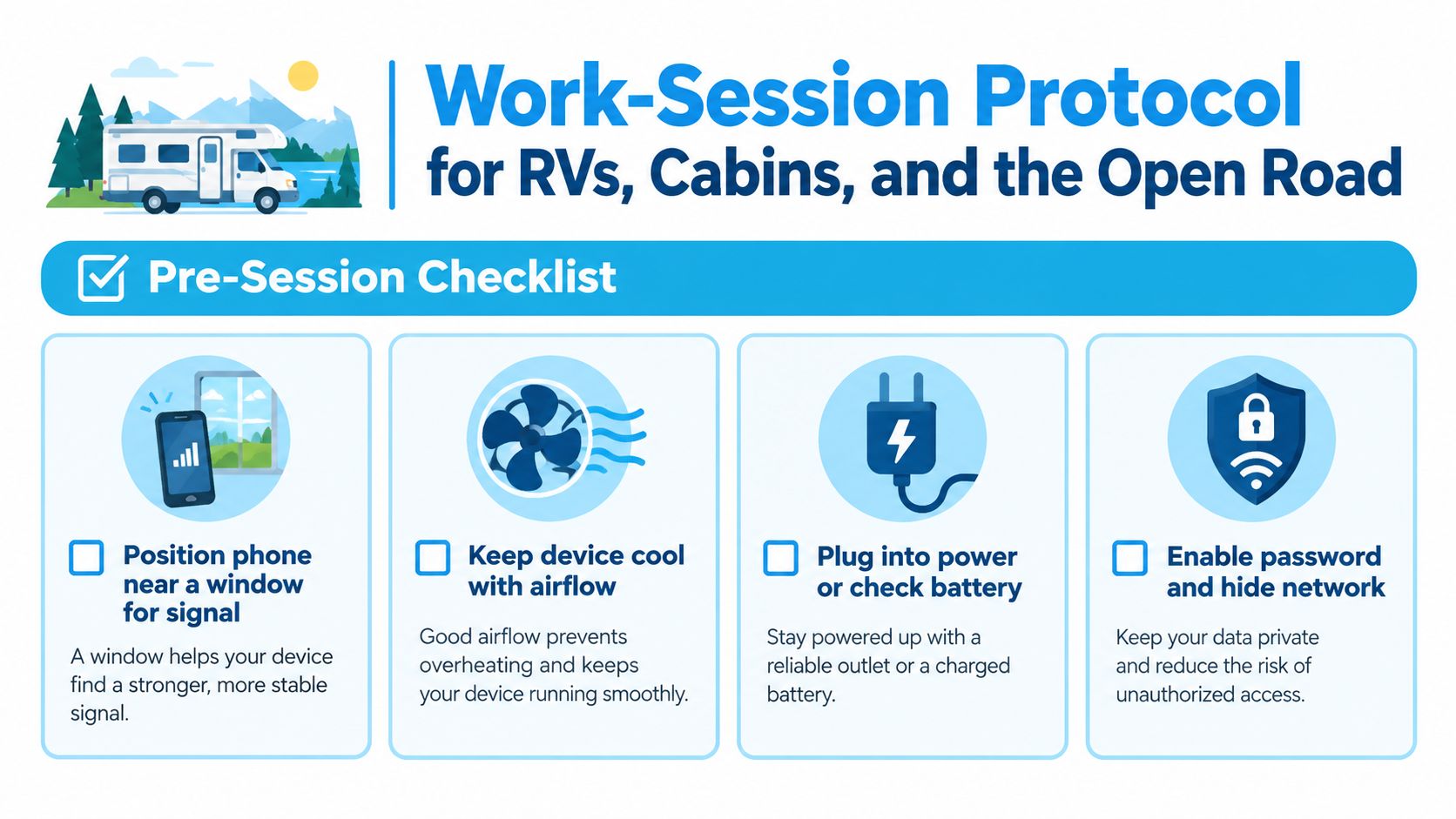
Run this quick check before you start:
- Position: Put the phone near a window or another spot where cellular reception is stronger.
- Ventilation: Keep it in the open, not buried in bedding or wedged inside a hot vehicle console.
- Power: Plug in for a long stationary session, or check the battery before you rely on the hotspot.
- Connection method: Use USB for a stationary laptop; switch to Wi-Fi when multiple devices need access.
- Security: Keep the hotspot password protected, avoid automatic connection to nearby Wi-Fi, use HTTPS, and consider a VPN on public or shared networks. Turn Bluetooth off when you aren't using it.
Wi-Fi hotspot use can drain and heat a phone. Industry guidance also notes that USB tethering can be faster and more power-efficient for stationary use, while Bluetooth is slower but lighter on battery; the same guidance reflects FCC recommendations on safer public connectivity (hotspot power and security guidance). Don't trade ventilation for convenience by leaving a phone running under a blanket or in direct heat.
The most secure choice isn't always the easiest, and the most convenient setup isn't always the most reliable. Keep a fallback connection or an offline copy of critical files so one dropped signal doesn't take your whole work session with it.
Here's a short visual walkthrough to pair with the routine:
Diagnosing the Hotspot Problems That Waste the Most Time
Troubleshoot in order. Start with signal and location, because a phone tucked behind metal, deep inside an RV, or far from a window may have a poor cellular connection even when its hotspot Wi-Fi appears strong. Move the phone to a better spot, then test again before changing several settings at once. For more practical ideas, see how to improve cell reception.
Next, check the plan. Carriers can restrict tethering, require an add-on, or reduce speeds after a threshold. If the hotspot option is missing or the connection suddenly becomes unusable, review the account's tethering terms and usage rather than assuming the phone has failed.
Then check the devices:
- Test cellular data directly: Open a webpage on the phone with Wi-Fi turned off. If that fails, the hotspot has no working cellular connection to share.
- Check the active data line: On a dual-SIM iPhone, Personal Hotspot uses whichever line is selected for cellular data. Confirm the right line is active before troubleshooting the laptop.
- Reconnect cleanly: Restart the phone and client device, then join the hotspot again with the correct password.
- Temporarily remove interference: Turn off a VPN or aggressive battery-saving setting long enough to test whether it's disrupting the connection.
A laptop can show a strong Wi-Fi connection to the phone while webpages still crawl. That usually means the local link is working, but the phone's cellular connection is weak or congested. Don't confuse bars on the laptop's Wi-Fi icon with usable internet speed.
SwiftNet Wifi offers portable 4G and 5G hotspot and router options for people who need mobile internet for rural homes, RV travel, or work on the road. Compare the options and see whether one fits your setup at SwiftNet Wifi.
#rv #rvlife #rvliving #rvlifestyle #rvrenovation #rvremodel #rvtravel #rvcamping #rvadventures #ruralwifi #5gwifi #5ginternet


