

You're parked at a beautiful overlook, but your workday hasn't ended. Your phone is running a hotspot for a laptop, your partner is trying to stream a film, and another device keeps disconnecting every time someone moves across the RV. The signal indicator looks acceptable, yet the video call freezes at the worst possible moment.
That's the point where an RV internet router stops feeling like an optional upgrade. A phone hotspot can help in a pinch, but a dedicated router is built to receive a wide-area connection, manage traffic, and distribute Wi-Fi throughout the coach. The right setup won't create service where no compatible network exists, but it can make the connection you have more useful, more stable, and easier to share.
Why You Need a Real Router in Your RV
A phone hotspot is a convenient stopgap. It's already in your pocket, takes almost no setup, and works well when one person needs to check a map or send a few messages. It becomes less comfortable when several people depend on it for work, entertainment, banking, navigation, weather, or telehealth.
A dedicated router gives the RV its own local network. Your laptop, smart TV, tablet, streaming device, and other equipment can connect to the router instead of competing directly for access through one handset. The router can stay in a useful position, connect to external antennas, manage a cellular modem, and distribute the connection without turning your phone into a warm, rapidly draining access point.
The size of the potential market helps explain why this equipment has become relevant beyond full-time nomads. Approximately 8.1 million U.S. households own a recreational vehicle, according to the RV Industry Association's media resources. That figure counts households, not individual RVs, travelers, or annual trips, but it still shows why onboard connectivity has become part of normal RV use.
Practical rule: Treat your router as the RV's network center, not as a faster phone.
The difference is especially noticeable when the work call starts while everyone else is online. A phone hotspot may expose the immediate connection, but its placement is usually dictated by where you're sitting. A router can sit closer to a window or connect to an external antenna, while its Wi-Fi network serves devices across the rig. That separation gives you more control over both reception and distribution.
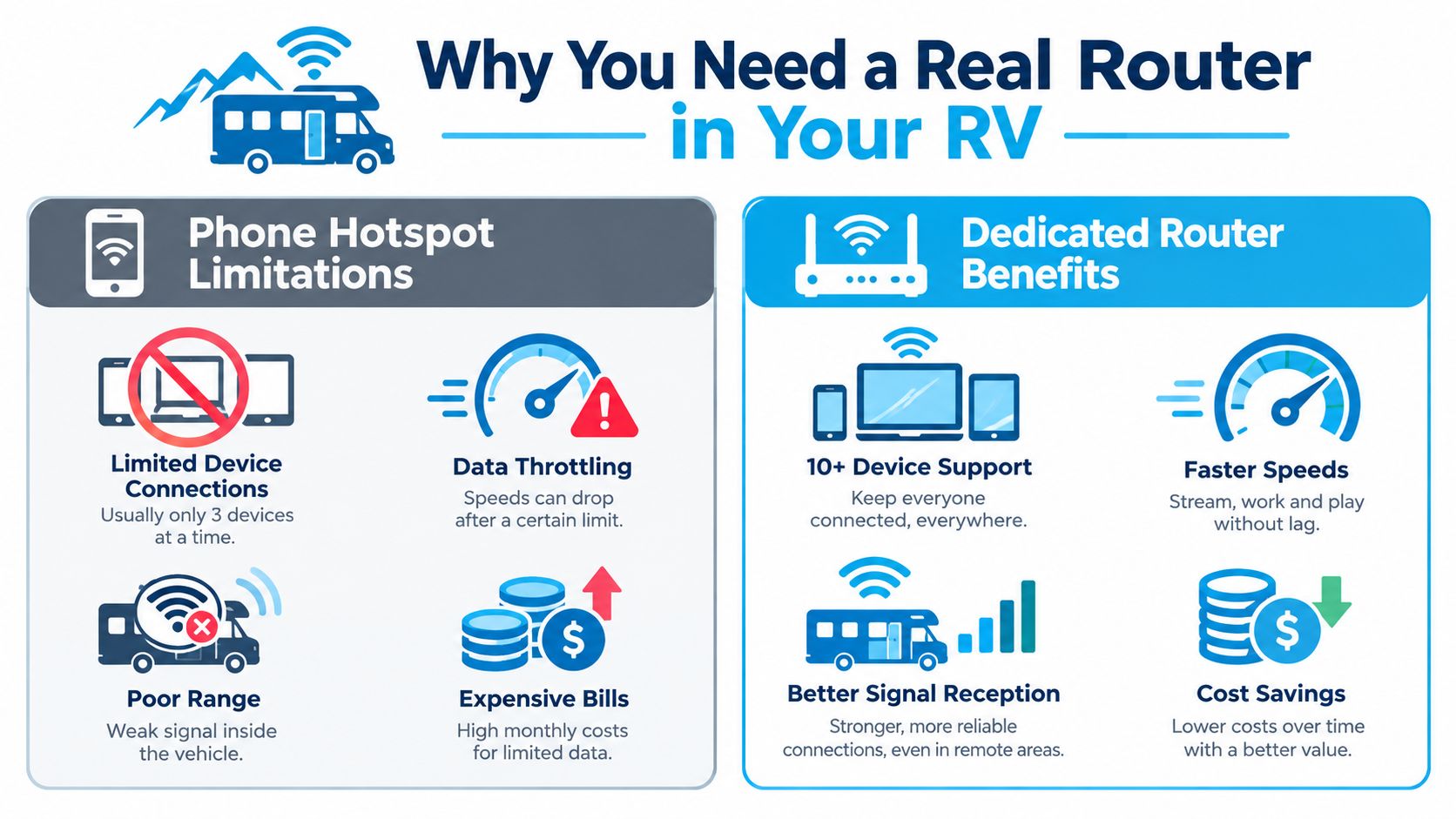
The best choice still depends on how you travel. A weekend RVer who downloads maps and checks email may not need an elaborate system. Someone who works remotely, uploads files, attends calls, and shares the connection with a family needs to think about coverage, capacity, and reliability, not only the highest advertised speed.
For practical ideas about managing work and travel together, these accommodation and productivity hacks can complement your connectivity setup. Before buying, it's also useful to consider whether owning the equipment fits your travel pattern, as discussed in this guide to buying your own router.
How an RV Internet Router Actually Works
Think of a phone hotspot as a small doorway attached to your phone. A dedicated router is more like a reception desk for the entire RV. It receives an internet connection, decides where traffic should go, and creates a private local network for the devices inside the vehicle.
The process is easier to understand as a sequence:
- A cellular tower sends a signal. The available connection depends on the network, location, terrain, congestion, and supported bands.
- An antenna receives the signal. This may be an antenna built into the router or an external unit mounted near a window or on the roof.
- The cellular modem processes the signal. The modem uses the inserted SIM card or an enabled virtual SIM profile to authenticate with the selected service.
- The router manages the connection. It handles addressing, traffic priorities, security, and the movement of data between the wide-area connection and the local network.
- The Wi-Fi radio creates the RV network. Many routers broadcast on both 2.4 GHz and 5 GHz, giving you different options for range and throughput.
- Your devices connect locally. Laptops, televisions, phones, consoles, and smart-home equipment communicate with the router over Wi-Fi or Ethernet.
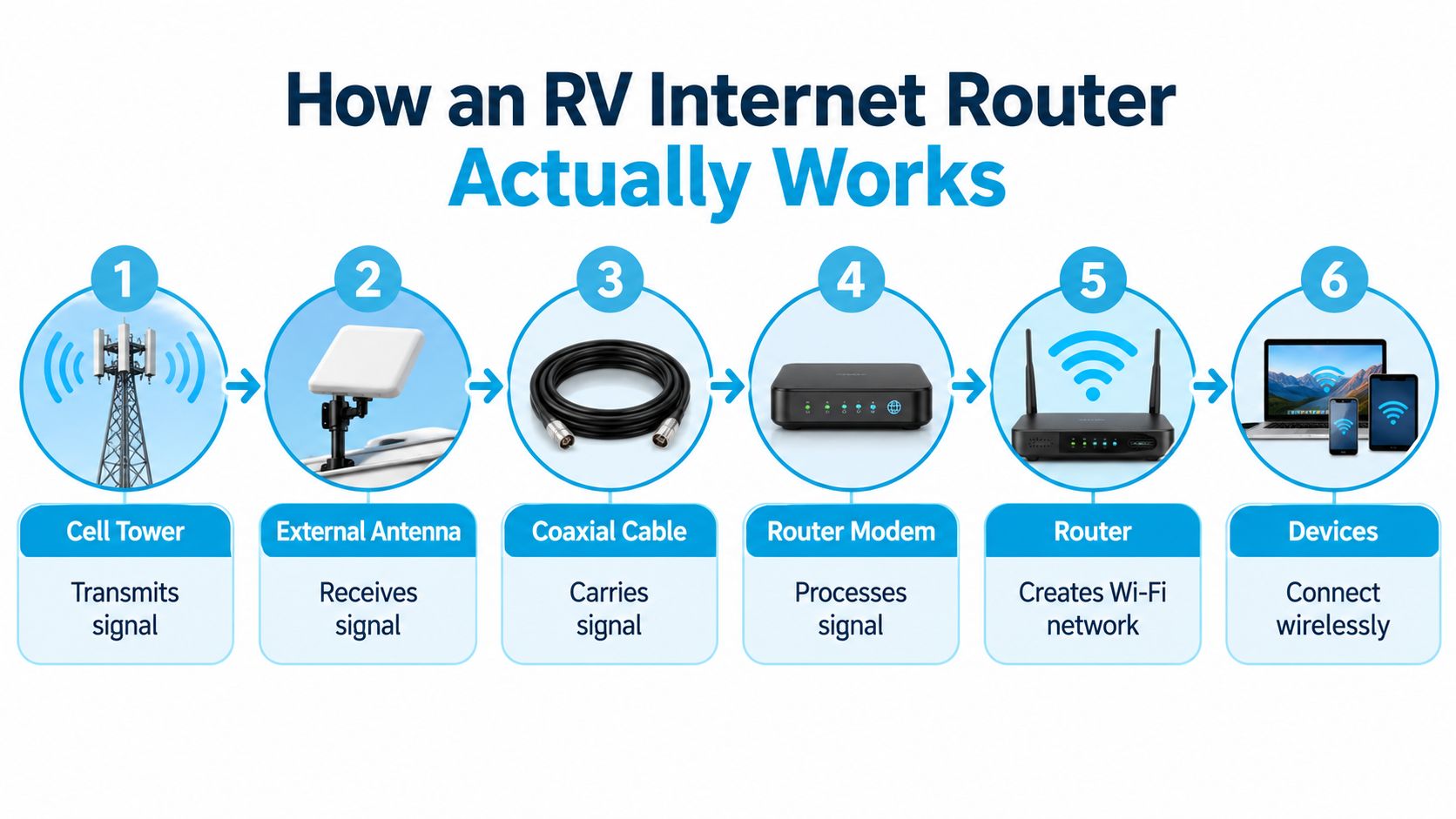
The cellular radio and the Wi-Fi radio perform different jobs. The cellular side talks to the outside network. The Wi-Fi side talks to your devices inside the RV. Buying a router with a modern Wi-Fi standard can improve how multiple devices share the local network, but it can't repair a weak cellular connection from a distant or overloaded tower.
Some routers can also use an existing campground Wi-Fi connection as a wide-area source through WAN bridging. In plain language, the router joins the campground network and then rebroadcasts access through your own RV network. That can save you from reconnecting every television and laptop whenever the outside source changes, although the campground's congestion and security still affect the result.
A router is therefore a traffic director, not a magic box. It can choose or combine available sources, organize local traffic, and use a better antenna position. It can't bypass a coverage gap, remove every peak-hour slowdown, or turn a restricted data plan into unrestricted service.
Features That Actually Matter When You Buy
A specification sheet can make every router look impressive. The useful question is simpler: which feature solves a problem you experience on the road?
Wi-Fi 6 is valuable when several occupants and devices share a connection at once. The standard uses OFDMA to divide a channel into smaller resource units, allowing the router to schedule multiple clients in the same transmission interval. The Wi-Fi Alliance describes Wi-Fi 6 as offering nearly four times the capacity of Wi-Fi 5 in dense deployments, but that figure applies to specified conditions, not every RV campsite or every cellular plan. You can review the technical context in the Wi-Fi Alliance's Wi-Fi MAC and PHY overview.
Wi-Fi 7 may appear on newer product sheets, but don't buy a label in isolation. Ask whether the router's cellular modem, antenna system, and local performance match your needs. A well-positioned dual-band Wi-Fi 6 router can be more useful than a newer standard paired with weak reception or a plan that slows during busy periods.
| Feature | What It Means | RV Benefit |
|---|---|---|
| Dual-band Wi-Fi | Uses 2.4 GHz and 5 GHz Wi-Fi options | 5 GHz can favor throughput nearby, while 2.4 GHz can reach farther through the coach |
| Tri-band Wi-Fi | Adds another Wi-Fi band for compatible traffic | May help specialized multi-device networks, but only if your devices and layout can use it |
| Wi-Fi 6 | Adds scheduling and capacity features such as OFDMA and MU-MIMO | Helps multiple devices share the local network more efficiently |
| Cellular modem category | A modem capability label, often shown as a CAT rating | Gives you a comparison point, but doesn't replace checking coverage and plan terms |
| Carrier band support | Lists the cellular frequencies the modem can use | Determines whether the router can communicate with the networks available along your route |
| Ethernet ports | Wired network connections | Useful for a television, streaming device, workstation, or console that stays in one place |
| External antenna ports | Connections for an outside cellular antenna | Lets you move reception beyond the RV's walls and roof materials |
| VPN grouping | Applies a VPN to selected devices or traffic groups | Helps organize security when using campground Wi-Fi or other shared sources |
| 12-volt compatibility | Accepts power from the RV's DC system | Fits installations that run from the coach battery rather than a household outlet |
| Mounting and heat design | Supports the physical environment inside a moving vehicle | Helps the router stay accessible, ventilated, and secure during travel |
For cellular capability, check the modem's category label, supported carrier bands, and uplink behavior instead of focusing only on a headline download figure. The bands you may see in North American equipment comparisons include 4, 7, 12, 13, 17, 66, and 71. Don't assume a listed band guarantees service at your campsite. The plan, local tower, terrain, antenna, and network load still determine what you can use.
IEEE's history of Wi-Fi standards puts the progression in perspective. The original 802.11 standard appeared in 1997 with data transmission of up to 2 Mbit/s over unlicensed 2.4 GHz spectrum. Later milestones included 802.11b in 1999 with up to 11 Mbit/s, 802.11g in 2003 with up to 54 Mbit/s, Wi-Fi 4 with up to 600 Mbit/s, Wi-Fi 5 with up to 3.5 Gbit/s under specified conditions, and Wi-Fi 6 with aggregate rates up to 9.6 Gbit/s. These are standard-level or theoretical maximums, not promises for your RV.
Choose the modem and antenna connections first if your travel takes you through changing coverage. Choose Wi-Fi capacity next, then look at Ethernet, power, mounting, ventilation, and software controls. That order keeps the purchase tied to the environment rather than the biggest number on the box.
Antennas, Signal Tips, and Placement Tricks
An antenna can determine whether a router feels dependable or disappointing. The cellular modem may be excellent, but the signal still has to reach it through the vehicle, surrounding trees, terrain, and nearby structures.
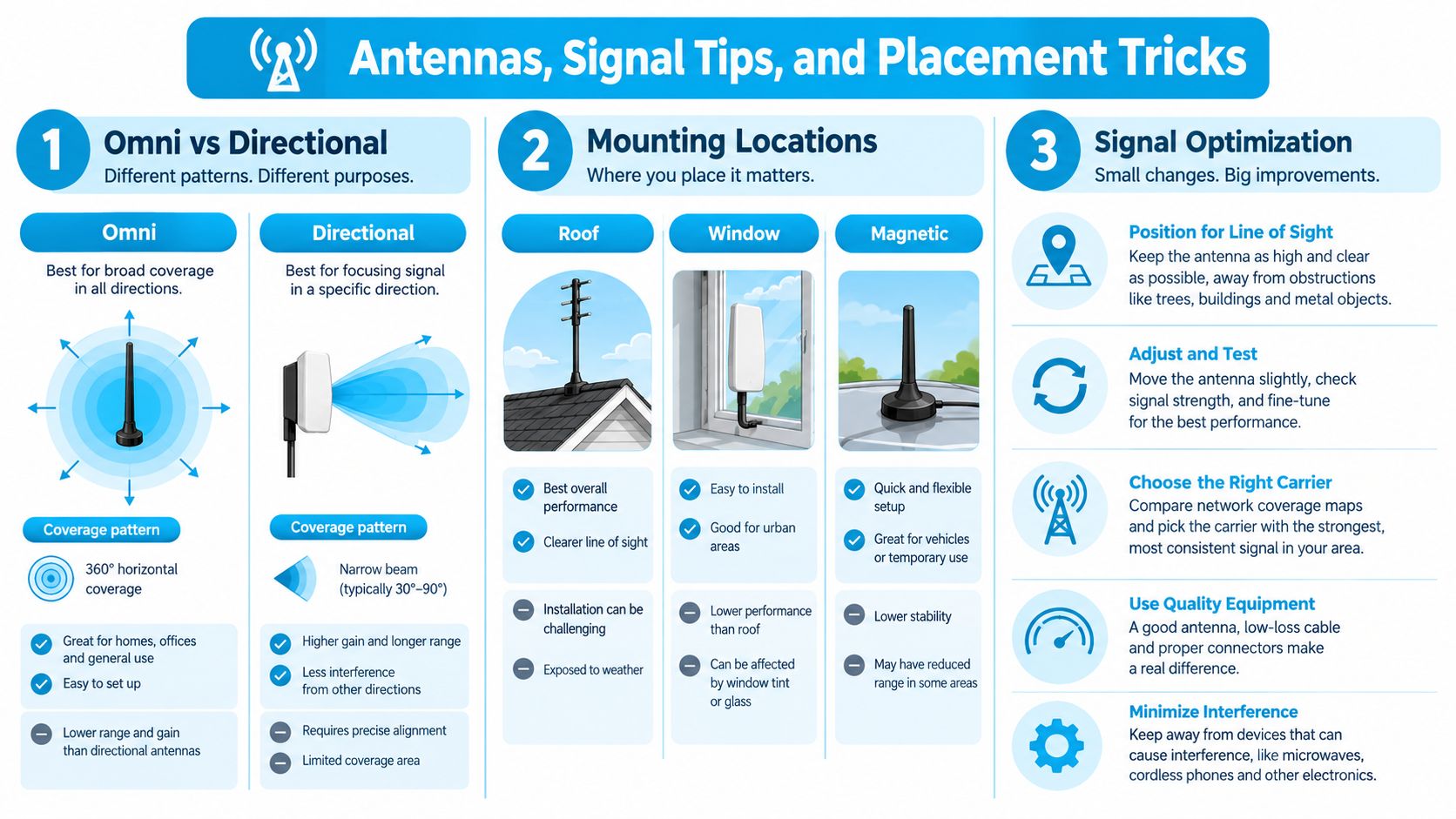
An omnidirectional antenna receives from multiple directions. It suits travelers who move often and don't want to aim an antenna whenever they change campsites. A directional MIMO panel antenna concentrates reception toward a chosen direction, which can help when you know where the usable tower is and have enough room to aim the panel accurately. Neither design is automatically superior.
Put reception above the obstacles
A roof-mounted antenna often has a cleaner view than an antenna hidden inside the RV. External placement can reduce attenuation from the vehicle's body and improve signal-to-noise ratio, especially when the RV includes metal construction or reflective equipment. A window-mounted option may be easier to install, while a magnetic mount can simplify temporary use if its installation surface and cable path are suitable.
Keep cellular antennas away from large metal obstructions such as air-conditioning equipment. Don't tuck an antenna under a decorative overlay and expect the material to be invisible to radio signals. Mounting height and a clear path can matter more than paying for a more expensive antenna.
The router should support multiple cellular antenna ports when you want MIMO or carrier aggregation where available. Inside the RV, 5 GHz Wi-Fi generally offers higher practical throughput nearby, while 2.4 GHz usually travels farther through walls and cabinetry. That makes the two bands complementary rather than interchangeable.
Make installation boring and repeatable
Use the shortest sensible cable route, avoid sharp bends, and protect every outdoor connector from water. Seal weather-exposed connections properly, secure the cable against movement, and inspect it after storms or long trips. Don't overtighten connectors, but don't leave them loose enough to vibrate free on rough roads.
Placement beats bragging rights. A modest antenna in a clear, elevated position can outperform a powerful antenna hidden behind the wrong obstruction.
After relocating, restart the router if it hasn't reacquired the network cleanly. Check the supported carrier bands before settling into a remote site, and use the router's signal information to compare positions inside the RV. A stronger signal bar can help, but it doesn't tell you whether the tower is congested.
Wi-Fi 6's MU-MIMO features can improve simultaneous local performance. In one Wi-Fi Alliance test scenario, MU-MIMO delivered more than twice the throughput at 10 feet, 67% higher throughput at 35 feet, and 33% higher throughput at 70 feet compared with single-user MIMO. Those results aren't a guarantee for every installation, so use them as evidence for evaluating genuine multi-user capability, not as a promise about your campsite. The Wi-Fi Alliance explanation of MU-MIMO provides the test context.
For an installation-specific walkthrough, use this guide to cellular router external antennas.
Choosing a Plan Like SwiftNet for the Road
A capable router can still perform poorly if the plan doesn't match the route. Evaluate the service separately from the hardware, because a strong antenna and a modern modem can't change a provider's coverage map, data policy, or network priority rules.
A major carrier postpaid plan may offer direct account support and broad network access, but its hotspot rules and priority treatment need careful reading. A third-party reseller may simplify billing or provide a different device option, while its terms can depend on the underlying carrier. A virtual SIM operator can offer a flexible way to use major networks, but you should verify exactly how network selection works and whether switching happens automatically or requires action.
| Plan Feature | Major Carrier Postpaid | Third-Party Reseller | Virtual SIM, e.g. SwiftNet |
|---|---|---|---|
| Network access | Usually tied to the carrier's own network | Depends on the reseller agreement | May use access arrangements with major networks |
| Coverage | Check the carrier map for every destination | Confirm which networks and bands are included | Confirm the available networks, switching rules, and destination coverage |
| Data policy | Read hotspot limits, throttling, and priority terms | Review the reseller's restrictions carefully | Check data allowances, deprioritization, and device conditions |
| SIM flexibility | May be tied to an account or approved device | Varies by provider | Ask whether you can move the SIM or profile between supported devices |
| Billing | Direct carrier billing and carrier terms | Reseller billing and support terms | Review the operator's pricing, activation, and cancellation conditions |
| Best fit | Travelers loyal to one network | Buyers comparing a particular device or price structure | Travelers seeking a virtual SIM option with multiple-network access |
Use a simple test before committing. Write down where you travel, then compare the available networks at those destinations. Urban coverage and rural coverage can differ sharply. The ITU's 2025 mobile network coverage data reports 5G coverage for 66% of urban residents and 40% of rural residents, a 26-percentage-point gap. For 4G, the figures are 99% in urban areas and 84% in rural areas. In the Americas, as many as 21% of rural residents remain in areas with no mobile network coverage or only 2G service.
Those figures describe residents and broad coverage, not the exact patch of ground beside your campsite. A network that works in town may weaken along a forest road, while another carrier may be stronger at the same stop. Ask whether the plan supports the bands your router and antenna can use, whether hotspot data is treated differently from phone data, and what happens after the included allowance.
Avoid choosing based only on the word unlimited. Read the rules for deprioritization, roaming, activation zones, device changes, contract length, and network switching. A plan that looks generous in a city may be a poor match for a remote worker who needs predictable uploads outside urban coverage.
Setup, Daily Use, and Long-Term Maintenance
A first setup should follow a deliberate order. Start with the service, then configure the router, then test it at the campsite. Skipping those steps makes it difficult to tell whether a failure comes from activation, an APN setting, antenna placement, or local coverage.
Initial setup
- Activate the SIM or virtual profile. Confirm that the service recognizes the router or modem.
- Enter the APN settings if required. Use the provider's current values, since an incorrect APN can leave a valid SIM unable to establish data service.
- Connect the antennas. Secure the cables before powering the router.
- Install firmware updates. Use the manufacturer's supported process before relying on the unit for work.
- Open the router dashboard. Change the administrator credentials and give the Wi-Fi network a name you'll recognize.
- Test several devices. Check a laptop, phone, and any wired equipment you plan to use regularly.
- Run a practical connection test. Check a webpage, a video call, an upload, and the router's signal information rather than relying on one speed result.
For a more detailed installation sequence, follow this guide to installing a router for wireless internet.
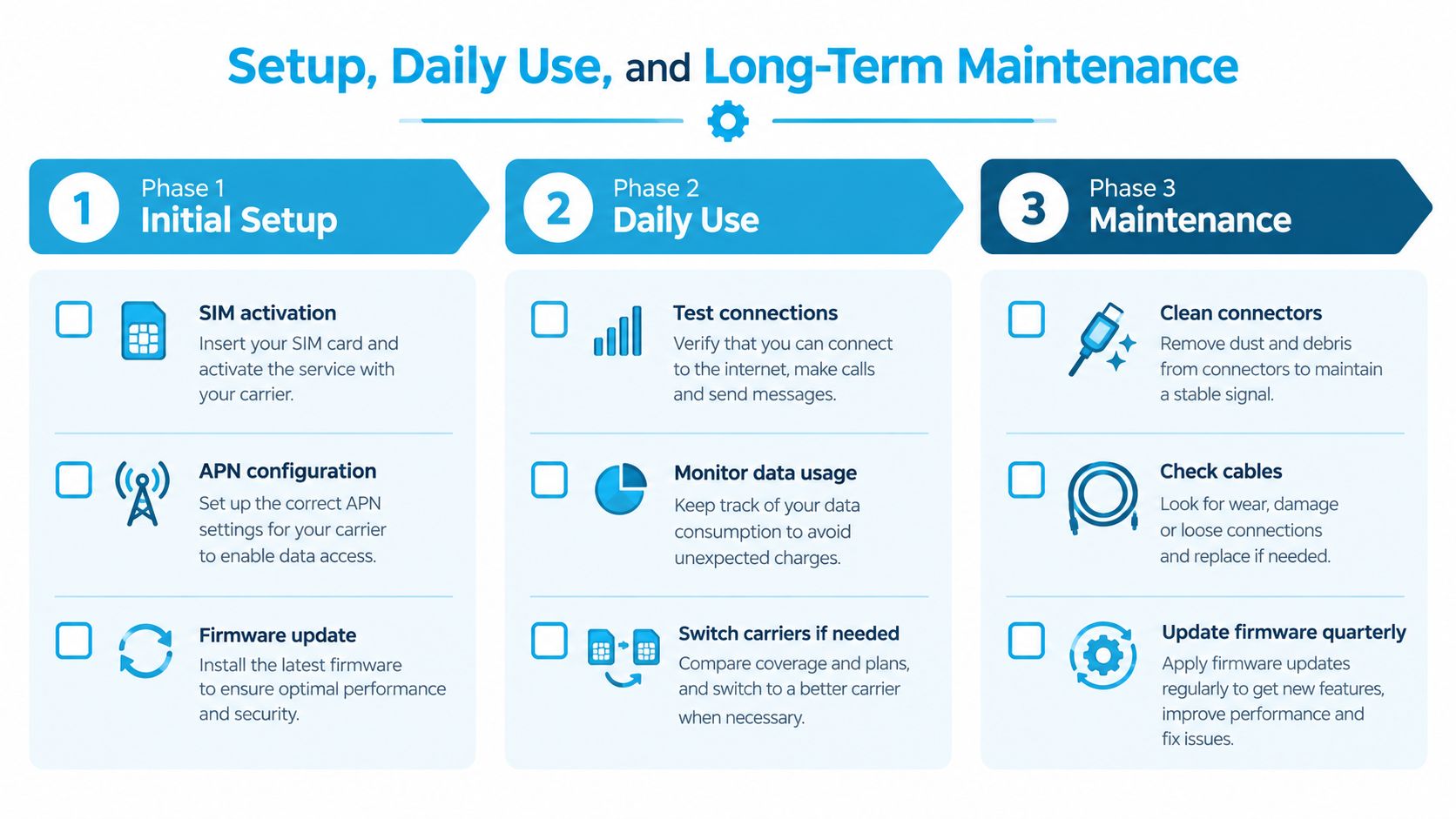
During daily use, leave the router powered through short movements only if your installation and power system support that safely. Use sleep settings overnight when you want to reduce battery draw, and reboot after a location change if the modem stays attached to the previous cell or fails to negotiate a new connection. A controlled restart often resolves a temporary registration problem faster than changing several settings at once.
Keep the hardware roadworthy
Check the router's vents and remove dust before it builds up. Inspect antenna cables and outdoor connectors after wet weather, look for corrosion, and verify that vibration hasn't loosened a connection. Keep the router ventilated, especially when it's mounted in a cabinet or near other warm electronics.
Review firmware periodically, and make updates part of your normal maintenance rather than waiting for a failure. Before seasonal storage, decide whether the manufacturer recommends removing the SIM, disconnecting external antennas, and fully powering down the modem. Store loose cables dry, label them, and record the working configuration so the next setup doesn't become a guessing game.
Common Myths and Quick Answers About RV Routers
Myth: A phone hotspot is always enough.
A hotspot is fine for light, occasional use. It becomes limiting when several people connect, the phone sits in a poor reception spot, or the handset must handle calls and battery-heavy activity at the same time. A dedicated router separates the cellular modem from the devices using the local network.
Myth: More signal bars always mean faster service.
Bars usually describe received signal strength, not tower congestion, upload quality, latency, or plan priority. A strong signal can still feel slow when many users share the same network resource. Test at different times and judge the connection by the task you need to complete.
Myth: The most expensive router automatically wins.
Price can reflect modem capability, antenna ports, construction, software, or multi-source features. It doesn't guarantee that the router supports the networks along your route or that your plan provides usable service there. Match the equipment to your destinations and device load.
Myth: Satellite internet has made cellular routers obsolete.
Satellite can extend your options in places where cellular service is absent, but its operating conditions and latency may not suit every real-time task. Cellular remains useful where a compatible tower is available, while a multi-source design can give you another path when one source deteriorates.
Myth: Every external antenna works the same way.
Omnidirectional and directional antennas serve different travel patterns. Connector count, supported frequencies, cable quality, placement, and the router's modem all matter. An antenna can't create coverage where the network offers none.
Myth: A signal booster is a universal fix.
Boosting equipment has to be compatible with the network and installed correctly. It may help in a fringe-signal situation, but it won't solve congestion, an unsuitable plan, or a coverage gap. Start by checking the router's signal data and trying a better position.
Quick answers for new buyers
Does a 5G router matter today?
It can matter if your destinations and plan provide usable 5G, but 5G branding isn't a substitute for supported bands, external antenna connections, and reliable 4G fallback. Rural coverage can lag behind urban coverage, so plan for both.
Can one router handle streaming and video calls?
It can, provided the cellular or campground connection has enough sustained capacity and upload quality. Streaming consumes continuous throughput, while video calls also depend heavily on latency and upload stability. Test both instead of judging the setup by download speed alone.
What should I do when the router stops connecting at a new location?
Check power, antenna cables, SIM status, APN settings, and the router's registration information. Move the antenna or RV if possible, restart the modem, and verify that the selected network serves the area. If the router connects but performs poorly, test outside peak campground hours before replacing hardware.
Can one router replace campground Wi-Fi permanently?
It can become your primary connection in many locations, but no single source works everywhere. Campground Wi-Fi, cellular service, and other available connections each have limitations. A sensible setup matches the plan and hardware to your route, work obligations, and tolerance for dead zones.
The reliable setup is the one you can explain: where the signal comes from, how the router receives it, which devices share it, and what you'll do when that source fails.
SwiftNet Wifi offers virtual SIM-based 4G and 5G internet options for RV travelers, with access arrangements involving major nationwide carrier networks and service designed for mobile and rural use. Visit SwiftNet Wifi to compare its router plans, coverage approach, and support options with the connection demands of your own route.


