

Your phone is full of failed video calls, your laptop is stuck on “no internet,” and the router is blinking on the shelf as if nothing happened. Nobody has unplugged it because it was working earlier, so the assumption is that the problem must be with the provider.
That assumption wastes time. When a router isn't working, the failure may sit in the power supply, Ethernet cable, modem hand-off, wireless radio, firmware, WAN configuration, or the ISP connection. The fastest fix is to isolate those layers in order, rather than repeatedly restarting the same box and hoping for a different result.
When Your Router Won't Cooperate
A router can appear alive while doing no useful work. Its Wi-Fi network may still show on your phone even though the WAN connection has disappeared. In an RV, the same symptom may come from a cellular registration problem. In a rural home, it may be an upstream tower, backhaul, modem, or power issue rather than a failed router.
The first job is not repair. It's identification.
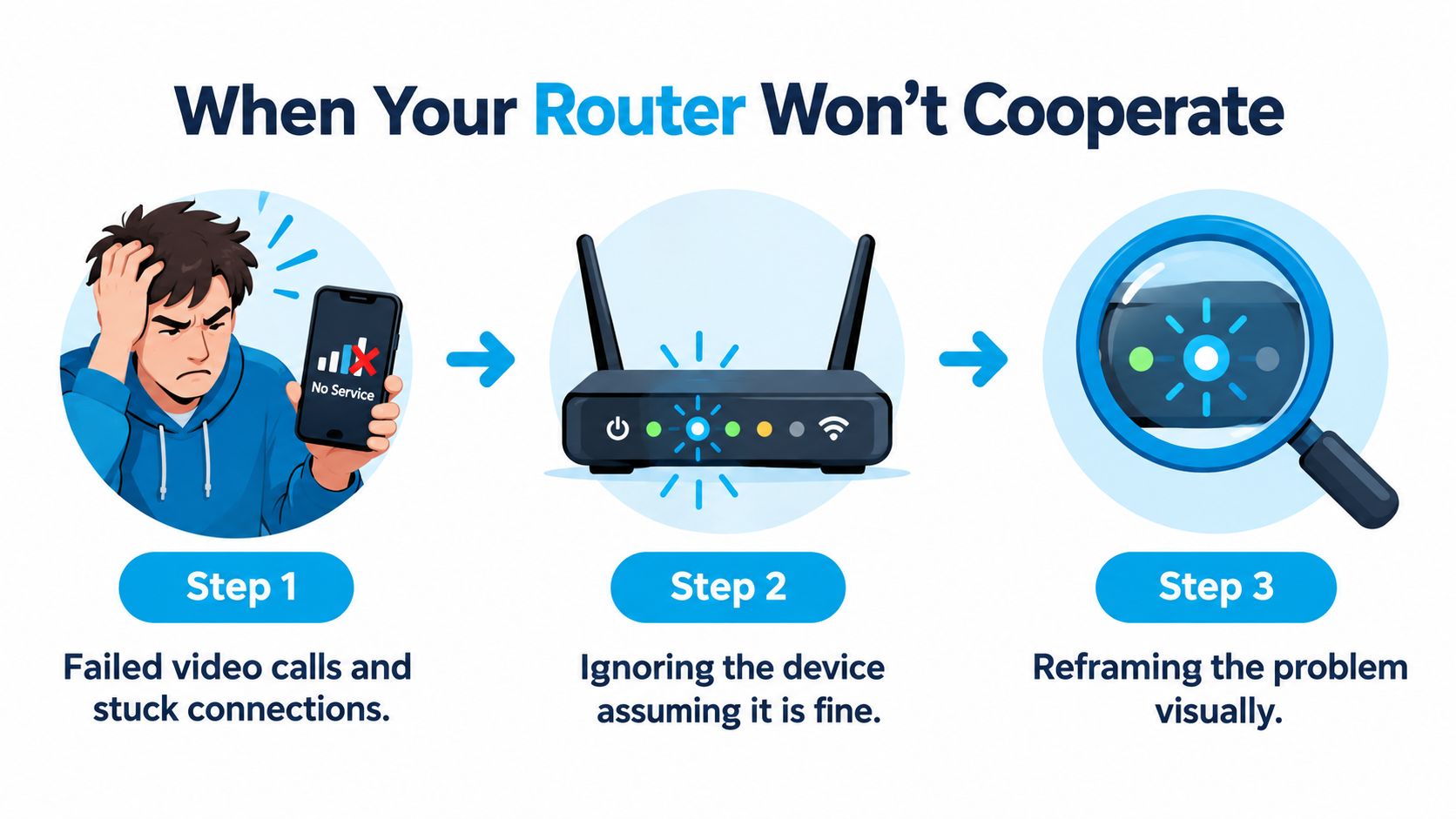
Start by asking whether one device or every device is offline. One failed phone usually points to the phone. Every device failing points toward the router, modem, mobile connection, or ISP. Then check the router's lights before touching settings.
A router fault is not an unusual source of network instability. In an operational IP backbone study, router-related events accounted for 16.5% of unplanned failures, appeared on 21% of routers, and occurred mainly on backbone routers rather than access routers. The same study found that about 20% of failures happened during a maintenance window representing only 5% of the week, showing how network failures can cluster in time. See the operational IP backbone reliability study for that historical benchmark.
Field rule: Find the first layer that failed. Don't reset everything until you know whether the break is power, local network, WAN, or upstream service.
Some repairs take a screwdriver and a replacement cable. Others take a proper modem and router reboot, with enough time for both devices to negotiate again. If the upstream connection is down, no amount of factory resetting will restore it. The useful path is quick checks, correct sequencing, controlled testing, and a clear point at which you call support.
Reading the Lights and Running Quick Checks
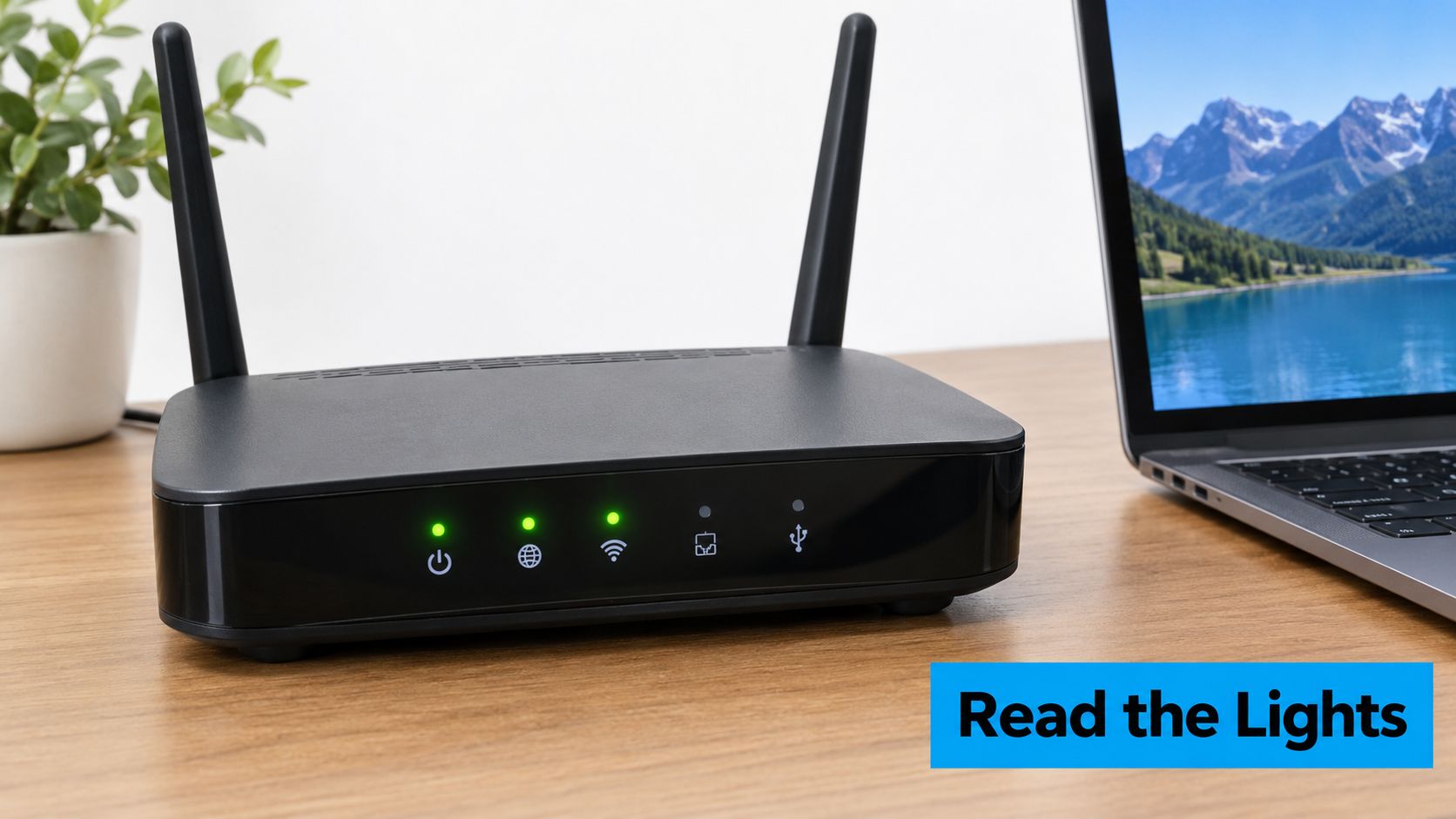
A router can broadcast Wi-Fi while its internet connection is already down. Read the LEDs as a layer check: power, local wireless, WAN, modem, then the provider. A solid power light shows that the unit is receiving power. Blinking may indicate startup, reset activity, or firmware work. TP-Link describes pulsing LEDs as startup or reset behavior, while NETGEAR documents blinking amber for firmware upgrading or reset activity and blinking white for possible corrupted firmware on certain models. LED meanings vary by model, so check the manufacturer's chart before treating an unfamiliar pattern as a hardware failure.
Run these physical checks before opening the admin page:
- Confirm power: Test the outlet with a known working device and reseat the router's power connector.
- Check the WAN cable: Confirm that the Ethernet cable from the modem or gateway clicks into the router's WAN or Internet port.
- Inspect the cable: Look for crushed sections, sharp kinks, damaged clips, or a connector that slips out.
- Read the modem: A missing or failed upstream light points toward the modem, service line, or provider.
- Compare the lights: Active Wi-Fi with a dark or warning WAN light means the local network works, but the internet hand-off does not.
Follow the first failed layer. Missing power directs testing toward the outlet, adapter, or router hardware. Normal power with a dark WAN light directs it toward the cable, modem, or ISP. A healthy WAN with failed clients points to Wi-Fi, DHCP, DNS, or the client device.
Mobile, 4G/5G, and rural setups need one extra check: signal or cellular registration can fail even while the router's Wi-Fi light stays on. Check the modem or mobile gateway's service indicator and placement before changing router settings. See this guide to router lights flashing but no internet for additional LED examples.
The Right Way to Power Cycle Modem and Router
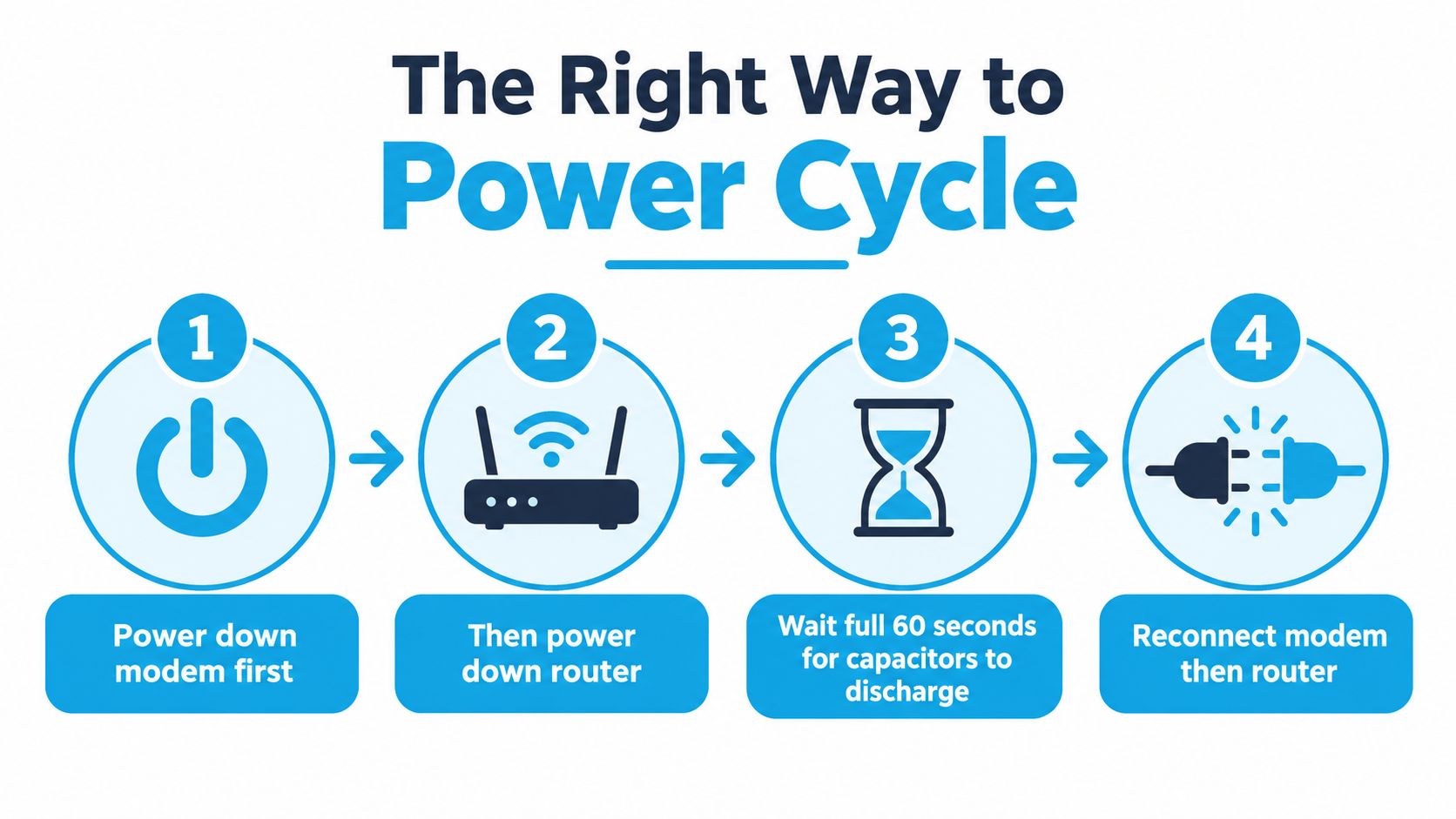
A quick unplug and immediate reconnect often changes nothing. The modem may still hold its previous session, and the router may start before the modem has reacquired service. Power cycling works when the sequence gives each device time to clear its old state and negotiate again.
Use this order:
- Power down the modem and router. Unplug both devices, with the modem disconnected first, and leave them without power for a full 60 seconds.
- Reconnect the modem only. Let its connection and upstream indicators stabilize before powering the router.
- Reconnect the router. Wait for the router to complete startup, obtain its WAN information, and bring up wireless service.
- Test more than one device. Check a wired client if possible, then compare it with Wi-Fi.
TP-Link's troubleshooting workflow recommends testing the modem directly, checking the router's Internet IP, and restarting the equipment in the correct order. It notes that an Internet IP of 0.0.0.0 generally indicates an upstream modem or physical-link problem, while a valid public address shifts attention toward DNS, NAT, or router configuration. Follow the TP-Link WAN isolation procedure when you need to separate those possibilities.
Short cycling, powering both devices simultaneously, and testing before the modem has synchronized are the common mistakes. A reboot also won't repair a failed power adapter, damaged WAN port, provisioning error, or continuing outage. If the same WAN failure returns immediately after a correctly sequenced cycle, stop treating the problem as a temporary glitch.
Diagnosing Wi-Fi, WAN, and ISP Problems
A wired test gives you the cleanest split between wireless trouble and an upstream failure. Connect a laptop to a LAN port on the router, disable its Wi-Fi, and test the connection. If wired access works while Wi-Fi fails, focus on the wireless radio, channel conditions, band steering, placement, or a client compatibility problem.
If wired access fails, inspect the router's admin interface. Check whether the WAN interface has an address, whether DHCP obtained a lease, and whether the event log reports authentication or link errors. A PPPoE authentication failure is different from a WAN interface that receives no address. The first suggests credentials or account configuration. The second points more toward the modem, physical connection, provisioning, or ISP path.
Use ping as a diagnostic signal rather than a simple yes-or-no test. Cisco recommends checking interface statistics when ping succeeds below 100%, because partial loss can indicate interface errors, congestion, a failing path, or a routing loop. Its guidance also recommends tracing the next hops when multiple paths exist. Review the Cisco connectivity troubleshooting guide for the enterprise diagnostic approach.
| Test Result | Likely Cause | Next Step |
|---|---|---|
| Wi-Fi fails, wired access works | Wireless configuration, interference, coverage, or client issue | Test another band, device, and location |
| Router admin page opens, but external connectivity fails | WAN, modem, authentication, or ISP problem | Inspect WAN status and event logs |
| External IP responds, but hostnames fail | DNS resolution problem | Check router DNS settings and resolver status |
| Ping succeeds only intermittently | Packet loss, congestion, interface error, or unstable path | Review counters and test another cable or path |
| No WAN address appears | Modem hand-off, cable, provisioning, or upstream failure | Test the modem directly and contact the provider |
| Every device fails in the same way | Network-level problem rather than one client | Check modem status and provider outage information |
Test multiple devices before blaming a laptop or phone. If only one client fails, forget and rejoin the wireless network or inspect that device's adapter. If every client fails through both wired and wireless connections, use a resource such as resolve network issues quickly for additional outage triage, then inspect the modem and provider path.
A useful related distinction appears in modem not connecting to internet. The modem and router perform different jobs, and replacing the router won't fix a modem that never establishes service.
Factory Reset Without Wiping Yourself Out
Use a factory reset as a controlled last resort. It goes deeper than a reboot by removing every setting that makes the router fit your network, including the Wi-Fi name, password, port forwards, custom DNS, DHCP reservations, and sometimes ISP credentials.
Before pressing the recessed button, preserve the configuration:
- Photograph the admin pages: Capture WAN, LAN, wireless, and security settings.
- Export the configuration: Use the router's backup feature if the model supports it.
- Record provider details: Save PPPoE credentials, static addressing information, and DNS overrides somewhere safe.
- Plan the reconnect: Confirm that you can reach the router after it returns to its default network.
With the router powered on, press the recessed reset button with a paperclip and hold it until the LEDs show a reset or the device reboots. The timing varies by model. Google documents holding the button for about 12 seconds and says recovery can take up to 10 minutes. ASUS describes roughly 5 to 10 seconds, while GFiber specifies 10 seconds and warns that rebooting can take up to 5 minutes. Follow the instructions for your exact model in Google's router reset guidance.
Practical warning: A reset can erase the settings and evidence needed for diagnosis. Save the configuration first, unless you have confirmed that the password is lost or the firmware state is corrupted.
Release the button at the specified point. Holding it blindly for longer can place some devices into recovery or bootloader mode, changing the normal reset process. A reset may clear corrupted settings or restore access after a forgotten password. It cannot repair a damaged cable, failed modem hand-off, defective power supply, or ISP outage. Check the model-specific instructions in how to reset your router before committing to the wipe.
Mobile and 4G/5G Router Failures on the Road
A mobile router has a different upstream path. There may be no modem with a coaxial or fiber status light. The router is registering a SIM with a carrier, selecting a cell, negotiating an APN, and maintaining a radio link that can change as an RV moves.
A traveler can arrive at a new campsite with strong signal bars and no usable data. The device may have held onto a distant tower after the drive, failed a tower handoff, or registered to a cell that has poor backhaul. Restarting may clear the registration, but a factory reset rarely solves a tower selection or coverage problem.
Check the mobile admin page for a specific SIM or session error. A locked SIM, PIN-protected SIM, or suspended account should produce a registration or authentication message, not a generic “Wi-Fi connected, no internet” assumption. Confirm the APN as well, because a missing or incorrect APN can leave the radio attached while data service remains unavailable.
Antenna position matters more than signal bars alone. An indoor router may perform better near a window, while an RV with a roof-mounted antenna needs sound connectors, an unobstructed position, and correct alignment. Band selection also involves a trade-off. Locking to LTE Band 12 can favor rural range, while 5G may offer greater capacity where the local network supports it reliably. Forcing a band that is unavailable or overloaded can make the connection worse.
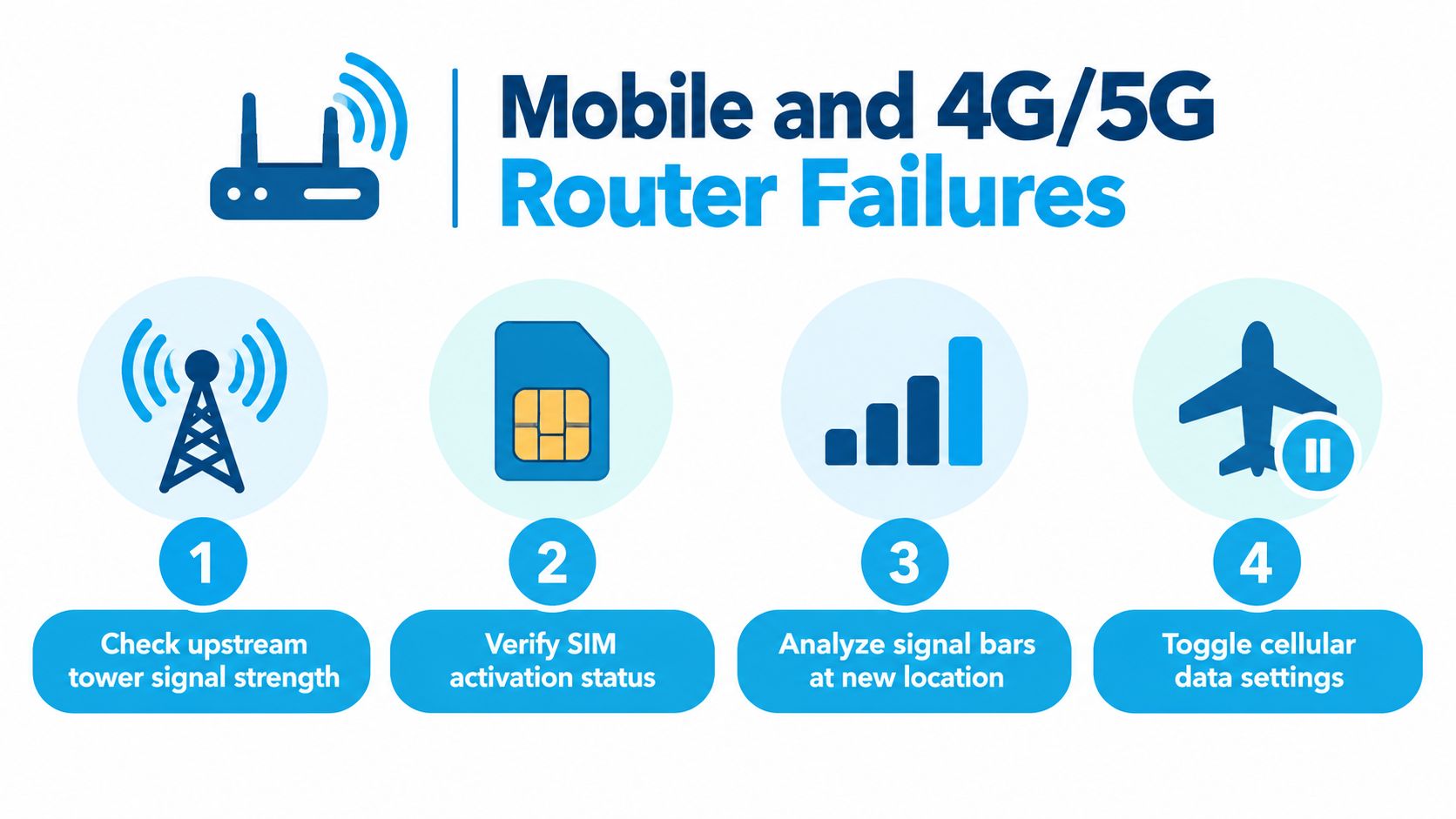
A practical roadside sequence is:
- Check the carrier registration and SIM state.
- Confirm the APN and data session.
- Toggle cellular data or airplane mode.
- Move the antenna or router, then retest.
- Compare automatic band selection with a deliberate LTE or 5G choice.
For home internet, RV travel, and rural locations, SwiftNet Wifi provides 4G/5G service using virtual SIM technology across major nationwide carrier networks, with 24/7 phone and chat technical support. It can be considered alongside a local fixed-line provider, a hotspot, or another mobile backup when the failure is upstream of the router.
When to Call Support and How to Prevent the Next One
Call support when the evidence points beyond your equipment. Escalate a persistent WAN-down state after a complete power cycle, a modem that never reaches normal link status, repeated authentication errors, or dropouts that match a tower or local-node event. Those conditions require the provider or equipment vendor to investigate the modem, service, or upstream network.
Prepare evidence before you call so the agent can work from facts instead of repeating the opening script:
- Equipment identity: Record the modem make, model, and MAC address.
- Current state: Note the router uptime, modem light pattern, WAN status, and relevant event-log errors.
- Connection tests: Save wired test results, packet-loss observations, and traceroute output when available.
- Failure history: Record dropout times and whether every device failed together.
- Isolation work: State whether you tested the modem directly, replaced the Ethernet cable, and completed the correct reboot sequence.
A rural, mobile, or developing-region connection may have a different failure pattern from one on mature fixed-line infrastructure. A home-network reliability study reported interruptions longer than ten minutes occurring more often than once every ten days for only 10% of home networks in developed countries, compared with about 50% in developing countries, where they occurred once every three days. It also found a median time between downtime events of more than a month in developed countries and less than a day in developing countries. These findings support a layered diagnosis: a router can appear broken when the underlying fault is the modem, radio network, tower, or ISP.
Keep the next outage shorter with a small maintenance routine:
- Update firmware: Apply stable releases and record the update date.
- Protect power: Use a UPS where brief outages or voltage instability are common.
- Control heat: Leave ventilation around the router, clear dust, and avoid enclosed cabinets.
- Keep configuration notes: Store Wi-Fi credentials, provider details, and reset instructions offline.
- Maintain a fallback: A mobile hotspot or alternate connection can keep remote work running while a fixed line is repaired.
Escalation rule: If the WAN remains down after testing the modem and completing a proper router reboot, call the provider with your evidence. Repeating the same reset only delays the ticket.
A router that recovers after every reboot and then fails again needs further diagnosis. Check heat, unstable power, firmware bugs, flash wear, aging capacitors, and overloaded hardware. Why routers fail describes these hardware-aging patterns and the symptoms that separate them from a single ISP interruption.
SwiftNet Wifi offers 4G/5G connectivity with 24/7 phone and chat support for isolating service, SIM, and equipment problems on the road or at home. Visit SwiftNet Wifi to review a travel-ready or rural internet option and get help choosing a suitable setup. #rv #rvlife #rvliving #rvlifestyle #rvrenovation #rvremodel #rvtravel #rvcamping #rvadventures #ruralwifi #5gwifi #5ginternet


