

Your video call freezes just as you start sharing your screen. The speed test looks healthy, the hotspot shows a usable signal, and everyone else in the RV insists they aren't doing anything demanding. Meanwhile, a phone is backing up photos and your laptop is waiting behind that upload.
Network latency troubleshooting starts with measuring delay while the connection is busy, not just checking download speed. A useful diagnosis separates your local Wi-Fi, the router's traffic queues, and the carrier or provider path before you start changing equipment or calling support.
Latency Numbers Worth Checking Against
Check unloaded latency, loaded latency, jitter, and packet loss. Unloaded latency is the round-trip delay when the connection is quiet. Loaded latency is that same measurement while traffic is moving. Jitter describes how much delay varies, and packet loss is the share of transmitted packets that never arrive.
The following working bands use Cloudflare's internet-quality scoring thresholds. The good and watch categories organize those reference points for practical troubleshooting; they aren't universal application requirements.
Latency, jitter and packet loss reference values
| Metric | Strong | Good | Watch | Poor |
|---|---|---|---|---|
| Unloaded latency (ping) | Under 20 ms | 20 to 50 ms | 50 to 100 ms | Above 100 ms |
| Jitter | Under 10 ms | Not separately defined | 10 to 20 ms | Above 20 ms |
| Packet loss | Under 1% | Not separately defined | 1 to 5% | Above 5% |
Treat boundary values as guides rather than pass-or-fail cliffs. A campsite ping of 90 ms doesn't automatically mean the connection is broken, but 90 ms with 4% packet loss deserves investigation. That's an illustrative combination, not a measurement from a particular campground.
Where the delay comes from
Packets accumulate delay in different places. Devices take time to process them, links take time to transmit their bits, signals take time to travel, and busy equipment makes packets wait in queues.
The University of Minnesota networking reference describes these components and gives roughly 30 milliseconds as an ordinary cross-country end-to-end benchmark. That's context, not a promised ping for every rural wireless route or application.
- A consistently elevated baseline points toward the path, radio conditions, device processing, or signal travel.
- Delay that increases during activity points more strongly toward congestion and queueing.
- Loss alongside jitter means you should investigate delivery quality, not merely available bandwidth.
Practical rule: A fast speed test doesn't clear a connection. Throughput measures how much data moves; responsiveness measures how long your traffic waits.
How to Measure Ping, Jitter and Packet Loss
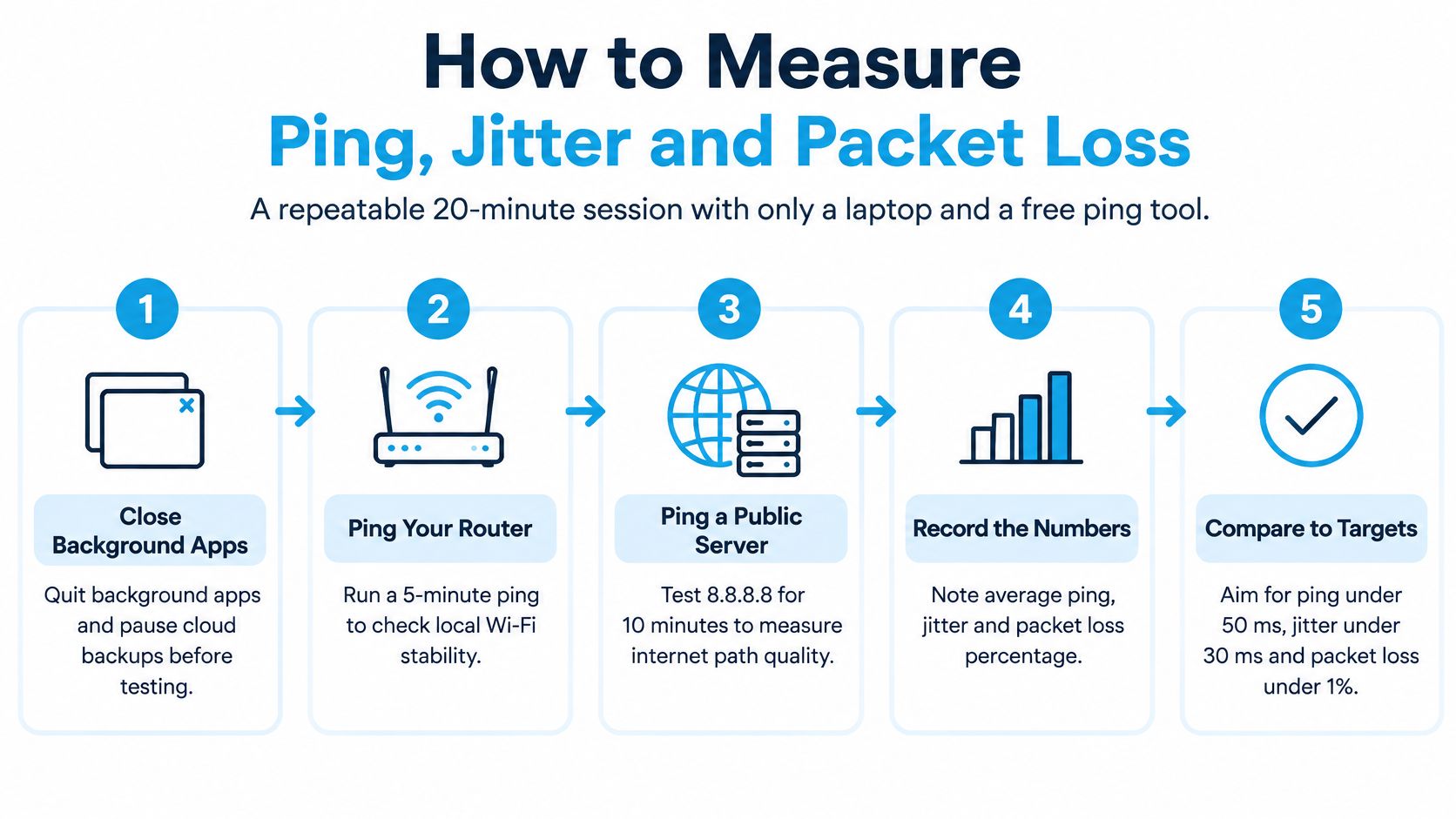
Use a laptop and a free ping utility that can save timestamped results. Set aside about twenty minutes for an initial session, then repeat it during another traffic period. That's a suggested workflow, not a standardized test duration.
Keep the destination and test conditions consistent. A longitudinal analysis of FCC broadband measurements distinguishes idle latency from working latency because a quiet connection can behave very differently once traffic occupies it.
Run a repeatable session
- Pause background traffic. Close unnecessary apps and stop cloud backups, photo uploads, and updates. You need a quiet baseline before deliberately adding load.
- Measure the local and internet paths. Ping the router's gateway and a public endpoint, collecting a suggested 100 samples for each. Record minimum, median, and worst round-trip time so a single average doesn't hide instability.
- Record loss and variation. Save the packet-loss percentage and the gap between minimum and peak delay. That gap is a useful warning of variability, although it isn't interchangeable with every tool's formal jitter calculation.
- Add traffic deliberately. Start a sustained upload, repeat the measurements, then stop it and test a sustained download separately. Separating the directions helps identify whether the uplink, downlink, or both trigger the problem.
- Repeat under different conditions. Run the sequence during a quiet period and evening peak, keeping the destination unchanged. Log timestamps, signal readings, and the cellular band so you can distinguish a setting change from a change in network conditions.
Use the visual checklist as a setup aid, then add the loaded tests described above.
Keep the slowest samples visible
P95 is the value at or below which 95% of samples fall; p99 does the same for 99%. In the suggested hundred-sample session, these are roughly the fifth-worst and second-worst readings, depending on the calculation method. Google's SRE monitoring guidance recommends percentile-based objectives because averages conceal the slowest experiences.
Use these six columns, with one row per test:
| Timestamp | Device and connection | Destination | Idle or loaded | RTT summary | Loss and variation |
|---|---|---|---|---|---|
| Date, time, time zone | Ethernet/Wi-Fi, signal, band | Gateway/public/app | Quiet/upload/download | Minimum, median, peak, p95, p99 | Loss percentage and tool-reported jitter |
Save the raw samples too. A summary helps support read the pattern; the original log lets someone check how it was calculated.
Splitting Local Wi-Fi From Carrier and ISP Delay
Start with Ethernet whenever the router or hotspot supports it. Connect the laptop directly and ping the gateway. Then repeat over Wi-Fi near the router and at your normal work position.
If Ethernet is steady but Wi-Fi isn't, investigate the local wireless link before blaming the carrier. Check channel congestion, signal strength, airtime use, and whether the device is using the appropriate band. Airtime is the shared opportunity devices have to transmit over Wi-Fi.
Work outward from the gateway
If both wired and wireless gateway tests show jumps, inspect the router, its workload, and any integrated modem. A steady gateway with worsening delay farther along the path shifts suspicion outward, but it doesn't identify the guilty device by itself.
MTR combines traceroute and ping, showing response times and apparent loss at successive network hops. Cloudflare's MTR troubleshooting guidance explains how this helps locate a slow segment, while warning that timeouts can reflect filtering or routing behavior rather than delivery failure.
Run a saved MTR session during a good period and another during the problem. Around a hundred cycles is a practical suggested collection length, not a guarantee of diagnosis. Look for the first increase that continues through later hops and reaches the destination.
Where the delay most likely lives
| Test result | Most likely source | Next check |
|---|---|---|
| Wired clean, Wi-Fi jitter high | Local wireless link | Change channel and check 2.4 versus 5 GHz |
| Wired and Wi-Fi both high at gateway | Router or modem | Reboot and confirm firmware version |
| Gateway steady, first provider hop spikes | Access network, carrier or ISP | Log timestamps across several days |
| Gateway clean, destination slow in MTR | Route beyond the provider, or destination | Test a second endpoint |
| Latency rises only during uploads | Queueing under load | Run the loaded test and QoS checks |
| Loss at a middle hop, final hop clean | Often ICMP rate limiting | Judge the endpoint, not that hop alone |
The table identifies working hypotheses, not proof. In particular, a slow final destination doesn't automatically establish that the provider's upstream route is faulty.
RIPE's measurement guidance supports comparing paths, endpoints, and measurement periods. Intermediate devices can deprioritize ICMP, the protocol commonly used by ping, while forwarding ordinary traffic normally.
Don't escalate an alarming middle-hop result unless the impairment continues toward the endpoint.
Test another public endpoint and the actual work or gaming service. A problem isolated to one service calls for a different investigation than a problem affecting everything.
Router and Hotspot Settings That Reduce Lag
A strong speed-test result can hide the cause of a video call dropping under load. Check latency while the connection is busy, then change one setting at a time so you can see whether the delay comes from local Wi-Fi, router queueing, or the cellular connection.
Start with placement. Move the hotspot near a window facing the serving tower, above floor level and away from metal cabinets. Keep the laptop in the same place during each test. A window position is only a starting point, not a guarantee.

Change position, then band
- Compare signal quality, not just bars. Save available radio readings with your latency results. If reception remains weak, consider a compatible external antenna or roof-mounted setup before pursuing more bandwidth.
- Match Wi-Fi band to distance. Try 5 GHz for nearby devices, then compare 2.4 GHz if coverage is weak. In crowded campground loops, use a Wi-Fi scanner to find competing networks.
- Test cellular band selection under load. If your hotspot allows preferred-band settings or band locking, compare loaded latency over a full day, not just during a brief favorable result. Record the original setting so you can restore automatic selection.
For equipment considerations when setting up in a camper, see this camper Wi-Fi router guide. Keep cellular and local Wi-Fi tests separate: changing the Wi-Fi channel does not change which tower serves the hotspot.
Use this video as additional setup context, then compare results with your own measurements.
Know when placement has reached its limit
Rural connections can have higher latency than urban ones, as the OECD connectivity analysis discusses. That context does not diagnose an individual link. Compare carrier-profile or band changes by loaded performance, using the same device position and test conditions.
A sudden change at the same campsite still merits investigation. Record whether it tracks with time of day, location, cellular band, or destination.
Check for firmware updates and save your measurements before rebooting. If scheduled restarts seem necessary, investigate the recurring cause rather than treating reboots as a lasting latency fix.
Device and App Checks for Each Activity
A phone uploading photos can interfere with a laptop's video call even when nobody is watching television. The useful question isn't “Who's using the internet?” It's “Which device is uploading or downloading right now?”
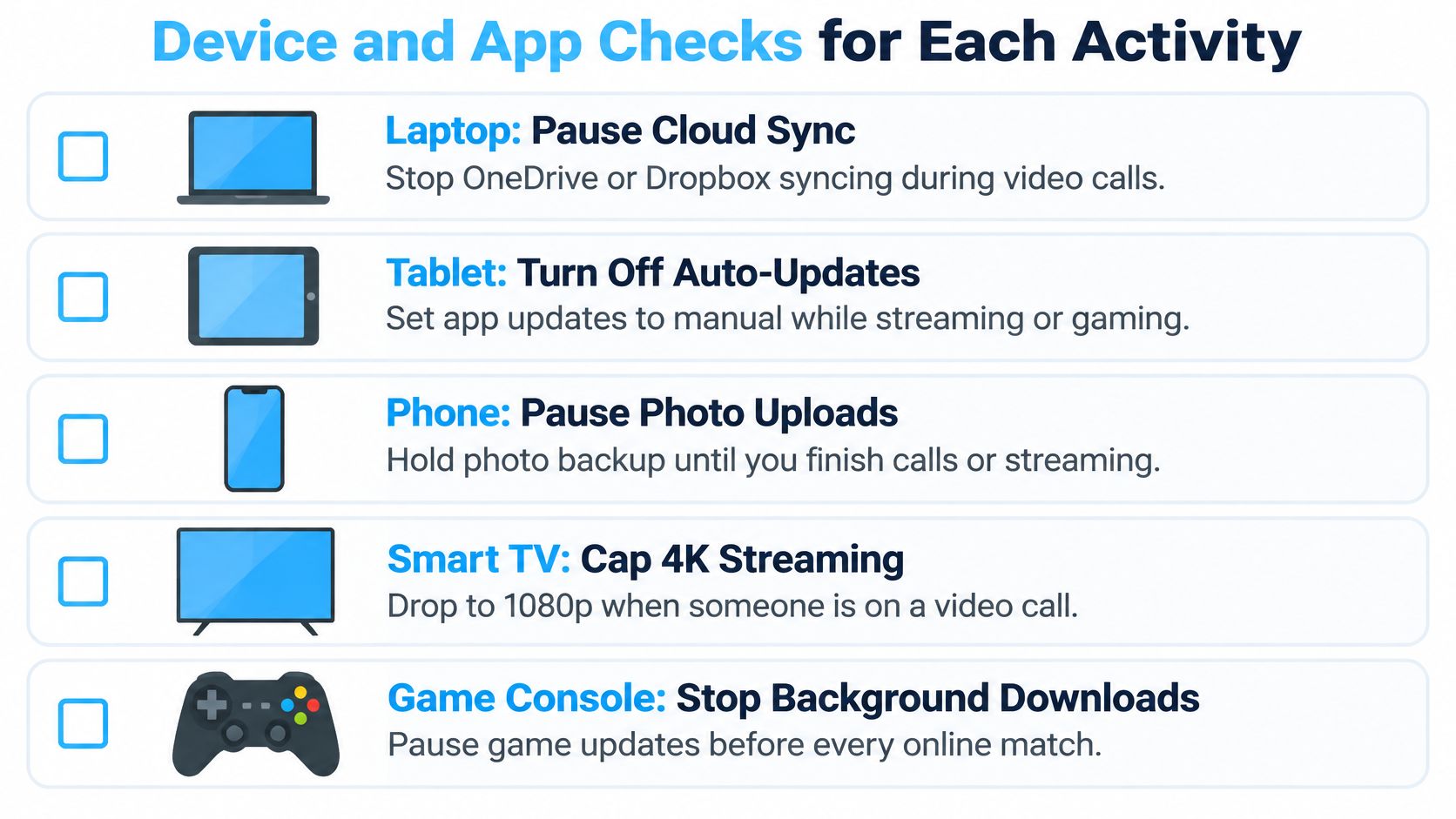
Open the router's connected-device list and match unfamiliar entries to actual equipment. Check the laptop running OneDrive or Dropbox, the tablet installing updates, the smart TV playing 4K video, and the console downloading a patch.
Audit traffic before changing services
- Pause competing transfers. Stop photo backups and cloud sync during calls, then repeat the loaded test.
- Schedule updates deliberately. Move large downloads outside working hours rather than relying on everyone to remember.
- Compare VPN behavior. If workplace policy permits, test with the VPN disconnected. Otherwise, ask IT whether an approved alternative exit location is available.
- Isolate browser problems. If pages hang but network measurements remain steady, disable extensions individually. A page-rendering problem isn't automatically network latency.
Use this checklist to make the device audit repeatable.
Changing DNS isn't a general lag fix. A faster resolver can shorten the lookup that starts a connection, but it won't shorten the ongoing packet path of an established call or game.
For television troubleshooting, distinguish buffering and video-quality demands from interactive delay. The internet speed for streaming TV guide addresses that separate capacity question.
Judge the connection by the activity
The following are editorial working targets, not published application standards. They adapt the earlier quality reference points, with more tolerance for buffered transfers; the actual application remains the final check.
Practical thresholds by activity
| Activity | Latency to watch | Jitter to watch | Packet loss to watch |
|---|---|---|---|
| Video calls | Under 100 ms round trip | Under 20 ms | Under 1% |
| Online gaming | Under 50 ms | Under 10 ms | Under 1% |
| Remote desktop or VPN work | Under 100 ms | Under 20 ms | Under 1% |
| Streaming video | Under 100 ms, with buffering absorbing variation | Under 30 ms | Under 2% |
| Cloud file sync | Under 100 ms | Under 30 ms | Under 2% |
Don't interpret the streaming targets as proof that a stream must fail outside them. Buffered playback can tolerate delay that makes conversation or remote desktop work frustrating.
QoS, Firmware and Bufferbloat Fixes
A faster plan won't necessarily fix lag. If the limiting factor is how equipment handles a busy queue, you can buy more capacity and still have an unresponsive connection whenever someone uploads.
Bufferbloat means packets spend excessive time waiting in oversized queues. Research on Wi-Fi queue management identifies severe degradation from queueing and reports specialized methods reducing loaded latency by roughly an order of magnitude. That's a research result, not a promised improvement from enabling a consumer router setting.
Keep the same laptop and test destinations while changing queue settings.

Give the router control of the bottleneck
- Enable smart queue management where available. SQM actively manages queues rather than merely assigning traffic labels. If the router only offers adaptive quality of service, or QoS, test it as an alternative rather than assuming the features are equivalent.
- Set a conservative bandwidth cap. An editorial starting range is 85 to 95% of repeatedly measured line speed, not a universal optimum. The aim is to keep the manageable queue at your router; variable cellular capacity may require a lower setting or a different approach.
- Protect interactive traffic. Prioritize the work device or supported call application when the router allows it. Don't classify every device as high priority, because that removes the distinction you're trying to create.
- Update deliberately. Read vendor release notes for queueing or latency fixes, save the configuration, and install firmware during a quiet period. Check whether the update preserved or reset the settings before retesting.
Accept the trade-off
A cap can reduce peak transfer speed while improving responsiveness. That's a reasonable exchange for remote work, but it should be a measured decision rather than an automatic configuration.
QoS can't create radio capacity or repair a congested cell site. Also, don't confuse queue management with Ethernet link-level behavior; the Ethernet flow control guide covers that separate mechanism.
Keep-or-revert test: Retain a change only when repeated loaded tests improve delay and jitter without increasing loss or application errors.
Watch the slowest results, not just the median. A setting that improves typical performance but leaves calls freezing hasn't solved the problem you set out to fix.
When to Escalate to Your Provider
If wired tests show a clean local gateway but delay remains high to outside endpoints, contact your provider. Persistent packet loss across repeated sessions is also a reason to escalate, especially if another device reproduces the problem. A fast speed test does not rule out loaded latency or a provider-side fault.
The FCC rural broadband accountability framework requires applicable Connect America Fund participants to keep at least 95% of measured round-trip results at or below 100 milliseconds. Testing covers a full week each quarter, with at least one latency test per minute during testing hours. That produces 60 separate observations per hour, including retained lost-packet observations.
This is a program-specific benchmark, not a guarantee for every consumer or mobile connection. A few readings above the threshold do not establish failure on their own. More than 5% of results above it falls outside the stated compliance standard.
Bring evidence that narrows the investigation
Collect three to five days of timestamped observations, including one-minute samples during representative periods. This is a practical troubleshooting window, not a replacement for the FCC testing procedure.
Include:
- Conditions and equipment. Record location, device model, firmware, connection method, cellular band, and available signal readings.
- Comparable results. Save quiet, upload-loaded, and download-loaded tests, with median and p95 delay, endpoint loss, and time zone.
- Path evidence. Keep MTR results from both good and bad periods. MTR traces the route to a destination and can show where sustained delay first appears.
- Isolation already completed. Note Ethernet comparisons, tests on another device and destination, and settings changed or restored.
Ask which cell site or network node serves the location, whether throttling or deprioritization applies, and whether an approved band change or reprovisioning is worth testing. These are diagnostic questions, not assumptions about the provider's actions.
Request a ticket number and ask what measurements support staff want next. Keep the original logs so follow-up tests can be compared against the same conditions.
Make the next change count
Use the same three-to-five-day logging period before and after a single change. Judge progress by loaded performance and the actual application, such as whether calls still freeze. If evidence points outside your local network, stop cycling through unrelated settings and give the provider the records you gathered.
#rv #rvlife #rvliving #rvlifestyle #rvrenovation #rvremodel #rvtravel #rvcamping #rvadventures #ruralwifi #5gwifi #5ginternet
SwiftNet offers home and mobile internet options for rural households and RV travelers, including hotspot and router plans. Visit SwiftNet Wifi to compare those options, and bring your idle-versus-loaded test log when discussing equipment, coverage, or an existing connection problem.


