

Buying a faster internet plan is often the wrong first fix for lag in online games. A strong download result can hide unstable ping, dropped packets, and evening congestion, especially on rural, mobile, and RV connections.
Before you buy equipment or change providers, measure what happens when the game feels bad. The useful question isn't just how fast your connection runs. It's whether your inputs reach the game server consistently when your household, campground, or cell site gets busy.
Lag Symptoms, Causes and Target Numbers
A fast download result does not guarantee responsive play. Diagnose lag with three measures: latency, the round-trip delay to the server; jitter, how much that delay varies; and packet loss, the share of packets that do not arrive.
Lag can show up in several ways, and each symptom points to a different measurement. Liquid Web's survey reports that 78% of gamers rage-quit because of lag, according to Liquid Web's gamer survey.
Match the Symptom to the Measurement
Treat these targets as troubleshooting goals, not guarantees. Compare results when play is smooth with results when lag appears, including at different times of day.
| Symptom | What to Measure | Likely Cause | Target |
|---|---|---|---|
| Slow reactions in every game | Ping above 50 ms | Distance or a long route to the server | 25 to 50 ms for fast shooters |
| Rubber-banding and warping | Jitter and ping swings of 30 ms or more | Congestion or unstable Wi-Fi | Jitter below 10 ms for HD online play |
| Freezes and missed hits | Packet loss above 1% | Weak signal, overloaded router or cell site | Near 0%, never sustained above 1% |
| Lag only when others stream or download | Ping rise under load compared with idle | Bufferbloat from a full queue | Ping stable while the network is loaded |
| Evening lag, fine in the afternoon | Ping at 7 to 10 p.m. compared with midday | Peak-hour congestion on shared or mobile networks | Same results at peak as off-peak |
| Disconnects at a campground or on the road | Timeouts and loss per session | Shared access point or signal handoffs while moving | No disconnects across three 30-minute sessions |
A Worcester Polytechnic Institute report describes players noticing latency around 85 ms. Treat that as context, not a universal cutoff: a delay that feels tolerable can still be a problem in competitive play.
For jitter, RootMetrics' gaming guidance recommends below 10 ms for HD online gaming and below 30 ms for casual gaming. The packet-loss and session targets in the table are practical acceptance rules for your own comparisons, not universal industry thresholds.
Practical rule: Match the measurement to the symptom. A low average ping does not rule out jitter, packet loss, evening congestion, or recurring disconnects.
If controls briefly stop responding, check packet loss and ping spikes around the same moment. A missed hit alone does not prove a network fault. Server behavior, frame-rate drops, and the game's hit registration can produce similar symptoms, so compare network readings with what happens on screen. A fast speed test can still miss short spikes that disrupt play, particularly when a home, mobile, or RV connection gets busy.
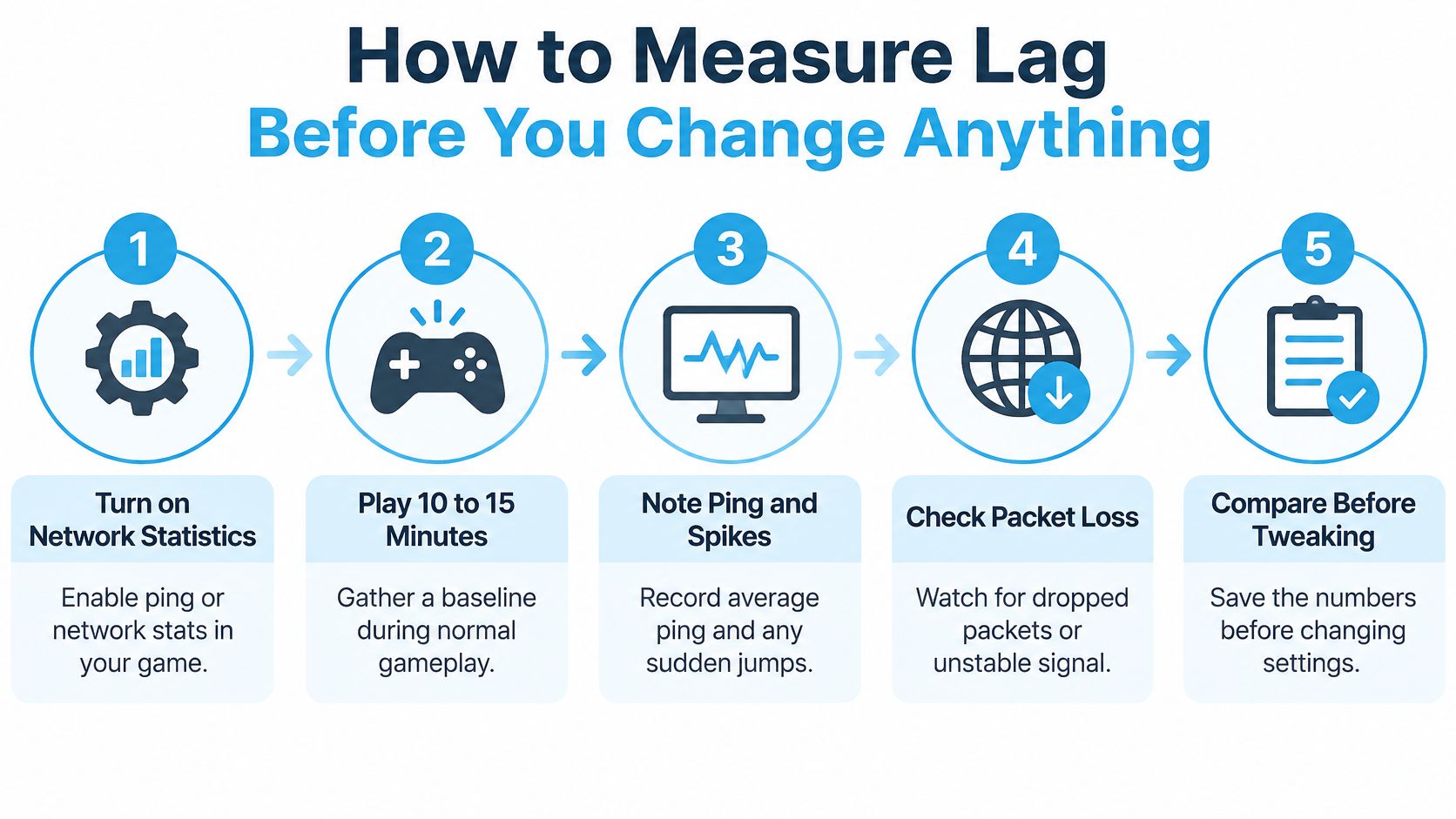
How to Measure Lag Before You Change Anything
Save a baseline before touching router settings. Keep the game, server region, device, and play location consistent so your comparison means something.
For a useful explanation of the measurement process, Fivenines shows how to establish a network latency baseline. Prefer the game's own statistics when available, because a nearby test server may use a different route.
Keep this checklist beside your test log.
Run Controlled Comparisons
- Capture normal play. Enable the game's ping, packet-loss, and network-warning displays, then record median ping, the worst spikes, and disconnects. Use 10 to 15 minutes per condition, following the diagnostic workflow associated with Riot's connection troubleshooting guide.
- Compare connection paths. Repeat on Ethernet, then Wi-Fi, and finally your phone hotspot or cellular router if that's an option. Keep the game region unchanged, and remember that changing to cellular changes both the local connection and the provider route.
- Add a controlled load. Start a large upload or download on another device and watch the game's network display. A rise only under load points toward queueing somewhere on the connection, but it doesn't prove the queue is inside your router.
- Test where you play. Take the Wi-Fi measurement at your desk, bunk, or RV dinette rather than beside the access point. Record router placement and whether the vehicle is parked, since changing either can make the comparison misleading.
- Compare midday with your evening window. For example, use 7 to 10 p.m. as a repeatable test window if that's when you normally play. Keep household traffic comparable so you don't mistake your own evening downloads for provider congestion.
-
Inspect the route when symptoms persist. On Windows, use
tracertwith a permitted destination hostname andping -tfor ongoing responses; on a Mac, usepingin Terminal and stop it with Control-C. Compare consecutive response times for variation, but don't treat an isolated traceroute timeout as proof of packet loss, since routers may deprioritize diagnostic replies.
Power-cycle the modem and router if spikes persist over Ethernet, then repeat the affected test. Don't reset every setting at once, because you'll lose the ability to identify what changed.
The decision rule is simple: Wi-Fi-only trouble points toward the wireless link; loaded-only trouble points toward queueing; trouble across clean local tests calls for a provider-route or game-server comparison.
How to Tune Router, Wi-Fi and Hotspot Settings
Start with placement, not a shopping list. Raise the router, keep it out of cabinets, and give it a clear path toward the gaming device.
Weak signal and interference can trigger retransmissions that add delay, as explained in RTINGS' wireless latency testing. Moving equipment is cheaper than replacing it, and the result is easy to test.
Change Settings in a Controlled Order
Work through this checklist, changing only one item before rerunning your baseline session. The values are starting configurations, not guarantees.
| Setting | Where to Find It | Recommended Value |
|---|---|---|
| Wi-Fi band | Wireless settings | 5 GHz nearby; 2.4 GHz when range is the priority |
| Wi-Fi channel | Wireless settings or scan tool | Least crowded channel shown by the scan tool |
| Channel width | 5 GHz wireless settings | 80 MHz by default, 40 MHz when neighbouring networks overlap |
| QoS or smart queue (SQM) | Advanced, QoS or traffic settings | On, with caps at 85 to 90% of measured speed |
| Router placement | Physical location | Central, raised, with a clear line to the play spot |
| Firmware | System or update page | Latest stable version, checked monthly |
Wi-Fi bands involve a trade-off. A nearby device may work well on the higher-frequency band, while walls or an RV's layout can make the longer-range option more reliable. Don't confuse a router's Wi-Fi band with the cellular generation feeding it.
A scan tool can help identify crowded channels, but test during the hours you play. Narrower channels sacrifice some peak throughput in exchange for using less spectrum, which can help when neighboring networks overlap.
A router setting is useful only if the next test shows fewer spikes, less loss, or fewer disconnects.
Handle Queueing and Cellular Links Separately
SQM can keep a busy connection responsive by controlling traffic before an oversized queue builds. Start with the table's cap, then adjust against loaded latency; on a variable cellular link, a cap based on the day's fastest result may still be too high at night.
For wired troubleshooting, understand Ethernet flow control before changing adapter options. It isn't interchangeable with SQM and won't repair congestion at a cell site.
On a hotspot, try a window-facing position, maintain ventilation, and use approved power equipment. If an external antenna is supported, follow the equipment's installation guidance rather than improvising connections.
Record cellular band changes if your router exposes them. Test without a VPN or proxy when permitted, but don't disable security controls indiscriminately to chase a lower ping.
Cut Bandwidth Hogs on Shared Home and RV Networks
A faster plan can provide useful headroom, but it won't necessarily fix the reason your game stalls. First find out which devices use the connection when the problem starts.
The FCC's fixed-broadband report explains that both distance and congestion along the route increase latency. Your own uploads can create congestion, but so can traffic outside your home or RV.
Find the Traffic You Can Control
Open your router's connected-device or traffic page while the symptoms occur. Look beyond the gaming machine.
- Cloud backups: Pause photo libraries, file synchronization, and remote-work backups during matches.
- Game launchers: Stop patch downloads in Steam, Xbox, PlayStation, and other launchers before entering a session.
- Operating system updates: Schedule downloads and restarts outside gaming and working hours.
- Video streams: Lower playback quality temporarily and compare the loaded test before deciding what your connection can support.
For television settings, use this guide to internet speed for streaming TV to understand which playback choices compete with your game. Streaming doesn't need to stop entirely if a lower-quality setting leaves the connection responsive.
A guest Wi-Fi network doesn't automatically provide extra internet capacity. It can separate devices for security, but those devices still share the same upstream connection unless you have a separate service.
Recognize Congestion You Can't Schedule Away
Say your work laptop starts a backup just as you join a match. If pausing that backup immediately improves the game, traffic scheduling or queue management is a sensible next step.
Campground congestion is different. You may control your RV's router but not the shared access point or its internet feed, so local prioritization can't guarantee an improvement.
Spend where the test points: Buy more capacity when you've established a capacity limit, not simply because the game feels slow.
When the bottleneck is outside your control, compare an independent connection at the same campsite and time. Moving closer to campground Wi-Fi may fix a weak local signal, but it won't create capacity on an overloaded backhaul.
Game and Device Settings for Mobile, Console and PC
A fast speed test does not rule out lag. Device settings help only when they match the symptom: graphics changes can ease frame stutter, while network changes may help latency or connection drops. First compare ping and packet loss with frame-time behavior, then change one setting at a time.
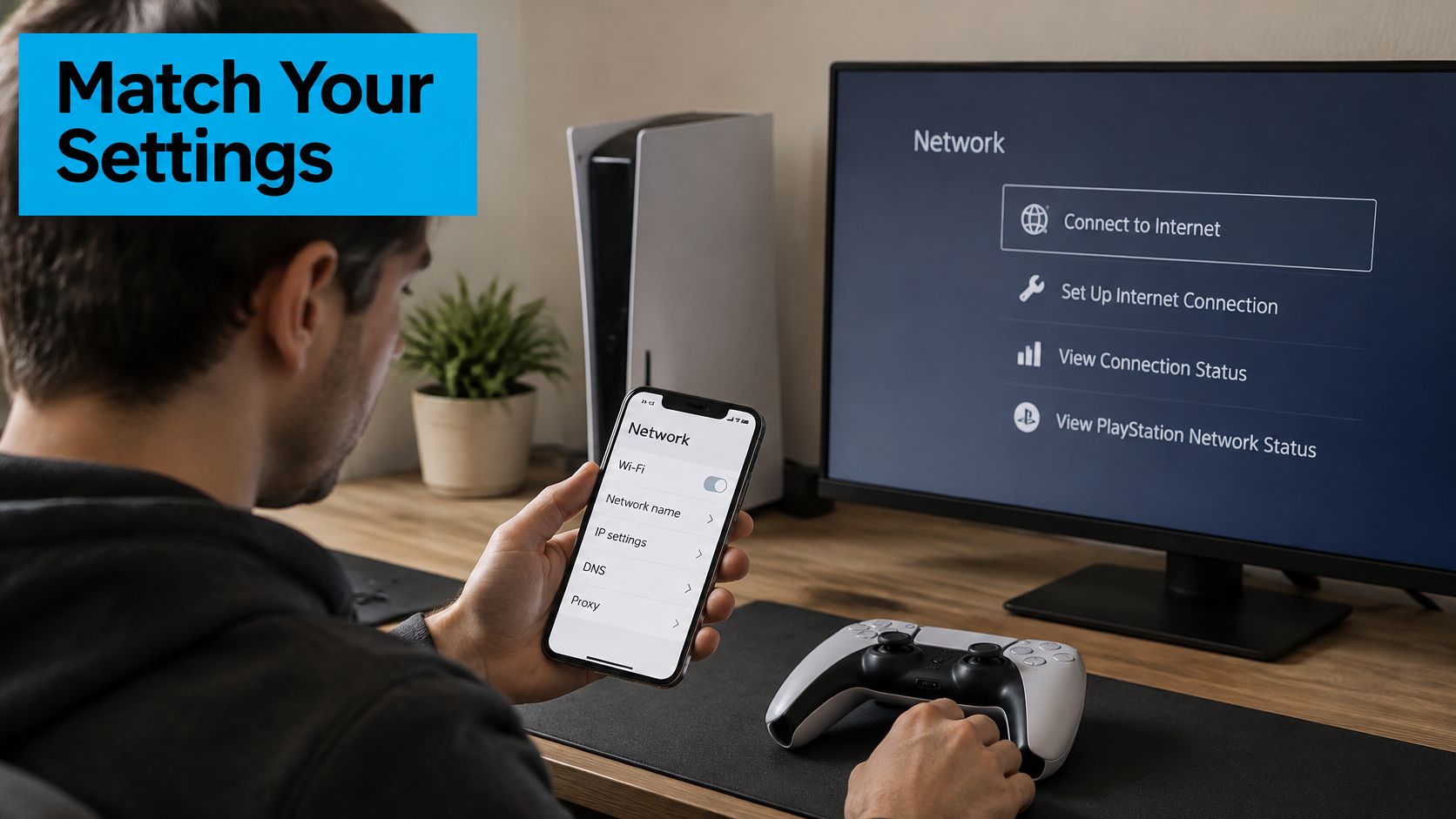
Keep the device's network menu and router connection details available while testing.
Mobile and Console Checks
On mobile, compare network modes instead of assuming the newest one performs best. If your phone allows manual selection, test LTE and 5G in the same place and at the times lag usually occurs. Close background video apps, and check whether battery-saving or data-saving settings restrict the game. Mobile connections can be less consistent for gaming than fixed cable or Wi-Fi, so results depend on location and time.
On console, separate matchmaking trouble from latency. Use Ethernet where practical, and pause background downloads while checking whether the problem changes. If NAT restrictions prevent joining sessions, review the console's network test and your router documentation.
UPnP may help supported consoles establish connections on a trusted home network, but it does not reduce ping. It may not overcome carrier-grade NAT, either. Avoid enabling it on equipment you do not control.
PC Performance and Game Options
Watch frame time alongside ping. If the image stutters while network readings stay steady, check CPU usage, GPU load, temperatures, capture software, and overlays before changing your connection. For broader system troubleshooting, diagnose slow PCs with Steel City IT.
Use a stable frame-rate cap and stop background syncing during a comparison. Choose the nearest suitable game region rather than relying on automatic selection without checking it. Keep rendering changes separate from network changes so the cause of any improvement stays clear.
Use the video as a companion while checking your setup.
Check server-browser and tick-rate options only if the game exposes them. A client generally cannot change an official server's simulation rate. For a broader device checklist, follow these steps to improve gaming performance, keeping graphics adjustments distinct from network settings.
Confirm the Fix Before You Switch Connections
Don't declare success after one clean match. Repeat the same baseline routine at the actual play location on separate days, including an evening when your connection usually struggles.
Judge the result by the worst spikes, loss bursts, and disconnects, not just a flattering average. Keep the game region and household load comparable, and record anything that changed.
Use a Pass or Fail Decision
Your practical pass is a connection that meets your chosen responsiveness targets without repeated interruptions during normal shared use. Fail the change if the original symptom returns under the same conditions, even if the speed-test result improves.
- Wi-Fi fails but Ethernet passes: Keep working on placement, interference, or the wireless equipment.
- Both fail during household transfers: Revisit traffic scheduling and queue management.
- Both fail only at busy times with local traffic paused: Compare another access network before buying a router.
- Only one game or region fails: Check service status and compare server regions before changing providers.
Controlled Counter-Strike performance testing found that player performance improved as latency decreased. The practical lesson isn't to chase a single perfect reading, but to choose a connection that stays responsive across your real sessions.
Keep Evidence You Can Act On
Log the date, time, location, connection type, game region, median ping, worst spike, jitter, packet loss, and disconnects. Add whether other devices were transferring data and whether the RV was parked or moving.
That record gives provider support something concrete to investigate. It also lets you compare a replacement connection during any available trial without relying on advertised speed or coverage alone.
For sharing alongside your gaming-connection notes:
#rv #rvlife #rvliving #rvlifestyle #rvrenovation #rvremodel #rvtravel #rvcamping #rvadventures #ruralwifi #5gwifi #5ginternet
SwiftNet Wifi offers 4G/5G home and mobile internet for rural households and RV travelers, making it one option to compare with campground Wi-Fi or an existing home connection. Visit SwiftNet Wifi to explore available plans and equipment, then use your ping, jitter, and packet-loss log to evaluate how a connection performs where you play.


