

You pull in late, the campsite Wi-Fi barely loads, and your laptop needs to be working before dinner. That's where most hotspot instructions fail you. They show an on switch and stop, leaving you to discover weak signal, drained data and a hot phone on your own.
Hotspot Setup at a Glance for Each Device
Your phone is the only internet this rig will see all week. The upload at nine, the video call at noon and the evening download all run through the same small radio, so the first five minutes of setup matter more than any spec printed on the box. Get the right menu, the right band and the right password in place before the work starts.
Find your device below. The steps differ mainly in where each maker hides the switch, and cellular data must be active first, because the hotspot only shares a cellular connection that already works.
Hotspot Menu Paths and Settings by Device
| Device | Turn hotspot on | Network name and password | Band options | Notes |
|---|---|---|---|---|
| iPhone | Settings > Personal Hotspot > Allow Others to Join | Shown on the Personal Hotspot screen under Wi-Fi Password | Automatic, or 2.4 GHz with Maximize Compatibility | Cellular data must be on. Bluetooth and USB also work |
| Samsung Android | Settings > Connections > Mobile Hotspot and Tethering > Mobile Hotspot | Tap Mobile Hotspot to view or edit name and password | 2.4 GHz or 5 GHz, by model | Menu names vary by manufacturer and Android version |
| Windows 11 laptop | Settings > Network & internet > Mobile hotspot | Shown on the same screen. Select Edit to change | 2.4 GHz or 5 GHz | Shares whatever internet the laptop already has, including a cellular modem |
| Standalone hotspot device | Press and hold the power button until the status light shows | Printed on the device label. Change through the admin page | 2.4 GHz, with 5 GHz on dual band models | Admin page address is printed on the label. Check the manual before changing settings |
| SwiftNet 4G Bronze hotspot | Press and hold the power button until the status light shows | Printed on the device label | Check the device label or admin page | Confirm current settings with SwiftNet support |
Android is the awkward one. Samsung puts the toggle under Connections, other brands call it Network, Internet or Tethering, and an update can rename the screen entirely. Search Settings for "hotspot," then search your exact model name online if the menu still refuses to appear.
Pick the Band for the Device in Front of You
Use 2.4 GHz when an older laptop, printer or tablet won't see the network at all. It reaches farther through an RV and talks to more older gear. On an iPhone, Maximize Compatibility forces that band.
Use 5 GHz when every device is close and you want more speed for a video call or a large download. It fades faster through walls and cabinets, so it suits the desk beside the phone, not the picnic table outside while the phone charges indoors.
Practical rule: If a device can't see your hotspot, switch to 2.4 GHz before you change anything else.
Speed claims printed on hardware describe the radio, not your campsite. The Electronics Notes history of IEEE 802.11 notes that 802.11n arrived in 2009 with theoretical rates up to 600 Mbit/s, while 802.11ac in 2013 reached up to 3.5 Gbit/s. Distance, interference, signal strength and the cellular link feeding the hotspot decide what you get in practice.
For a second vehicle or a backup kit, browse Tenda 4G LTE routers to see how standalone units lay out their labels, battery and controls. When the hotspot is your primary connection rather than a backup, where it sits and how hot it runs stop being afterthoughts. A phone wedged against a metal window frame or cooking on the dash will slow itself down long before the data cap does.
Connect, Verify and Fix Your Hotspot
Follow the same order every time and you'll know exactly which step failed. The hotspot device manual filed with the FCC uses that controlled sequence, power on and allow initialization, select the SSID, enter the password, then verify Internet access by loading a webpage.
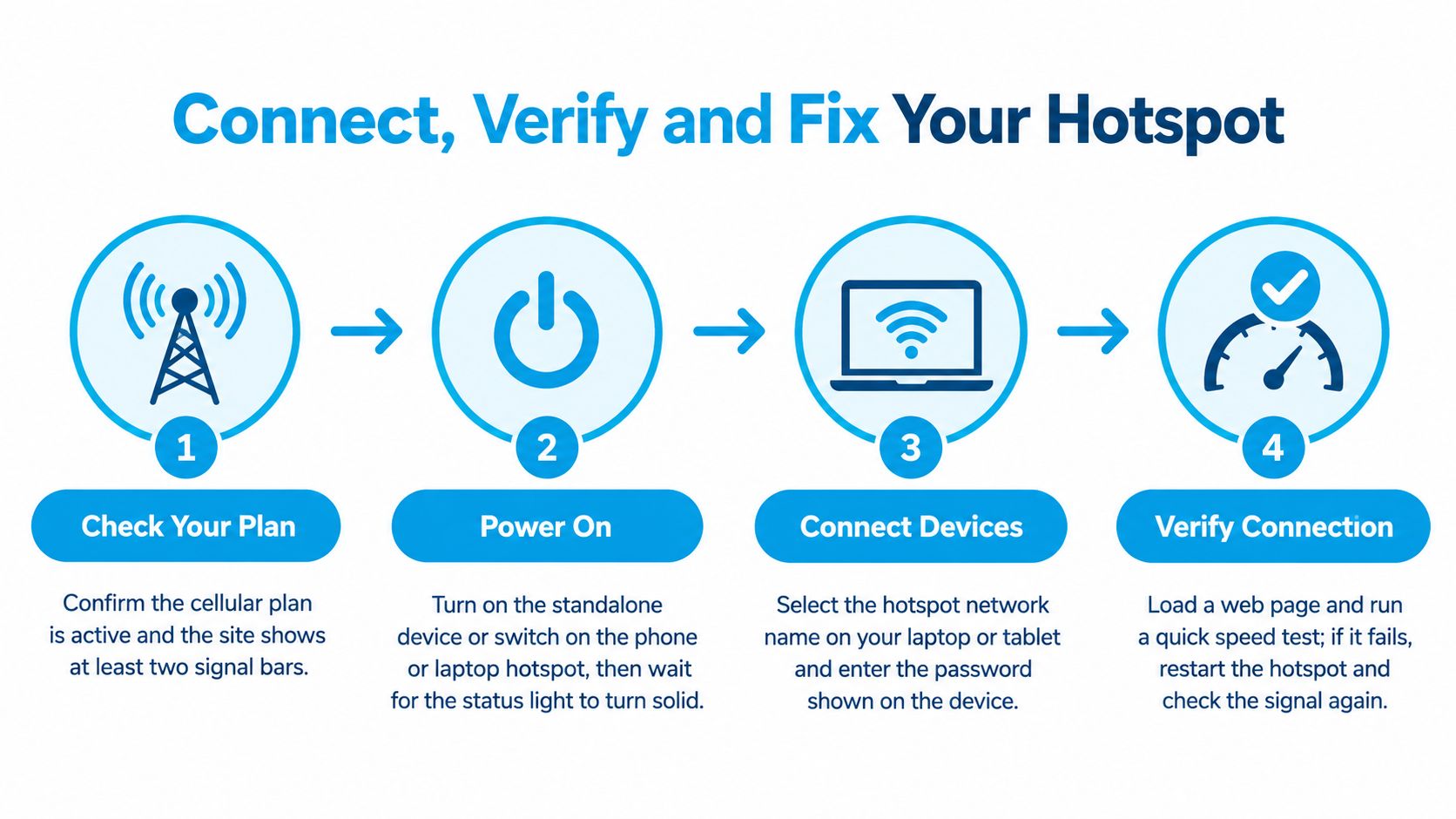
The Seven Step Connection Sequence
- Confirm service first: Check the cellular plan is active and the site shows at least two signal bars.
- Power on and wait: Turn on the standalone device, phone, or laptop hotspot and let the status light settle.
- Secure it before sharing: Finish the name and password changes before you give the network name to anyone.
- Select your network: Open the client's Wi-Fi list and choose your hotspot name.
- Type the password exactly: Check capitals, numbers and symbols. One wrong character looks like a coverage fault.
- Load a webpage: A Wi-Fi icon doesn't prove internet access. A device can join the hotspot while the cellular backhaul is down, so loading a page is the only true test.
- Record the setup: Note the network name, password, parking spot, signal bars and a first speed test in a notes app.
Connect one device at a time for a group. Add the rest only after the first loads pages reliably, then check it stays connected after the screen locks. That's your acceptance test, not a single fast speed result at noon. If pages crawl later, the patterns behind slow wireless internet on a phone or hotspot usually point back to congestion, placement, or too many clients.
Hotspot Symptoms, Likely Causes and First Fixes
| Symptom | Likely cause | First fix |
|---|---|---|
| Device shows Wi-Fi but no webpage loads | Cellular link is down | Check signal bars, toggle cellular data, then reload the page |
| Hotspot does not appear on the client | Hotspot is off or the device is in a different mode | Restart the hotspot and toggle Wi-Fi on the client |
| Speed drops in the afternoon | Congestion or too many devices | Run a test at the same hour and disconnect idle devices |
| Data disappears quickly | Background sync or automatic updates | Check per-device usage and pause backups |
| Hotspot or phone overheats | Heavy load and direct sun | Move into shade and stop streaming until it cools |
| Connection drops when the RV moves | Weak indoor or in-vehicle signal | Reposition the hotspot near a window |
| Password rejected | Typo or capitalization mismatch | Re-enter from your saved note. Reset only as a last resort |
When nothing connects, isolate the fault in order. Confirm service and coverage, restart the hotspot and client, move the hotspot near a window or away from metal structures, inspect power and the charger cable, then read error messages on the admin page.
Don't factory reset because you're frustrated. It erases every custom name, password and setting you've just made.
Reserve a reset for persistent configuration failure after the steps above. Repeat download, upload, latency and stability checks at your actual work spot during your actual hours. One test at arrival can hide evening congestion completely.
Set a Name and Password That Keep Strangers Out
Keeping the factory name and password is convenient for about five minutes. In a campground, truck stop, or public lot, that label under the battery cover is an invitation to anyone nearby who knows the default pattern for that model. I would change it before the first laptop joins.
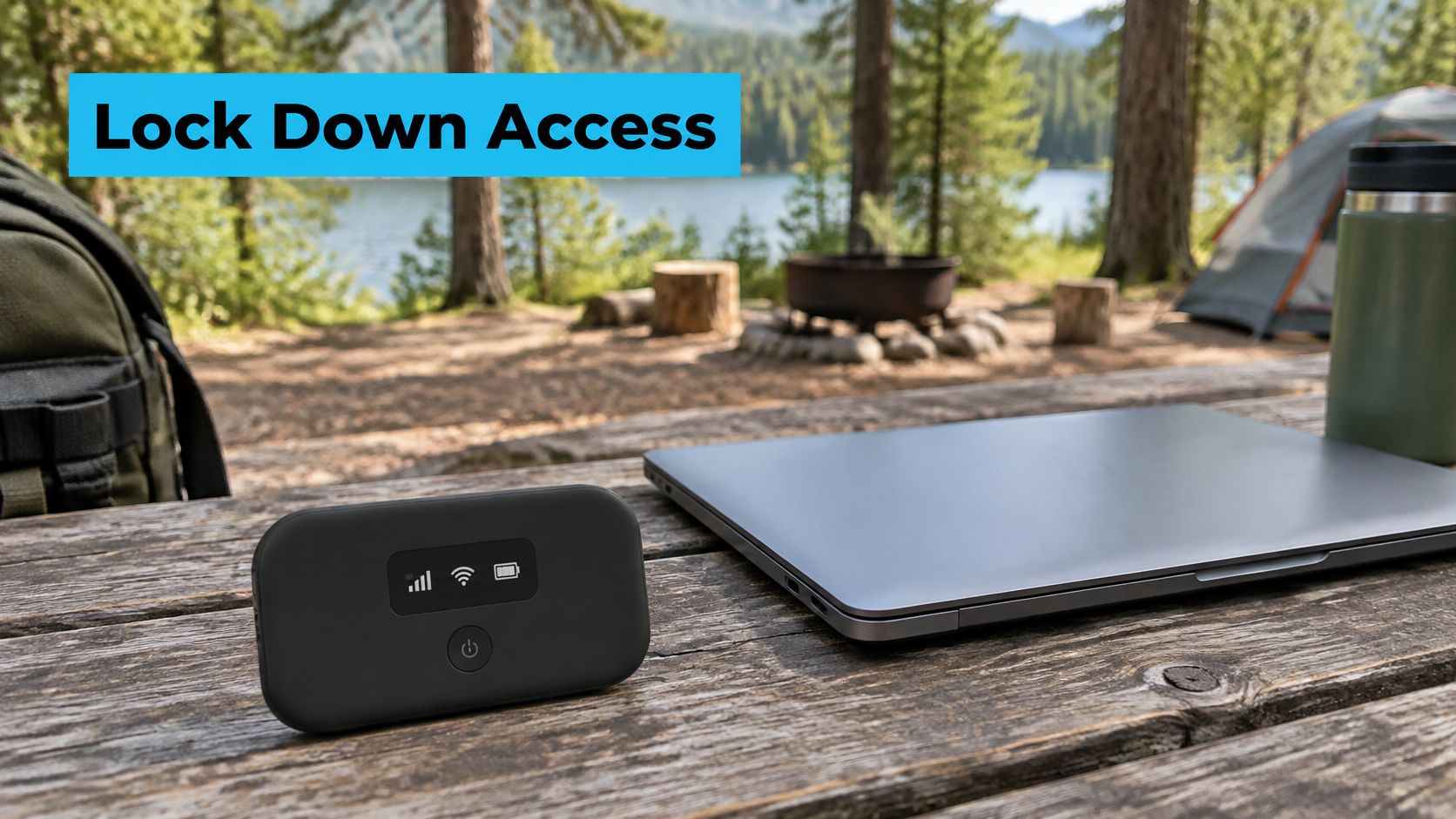
The NIST guide to securing wireless networks recommends replacing default administrator credentials and wireless settings and disabling WEP and TKIP in access point configurations. It also recommends preventing bridging between networks, because a dual connected device can create an unintended path from one network into another.
Your Security Checklist Before You Share the Name
- Change both defaults: Replace the admin password and the default network name before sharing the SSID.
- Use a long unique password: Pick at least 12 characters you don't reuse for email or banking.
- Choose modern encryption: Use WPA2 at minimum and WPA3 where the hotspot and your devices support it.
- Turn off WPS: Leave it off unless you have a clear, temporary need for it.
- Keep the admin page local: Don't expose the administration interface to the open network.
- Separate work from guests: Keep a work laptop off an unrestricted guest network, and don't bridge the hotspot with another active network unless the job requires it.
That routine takes minutes. For a deeper pass on router settings at home, securing your Wi-Fi network step by step covers the same habits for a fixed setup.
At each stop, or after anyone leaves the household, open the connected device list. Remove clients you don't recognize, change the password if a device is lost, and install firmware updates when the manufacturer releases security fixes. A hotspot you carry between public places needs that check more often, not less.
Placement, Data Limits and Battery on Travel Days
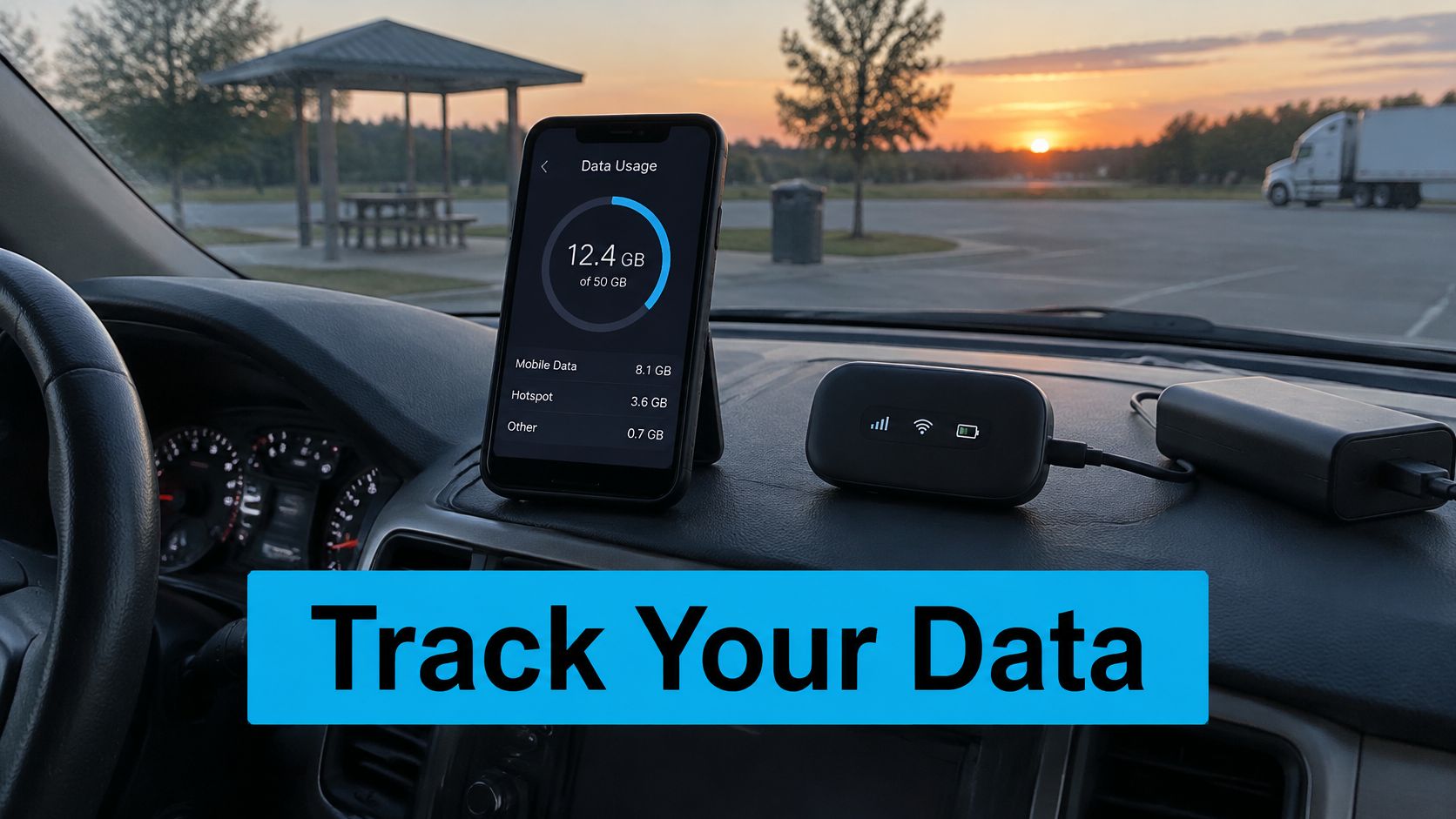
Your hotspot rarely burns data by itself. Your laptop does, usually when you're not looking. The Samsung support page on mobile hotspots makes that distinction plain, noting a hotspot consumes battery and cellular data while connected devices' apps use the hotspot connection.
This dashboard view is the habit to build, checking usage where you work.
Typical Data Use by Activity and How to Cut It
| Activity | Typical use per hour | How to cut usage |
|---|---|---|
| Standard-definition video streaming | About 1 GB | Lower the streaming quality in the app |
| HD video streaming | About 3 GB | Switch to standard definition on cellular |
| Video calls | High while the camera stays on | Turn the camera off when it is not needed |
| Music streaming | Low to moderate per hour | Download playlists over campground Wi-Fi |
| Cloud sync and backups | First sync can take several GB | Pause until you reach unmetered Wi-Fi |
| OS and software updates | Several GB per update | Set a metered connection and update on Wi-Fi |
| Web browsing and email | Low per hour | Little to cut. Close background tabs |
Those streaming figures explain why one film night can wreck a work week. If you're unsure what your allowance buys, how long 1 GB of data lasts in practice gives you a quick sense check before you press play.
Set every laptop and phone to metered connection on your hotspot network. Pause cloud backups and operating system updates until you reach unmetered Wi-Fi, lower video resolution, and check per-device usage each evening. The device using the most is rarely the one you suspect.
The short clip below shows the placement and usage checks in a travel setup.
On arrival, test three spots before you settle. Try a shelf or dash near a window, up high, and away from metal cabinets and the RV wall cavity. A few feet can matter more than a new antenna.
For power, carry the charger or a power bank and keep the unit out of direct sun. Heat drains the battery faster and can slow the radio until it cools. If a phone stops taking a charge mid-trip, the RepairSeeker guide to phone charging issues walks through cable, port and adapter checks before you assume the battery has failed.
If the hotspot is your main internet, budget data around your heaviest device, not your average day.
Using Public Wi-Fi Without Risking Your Bank Login
Campground Wi-Fi earns its keep for weather radar, park maps and casual browsing. Put banking, tax filing and card payments on your own 4G or 5G hotspot, where the network name, SIM and data path stay under your control.
Which Network to Use for Each Task
| Task | Personal hotspot | Campground or public Wi-Fi |
|---|---|---|
| Online banking | Use it | Avoid |
| Tax filing | Use it | Avoid |
| Card payment online | Use it | Avoid |
| Work email and file access | Use it | Use only with a VPN |
| Video calls for work | Use it | Use only if speed holds at your hour |
| Streaming a show | Fine | Fine if the network name was verified |
| General browsing | Fine | Fine with auto-connect turned off |
The weak point is usually the network name, not the website. An attacker can broadcast an evil twin access point named after the campground or café, and a phone has no reliable way to show which one the office runs. Get the exact name and password from staff before joining, and treat WPA2 as the minimum encryption on any public network.
Apps make verification harder than a browser does. Some never show an HTTPS lock, and some handle encryption poorly, so a banking app on public Wi-Fi stays a bad idea even when the login page looks normal.
Turn off automatic connection to open networks on phones and laptops, then choose the trusted network by hand each time. For tablets, guest laptops and other gear you do not manage, DNS filtering for unmanaged devices can block known risky destinations before a browser reaches them.
Keep work email and file access behind a VPN if you must use shared Wi-Fi. Streaming and general browsing can stay on a verified campground network when speed holds, while money tasks remain on the hotspot even if the campground signal looks faster.
Test Your Hotspot Before the Next Trip
Don't learn your work spot is unusable on the morning of a call. Run this test this week, at the place and hour you'll really work, and keep the log with the hotspot.
Run three speed tests across two days and record download, upload, latency, signal bars, device count, and whether a video call holds without freezing. Compare the busy hour with a quiet one. A setup that only works at 7 a.m. isn't a work setup.
Before you rely on a new area, check the FCC order describing its mobile coverage maps, which states those maps represent areas where users should connect outdoors or in a moving vehicle and do not measure indoor mobile broadband availability. Providers submit that data twice a year, as of June 30 and December 31, so treat the map as a starting point and confirm at the parking spot itself.
If the test fails, change placement first. Then compare carrier coverage at your usual stops or consider a different cellular plan. One option to evaluate after your test is SwiftNet Wifi, whose 4G Bronze hotspot plan uses virtual SIM access to AT&T, Verizon and T-Mobile, with a 5G Diamond router for households that need a fixed setup instead.
Log the result, keep the charger with the device, and retest when you change sites.
#rv #rvlife #rvliving #rvlifestyle #rvrenovation #rvremodel #rvtravel #rvcamping #rvadventures #ruralwifi #5gwifi #5ginternet
If your test shows the coverage is there but your current plan isn't built for travel or rural work, SwiftNet Wifi offers 4G hotspot and 5G router plans using virtual SIM access to major U.S. carriers, with setup aimed at RV and rural households. Compare the options against your own speed log and visit SwiftNet Wifi to see whether a plan fits the places you really park and work.


