

You've parked for the night, opened your laptop for a video call, and the router on the counter is showing a red light. Your phone still sees the Wi-Fi name. It even connects. Nothing loads. That mismatch is the clue many people miss, and it's why unplugging everything at once, or hitting reset, so often makes the evening worse.
A WiFi router red light isn't one universal fault code. It's a status signal defined by the manufacturer, and it usually points upstream, toward the modem, the carrier, or the broadband network, not at your local Wi-Fi radio. Work the problem in layers. Identify the light, test the chain, then decide whether the fault follows the router, the location, or the network.
Decode the Light Pattern Before You Touch Anything
| Light pattern | Usual meaning | First check |
|---|---|---|
| Solid red Internet or WAN | WAN port sees a cable but internet service is unavailable | Modem online light and a direct-modem test |
| Blinking red Internet or WAN | No connection to the modem, or a failed mesh backhaul | Cable from modem to WAN port and power to the modem |
| Solid red on a mesh parent node | Parent node has no internet | Parent node uplink to the modem |
| Fast-blinking red on Google WiFi | Critical failure according to Google | Outage check, then factory reset and support if red remains |
| Red power light | Adapter, outlet or failed boot | Outlet, adapter and a full restart |
| Red signal or SIM icon (cellular) | No network registration or weak signal | SIM seating, activation and signal readings |
Start with the Internet or WAN light, because it separates two different jobs. The TP-Link Archer BE9700 quick-install guide defines "Solid Red" as "The WAN port is connected, but the internet service is not available." Read that carefully. The cable and port can be talking to each other while the modem session, authentication, or the service itself has failed.
Why the same color means different faults
Brands don't share one codebook. On a mesh system, a solid red parent node usually means that parent has no internet, while a blinking red child node can mean its backhaul link, the wireless or wired link back to the parent, is down. Same color, different fault, different first check.
Google treats the pattern more severely. A fast-blinking red on Google WiFi is classed as a critical failure, which is why you shouldn't treat it like a routine outage light. Even there, reset comes after the outage and connection checks, not before them.
A red power light points somewhere else entirely. Think adapter, outlet, or a boot that never finished. On a cellular router, a red signal or SIM icon points to network registration or SIM activation, not to the password on your laptop.
Practical rule: If you can join the Wi-Fi network and open the router admin page while the WAN light stays red, your Wi-Fi radio is probably working and the problem sits upstream.
Say your network name shows full bars in the RV but no page loads. That's not a weak-signal problem inside the coach. That's a router broadcasting normally with nothing behind it.
Before you change anything, note which light is red and whether it's steady or flashing. Take a photo. That one observation narrows every later step, and it's the first thing support will ask for anyway. Check the manual for your exact model too, because it's the final word for your hardware.
Check the Connection Chain and Restart in Order
Work from cheapest to most disruptive, and stop at the first step that points to a fault. I would start with power and cables every time, because they're free to check and they fail more often than electronics do.
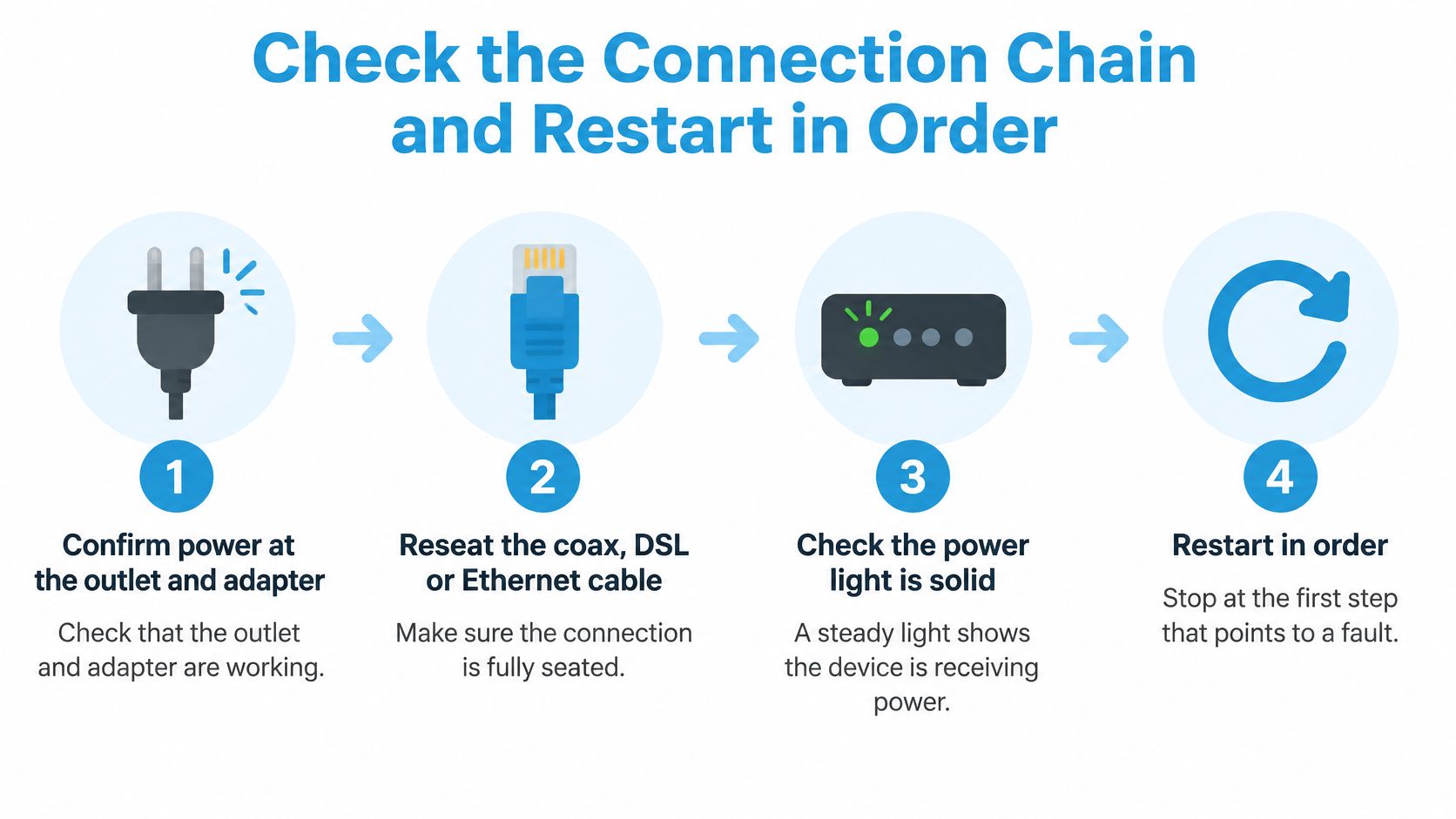
The connection checks in order
- Confirm power first: Test the outlet with something you trust, check the adapter is the right one for the router, and confirm the power light is solid. A flickering power light makes every other light unreliable.
- Reseat every link in the chain: Unplug and firmly reseat the coax, DSL, or Ethernet cable between the modem and the router WAN port. If the router is cellular, reseat the SIM. Look for bent pins, a loose coax fitting, or an Ethernet plug that doesn't click.
- Check for an outage on cellular data: Open your provider's outage page or app on your phone with Wi-Fi turned off. You can't fix a neighborhood outage or a damaged line at the router, and you shouldn't burn an hour trying.
- Run the direct-modem test: Disconnect the router. Connect a laptop straight to the modem with Ethernet and load a web page. This is the single most useful test in this whole process.
- Test the WAN port if the modem works: If the laptop gets online through the modem, move that same cable from the router's WAN port to a LAN port. If both the Ethernet and internet lights come on, the WAN port is functioning and a speed-negotiation issue, where two ports fail to agree on link speed, may be involved.
- Test one wired device on the router: Plug the laptop into a router LAN port. A wired device that works while Wi-Fi fails points to the wireless layer. A wired device that also fails points back to the WAN side.
The decision rule is simple. Works on the modem but not through the router means the router or its WAN settings are at fault. Fails on the modem too means the modem or the provider is at fault, and your call to the provider gets much shorter when you can say so.
If your connection drops repeatedly even when the lights look normal, this guide on why your router keeps losing connection from Networking2000 is worth reading alongside these steps, since intermittent drops and a hard red light are related but not identical faults.
Restart in order and actually wait
A restart only helps if both boxes get time to finish starting and renegotiate. The TP-Link restart procedure specifies powering off both modem and router for one minute, powering the router on first and waiting about two minutes for a solid power indicator, then powering on the modem, waiting about two minutes for its lights to become solid, and waiting another one to two minutes before checking internet access.
| Device | Action | Wait before next step |
|---|---|---|
| Modem and router | Power both off | 1 minute |
| Router | Power on first | About 2 minutes, until the power light is solid |
| Modem | Power on second | About 2 minutes, until its lights are solid |
| Internet check | Test a device after the wait | 1 to 2 more minutes before judging the result |
On a mesh system, power the parent node first, wait for its light to go solid, then power each child node one at a time. Bringing every node up at once gives you three blinking lights and no idea which link failed first.
A successful restart looks specific. The Internet light changes from red to solid, white, green, or off depending on the brand, and a device loads a page without timing out. Judging at twenty seconds tells you nothing, because the router may still be negotiating.
Don't repeat the full power cycle three or four times hoping for a different result. One clean, timed sequence gives you a real answer. Repetition just erases the evidence.
Common slips are unplugging the router without the modem, restarting both at the same moment, and testing before the modem's online light stabilizes. If the light stays red after one full sequence and the direct-modem test failed, call the provider with that result. If the modem test passed and the router is still red, or your router is cellular, move to the signal and SIM checks.
Fix Cellular Router Red Lights by Signal and SIM
A cellular router can be perfectly healthy and still show red because it can't register on the network, meaning the carrier hasn't accepted it onto a tower, or its upstream session has dropped. The FCC home network guidance supports the same isolation approach used here, checking for outages and using Ethernet to separate the wireless layer from the connection itself.
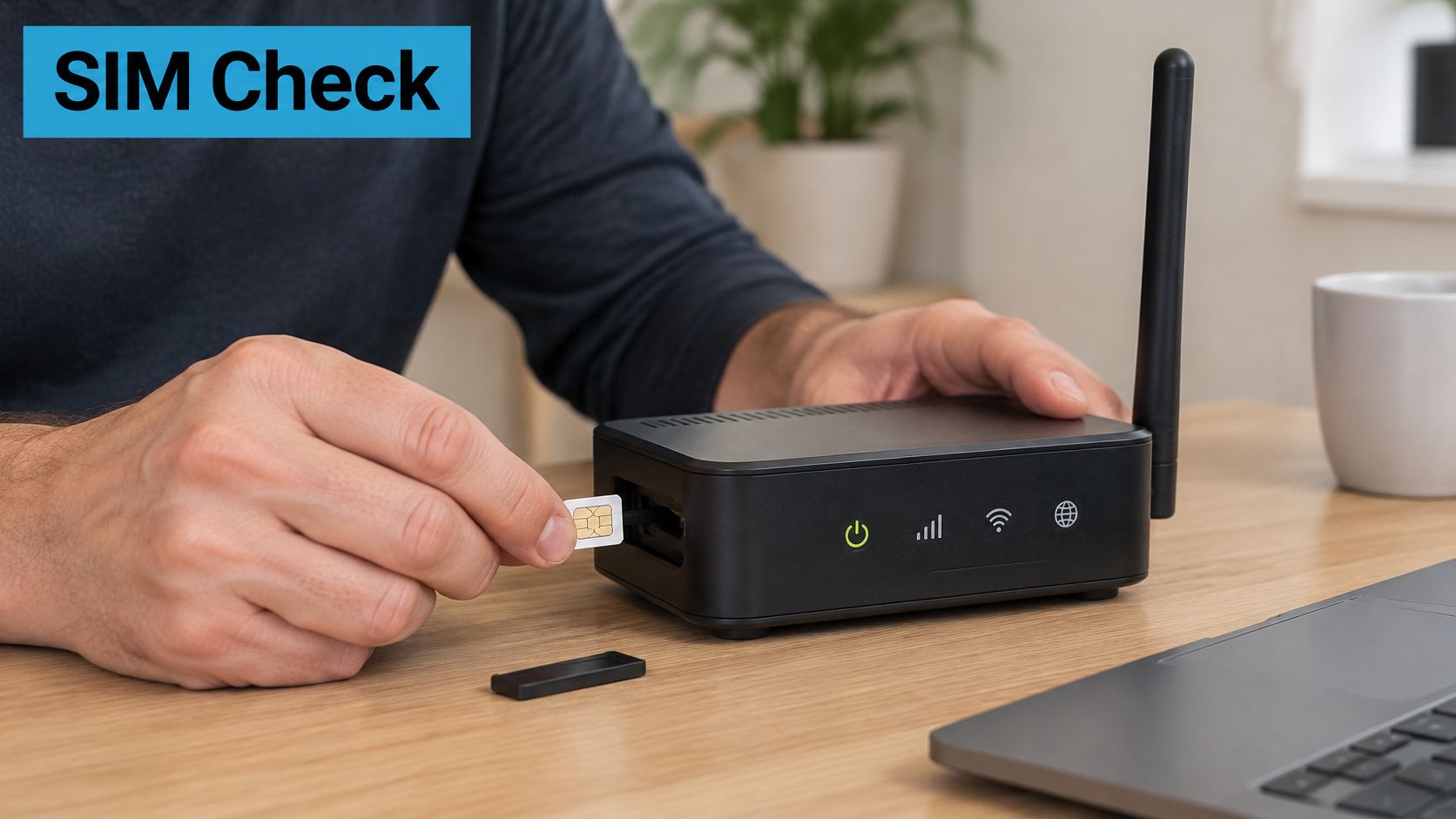
This photo shows the first physical check on a cellular unit, the SIM itself.
The isolation method
- Record the signal readings: Open the router management page and write down RSRP (signal strength), RSRQ (signal quality), and SINR (signal compared with interference and noise). Compare them with the ranges in your router's own manual, since acceptable values vary by model.
- Verify the SIM and account: Confirm the SIM is seated correctly, the account is active, the data allowance isn't used up, and the APN, the carrier access setting the router uses to join the data network, matches your carrier.
- Move, rotate, wait: Put the router near an exterior window or higher up. Rotate it slowly in small steps and wait several minutes after each move for registration. Record the readings at each spot so a before-and-after comparison shows whether the move helped.
- Compare at the same spot: Check another device or another network in the same location if you have one. You're testing whether the location has usable service at all.
- Use one Ethernet client: Cable a laptop to the router. If wired works, cellular backhaul is fine and the fault is local Wi-Fi. If wired fails too, the fault is the cellular side.
- Test reachability in stages: Run ping and traceroute to the gateway and then to a public IP address, then test DNS, the system that turns site names into addresses, on its own. Reaching an IP but not a website name is a DNS problem, not a signal problem.
Don't judge by your phone. A strong phone signal doesn't prove the router has internet, because your phone and router may sit on different carriers, different bands, or different account states. Judge the router by its own status page.
Say an RV is parked with a hill on the tower side. Readings at the dinette are weak and the light stays red. Moving the router to the window on the open side improves SINR and the light clears. Nothing was broken. The box was just in a radio shadow.
This short video walks through the physical handling before you start changing settings.
If readings remain poor at every window, placement has reached its limit, and it may be worth considering whether a cellular signal booster setup suits your rig or rural home. Avoid power cycling repeatedly during testing, as restarts delay registration and obscure whether the fault lies in signal, authentication, or an outage. For truck drivers and rural homes, record the readings by location. Patterns in that log help resolve questions later.
Reset Only After the Tests Rule Out Outage and Coverage
Resetting first is a habit, not a diagnosis. A factory reset erases your network names, passwords, APN settings, port forwards, and custom DNS, and it can't repair an upstream outage, a damaged line, or a tower problem. You end up with the same red light plus a router that no longer knows your settings.
There is one clear exception. For a fast-blinking red on Google WiFi, Google's sequence is to factory reset, then contact support if the red light remains. Follow that order for that hardware, but only after the connection checks and timed restart have failed.
Before you press the button
Save what you'd otherwise lose. Export a settings backup if the router allows it. Write down the APN, the Wi-Fi password, and the admin login on paper. If you use port forwards for a camera or remote access, note those too.
Then rule out the account and the area. Check the provider's outage map or app. Look for account or payment alerts, since a suspended account can look exactly like a hardware fault from your side of the light. Ask a neighbor on the same provider whether they're down. Two houses out at the same time is not two broken routers.
A reset that "fixes" an outage only appears to work because service came back while you were reconfiguring. You've paid full price for a repair that was never yours to make.
If you do reset, follow the exact button timing and setup flow in this guide on how to reset your router properly rather than guessing at hold times. Re-enter the APN and passwords from your notes, then test one wired device before reconnecting everything.
What to tell the provider
A good support call is short because you've already done the sorting. Give them these items in this order:
- Light pattern: Which indicator is red and whether it's steady or flashing
- Direct-modem result: Whether a laptop worked cabled straight to the modem
- Start time: When the problem began and whether anything changed then
- Status page values: WAN status, IP address, gateway, DNS, and network registration state
RV owners at campgrounds get one extra step. Compare your result against the campground network or a neighbor's connection before resetting, since the campground feed may be the fault. Resetting your router for their outage costs you your setup and gains nothing.
Decide Whether to Repair Move or Switch Connections
Your test results point to one of three outcomes. The useful question is simple: does the red light follow the router, the location, or the network?
It follows the router. The modem passes a direct test, the same SIM or cable works elsewhere, and this router stays red after a timed restart and a reset. That's a hardware or deep configuration fault. Plan a warranty claim or a replacement and stop spending evenings on it.
It follows the location. The router works at home or in town but shows red at a campsite, a rural property, or one end of the house. Your readings improve at a window and collapse in a metal building or behind a hill. That's coverage, not breakage. Move the router, raise it, change which side of the rig it sits on, or test a different carrier path at that exact spot.
It follows the network. Every device fails at the same time on the same carrier, neighbors report the same problem, or the outage map lights up. Wait for the provider, document the start time, and lean on a backup connection if you work remotely. No setting on your router outranks a down tower.
Only the location outcome justifies shopping. If your current carrier is the limit at the sites you use, a different carrier path is the test that settles it. Our SwiftNet 5G Diamond is an unlimited, no-contract internet router and plan for RV and rural living, working with AT&T, Verizon and T-Mobile 5G, and it automatically finds the strongest tower from AT&T, Verizon, or T-Mobile. The 7-day money-back guarantee lets you test the router at your site and return it for a full refund if it doesn't outperform your current setup. Check current plan terms, carrier compatibility, and trial or return details directly before relying on them.
Be honest about the limit, though. A router that fails at the same spot on the same carrier is telling you about placement or coverage. Buying another box on that same carrier won't change the answer. If you're weighing options for areas without fiber, start with the choices for internet access for rural areas and test at your own site before committing.
#rv #rvlife #rvliving #rvlifestyle #rvrenovation #rvremodel #rvtravel #rvcamping #rvadventures #ruralwifi #5gwifi #5ginternet
If your tests show the red light follows the location or the carrier, not the box, SwiftNet Wifi offers 4G and 5G router plans built for RV travel and rural homes that struggle with single-carrier coverage. Test a router at your own site under the trial terms and judge it by the same signal readings and wired checks you used here. Visit SwiftNet Wifi to check coverage, plan terms, and router options for your setup.


