

You're presenting from your RV when your camera freezes and the encoder starts dropping frames. Your phone still shows a healthy cellular signal, but a family member's cloud backup is using the upload capacity you need to finish your presentation. Restarting the streaming software won't fix that competition.
Cellular internet needs a different playbook from a stable fiber connection. Upload capacity changes with tower congestion, parking location, antenna placement, and other devices sharing the connection. A fast speed-test result doesn't guarantee that your connection can sustain a broadcast through the evening.
The most useful streaming tips and tricks start with identifying which part of the setup is struggling. Your laptop can fall behind while encoding, Wi-Fi can interrupt the local connection, or the cellular link can run out of upload capacity. Each problem needs a different fix.
The techniques below cover wired connections, bitrate settings, upload prioritization, signal placement, backup connections, hardware encoding, presentation quality, and audience interaction. They're aimed at people broadcasting from RVs, rural homes, campsites, and parked trucks, where bandwidth is shared and conditions change. Start with a conservative setup, then improve picture quality only when the connection and computer can support it consistently.
1. Use a Wired Ethernet Connection Between Your Encoder and Router
Ethernet removes local Wi-Fi as a variable. It won't strengthen the cellular signal, but it gives your streaming computer a more predictable path to the router. That distinction matters inside an RV, where nearby campground networks and competing household devices can make wireless performance inconsistent.
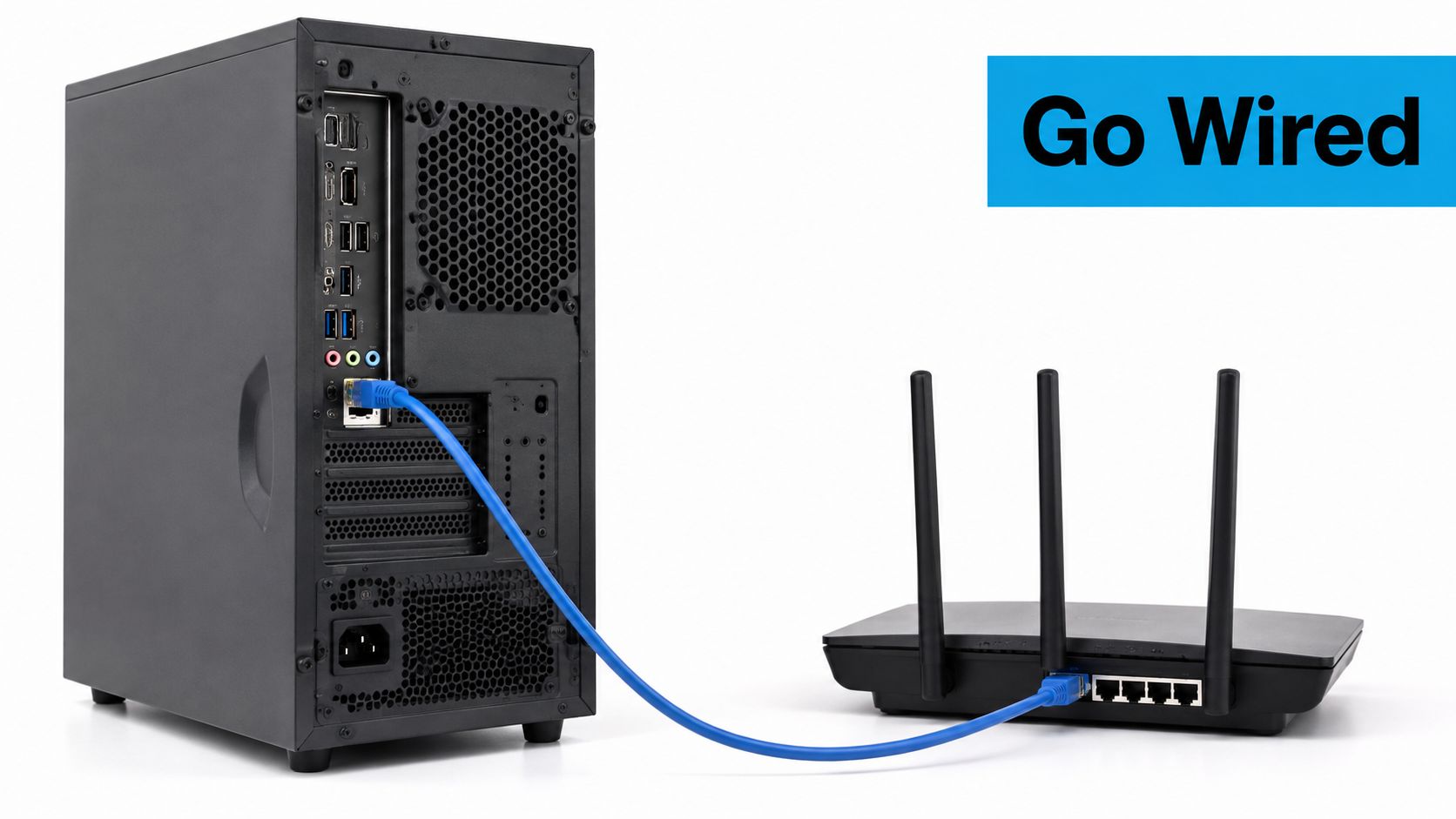
Connect the computer directly to a LAN port when your router provides one. If the laptop lacks Ethernet, use a compatible USB Ethernet adapter, then confirm that the operating system recognizes the wired connection before opening OBS or your meeting software.
Remove variables before buying equipment
- Choose a suitable cable: Cat5e or Cat6 is appropriate. Keep the cable protected from slide mechanisms, doors, and heavily walked areas.
- Simplify the path: Connect directly during troubleshooting rather than through several switches or adapters. A good switch is fine, but extra equipment complicates fault isolation.
- Confirm the active connection: Once Ethernet works, disable the computer's Wi-Fi during the broadcast.
- Check hotspot compatibility: A charging port doesn't necessarily support Ethernet adapters. Use supported USB tethering if that's the wired option your hotspot provides.
Say you're teaching a live workshop from a rural home office. Leave phones and tablets on Wi-Fi, but wire the presentation laptop to the router so their wireless activity doesn't compete with its local transmission.
A wired connection fixes the computer-to-router link. It doesn't fix a congested cell tower.
If dropped frames continue over Ethernet, investigate upload capacity, signal conditions, and encoder load instead of repeatedly changing Wi-Fi channels.
2. Set Encoder Bitrate and Keyframe Interval to Match Your Upload Speed
Your encoder bitrate must fit sustained upload capacity, not the largest number a speed test briefly displays. Download speed tells you little about whether you can reliably send a live broadcast.
For comparison, Netflix's connection guidance recommends at least 5 Mbps for watching 1080p Full HD. That's a download requirement for playback, not an upload target for broadcasting, and mixing up those directions leads to poor setup decisions.
Start with a conservative broadcast profile
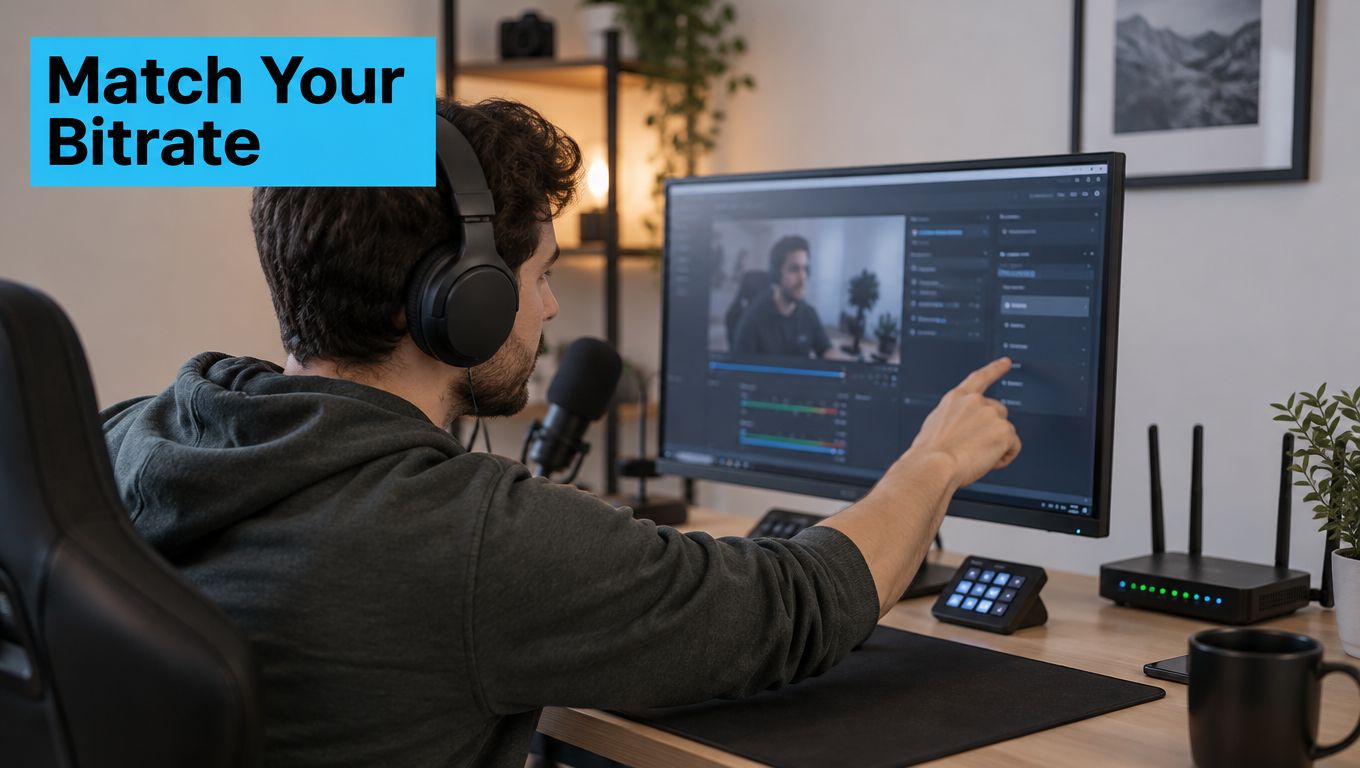
In OBS, open Settings > Output, select the advanced controls, and configure the streaming encoder. For a constrained cellular connection, I recommend starting at 720p, 30 frames per second, and 3,000 kbps, with a 2-second keyframe interval, provided those settings suit the destination platform.
Treat those as starting settings, not a promise that every location can support them. Leave upload headroom for audio, protocol overhead, and household activity, then run a private broadcast at your normal streaming hour.
- Watch network statistics: Increasing network-dropped frames means the outgoing stream isn't reaching the destination reliably.
- Lower bitrate deliberately: Reduce the outgoing load before increasing resolution or changing several settings together.
- Test during realistic conditions: An empty campground in the morning doesn't represent evening tower demand.
A campsite tutorial with a mostly stationary presenter can look clean at modest settings. Fast-moving gameplay needs more careful compromises between sharpness, frame rate, and bitrate.
Use our guide to internet plans with high upload speed to evaluate upload suitability rather than choosing service by download speed alone.
3. Reserve Upload Bandwidth with Quality of Service (QoS) Settings
A cloud backup can interfere with your broadcast even when nobody else is watching video. Photo synchronization, file transfers, security cameras, and software updates all deserve attention before you blame the streaming platform.
Quality of Service, or QoS, lets a compatible router prioritize selected devices or traffic. It doesn't create capacity, but it can stop less urgent traffic from occupying the outgoing queue while your encoder waits.
For an RV couple sharing a connection, prioritize the broadcasting laptop while the other person browses or plays an online game. Pause large transfers entirely when the available upload is marginal, because prioritization can't make an undersized connection adequate.
Configure priority around the encoder
- Reserve its address: Create a DHCP reservation for the streaming computer in the router's administration page. This keeps a device-based rule attached to the right machine.
- Set the priority: Give that device high upload priority, using application-specific rules only when the router identifies the application reliably.
- Control background traffic: Pause cloud backups, photo uploads, game updates, and operating-system downloads before going live.
- Validate under load: During a private stream, introduce ordinary household activity and watch encoder statistics and responsiveness.
Some routers ask you to enter an available upload rate for traffic shaping. Use a conservative value based on repeatable performance, since cellular capacity can fall below the figure you entered.
Practical rule: When capacity fluctuates sharply, pausing competing uploads is often more dependable than an elaborate QoS configuration.
A speed test itself creates traffic. Run load tests during rehearsal, not during a paid presentation, and don't assume a router has useful QoS just because its settings contain a priority label.
4. Position Your Cellular Antenna and Router for the Strongest Signal
The best place for your laptop usually isn't the best place for the cellular router. Your desk might sit behind metal cabinetry, while a window elsewhere in the RV provides a better radio path.
Optimize the cellular connection first, then run Ethernet back to the workspace. Keep the router raised, ventilated, and away from large metal objects, but don't leave it baking in direct sunlight against the glass.
This video provides a visual companion for reception troubleshooting.
Compare locations instead of chasing bars
Open the router's status page and look for RSRP, RSRQ, and SINR, where available. RSRP describes received signal power, while the other readings help explain signal quality and interference; bars alone don't tell the whole story.
- Keep tests comparable: Move the router, let it reconnect, and test using the same device and method.
- Record useful results: Note upload consistency, latency under load, and whether the private stream drops frames.
- Test more than windows: Coated glass and nearby obstructions can make an apparently promising position disappointing.
- Match antennas correctly: Use compatible antennas and connectors, and avoid unnecessarily long antenna cables.
A rural homeowner might benefit from a directional antenna aimed toward a suitable tower. An RV traveler who changes sites frequently may prefer an omnidirectional arrangement that requires less aiming.
Our guide on how to improve cell reception explains placement choices in more detail. Choose the position that produces repeatable uploads, not merely the strongest-looking indicator.
5. Build a Failover Backup Connection for Uninterrupted Streaming
Failover reduces outage risk, but it doesn't guarantee an uninterrupted session. Switching internet connections can change your public IP address and force the streaming application to reconnect.
A rural remote worker can keep a charged backup hotspot ready on a different carrier. For a broadcast where reconnection would be disruptive, connection-bonding software such as Speedify may be worth testing, subject to device compatibility and the service's operating requirements.
Understand what your backup actually does
Failover switches traffic when the primary connection fails. Bonding uses a managed path across multiple connections and may preserve continuity more effectively, but it introduces another service, configuration layer, and possible source of overhead.
A dual-SIM router also needs scrutiny. Supporting several SIMs doesn't necessarily mean it maintains simultaneous active connections, and changing carriers can take long enough to interrupt a live session.
- Choose independent coverage: Different carrier names are useful, but verify that the backup performs at the places you park.
- Test a real failure: Disconnect the primary connection during a private broadcast and observe what viewers receive.
- Keep power ready: Charge the backup and keep its power supply connected during important sessions.
- Account for data: A backup connection can exhaust a small allowance if it becomes the primary connection.
Test the recovery path, not just whether the backup hotspot can open a webpage.
For example, a traveling creator could rehearse switching from a cellular router to a second hotspot while streaming an unlisted tutorial. Watch the encoder's reconnect behavior and the platform's broadcast status throughout.
Our internet failover guide can help you plan the arrangement. Keep a local recording when practical so a network interruption doesn't also erase the material.
6. Lower Resolution and Use Hardware Encoding for Mobile Streaming
Dropped frames don't always mean bad internet. If the laptop can't render or encode each frame in time, moving the hotspot won't solve the problem.
In OBS statistics, distinguish network-dropped frames, frames missed due to rendering lag, and frames skipped due to encoding lag. Rendering or encoding problems call for computer-side changes, while network drops call for connection and bitrate troubleshooting.
Give the laptop less work
Select a supported hardware encoder such as NVIDIA NVENC, AMD hardware encoding using VCN, or Intel Quick Sync. These use dedicated encoding capabilities instead of assigning the entire job to the CPU, although the computer still needs resources for scenes, browser sources, and other applications.
For an NVIDIA-equipped laptop, start with an appropriate Quality or P5 preset when available. If the system struggles, choose a lighter preset rather than assuming hardware encoding makes every scene effortless.
- Reduce output demands: Use a moderate resolution and frame rate when the cellular link or laptop is unstable.
- Close unnecessary sources: Animated overlays and unused browser sources can add avoidable processing work.
- Control heat: Keep vents clear and avoid streaming with the laptop resting on bedding.
- Test the whole workload: Include screen sharing, slides, chat, and any application you'll use live.
A parked truck driver could use NVENC for a simple camera-and-chat broadcast rather than CPU encoding alongside a busy browser session.
Resolution also affects the household's data budget. Netflix's data-usage guidance lists consumption of up to 7 GB per device per hour for 4K UHD playback, illustrating why background entertainment deserves attention on capped connections, even though that figure isn't a live-broadcast estimate.
7. Optimize Audio, Lighting, and Scene Layout for Viewer Engagement
A clear voice and readable picture matter more than an ambitious resolution setting that your connection can't sustain. Spend effort on microphone placement and lighting before adding more animated graphics.
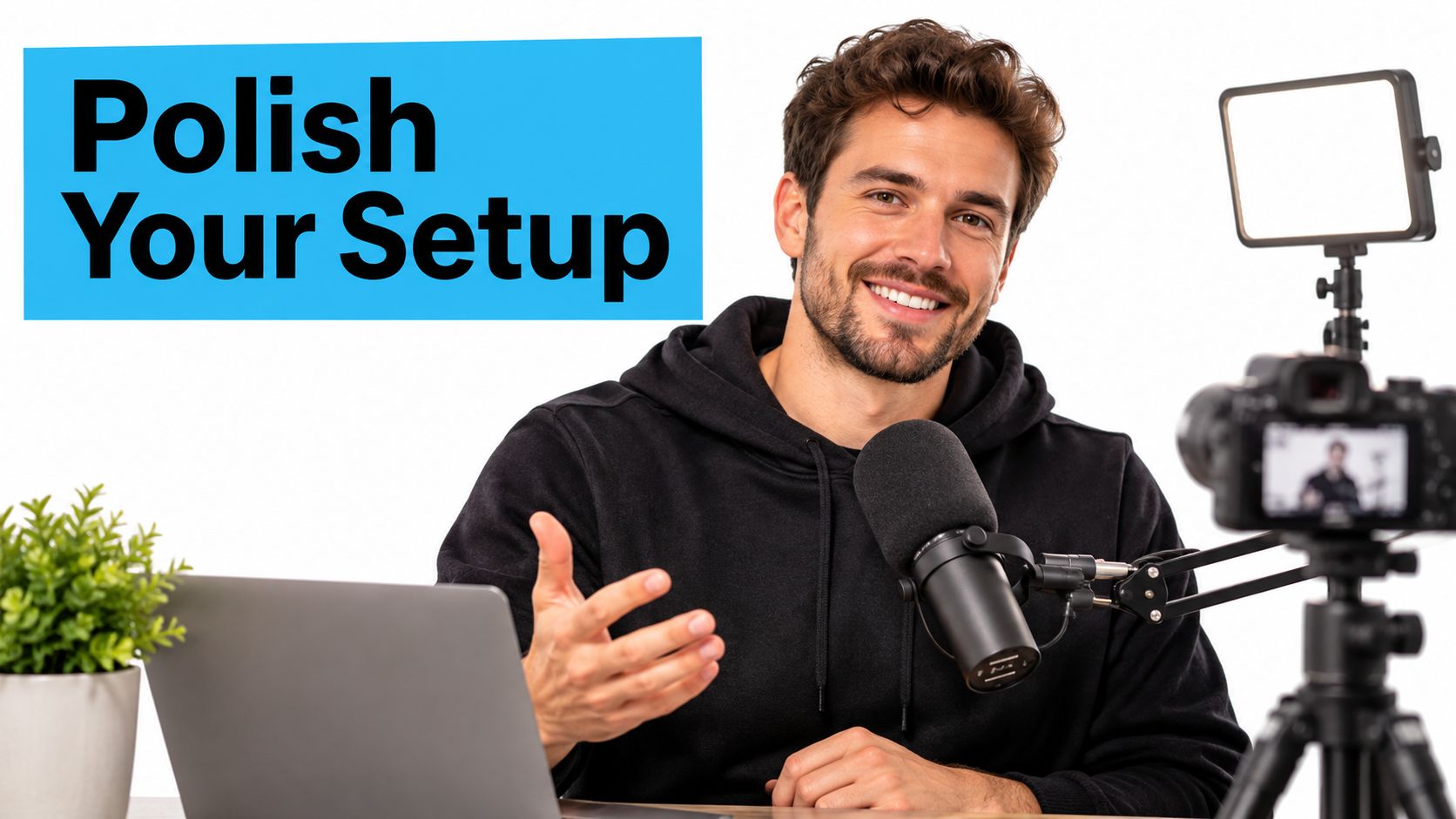
A motorhome presenter can build a practical setup with a USB microphone, foldable LED panel, and uncluttered background. These improvements don't require increasing the outgoing bitrate, and they're easy to reproduce after moving to another campsite.
Make speech and demonstrations easy to follow
Position the microphone roughly 6 to 8 inches from your mouth as a starting point, adjusting for its pickup pattern and your speaking volume. Use a pop filter, keep the microphone away from the laptop fan, and listen for air-conditioning noise before applying aggressive noise suppression.
Place the main light in front of you and slightly off-center. A bright window behind your head can leave your face dark, while soft frontal light makes a modest webcam more usable.
- Simplify the scene: Use a primary camera view, a restrained overlay, and chat only where it doesn't obscure the demonstration.
- Enlarge important details: Make slide text and router settings readable on a small screen.
- Check audio routing: Prevent notification sounds, duplicated microphone inputs, and desktop audio from overpowering speech.
- Review a recording: Listen with headphones and inspect the picture before starting the live session.
In a U.S. survey reported by Mux, 93% of respondents had abandoned a stream because of quality problems. That television-viewing finding doesn't isolate microphone quality, but it reinforces the value of checking the complete viewing experience rather than concentrating solely on speed.
8. Boost Audience Engagement with Chat Features, Schedules, and Moderation
For a small RV channel, a focused conversation is more manageable than a screen full of alerts. A recurring session about hotspot placement, rural work setups, or campground connectivity gives viewers a clear reason to return.
Publish a consistent schedule with the time zone, then plan around connectivity you can reasonably test. If you've just arrived at an unfamiliar site, confirm the upload before promising a live demonstration.
Keep interaction useful and lightweight
Use chat polls to choose the next topic, acknowledge questions by name, and recap important points for late arrivals. As a practical pacing cue, invite questions every 10 to 15 minutes, without interrupting a useful demonstration just to fill a schedule.
- Moderate early: Enable automated filters and appoint trusted moderators who understand the channel's rules.
- Protect privacy: Remind viewers not to post account credentials, precise campsite locations, or router passwords.
- Limit alert clutter: Keep sound effects brief and avoid animation that competes with your explanation.
- Prepare for interruptions: Pin a message explaining where viewers should look if the stream disconnects.
A rural homesteader could collect questions before a live equipment update, then use chat to decide which setup to demonstrate first. Preparing screenshots locally avoids depending on multiple web dashboards during a weak connection.
Use Social Media Scheduler's monthly planning guide to organize advance announcements, reminders, and replay posts. Keep this RV and connectivity hashtag block after the article link in social-post copy, adapting publication to each platform's limits.
#rv #rvlife #rvliving #rvlifestyle #rvrenovation #rvremodel
#rvtravel #rvcamping #rvadventures #ruralwifi #5gwifi
#5ginternet
Streaming Optimization Techniques at a Glance
| Item | Focus Area | Difficulty | Cost to Implement | Best For |
|---|---|---|---|---|
| Use a Wired Ethernet Connection Between Your Encoder and Router | Reliable local network connection | Easy | Low; Ethernet cable | Streamers seeking a simple way to reduce Wi-Fi interruptions |
| Set Encoder Bitrate and Keyframe Interval to Match Your Upload Speed | Encoder settings and bandwidth | Moderate | Little to no cost | Streamers adapting quality to available upload speed |
| Reserve Upload Bandwidth with Quality of Service (QoS) Settings | Router traffic prioritization | Moderate | Little to no cost if the router supports QoS | Shared networks with competing devices and uploads |
| Position Your Cellular Antenna and Router for the Strongest Signal | Cellular signal reception | Easy to moderate | Low for repositioning; higher for an external antenna | Rural and RV streamers using cellular internet |
| Build a Failover Backup Connection for Uninterrupted Streaming | Connection redundancy | Moderate to advanced | High; requires another plan or device | Mission-critical streams and live events |
| Lower Resolution and Use Hardware Encoding for Mobile Streaming | Encoding performance and stream quality | Easy to moderate | Little to no cost with compatible hardware | Mobile streamers using laptops or limited cellular bandwidth |
| Optimize Audio, Lighting, and Scene Layout for Viewer Engagement | Production quality | Easy to moderate | Low to moderate; depends on equipment | Creators seeking a more polished stream in compact spaces |
| Boost Audience Engagement with Chat Features, Schedules, and Moderation | Community building and moderation | Moderate | Little to no cost with platform tools | Streamers building a consistent, interactive audience |
Put It All Together for a Streaming Setup That Survives the Road
A dependable mobile broadcast starts with a setup you can explain and reproduce. Wire the encoder, tune bitrate to real upload performance, protect that upload with QoS, improve cellular placement, and prepare a backup connection before you need it.
Make changes individually and record what happened. If Ethernet removes the problem, you've isolated the local wireless link; if lower bitrate helps while signal readings stay similar, capacity may be the limiting factor. If encoding lag continues during a local recording, troubleshoot the computer rather than buying more internet service.
Keep a baseline you can repeat
Save a conservative encoder profile for difficult locations and a higher-quality profile for connections that have passed a realistic rehearsal. Keep the same essential scene layout, microphone placement, and pre-broadcast routine so moving between campsites doesn't mean rebuilding everything.
Your rehearsal should resemble the live session. Open the presentation, enable the camera, run the applications you'll demonstrate, and account for the other people sharing the connection. A quiet desktop test won't expose every problem that appears once the household starts using the network.
Leave room for changing conditions, too. A connection that worked yesterday may behave differently during a busy evening, and a backup carrier may perform differently after your next move. These streaming tips and tricks work best as a repeatable diagnostic process, not a collection of settings you never revisit.
For a flexible connection to test with that workflow, our no-contract SwiftNet 4G Bronze hotspot works with AT&T, Verizon, and T-Mobile 4G LTE and arrives pre-activated. You can try it at home or in the RV with a 7-day risk-free trial; shipping is free both ways, and when a qualifying return reaches us, we refund the full month with no restocking fee or shipping deduction. Throughput speeds aren't guaranteed, so test at the location and hour you plan to broadcast.
Run a speed test tonight at your usual streaming hour, then implement one improvement before your next broadcast. Start with Ethernet if you're currently wireless, pause competing uploads if the household shares your connection, or lower bitrate if the encoder reports network drops.
SwiftNet Wifi offers no-contract cellular internet for RV travel, rural homes, and remote work, with technical support for our devices and subscriptions. Visit SwiftNet Wifi to explore a connection you can test alongside your wired setup, conservative encoder profile, and backup plan.


