

You're parked at a campsite or sitting down for a work call, and the router still uses credentials someone else set up. You want to change the password without knocking your laptop, cameras, and streaming devices offline longer than necessary. The safest approach is to keep access to the router while you update its credentials, then reconnect devices in a controlled order.
Admin Password and Wi-Fi Password Explained
An installer or internet provider may have changed your Wi-Fi name and key while leaving the router's administrator login untouched. Everything works, so there's no obvious warning. But a customized wireless network doesn't necessarily mean the router's settings are protected.
The admin password opens the router's management interface. Depending on the equipment, that interface controls the Wi-Fi key, firmware updates, remote access, and other settings. The Wi-Fi password is the network key your phone or laptop uses to join the wireless network.
The Federal Trade Commission's home Wi-Fi guidance explicitly distinguishes these credentials and advises against passwords containing your name, address, or router brand. If someone can reach the management interface and knows its unchanged admin credentials, changing only the Wi-Fi key won't prevent them from changing settings again.
Admin password vs Wi-Fi password at a glance
| Credential | What It Controls | Where It Is Usually Set | Change It When |
|---|---|---|---|
| Admin username and password | Router settings, Wi-Fi key, firmware and remote access | Initial details on label, manual or setup app; changed in administration settings | After installation or when equipment changes hands |
| Wi-Fi password (network key) | Who can join the wireless network | Wireless or Wi-Fi security settings | After a guest visit, a shared site or a suspected leak |
| Network name (SSID) | How the network appears in device lists | Wireless settings | When you want a clear, unique name for your site |
| App or cloud login | Remote management and device control | Manufacturer or carrier account | After a shared account or a lost phone |
The SSID is a name, not a secret, and a cloud account may have its own recovery process. Neither should be confused with the local administrator login.
In a 2023 pcWRT survey of 1,000 Americans, 26.7% said they still used the default Wi-Fi password supplied with their router, according to pcWRT's published findings. Check both credentials rather than assuming installation took care of them.
Practical rule: Replace the default admin password first, then set a different, unique Wi-Fi password.
CISA's router-security walkthrough supports treating management access and wireless access separately. For the surrounding settings, use our guide to securing your Wi-Fi network.
Finding Your Router Settings When the Login Is Unknown
Start with the label on the router's bottom or back. Look for entries labeled admin login, router address, Wi-Fi name, and wireless key. Don't assume the password beside the Wi-Fi name also opens the settings page.
Check the label before searching for a login page.
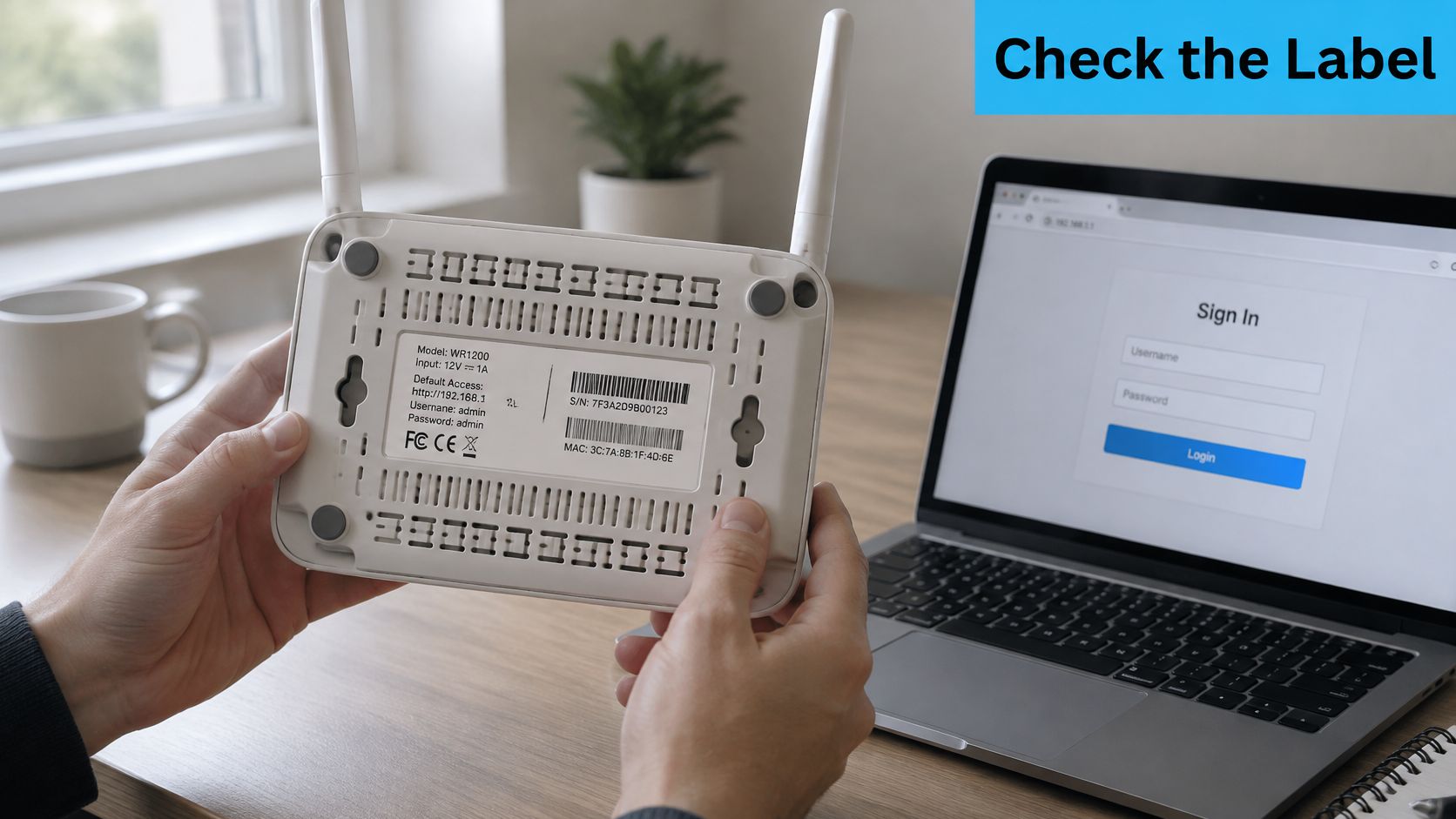
Find the gateway from a connected device
If the label is unreadable, connect to your own router and inspect the connection details. You need the router or default gateway, not the address assigned to your laptop.
-
Windows: Open Command Prompt, run
ipconfig, and find Default Gateway under the active Wi-Fi or Ethernet adapter. - Mac: Open System Settings, select Network or Wi-Fi, then inspect the connection's Details and TCP/IP settings for Router.
- iPhone: Open Settings, then Wi-Fi, and tap the information icon beside your connected network. Look for Router.
- Android: Open the connected network's details and look for Gateway or Router. Some phones place this under advanced network information.
Type the resulting address into your browser's address bar, not a search box. If you're connected to campground Wi-Fi instead of your own router, you'll be inspecting the campground connection, not your equipment.
Recognize an app-managed setup
Some routers expose a local browser interface; others put customer controls in an app or provider account. Our router setup guide can help you identify the setup path before changing anything.
Where to find router settings by setup type
| Setup Type | How to Recognise It | Where Settings Live |
|---|---|---|
| Standard router with local admin page | Label shows a router address and a default login | Browser at the router address |
| Mesh Wi-Fi system | Setup app was used to install it | The mesh app on your phone |
| ISP-supplied gateway | ISP sticker or welcome card | The ISP app or online account page |
| Carrier hotspot or 5G router | Carrier SIM or activation email | Carrier app or the device web page |
| Forgotten admin password | Label default no longer works | Factory reset, then set up again with a new password if recovery isn't available |
A factory reset erases your configuration. Before using it, check the password manager, installation paperwork, and any supported recovery option. You may need provider-specific connection settings to get online again, so don't reset equipment in the middle of a workday without a recovery plan.
How to Change Your Router Password Step by Step
Make the change while you're physically near the router and nobody needs an uninterrupted connection. Keep the setup guide available offline, and leave the router plugged into dependable power throughout the process.
This visual summarizes the controls involved. Follow the written sequence below, which puts the admin-password change first.
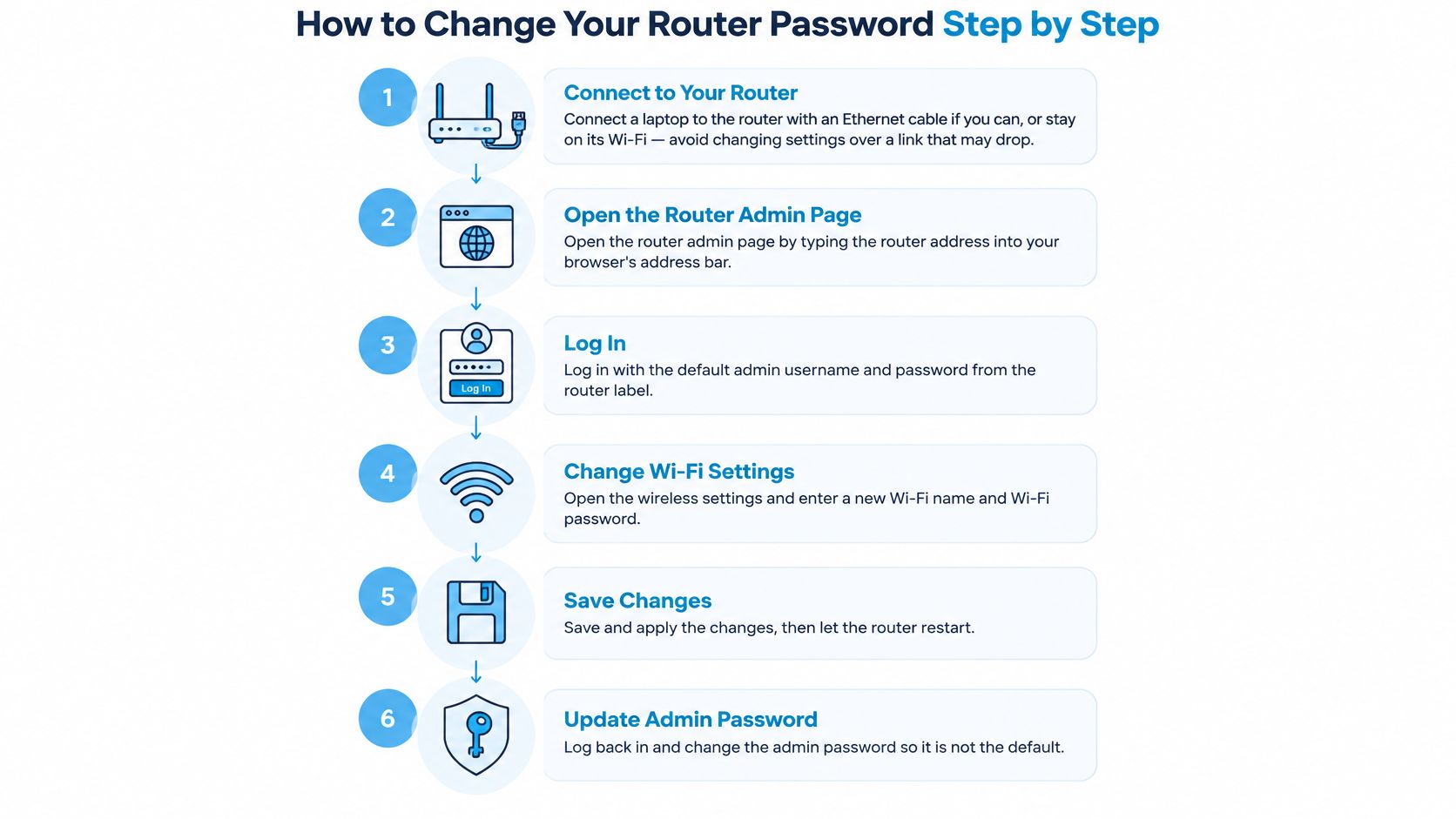
Secure the management login
- Connect locally. Plug a laptop into a router LAN port with an Ethernet cable if possible. Otherwise, stay connected to the router's own Wi-Fi. Don't make the change through a campground connection or remote-management session that you might lose when settings update.
- Open the management interface. Enter the router address you found earlier into the browser's address bar. Sign in with the current administrator credentials, using the label defaults only if they haven't already been replaced. Don't enter credentials into a search result or an unrelated sign-in page.
- Change the admin password. Look under Administration, Management, System, or Account. Enter the current password if prompted, then create and confirm a unique replacement. Change the administrator username too if the router supports it, and select Save or Apply.
- Test the new login immediately. Log out, then sign back in using the replacement credential. Leave the wireless settings alone until this succeeds. That separates an admin-login problem from the expected wireless disconnection later.
A password manager can generate and store the administrator password. There's no benefit to making this password identical to the Wi-Fi key just because both belong to the same box.
Update wireless security and the network key
- Choose the wireless security mode. Open Wireless, Wi-Fi, or Wireless Security. Select WPA3-Personal when your router and devices support it; use WPA2-AES for equipment that needs the fallback. CISA's home-network security guidance identifies WPA3-Personal with AES as the preferred home configuration. Avoid selecting an obsolete security mode to accommodate a device without checking its update options first.
- Enter a different Wi-Fi passphrase. Use unrelated words rather than personal details or a slight variation of the admin password. CISA recommends 5–7 unrelated words totaling at least 16 characters, as described in its guidance linked under the credential explanation. Check capitalization and spaces before saving. If you're also renaming the SSID, choose something recognizable that doesn't identify your home address or RV occupants.
- Save and let the router finish. Select Apply or Save, then allow a minute or two for the wireless service or router to restart. The browser may report a lost connection when you're using Wi-Fi. Don't repeatedly click Apply or disconnect power while the router is processing the change.
- Record both credentials securely. Save them in an offline-accessible password manager, or make a clearly labeled recovery card stored securely near the router. Don't tape an exposed admin password to equipment that guests can handle.
For an app-managed mesh system, ISP gateway, or carrier router, replace the browser actions in steps 2–4 with the equivalent account and device-security controls in its app or provider portal. Make both credential changes there if supported. Some systems use the cloud account instead of a separate local admin password, so protect that account and enable multifactor authentication when available.
For a visual demonstration of the password-change interface, use this walkthrough.
Key takeaway: Change the admin password first, confirm that it works, then change the Wi-Fi password.
Reconnecting Phones, Laptops and Smart Devices
Devices that saved the old Wi-Fi key can't authenticate with that key after the change. Ethernet-connected equipment usually stays connected, but wireless cameras, printers, and work equipment may appear offline until you update them.
Reconnect your laptop first, because it gives you a useful troubleshooting screen. Follow with phones, then devices that require their own setup app or a remote control. Keep a written list so an outdoor camera or tucked-away printer doesn't get missed.
Clear the saved connection when necessary
On an iPhone, open Settings → Wi-Fi, tap the information icon beside the network, and choose Forget This Network before joining again. On Android, open Network and internet → Internet, select the saved network, and choose Forget. Menu names differ by phone manufacturer.
For Windows, use Manage known networks under Wi-Fi settings if the network menu doesn't offer Forget directly. On a Mac, open the network's Wi-Fi details and choose Forget This Network, then reconnect with the replacement key.
Reconnecting devices after a Wi-Fi password change
| Device | Reconnect Method | Common Snag |
|---|---|---|
| iPhone or iPad | Settings, Wi-Fi, Forget This Network, then rejoin | Phone keeps trying the old key |
| Android phone | Network and internet, saved network, Forget, then rejoin | Auto-connect loops with the old key |
| Windows laptop | Wi-Fi settings, Forget, then reconnect | Stale saved profile |
| Mac | Wi-Fi details, Forget This Network, then rejoin | Keychain prompts for the old key |
| Smart TV or streaming stick | Network settings, select network, enter new key | Hard to type on a remote |
| Printer | Printer panel or app, reconnect to network | Printer goes offline without warning |
| Security camera | Camera app, update Wi-Fi details | Camera stays offline until updated |
| Work laptop on VPN | Reconnect Wi-Fi first, then open VPN | VPN fails when Wi-Fi is still reconnecting |
A camera or printer's account password is separate from its wireless configuration. Update its stored Wi-Fi details without unnecessarily changing the account login; if the app needs fresh authentication, handle that separately.
At a crowded campsite, verify the exact network name before typing the key. Digital Footprint Check's guide to spotting lookalike Wi-Fi names is useful when several nearby networks look similar.
Common Problems and How to Fix Them
A 2025 study of home-router configuration habits found that only 50% of participants changed settings when the router was supplied as a plug-and-play device. Working internet doesn't tell you whether management happens locally, in an app, or through a provider portal. Identify that control path before treating an unreachable page as a hardware failure.
Start with access problems, then investigate restart and internet-connectivity symptoms. The table gives a first action, not a definitive diagnosis.
Symptoms, causes and fixes after a router password change
| Symptom | Likely Cause | First Fix |
|---|---|---|
| Router page will not load | Router is managed through an app or provider account | Use the app or the provider's online account |
| Campground Wi-Fi asks for a sign-in page | Captive portal, not a password prompt | Open a browser and accept the portal terms |
| Admin login rejected | Default label credentials were changed earlier | Check the password manager, then factory reset if needed |
| Internet down after save | Settings applied partly or router still restarting | Wait two minutes, restart the router, then retest |
| Connected but no internet | Stale connection or device cache | Restart the device and the router in that order |
Separate access trouble from an upstream outage
A browser login page that won't open can also mean you're connected to the wrong network, your VPN is blocking local access, or the gateway address changed. Check those before assuming the router has no local interface. If neither a local page nor an app is available, contact the equipment provider for the supported management method.
A campground captive portal belongs to the campground's internet service. Accepting its terms doesn't change your own router's administrator password. Travel routers may need that upstream portal completed again after a restart.
A reboot keeps your saved settings. A factory reset removes them. Don't use the reset button as a substitute for restarting.
If the internet remains unavailable, check whether you can still open the router settings and inspect its internet or cellular status. A working local connection with an offline upstream connection calls for different troubleshooting than a rejected password.
Use our router reset guide before erasing anything. Record custom connection settings first, and avoid restoring a configuration backup that would reinstate the unwanted credentials.
Confirm Access and Store Your New Credentials
Finish with a deliberate check rather than assuming a successful Save message means everything works.
- Test wireless access: Confirm the new Wi-Fi key works on two devices.
- Verify administrator access: Sign in with the new admin password.
- Check the network name: Confirm the SSID matches what you intended.
- Inspect an untouched device: Test internet on equipment you haven't reconnected. A wireless device still using the old key shouldn't regain access; an Ethernet device may remain online normally.
- Label recovery details: Store the admin password and Wi-Fi key separately and clearly.
Check both a phone and a laptop before putting the router away.
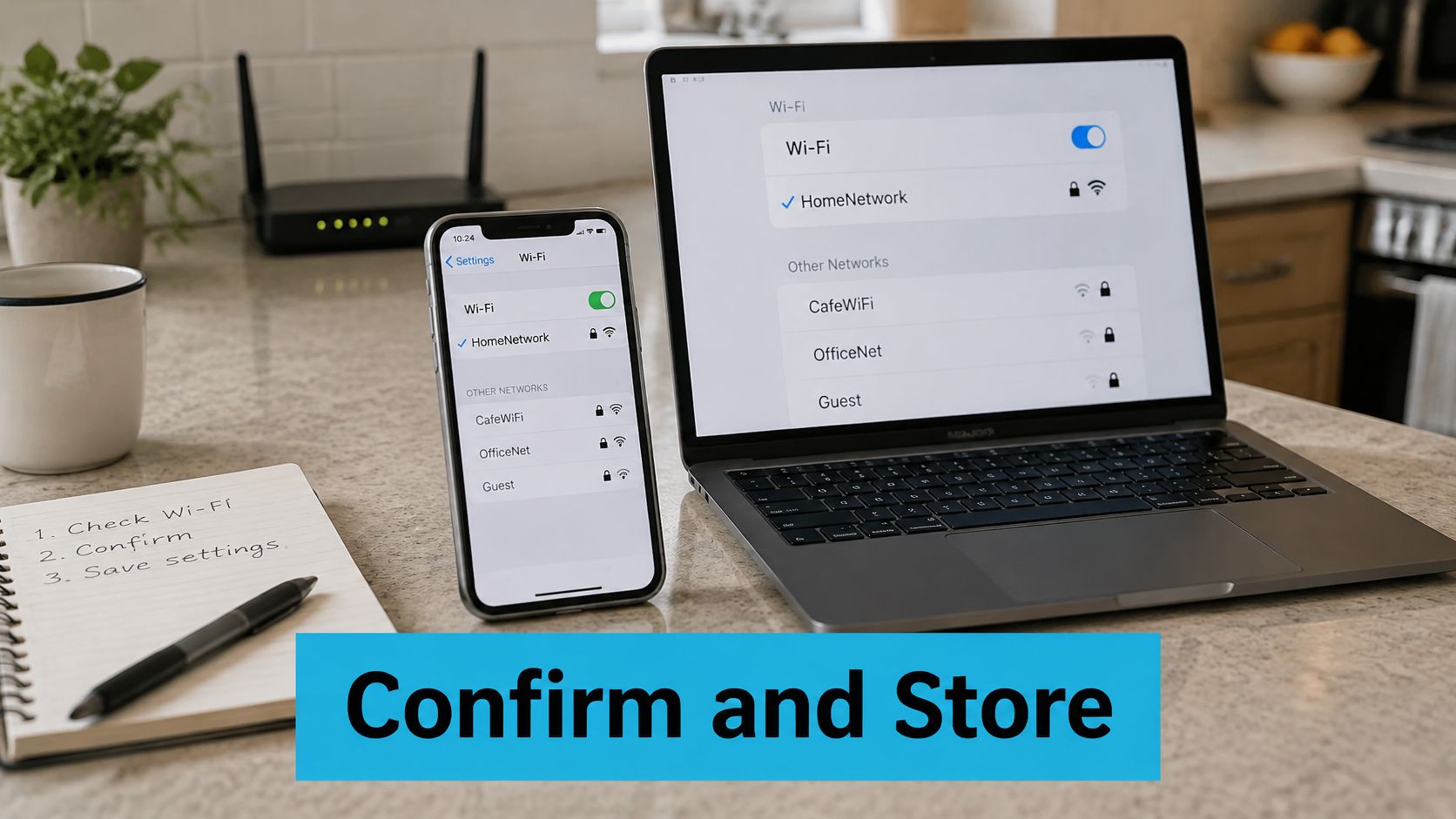
In 2024, 72% of surveyed users said they had never changed their Wi-Fi password, while 28% had, according to Broadband Genie figures reported by Digital Information World. Don't let working equipment become forgotten equipment.
Review access after guests leave, a phone is lost, or the router changes hands. Change the admin password if administrative access may have been exposed, and use a yearly calendar reminder to review credentials rather than waiting for trouble.
If your router app depends on a Google account you can't access, CTF Mobile Phones recovery tips from CTF Mobile Phones & Computer Repairs address that separate recovery task.
Our SwiftNet router works on the AT&T, Verizon and T-Mobile networks. Cellular coverage comes from the carrier connection; changing your local passwords doesn't change coverage as you move between campgrounds. Set your yearly reminder now and keep the recovery card securely with the router.
#rv #rvlife #rvliving #rvlifestyle #rvrenovation #rvremodel #rvtravel #rvcamping #rvadventures #ruralwifi #5gwifi #5ginternet
SwiftNet Wifi offers home and mobile internet for rural households, RV travelers, and remote workers. Visit SwiftNet Wifi to explore a connection for your home or travel setup, then secure its management login and wireless access before connecting your everyday devices.


