

About 20–50 ms is excellent ping for gaming, above 150 ms is commonly bad for fast competitive play, and above about 200 ms can feel disconnected in shooters, racing, and fighting games. Your game's genre and the consistency of your connection matter as much as the number you see.
You're lined up for a shot, you click, and the opponent moves away before the hit registers. Meanwhile, your speed test says your internet is fast. That mismatch is familiar when you're gaming from a rural home, an RV park, or a hotspot shared with someone on a work call.
The useful question isn't just whether your download speed is high enough. It's whether your connection delivers game updates promptly and consistently while everyone else is online.
What Counts as Bad Ping
Your shot lands a beat late because your device and the game server aren't exchanging updates instantly. Ping measures that round trip in milliseconds, usually shown as ms beside the connection indicator in your game.
The Federal Communications Commission's broadband glossary defines latency as the time required for a packet to reach another network point and for the response to return, and notes that high latency can reduce the quality of interactive services, including online multiplayer games. As practical gaming categories, roughly 20–50 ms is excellent, 50–100 ms is usually playable, 100–150 ms can create noticeable delay, above 150 ms is commonly bad for fast competitive play, and above about 200 ms can make actions feel disconnected in shooters, racing, and fighting games.
Treat the bands as guidance
These are performance categories, not an official universal standard. Game design, server location, client hardware, and connection stability all change how a particular reading feels.
Think of a phone call with a growing pause. You can still exchange information, but interrupting, responding, and keeping pace become harder. In a game, that pause affects what you see and when the server receives your actions.
Bandwidth, which speed tests usually express as download and upload capacity, answers a different question: how much data can move at once. Ping answers how long the exchange takes. Distance and congestion can increase that delay even when there's plenty of capacity.
Practical rule: Judge responsiveness using the server you actually play on, not just the download result from a nearby speed-test server.
For a rural household or shared mobile connection, watch what happens during a match when other people are online. An impressive download result doesn't tell you whether your next shot will arrive on time.
Bad Ping Ranges by Game Type
A steady 90 ms connection may feel better than one that swings between 40 and 150 ms. The right cutoff depends on the game: a brief delay can disrupt a close fight, while a turn-based game may give you time to wait.
| Game type | Noticeable delay | Commonly bad |
|---|---|---|
| Competitive FPS | About 100 ms | Above 150 ms |
| Racing | About 100 ms | Above 150 ms |
| Fighting | About 100 ms, especially for timing-sensitive inputs | Above 150 ms |
| Sports and action RPGs | About 100 ms, though many remain playable at higher ping | Above 150 ms for responsive play; around 500 ms is an outer playability limit |
| Strategy and simulation | Visible lag may appear as delays rise, with tolerance varying by game | Around 1,000 ms is an outer playability limit |
| Turn-based or slow co-op | When waiting for turns or confirmations becomes apparent | When delays interrupt turns or coordinated actions |
These are practical ranges, not fixed limits for every title. The WPI analysis of latency sensitivity by game genre describes an approximate 100 ms action threshold for highly sensitive shooters and racing games. It also notes that sports and role-playing games may remain playable around 500 ms, while strategy and simulation games may tolerate roughly 1,000 ms. Those higher figures are outer limits, not targets for comfortable play.
Fast games expose delay sooner
In a competitive FPS, you may peek around a corner only to find that an opponent has already reacted. A steady 70–90 ms connection can work for casual matches, yet still feel like a disadvantage in competitive play. The WPI analysis reports that reducing FPS latency from 150 ms to 25 ms increased accuracy by about 3% and scores by 17%, equivalent to approximately one additional kill or two assists per minute.
Racing creates a similar timing problem: both cars keep moving while their positions update, so delay can make close encounters harder to judge. Fighting games also rely on precise inputs, though each title handles network delay differently.
For fast games, under 50 ms is a useful comfort target. Around 100 ms, delay may become noticeable; above 150 ms, it is commonly bad for competitive play. A stable reading still matters: large spikes can make a lower average ping feel unpredictable.
Slower games offer more room
For sports games and action RPGs, under 100 ms is a sensible comfort target. Around 500 ms may leave some games playable, but a delayed pass or dodge can still spoil a critical moment. The game continuing to run does not mean the timing feels good.
Strategy, simulation, and turn-based games allow more time between decisions. Some may remain usable near 1,000 ms, particularly when actions do not need an immediate response. Real-time combat inside the same game can have a much lower tolerance.
Server ping is only one part of the response you see. Your controller or mouse, device, graphics pipeline, display, network, and server processing all contribute to the time between an input and its appearance on screen.
Choose the range for the game you play. A connection that suits a strategy session may still struggle with ranked shooting.
Why a Few Milliseconds Change a Fight
In a shooter duel, you have to see an opponent, decide what to do, aim, and act. Network delay adds waiting to an exchange that already depends on fast human reactions.
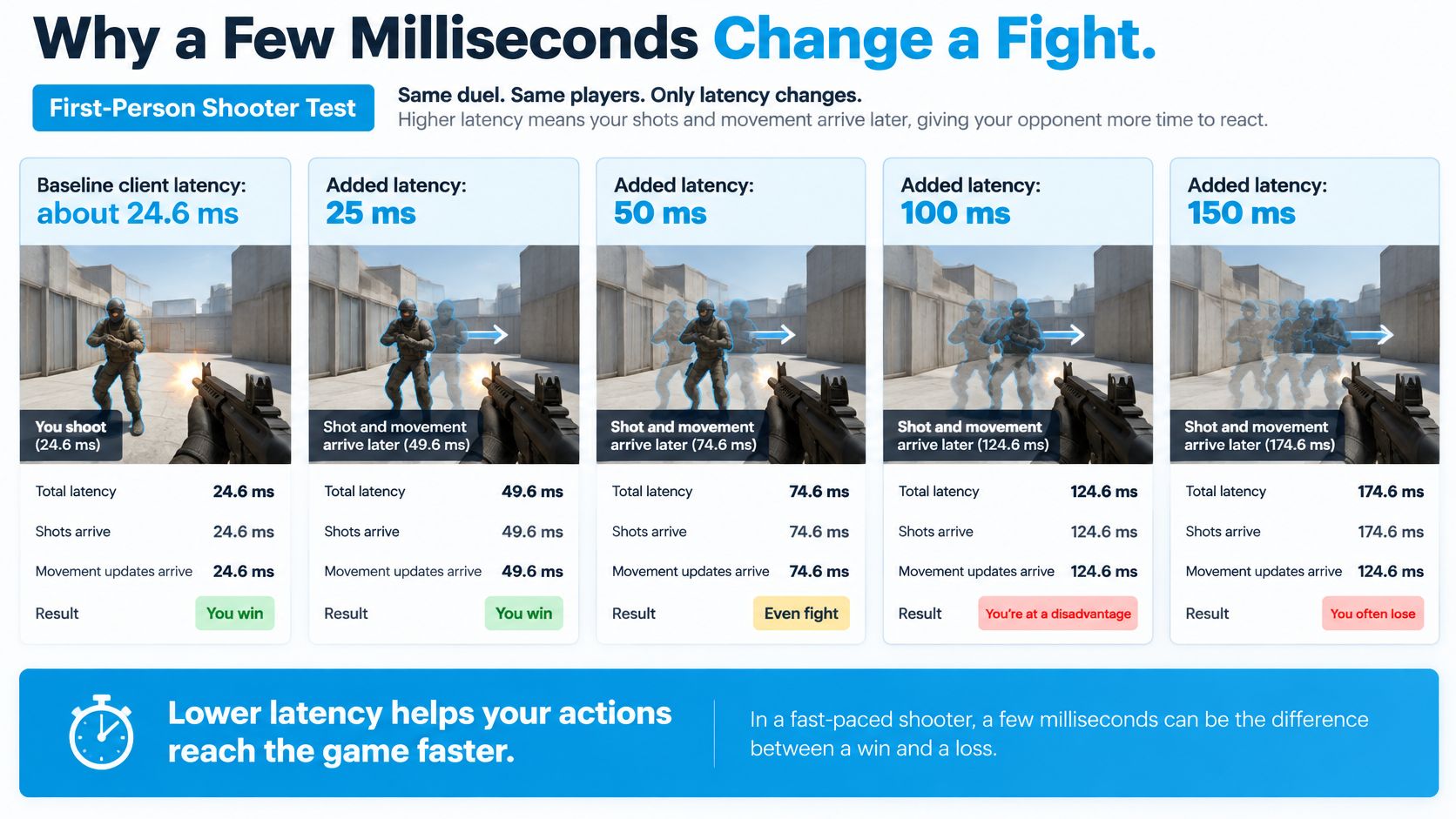
The WPI study of network latency in competitive FPS play tested added network latency of 25, 50, 100, and 150 ms on top of approximately 24.6 ms of baseline client latency. Experienced players commonly had reaction times of about 195–220 ms, so an additional 100–150 ms represented a substantial share of the time involved in perceiving an opponent and responding.
This comparison shows how the tested delays fit into a shooter encounter.
Separate network delay from local delay
The study also discusses an ACM finding that reducing network latency by 100 ms improved accuracy by about 2% and scoring by roughly 2 points per minute. The same reduction in local latency improved accuracy by 6% and scoring by 3 points per minute.
Those results describe different parts of the interaction. Network latency concerns communication with the server. Local latency concerns the path from your input through the device and display.
A low ping won't fix a display that responds slowly or a graphics workload that keeps your device from presenting frames promptly. Equally, a powerful gaming PC can't eliminate the travel time to a distant server.
Translate the numbers into match decisions
Say you see an opponent moving through a doorway. You aim at the position shown on your screen, but the shared game state continues changing while information travels. Depending on how the game handles delayed updates, the result can look like a late hit, a missed opportunity, or a duel decided before your response appears.
That doesn't mean every missed shot is a networking problem. Track whether the symptom follows the connection reading, the device's frame-time behavior, or both. Our guide to improving gaming performance can help you approach those checks together.
The video below offers another way to follow the relationship between latency and gameplay.
A responsive setup needs both a prompt local input path and a dependable connection to the server.
Bad ping is measurable, not merely a feeling. Sustained readings in the higher latency bands become increasingly problematic when a game asks you to react continuously.
When Average Ping Hides the Real Problem
Your speed test finishes while nobody else is using the connection, and its latency result looks fine. Then someone starts a photo backup, you join a match, and players begin snapping backward.
Average ping can hide brief disruptions. Jitter means uneven timing between arriving packets. Packet loss means updates go missing, which can trigger retransmission or leave the game without timely position, input, or hit-registration information.
Lag symptoms that average ping misses
| What you see | Likely cause | Check |
|---|---|---|
| Players teleport or rubber-band | Jitter or burst packet loss | Loss and jitter during the match, not only average ping |
| Shots feel late but movement is smooth | High base latency | Ping to the actual game server and region |
| Fine alone, bad when someone uploads | Bufferbloat or a full uplink | Idle ping versus ping while a file uploads |
| Random freezes on Wi-Fi only | Interference or a weak wireless hop | Same test on Ethernet if a port is available |
| Ping swings from low to high | Route changes or congestion | Minimum, typical, and maximum over a full session |
Cisco's gaming measurements associated only 0.53% packet loss with a 50% throughput decrease, and 10 ms of jitter with a 10% throughput decrease. These are throughput findings, not predictions of an identical drop in your score, but they demonstrate why small network impairments deserve attention.
Check what happens under load
Bufferbloat occurs when excessive queued traffic adds delay. On a shared connection, a large upload or saturated wireless link can leave small game packets waiting behind bulk traffic.
That explains why the game might work well when you're alone but deteriorate during backups, streaming, or remote work. The relevant result is loaded latency, not just latency when the connection is idle.
The contrast is easier to see when packet delivery is shown alongside the average.
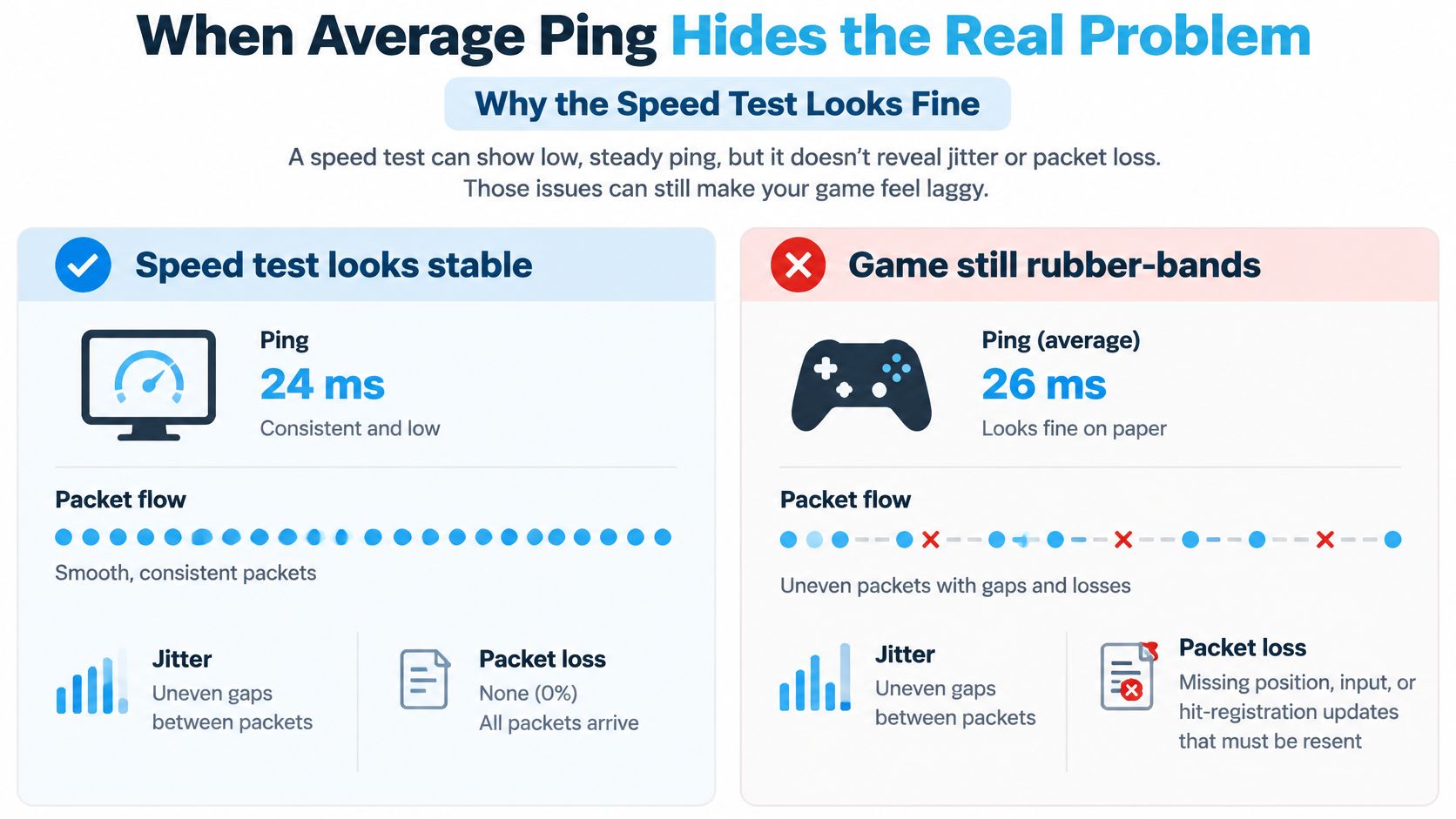
A steady 60 ms session can feel more playable than one fluctuating between 25 and 90 ms, because predictable timing is easier to accommodate. That doesn't make steady high latency harmless, but it explains why the lowest number isn't always the best guide.
Aim for near-zero loss, low and stable jitter, and little additional delay under load. If the symptoms are specific to Apex, Gamerplug's troubleshooting guide to reduce lag in Apex Legends provides a game-focused resource for investigating packet-loss problems.
For broader diagnosis, use our guide to why latency is so high alongside an idle-versus-loaded comparison. That comparison is especially useful when your RV connection also supports someone's workday.
How to Measure Ping During a Real Session
Measure the connection during the activity you care about. A browser test is useful context, but it doesn't necessarily use the route or destination your game uses.
Run the checks in order
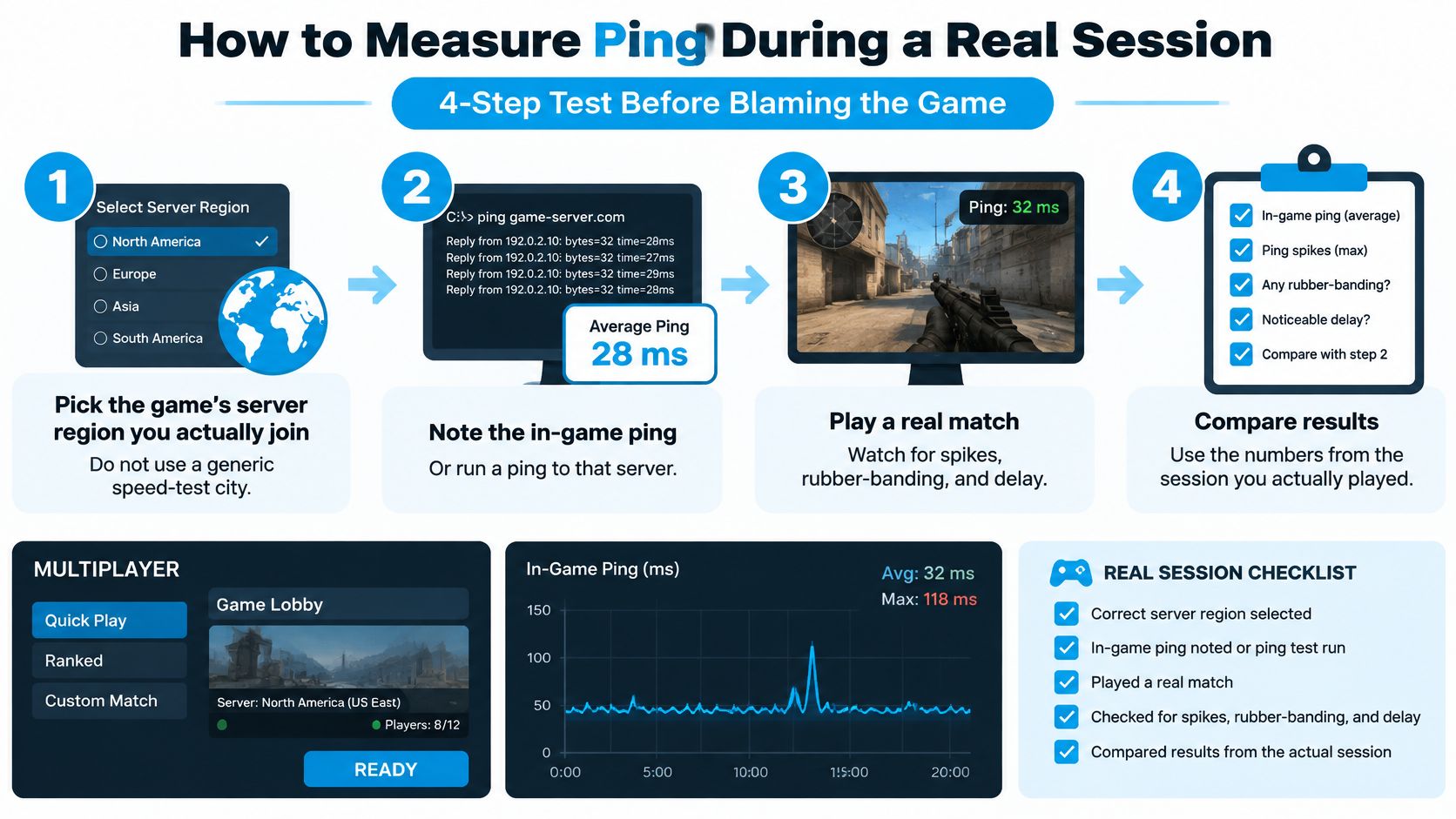
- Select the region you join. Check the game's server selector or lobby settings so you're measuring the destination that will handle your match, not a convenient speed-test city.
- Record the session, not a snapshot. Enable the game's network statistics and note minimum, typical, and maximum ping. If the publisher exposes a suitable server hostname, you can also use a ping utility, but some servers don't answer diagnostic requests even when gameplay works.
- Add normal household activity. Repeat while another device streams, uploads a file, or joins a video call. This reveals whether sharing the connection changes responsiveness.
- Watch loss and jitter alongside ping. Use the game's network graph or a connection-quality tool that reports them, because an attractive average can conceal missing or uneven updates.
- Compare Wi-Fi with Ethernet when available. Connect the same gaming device to a router LAN port and repeat the test. An improvement helps distinguish the local wireless hop from problems beyond your router.
- Repeat at busy and quiet times. Test during the evening and when the neighborhood or RV park is quieter, because a single quiet-period result doesn't describe your usual playing conditions.
Use the visual checklist to keep the actual game session at the center of the test.
Set realistic expectations
The FCC's thirteenth Measuring Fixed Broadband report recorded median latency ranging from 7 to 34 ms across tested fixed-broadband providers, with technology-level ranges of 8–14 ms for fiber, 13–22 ms for cable, and 20–61 ms for DSL.
Those measurements provide context, not a promise for a mobile connection or your particular game server. Rural and mobile routes can add distance, radio-related variability, and different carrier paths.
Keep a simple log with the game, region, idle ping, loaded ping, loss, connection type, and how the session felt. Add the session's minimum, typical, and maximum rather than replacing them with the best result.
Record the moment the game feels wrong. A timestamp helps you match a late action or freeze to a spike in the network graph.
If changing to Ethernet fixes the problem, work on local Wi-Fi. If only a region change helps, investigate server selection. If every device suffers only during uploads, focus on congestion and queue management.
How to Lower Ping Before the Next Match
Use the test result to choose a fix. Changing several settings at once makes it harder to tell what helped, and repeatedly restarting equipment won't shorten a consistently distant server route.
Match each action to a symptom
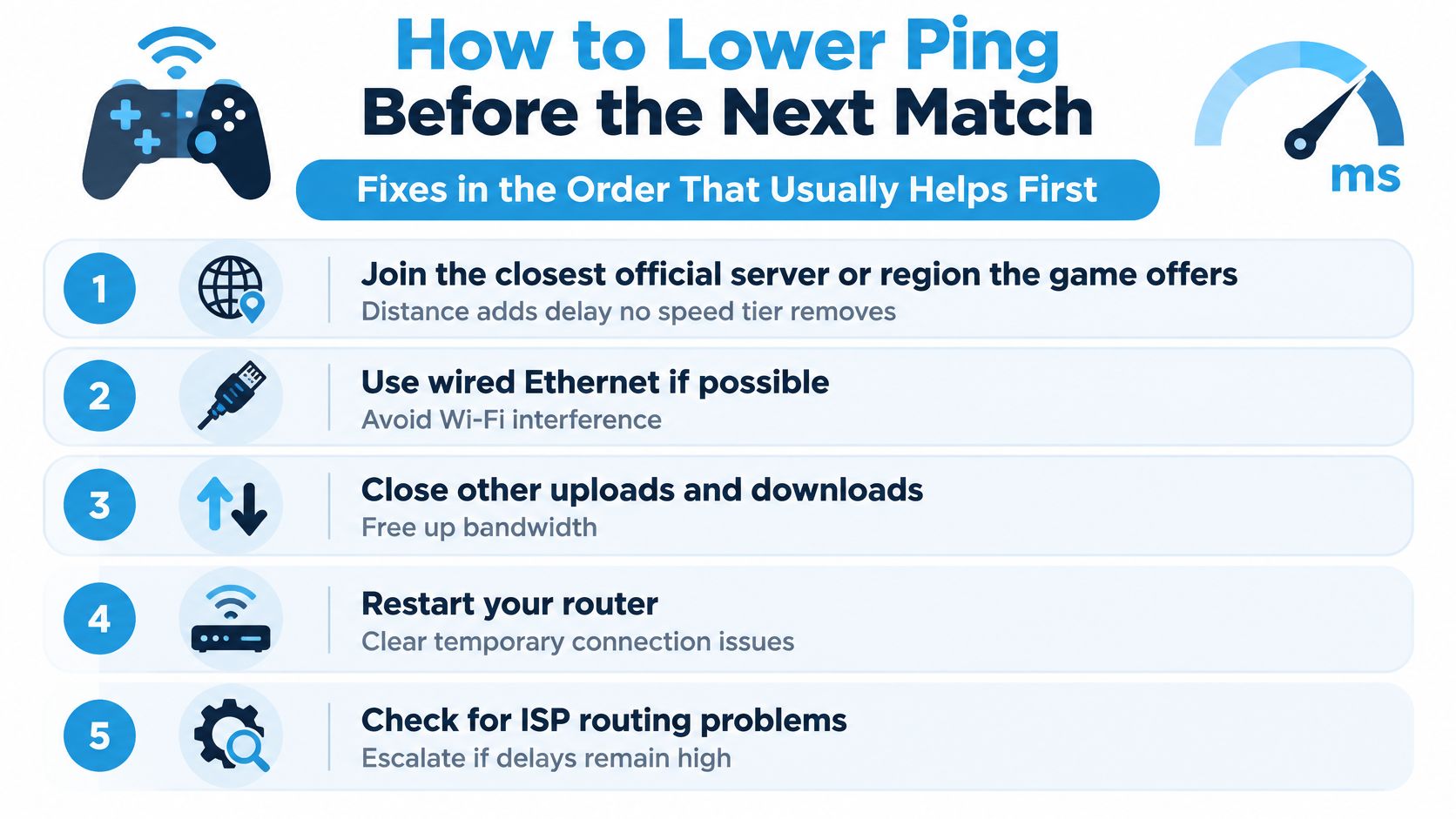
- Choose the closest suitable official server region. Start here when the connection is steady but delayed. Compare the regions the game offers rather than assuming your account's default is the best choice.
- Wire a stationary console or PC. If your Ethernet test improved the session, keep the cable connected to a router LAN port. Wi-Fi remains useful for devices that need to move, but a parked RV or home gaming desk often allows a direct connection.
- Improve placement when Wi-Fi is the weak hop. Move the router or hotspot into an open location, away from metal RV walls and interference sources such as microwaves. Try the 5 GHz Wi-Fi band when the gaming device is nearby, and distinguish that local Wi-Fi setting from the hotspot's cellular connection.
- Pause traffic that coincides with spikes. Stop cloud backups, large uploads, game downloads, and unnecessary high-resolution streams during ranked play. If your router offers queue management, configure it using measured connection capacity rather than the plan's advertised maximum.
- Change local settings only when the device stutters. Close unnecessary overlays and background capture tools, then test graphics settings or a sustainable frame-rate cap. These actions address local responsiveness, not the trip to the game server.
- Keep the region that consistently works. If only a distant region performs poorly, don't keep restarting healthy hardware. Check the game's service status if a normally reliable region suddenly changes.
- Treat repeated loaded-latency problems as a shared-capacity issue. If responsiveness falls apart whenever another person starts working or streaming, investigate router queueing, the wireless link, and available access capacity. A second active streaming device may recreate the same problem until you address the bottleneck.
The checklist below summarizes common actions before you queue again.
Verify the change before spending money
Replay under comparable conditions after each adjustment. Keep the same region, similar household activity, and the same connection method unless that method is what you're testing.
Our guide to how to reduce latency provides further troubleshooting options. Save your logs if the problem persists, because they help separate a Wi-Fi issue from a carrier-path or congestion problem.
Don't buy the fastest tier solely because the game feels late. Match the resulting connection to your game's demands: a stable session can be entirely suitable for a strategy evening while still leaving room for improvement before competitive shooting.
Decide If This Connection Can Carry Your Games
A connection can feel responsive in one game and frustrating in another. Keep your setup if matches stay playable during normal household use. Adjust it if a different region, Ethernet cable, or paused backup improves play. Consider another connection if disruptive latency spikes continue after you've ruled out local Wi-Fi and router queueing.
Compare the logged minimum, typical, and maximum ping with the ranges for your game type. A low minimum does not make repeated freezes harmless, and a connection that misses a competitive target may still work well for slower games.
Test an alternative without assuming the outcome
For an RV or rural home, a cellular connection using nationwide carriers may be another option to test. 5G basics from maxijournal explain the technology, but your own live game session shows whether the connection suits your needs.
SwiftNet Wifi uses virtual SIM technology to connect through major nationwide carriers. The 4G Bronze hotspot supports speeds up to 100 Mbps. The router supports up to 300 Mbps on 5G and up to 100 Mbps on 4G, and has four Gigabit LAN ports plus a WAN port. These are maximum speeds, not guarantees. SwiftNet does not offer, disclose, or guarantee minimum speeds, and throughput speeds are not guaranteed.
Plans start at $49.99 a month, include a 7-day risk-free trial, and have no contracts or hidden fees. SwiftNet offers 24/7 phone and chat support. During the trial, check ping and packet loss in the game while another device streams or uploads. A quiet connection alone may not show how the link handles shared use.
SwiftNet Wifi offers home and mobile internet options for rural households and RV travelers considering another connection. Visit SwiftNet Wifi to review the options, then compare in-game ping, packet loss, and responsiveness under your usual gaming conditions.


