

A campground's Wi-Fi name is taped to the office window. Your phone finds several networks with the campground's name, but the one you select changes from “Connecting” to “Unable to Join.” You type the password again and get the same result.
Separate the problem into three states: not joined, joined but offline, or online but too slow to use. Each points to a different fix. If the device has not joined, check the network name and password. If it is joined but offline, check the router or local connection. If it is online but sluggish, the signal or network capacity may be the issue.
Wireless is how nearly everyone now reaches the internet, through smartphones and home Wi-Fi, so a failed connection is one of the most common everyday problems. Identify which state you're in before changing settings or restarting equipment.
Device Menus to Join Wi-Fi in Under Two Minutes
Wireless networking runs on the IEEE 802.11 family of standards, the technical name behind the Wi-Fi badge on the box. The first standard was published in 1997 at up to 2 Mbit/s over unlicensed 2.4 GHz spectrum, and the sequence it established is the one you still follow: scan for nearby networks, identify the network name (the SSID), authenticate with the access point, then exchange data over radio instead of an Ethernet cable, as this filed overview of the IEEE 802.11 standards sets out.
Later amendments raised the ceiling without changing that sequence. 802.11b reached 11 Mbit/s in 1999, 802.11a used 5 GHz for up to 54 Mbit/s, 802.11g brought 54 Mbit/s to 2.4 GHz in 2003, Wi-Fi 4 (802.11n) reached 600 Mbit/s, and Wi-Fi 6 (802.11ax) is rated to 9.6 Gbit/s. None of that changes the menu you tap. A phone built for Wi-Fi 6 and a printer built for Wi-Fi 4 usually see the same SSID. What they handle differently is the security mode and the frequency band, and that gap causes more failed joins than any other single thing.
Menu names move between brands and versions, so treat the paths below as the shape of the job. If your screen doesn't match, search your settings for Wi-Fi.
| Device | Menu path | Pick the network | Connected when |
|---|---|---|---|
| Windows 11 | Settings > Network & internet > Wi-Fi | Show available networks, select the name, Connect | Status reads Connected under the name |
| macOS | Wi-Fi icon in the menu bar or System Settings > Wi-Fi | Choose the name from the list and enter the password | Checkmark beside the name and the Wi-Fi icon active |
| iPhone or iPad | Settings > Wi-Fi | Tap the network name and enter the password if asked | Checkmark beside the name and the Wi-Fi icon in the status area |
| Android | Settings > Network & internet > Internet (menu names vary by brand) | Tap the network name and enter the password | Connected appears under the name |
| Mobile hotspot or router | Wi-Fi list on your phone or laptop | Name printed on the device or its label | Steady light and a page that loads in a browser |
Android varies the most. Samsung buries the control under Connections, Pixel phones put it under Network & internet, and both land in the same list of available names. On a hotspot, the indicator light tells you more than the screen does: steady usually means the radio is running, blinking usually means traffic is moving, and no light means check the power before you check anything else.
Write the name down first. Copy the exact SSID from the router label before you open settings. "CAMP-GUEST-5G" and "CAMP-GUEST-5G_EXT" are different networks on the same box, and picking the wrong one is the most common mistake at a campsite.
How to Enter the Password and Confirm It Worked
Six steps, each with a reason behind it. Skipping one is how a two-minute job turns into a support call.
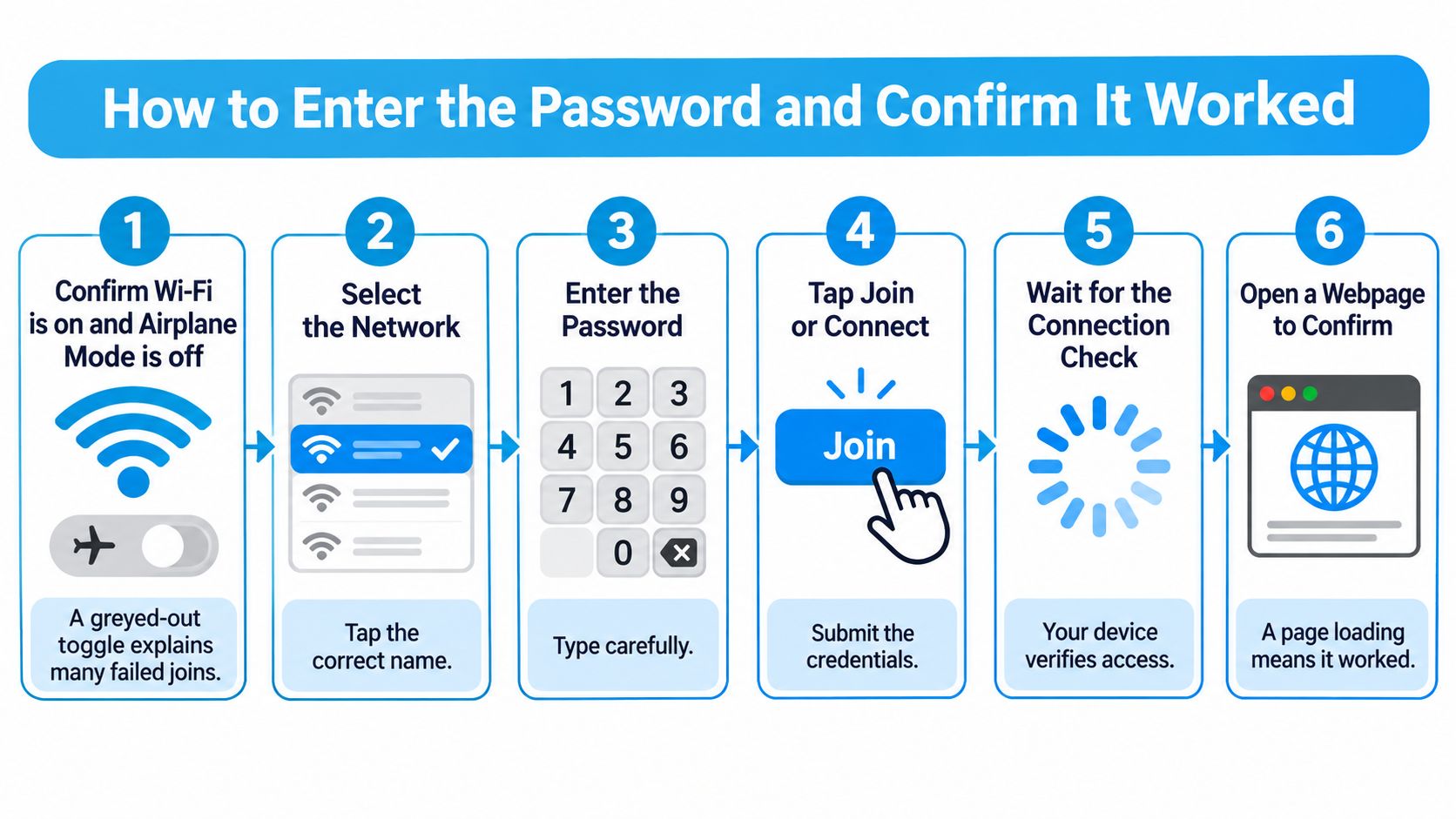
- Confirm Wi-Fi is on and Airplane Mode is off. A greyed-out toggle explains a large share of failed joins, and on a laptop the radio may be switched by a function key rather than a setting. Airplane Mode kills Wi-Fi instantly on a phone.
- Select the network name that matches the label exactly. Case matters, and suffixes such as _5G or _EXT belong to a different radio on the same device. Pick from the list unless the network is hidden.
- Enter the password exactly as printed. Wi-Fi passwords are case-sensitive, and the usual typos are O versus 0 and l versus 1. Tap the eye icon that reveals the text and read the whole string before you submit it.
- Wait for the device to receive an address. Most joins finish in seconds while the router hands out an IP address. An icon still spinning after a minute almost always means a wrong password or a security-mode mismatch.
- Open a browser and load any page. Captive portals stay hidden until you make a request. If a terms or sign-in page appears, complete it before you expect email or a video call to work.
- Decide whether the device should remember the network. Auto-join is convenient at home and a liability in public. Turn it off for campgrounds, hotels and cafés so the phone stops rejoining lookalikes on its own.
The whole sequence, in one picture:
Apple documents the same flow for an iPhone or iPad: open Settings, tap Wi-Fi, make sure Wi-Fi is enabled, select the network name and enter the password if prompted. Success shows as a checkmark beside the network name and the Wi-Fi icon in the status area, and Apple's iPhone Wi-Fi support page advises contacting the network administrator for the correct credentials if the name never appears in the list. Guessing at passwords on a network you don't control just locks you out.
A healthy connection shows three things at once: the name checked, the Wi-Fi icon visible, and a page that loads within a few seconds. Two out of three means you're in the second state, joined but not online.
Connect to Hidden and Enterprise Networks
The tap-the-name routine covers homes and RVs. Three other network types ask for more, and each one fails in its own way.
When the Name You Need Isn't in the List
A hidden network doesn't broadcast its SSID, so nothing shows up no matter how many times you refresh the list. Open Wi-Fi settings, choose the option to join or add another network, type the exact name including case, pick the security type from the dropdown (WPA2/WPA3 Personal for nearly every home or RV router), then enter the password. Get one character wrong and the failure looks identical to a bad password.
Enterprise networks ask for credentials a password alone doesn't cover. WPA2 or WPA3 Enterprise wants a username and password, and often a certificate, domain name or anonymous identity that only the IT department can supply. Don't guess any of these fields. A wrong domain drops the join without an error message that helps you.
Campgrounds, hotels and cafés split the difference with a captive portal. You join with no password at all, a sign-in page opens, and you accept terms or enter a room number. If a portal appears asking for something staff never mentioned, stop and re-check the network name.
| Network type | What you enter | Where to get it | Where you meet it |
|---|---|---|---|
| WPA2 or WPA3 Personal | Network name and one shared password | Router label or the owner | Homes and RVs with their own router |
| Hidden network | Exact name, security type and password | Network admin or the router settings page | Offices and private routers |
| WPA2 or WPA3 Enterprise | Username, password, sometimes a certificate or domain | IT department or employer | Workplaces and schools |
| Open network with a sign-in page | No password, browser login | Staff or a posted sign | Campgrounds, hotels and cafés |
When you're the one setting the router up, turn encryption on before anything else. The FCC's consumer guidance on protecting yourself online warns that routers can ship with encryption disabled, names WPA3 as the preferred standard where devices support it, and names WPA2 as the fallback for older equipment, both far stronger than the obsolete WEP.
That dropdown you meet when adding a hidden network is the decision point. Never choose "None" or WEP to force a reluctant device online. Fix the device or change the router mode instead.
Check Whether Your Device Supports WPA3
A wrong password and an incompatible security mode produce the same red text on a phone screen. Retyping only fixes the first one.
Start by finding the version. On iPhone and iPad it's Settings > General > About. On Android it's Settings > About phone > Android version. On a Mac, the Apple menu > About This Mac. On Windows, Settings > System > About. Note the number before you touch the router, because this is the fact that decides your next move.
Then compare it against the cutoff list. The University of Minnesota's guide to devices affected by WPA3 identifies devices on Android 9 or earlier, iOS 12 or earlier, macOS 10.14 or earlier, and older Windows 10 systems as potentially unable to join WPA3 networks. A printer, camera or RV accessory usually fares worse, because the maker may never ship the firmware that would fix it.
| Device | May not join WPA3 if | Fix |
|---|---|---|
| Android phone | Android 9 or earlier | Update, then ask for WPA2/WPA3 mixed mode or use a guest network |
| iPhone or iPad | iOS 12 or earlier | Update, then ask for WPA2/WPA3 mixed mode or use a guest network |
| Mac | macOS 10.14 or earlier | Update, then ask for WPA2/WPA3 mixed mode or use a guest network |
| Windows PC | Older Windows 10 builds | Update Windows, then use mixed mode if it still fails |
| Printer, camera or RV accessory | Firmware predates WPA3 and the maker offers no update | Check the maker's firmware or move it to a separate IoT network |
The order of fixes matters more than the list. Update the device first, since a current operating system often joins with no router change at all. If it still fails, ask the network owner to enable WPA2/WPA3 mixed mode, which keeps the network encrypted while letting older hardware in. Where mixed mode isn't offered, park the old device on a guest or IoT network rather than weakening the main one.
An open network is not a workaround, and neither is a WEP key. I would push back on any installer who suggests either. The target is the strongest mode your oldest device can handle, not the weakest mode that ends the conversation.
Fix Wi-Fi That Will Not Join or Stays Unusable
Joined, online and usable are three different outcomes, and each one fails in a different place. Conflating them is why people reboot a router when the password is wrong, or carry a laptop around a room when the campsite's upstream connection is saturated.
Expect problems rather than being surprised by them. Household survey reporting cited alongside Ofcom's research on consumer experiences of mobile network quality found 68% of households hit a Wi-Fi problem in the previous year, 18% dealt with one daily, and 76% had connectivity trouble in parts of the home. Every one of those numbers describes placement, congestion or coverage, not a mistyped password.
Diagnose by Symptom, Not by Device
| Symptom | Likely cause | Fix |
|---|---|---|
| Wi-Fi option greyed out | Airplane Mode on or Wi-Fi disabled | Turn off Airplane Mode, toggle Wi-Fi, then restart the device |
| Password rejected | Typo, letter case, or an old password after a router change | Re-enter from the label or the router admin page |
| Joins but no internet | Router offline or sign-in page not completed | Open a browser, complete sign-in, check the modem lights |
| Only some devices fail | WPA3-only router with an older operating system | Enable WPA2/WPA3 mixed mode or move old devices to a guest network |
| Connected but video stutters | Weak signal or congestion at peak hours | Move closer, or switch between 2.4 GHz for range and 5 GHz for speed |
| Connected but slow at a campsite | Distance to the tower or a crowded shared network | Test at peak and off-peak times, then switch to cellular |
For the join failures, run Apple's guidance for a device that won't connect to a network in order: verify Wi-Fi is turned on, confirm Airplane Mode is disabled, and check whether the Wi-Fi setting is greyed out. Apple also names VPN or security software as a possible cause and suggests removing it temporarily, restarting the device and testing again. That sequence separates a device problem from a credentials problem from a router problem in about five minutes.
The useful question isn't "is there Wi-Fi" but "which layer failed." Full signal bars with a spinning page mean the wireless link works and something upstream doesn't. No bars mean nothing upstream matters yet.
Know where outside help stops, too. Our technical support staff doesn't assist with installing or troubleshooting third-party modems, network cards, routers, complex network configurations, telephone lines or third-party software, and our ability to diagnose connections with third-party smart home hardware is limited, though we'll make the network changes you request. That boundary matters before you call anyone: if the fault sits inside your own router's admin page, you're the only person with access to it.
If the connection drops entirely rather than crawling, work through the checklist for Wi-Fi that won't work at all before you start changing settings at random.
Join Public and Campground Wi-Fi Without Risk
A network named like the one you expect can be a copy. Attackers build evil twin hotspots with near-identical names to harvest logins, which is why CISA's best practices for using public Wi-Fi starts with confirming the exact SSID and login procedure with staff before you select anything.
The Campground Routine
- Ask for the exact name and procedure. Staff know whether it's "Riverside Guest" or "Riverside_Guest", and whether there's a code that changes weekly.
- Complete a captive portal only if it matches what you were told. A portal demanding an email password or card number on a campground network is a stop sign, not a step.
- Turn off auto-connect for open networks and any public network you've used before. Otherwise the phone rejoins a similar name by itself the next time you pass one.
- Keep banking, shopping and account logins off public Wi-Fi. CISA recommends avoiding sensitive activity on public networks, and where it's unavoidable, using only fully encrypted HTTPS pages or switching to cellular.
- Log out and forget the network before you leave. Removing it means the device has no stored credential to offer a lookalike later.
A cellular hotspot is generally the safer choice than an unknown public network, because you never join the operator's local wireless network at all. That holds only if the hotspot password is strong and the device itself is updated.
If your travels take you further afield and you're booking rooms instead of campsites, compare hostel amenities across Europe before you assume working Wi-Fi is included. It directly changes how much data you need on a hotspot plan.
Here's the same routine in motion:
Back on your own router, secure your Wi-Fi network properly instead of leaving the default admin password in place, because every public network you've joined is a reminder of how little it takes.
Pick a Backup Connection Before You Need One
Start with signal, not hardware. Check your planned stops on the FCC mobile coverage map, which shows where coverage exists but can't promise what you'll get on a given afternoon. Treat it as a filter, never a guarantee.
Decide the scope next. A portable hotspot suits one or two devices, while a router covers a whole RV or house. SwiftNet's 4G Bronze is a pocket-sized, no-contract hotspot built for RV, travel and remote work on AT&T, Verizon and T-Mobile 4G LTE, and the 5G Diamond router arrives pre-activated, so you plug it into a wall outlet and you're online in about 60 seconds.
Test the option at home before the trip. Join it, sign in, load a heavy page, run a video call, then repeat the test at the times you'd use it. The limit here is honest: our service only works when you're within the operating range of the provider's network, so no hotspot or router manufactures coverage where none exists.
If you're weighing a hotspot against tethering your phone, this hotspot setup guide for travelers covers the pairing and password steps. And if you're starting from nothing at all, read what to do when you don't have Wi-Fi before the outage, not during it.
SwiftNet Wifi exists for exactly the situation where the local network won't cooperate: multi-carrier 4G and 5G home and mobile internet that switches between AT&T, Verizon and T-Mobile to find the strongest signal at your spot, whether that's a rural house, a motorhome or a job site. Our hotspots arrive pre-activated and our routers are ready to plug in, so the setup is a name and a password rather than an afternoon of configuration. Visit SwiftNet Wifi to check coverage against the places you stay and pick the connection that keeps working when the campground Wi-Fi doesn't.
You drove six hours to a campground with a gate code and a Wi-Fi name taped to the office window. The phone finds eleven networks, three of them start with the campground's name, and the one you pick cycles from Connecting to Unable to Join. You retype the password a third time, certain you have it right, and the same thing happens.
That moment hides three separate problems. Your device hasn't joined the network. Or it has joined and can't reach the internet. Or it's online and still too slow to hold a video call. Anyone who searches how can I connect to wireless network expects a single answer, then spends an hour rebooting a router that was never the issue.
Wireless is how nearly everyone reaches the internet now. In a 2023 Pew Research Center survey, 95% of U.S. adults said they used the internet, 90% owned a smartphone and 80% had high-speed internet at home, figures reproduced in NIST's guidance on wireless network security. Knowing which of the three states you're in cuts the job from an evening to a couple of minutes.
Device Menus to Join Wi-Fi in Under Two Minutes
Wireless networking runs on the IEEE 802.11 family of standards, the technical name behind the Wi-Fi badge on the box. The first standard was published in 1997 at up to 2 Mbit/s over unlicensed 2.4 GHz spectrum, and the sequence it established is the one you still follow: scan for nearby networks, identify the network name (the SSID), authenticate with the access point, then exchange data over radio instead of an Ethernet cable, as this filed overview of the IEEE 802.11 standards sets out.
Later amendments raised the ceiling without changing that sequence. 802.11b reached 11 Mbit/s in 1999, 802.11a used 5 GHz for up to 54 Mbit/s, 802.11g brought 54 Mbit/s to 2.4 GHz in 2003, Wi-Fi 4 (802.11n) reached 600 Mbit/s, and Wi-Fi 6 (802.11ax) is rated to 9.6 Gbit/s. None of that changes the menu you tap. A phone built for Wi-Fi 6 and a printer built for Wi-Fi 4 usually see the same SSID. What they handle differently is the security mode and the frequency band, and that gap causes more failed joins than any other single thing.
Menu names move between brands and versions, so treat the paths below as the shape of the job. If your screen doesn't match, search your settings for Wi-Fi.
| Device | Menu path | Pick the network | Connected when |
|---|---|---|---|
| Windows 11 | Settings > Network & internet > Wi-Fi | Show available networks, select the name, Connect | Status reads Connected under the name |
| macOS | Wi-Fi icon in the menu bar or System Settings > Wi-Fi | Choose the name from the list and enter the password | Checkmark beside the name and the Wi-Fi icon active |
| iPhone or iPad | Settings > Wi-Fi | Tap the network name and enter the password if asked | Checkmark beside the name and the Wi-Fi icon in the status area |
| Android | Settings > Network & internet > Internet (menu names vary by brand) | Tap the network name and enter the password | Connected appears under the name |
| Mobile hotspot or router | Wi-Fi list on your phone or laptop | Name printed on the device or its label | Steady light and a page that loads in a browser |
Android varies the most. Samsung buries the control under Connections, Pixel phones put it under Network & internet, and both land in the same list of available names. On a hotspot, the indicator light tells you more than the screen does: steady usually means the radio is running, blinking usually means traffic is moving, and no light means check the power before you check anything else.
Write the name down first. Copy the exact SSID from the router label before you open settings. "CAMP-GUEST-5G" and "CAMP-GUEST-5G_EXT" are different networks on the same box, and picking the wrong one is the most common mistake at a campsite.
How to Enter the Password and Confirm It Worked
Six steps, each with a reason behind it. Skipping one is how a two-minute job turns into a support call.
- Confirm Wi-Fi is on and Airplane Mode is off. A greyed-out toggle explains a large share of failed joins, and on a laptop the radio may be switched by a function key rather than a setting. Airplane Mode kills Wi-Fi instantly on a phone.
- Select the network name that matches the label exactly. Case matters, and suffixes such as _5G or _EXT belong to a different radio on the same device. Pick from the list unless the network is hidden.
- Enter the password exactly as printed. Wi-Fi passwords are case-sensitive, and the usual typos are O versus 0 and l versus 1. Tap the eye icon that reveals the text and read the whole string before you submit it.
- Wait for the device to receive an address. Most joins finish in seconds while the router hands out an IP address. An icon still spinning after a minute almost always means a wrong password or a security-mode mismatch.
- Open a browser and load any page. Captive portals stay hidden until you make a request. If a terms or sign-in page appears, complete it before you expect email or a video call to work.
- Decide whether the device should remember the network. Auto-join is convenient at home and a liability in public. Turn it off for campgrounds, hotels and cafés so the phone stops rejoining lookalikes on its own.
The whole sequence, in one picture:
Apple documents the same flow for an iPhone or iPad: open Settings, tap Wi-Fi, make sure Wi-Fi is enabled, select the network name and enter the password if prompted. Success shows as a checkmark beside the network name and the Wi-Fi icon in the status area, and Apple's iPhone Wi-Fi support page advises contacting the network administrator for the correct credentials if the name never appears in the list. Guessing at passwords on a network you don't control just locks you out.
A healthy connection shows three things at once: the name checked, the Wi-Fi icon visible, and a page that loads within a few seconds. Two out of three means you're in the second state, joined but not online.
Connect to Hidden and Enterprise Networks
The tap-the-name routine covers homes and RVs. Three other network types ask for more, and each one fails in its own way.
When the Name You Need Isn't in the List
A hidden network doesn't broadcast its SSID, so nothing shows up no matter how many times you refresh the list. Open Wi-Fi settings, choose the option to join or add another network, type the exact name including case, pick the security type from the dropdown (WPA2/WPA3 Personal for nearly every home or RV router), then enter the password. Get one character wrong and the failure looks identical to a bad password.
Enterprise networks ask for credentials a password alone doesn't cover. WPA2 or WPA3 Enterprise wants a username and password, and often a certificate, domain name or anonymous identity that only the IT department can supply. Don't guess any of these fields. A wrong domain drops the join without an error message that helps you.
Campgrounds, hotels and cafés split the difference with a captive portal. You join with no password at all, a sign-in page opens, and you accept terms or enter a room number. If a portal appears asking for something staff never mentioned, stop and re-check the network name.
| Network type | What you enter | Where to get it | Where you meet it |
|---|---|---|---|
| WPA2 or WPA3 Personal | Network name and one shared password | Router label or the owner | Homes and RVs with their own router |
| Hidden network | Exact name, security type and password | Network admin or the router settings page | Offices and private routers |
| WPA2 or WPA3 Enterprise | Username, password, sometimes a certificate or domain | IT department or employer | Workplaces and schools |
| Open network with a sign-in page | No password, browser login | Staff or a posted sign | Campgrounds, hotels and cafés |
When you're the one setting the router up, turn encryption on before anything else. The FCC's consumer guidance on protecting yourself online warns that routers can ship with encryption disabled, names WPA3 as the preferred standard where devices support it, and names WPA2 as the fallback for older equipment, both far stronger than the obsolete WEP.
That dropdown you meet when adding a hidden network is the decision point. Never choose "None" or WEP to force a reluctant device online. Fix the device or change the router mode instead.
Check Whether Your Device Supports WPA3
A wrong password and an incompatible security mode produce the same red text on a phone screen. Retyping only fixes the first one.
Start by finding the version. On iPhone and iPad it's Settings > General > About. On Android it's Settings > About phone > Android version. On a Mac, the Apple menu > About This Mac. On Windows, Settings > System > About. Note the number before you touch the router, because this is the fact that decides your next move.
Then compare it against the cutoff list. The University of Minnesota's guide to devices affected by WPA3 identifies devices on Android 9 or earlier, iOS 12 or earlier, macOS 10.14 or earlier, and older Windows 10 systems as potentially unable to join WPA3 networks. A printer, camera or RV accessory usually fares worse, because the maker may never ship the firmware that would fix it.
| Device | May not join WPA3 if | Fix |
|---|---|---|
| Android phone | Android 9 or earlier | Update, then ask for WPA2/WPA3 mixed mode or use a guest network |
| iPhone or iPad | iOS 12 or earlier | Update, then ask for WPA2/WPA3 mixed mode or use a guest network |
| Mac | macOS 10.14 or earlier | Update, then ask for WPA2/WPA3 mixed mode or use a guest network |
| Windows PC | Older Windows 10 builds | Update Windows, then use mixed mode if it still fails |
| Printer, camera or RV accessory | Firmware predates WPA3 and the maker offers no update | Check the maker's firmware or move it to a separate IoT network |
The order of fixes matters more than the list. Update the device first, since a current operating system often joins with no router change at all. If it still fails, ask the network owner to enable WPA2/WPA3 mixed mode, which keeps the network encrypted while letting older hardware in. Where mixed mode isn't offered, park the old device on a guest or IoT network rather than weakening the main one.
An open network is not a workaround, and neither is a WEP key. I would push back on any installer who suggests either. The target is the strongest mode your oldest device can handle, not the weakest mode that ends the conversation.
Fix Wi-Fi That Will Not Join or Stays Unusable
Joined, online and usable are three different outcomes, and each one fails in a different place. Conflating them is why people reboot a router when the password is wrong, or carry a laptop around a room when the campsite's upstream connection is saturated.
Expect problems rather than being surprised by them. Household survey reporting cited alongside Ofcom's research on consumer experiences of mobile network quality found 68% of households hit a Wi-Fi problem in the previous year, 18% dealt with one daily, and 76% had connectivity trouble in parts of the home. Every one of those numbers describes placement, congestion or coverage, not a mistyped password.
Diagnose by Symptom, Not by Device
| Symptom | Likely cause | Fix |
|---|---|---|
| Wi-Fi option greyed out | Airplane Mode on or Wi-Fi disabled | Turn off Airplane Mode, toggle Wi-Fi, then restart the device |
| Password rejected | Typo, letter case, or an old password after a router change | Re-enter from the label or the router admin page |
| Joins but no internet | Router offline or sign-in page not completed | Open a browser, complete sign-in, check the modem lights |
| Only some devices fail | WPA3-only router with an older operating system | Enable WPA2/WPA3 mixed mode or move old devices to a guest network |
| Connected but video stutters | Weak signal or congestion at peak hours | Move closer, or switch between 2.4 GHz for range and 5 GHz for speed |
| Connected but slow at a campsite | Distance to the tower or a crowded shared network | Test at peak and off-peak times, then switch to cellular |
For the join failures, run Apple's guidance for a device that won't connect to a network in order: verify Wi-Fi is turned on, confirm Airplane Mode is disabled, and check whether the Wi-Fi setting is greyed out. Apple also names VPN or security software as a possible cause and suggests removing it temporarily, restarting the device and testing again. That sequence separates a device problem from a credentials problem from a router problem in about five minutes.
The useful question isn't "is there Wi-Fi" but "which layer failed." Full signal bars with a spinning page mean the wireless link works and something upstream doesn't. No bars mean nothing upstream matters yet.
Know where outside help stops, too. Our technical support staff doesn't assist with installing or troubleshooting third-party modems, network cards, routers, complex network configurations, telephone lines or third-party software, and our ability to diagnose connections with third-party smart home hardware is limited, though we'll make the network changes you request. That boundary matters before you call anyone: if the fault sits inside your own router's admin page, you're the only person with access to it.
If the connection drops entirely rather than crawling, work through the checklist for Wi-Fi that won't work at all before you start changing settings at random.
Join Public and Campground Wi-Fi Without Risk
A network named like the one you expect can be a copy. Attackers build evil twin hotspots with near-identical names to harvest logins, which is why CISA's best practices for using public Wi-Fi starts with confirming the exact SSID and login procedure with staff before you select anything.
The Campground Routine
- Ask for the exact name and procedure. Staff know whether it's "Riverside Guest" or "Riverside_Guest", and whether there's a code that changes weekly.
- Complete a captive portal only if it matches what you were told. A portal demanding an email password or card number on a campground network is a stop sign, not a step.
- Turn off auto-connect for open networks and any public network you've used before. Otherwise the phone rejoins a similar name by itself the next time you pass one.
- Keep banking, shopping and account logins off public Wi-Fi. CISA recommends avoiding sensitive activity on public networks, and where it's unavoidable, using only fully encrypted HTTPS pages or switching to cellular.
- Log out and forget the network before you leave. Removing it means the device has no stored credential to offer a lookalike later.
A cellular hotspot is generally the safer choice than an unknown public network, because you never join the operator's local wireless network at all. That holds only if the hotspot password is strong and the device itself is updated.
If your travels take you further afield and you're booking rooms instead of campsites, compare hostel amenities across Europe before you assume working Wi-Fi is included. It directly changes how much data you need on a hotspot plan.
Here's the same routine in motion:
Back on your own router, secure your Wi-Fi network properly instead of leaving the default admin password in place, because every public network you've joined is a reminder of how little it takes.
Pick a Backup Connection Before You Need One
Start with signal, not hardware. Check your planned stops on the FCC mobile coverage map, which shows where coverage exists but can't promise what you'll get on a given afternoon. Treat it as a filter, never a guarantee.
Decide the scope next. A portable hotspot suits one or two devices, while a router covers a whole RV or house. SwiftNet's 4G Bronze is a pocket-sized, no-contract hotspot built for RV, travel and remote work on AT&T, Verizon and T-Mobile 4G LTE, and the 5G Diamond router arrives pre-activated, so you plug it into a wall outlet and you're online in about 60 seconds.
Test the option at home before the trip. Join it, sign in, load a heavy page, run a video call, then repeat the test at the times you'd use it. The limit here is honest: our service only works when you're within the operating range of the provider's network, so no hotspot or router manufactures coverage where none exists.
If you're weighing a hotspot against tethering your phone, this hotspot setup guide for travelers covers the pairing and password steps. And if you're starting from nothing at all, read what to do when you don't have Wi-Fi before the outage, not during it.
SwiftNet Wifi exists for exactly the situation where the local network won't cooperate: multi-carrier 4G and 5G home and mobile internet that switches between AT&T, Verizon and T-Mobile to find the strongest signal at your spot, whether that's a rural house, a motorhome or a job site. Our hotspots arrive pre-activated and our routers are ready to plug in, so the setup is a name and a password rather than an afternoon of configuration. Visit SwiftNet Wifi to check coverage against the places you stay and pick the connection that keeps working when the campground Wi-Fi doesn't.
Find more of these field-tested fixes and RV internet guides on our connected social accounts, filed under the tags below.
You drove six hours to a campground with a gate code and a Wi-Fi name taped to the office window. The phone finds eleven networks, three of them start with the campground's name, and the one you pick cycles from Connecting to Unable to Join. You retype the password a third time, certain you have it right, and the same thing happens.
That moment hides three separate problems. Your device hasn't joined the network. Or it has joined and can't reach the internet. Or it's online and still too slow to hold a video call. Searching how can I connect to wireless network expecting a single answer leads to an hour rebooting a router that was never the issue.
Wireless is how nearly everyone reaches the internet now. In a 2023 Pew Research Center survey, 95% of U.S. adults said they used the internet, 90% owned a smartphone and 80% had high-speed internet at home, figures reproduced in NIST's guidance on wireless network security. Knowing which of the three states you're in cuts the job from an evening to a couple of minutes.
Device Menus to Join Wi-Fi in Under Two Minutes
Wireless networking runs on the IEEE 802.11 family of standards, the technical name behind the Wi-Fi badge on the box. The first standard was published in 1997 at up to 2 Mbit/s over unlicensed 2.4 GHz spectrum, and the sequence it established is the one you still follow: scan for nearby networks, identify the network name (the SSID), authenticate with the access point, then exchange data over radio instead of an Ethernet cable, as this filed overview of the IEEE 802.11 standards sets out.
Later amendments raised the ceiling without changing that sequence. 802.11b reached 11 Mbit/s in 1999, 802.11a used 5 GHz for up to 54 Mbit/s, 802.11g brought 54 Mbit/s to 2.4 GHz in 2003, Wi-Fi 4 (802.11n) reached 600 Mbit/s, and Wi-Fi 6 (802.11ax) is rated to 9.6 Gbit/s. None of that changes the menu you tap. A phone built for Wi-Fi 6 and a printer built for Wi-Fi 4 usually see the same SSID. What they handle differently is the security mode and the frequency band, and that gap causes more failed joins than any other single thing.
Menu names move between brands and versions, so treat the paths below as the shape of the job. If your screen doesn't match, search your settings for Wi-Fi.
| Device | Menu path | Pick the network | Connected when |
|---|---|---|---|
| Windows 11 | Settings > Network & internet > Wi-Fi | Show available networks, select the name, Connect | Status reads Connected under the name |
| macOS | Wi-Fi icon in the menu bar or System Settings > Wi-Fi | Choose the name from the list and enter the password | Checkmark beside the name and the Wi-Fi icon active |
| iPhone or iPad | Settings > Wi-Fi | Tap the network name and enter the password if asked | Checkmark beside the name and the Wi-Fi icon in the status area |
| Android | Settings > Network & internet > Internet (menu names vary by brand) | Tap the network name and enter the password | Connected appears under the name |
| Mobile hotspot or router | Wi-Fi list on your phone or laptop | Name printed on the device or its label | Steady light and a page that loads in a browser |
Android varies the most. Samsung buries the control under Connections, Pixel phones put it under Network & internet, and both land in the same list of available names. On a hotspot, the indicator light tells you more than the screen does: steady usually means the radio is running, blinking usually means traffic is moving, and no light means check the power before you check anything else.
Write the name down first. Copy the exact SSID from the router label before you open settings. "CAMP-GUEST-5G" and "CAMP-GUEST-5G_EXT" are different networks on the same box, and picking the wrong one is the most common mistake at a campsite.
How to Enter the Password and Confirm It Worked
Six steps, each with a reason behind it. Skipping one is how a two-minute job turns into a support call.
- Confirm Wi-Fi is on and Airplane Mode is off. A greyed-out toggle explains a large share of failed joins, and on a laptop the radio may be switched by a function key rather than a setting. Airplane Mode kills Wi-Fi instantly on a phone.
- Select the network name that matches the label exactly. Case matters, and suffixes such as _5G or _EXT belong to a different radio on the same device. Pick from the list unless the network is hidden.
- Enter the password exactly as printed. Wi-Fi passwords are case-sensitive, and the usual typos are O versus 0 and l versus 1. Tap the eye icon that reveals the text and read the whole string before you submit it.
- Wait for the device to receive an address. Most joins finish in seconds while the router hands out an IP address. An icon still spinning after a minute almost always means a wrong password or a security-mode mismatch.
- Open a browser and load any page. Captive portals stay hidden until you make a request. If a terms or sign-in page appears, complete it before you expect email or a video call to work.
- Decide whether the device should remember the network. Auto-join is convenient at home and a liability in public. Turn it off for campgrounds, hotels and cafés so the phone stops rejoining lookalikes on its own.
The whole sequence, in one picture:
Apple documents the same flow for an iPhone or iPad: open Settings, tap Wi-Fi, make sure Wi-Fi is enabled, select the network name and enter the password if prompted. Success shows as a checkmark beside the network name and the Wi-Fi icon in the status area, and Apple's iPhone Wi-Fi support page advises contacting the network administrator for the correct credentials if the name never appears in the list. Guessing at passwords on a network you don't control just locks you out.
A healthy connection shows three things at once: the name checked, the Wi-Fi icon visible, and a page that loads within a few seconds. Two out of three means you're in the second state, joined but not online.
Connect to Hidden and Enterprise Networks
The tap-the-name routine covers homes and RVs. Three other network types ask for more, and each one fails in its own way.
When the Name You Need Isn't in the List
A hidden network doesn't broadcast its SSID, so nothing shows up no matter how many times you refresh the list. Open Wi-Fi settings, choose the option to join or add another network, type the exact name including case, pick the security type from the dropdown (WPA2/WPA3 Personal for nearly every home or RV router), then enter the password. Get one character wrong and the failure looks identical to a bad password.
Enterprise networks ask for credentials a password alone doesn't cover. WPA2 or WPA3 Enterprise wants a username and password, and often a certificate, domain name or anonymous identity that only the IT department can supply. Don't guess any of these fields. A wrong domain drops the join without an error message that helps you.
Campgrounds, hotels and cafés split the difference with a captive portal. You join with no password at all, a sign-in page opens, and you accept terms or enter a room number. If a portal appears asking for something staff never mentioned, stop and re-check the network name.
| Network type | What you enter | Where to get it | Where you meet it |
|---|---|---|---|
| WPA2 or WPA3 Personal | Network name and one shared password | Router label or the owner | Homes and RVs with their own router |
| Hidden network | Exact name, security type and password | Network admin or the router settings page | Offices and private routers |
| WPA2 or WPA3 Enterprise | Username, password, sometimes a certificate or domain | IT department or employer | Workplaces and schools |
| Open network with a sign-in page | No password, browser login | Staff or a posted sign | Campgrounds, hotels and cafés |
When you're the one setting the router up, turn encryption on before anything else. The FCC's consumer guidance on protecting yourself online warns that routers can ship with encryption disabled, names WPA3 as the preferred standard where devices support it, and names WPA2 as the fallback for older equipment, both far stronger than the obsolete WEP.
That dropdown you meet when adding a hidden network is the decision point. Never choose "None" or WEP to force a reluctant device online. Fix the device or change the router mode instead.
Check Whether Your Device Supports WPA3
A wrong password and an incompatible security mode produce the same red text on a phone screen. Retyping only fixes the first one.
Start by finding the version. On iPhone and iPad it's Settings > General > About. On Android it's Settings > About phone > Android version. On a Mac, the Apple menu > About This Mac. On Windows, Settings > System > About. Note the number before you touch the router, because this is the fact that decides your next move.
Then compare it against the cutoff list. The University of Minnesota's guide to devices affected by WPA3 identifies devices on Android 9 or earlier, iOS 12 or earlier, macOS 10.14 or earlier, and older Windows 10 systems as potentially unable to join WPA3 networks. A printer, camera or RV accessory usually fares worse, because the maker may never ship the firmware that would fix it.
| Device | May not join WPA3 if | Fix |
|---|---|---|
| Android phone | Android 9 or earlier | Update, then ask for WPA2/WPA3 mixed mode or use a guest network |
| iPhone or iPad | iOS 12 or earlier | Update, then ask for WPA2/WPA3 mixed mode or use a guest network |
| Mac | macOS 10.14 or earlier | Update, then ask for WPA2/WPA3 mixed mode or use a guest network |
| Windows PC | Older Windows 10 builds | Update Windows, then use mixed mode if it still fails |
| Printer, camera or RV accessory | Firmware predates WPA3 and the maker offers no update | Check the maker's firmware or move it to a separate IoT network |
The order of fixes matters more than the list. Update the device first, since a current operating system often joins with no router change at all. If it still fails, ask the network owner to enable WPA2/WPA3 mixed mode, which keeps the network encrypted while letting older hardware in. Where mixed mode isn't offered, park the old device on a guest or IoT network rather than weakening the main one.
An open network is not a workaround, and neither is a WEP key. I would push back on any installer who suggests either. The target is the strongest mode your oldest device can handle, not the weakest mode that ends the conversation.
Fix Wi-Fi That Will Not Join or Stays Unusable
Joined, online and usable are three different outcomes, and each one fails in a different place. Conflating them is why people reboot a router when the password is wrong, or carry a laptop around a room when the campsite's upstream connection is saturated.
Expect problems rather than being surprised by them. Household survey reporting cited alongside Ofcom's research on consumer experiences of mobile network quality found 68% of households hit a Wi-Fi problem in the previous year, 18% dealt with one daily, and 76% had connectivity trouble in parts of the home. Every one of those numbers describes placement, congestion or coverage, not a mistyped password.
Diagnose by Symptom, Not by Device
| Symptom | Likely cause | Fix |
|---|---|---|
| Wi-Fi option greyed out | Airplane Mode on or Wi-Fi disabled | Turn off Airplane Mode, toggle Wi-Fi, then restart the device |
| Password rejected | Typo, letter case, or an old password after a router change | Re-enter from the label or the router admin page |
| Joins but no internet | Router offline or sign-in page not completed | Open a browser, complete sign-in, check the modem lights |
| Only some devices fail | WPA3-only router with an older operating system | Enable WPA2/WPA3 mixed mode or move old devices to a guest network |
| Connected but video stutters | Weak signal or congestion at peak hours | Move closer, or switch between 2.4 GHz for range and 5 GHz for speed |
| Connected but slow at a campsite | Distance to the tower or a crowded shared network | Test at peak and off-peak times, then switch to cellular |
For the join failures, run Apple's guidance for a device that won't connect to a network in order: verify Wi-Fi is turned on, confirm Airplane Mode is disabled, and check whether the Wi-Fi setting is greyed out. Apple also names VPN or security software as a possible cause and suggests removing it temporarily, restarting the device and testing again. That sequence separates a device problem from a credentials problem from a router problem in about five minutes.
The useful question isn't "is there Wi-Fi" but "which layer failed." Full signal bars with a spinning page mean the wireless link works and something upstream doesn't. No bars mean nothing upstream matters yet.
Know where outside help stops, too. Our technical support staff doesn't assist with installing or troubleshooting third-party modems, network cards, routers, complex network configurations, telephone lines or third-party software, and our ability to diagnose connections with third-party smart home hardware is limited, though we'll make the network changes you request. That boundary matters before you call anyone: if the fault sits inside your own router's admin page, you're the only person with access to it.
If the connection drops entirely rather than crawling, work through the checklist for Wi-Fi that won't work at all before you start changing settings at random.
Join Public and Campground Wi-Fi Without Risk
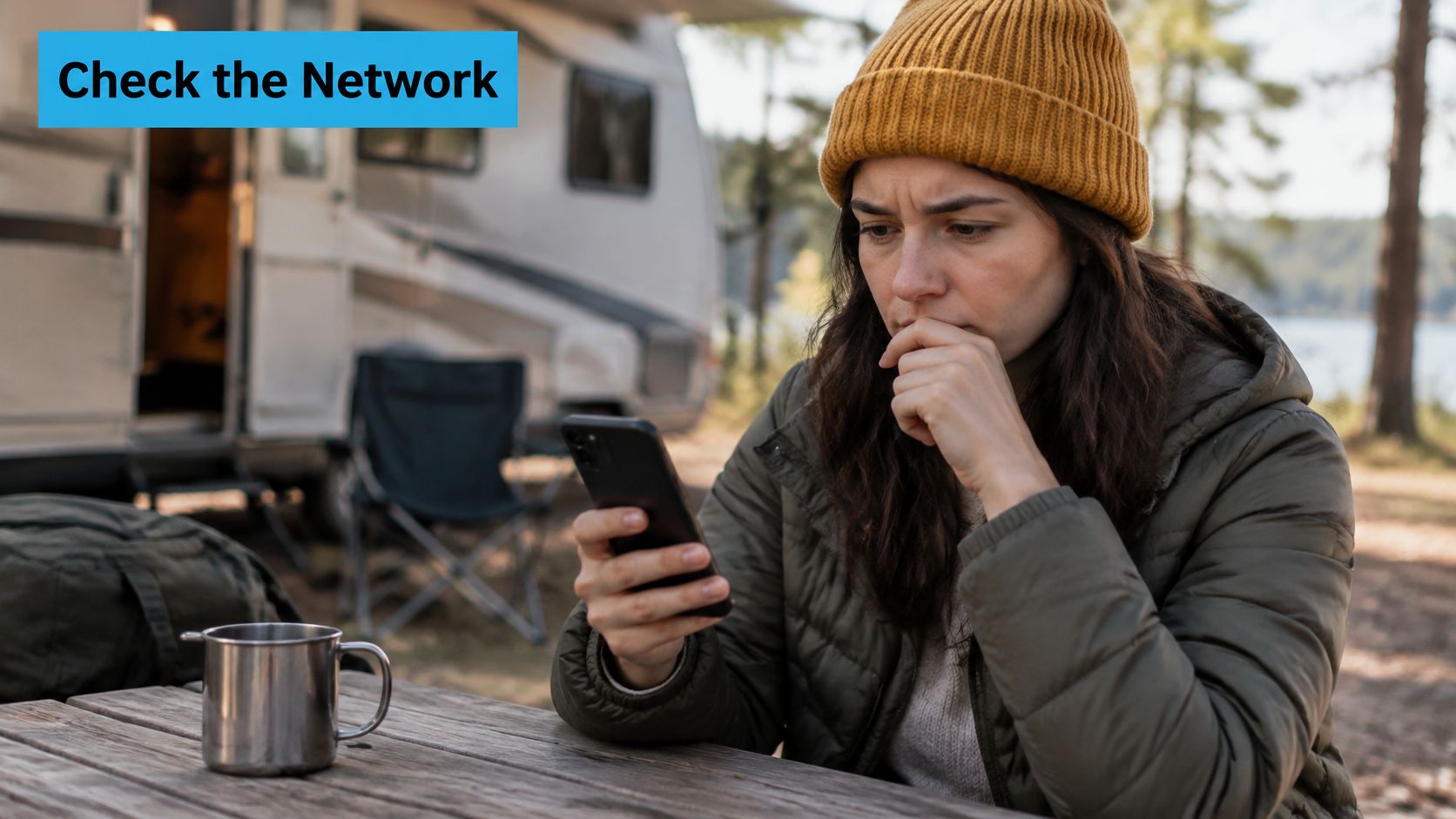
A network named like the one you expect can be a copy. Attackers build evil twin hotspots with near-identical names to harvest logins, which is why CISA's best practices for using public Wi-Fi starts with confirming the exact SSID and login procedure with staff before you select anything.
The Campground Routine
- Ask for the exact name and procedure. Staff know whether it's "Riverside Guest" or "Riverside_Guest", and whether there's a code that changes weekly.
- Complete a captive portal only if it matches what you were told. A portal demanding an email password or card number on a campground network is a stop sign, not a step.
- Turn off auto-connect for open networks and any public network you've used before. Otherwise the phone rejoins a similar name by itself the next time you pass one.
- Keep banking, shopping and account logins off public Wi-Fi. CISA recommends avoiding sensitive activity on public networks, and where it's unavoidable, using only fully encrypted HTTPS pages or switching to cellular.
- Log out and forget the network before you leave. Removing it means the device has no stored credential to offer a lookalike later.
A cellular hotspot is generally the safer choice than an unknown public network, because you never join the operator's local wireless network at all. That holds only if the hotspot password is strong and the device itself is updated.
If your travels take you further afield and you're booking rooms instead of campsites, compare hostel amenities across Europe before you assume working Wi-Fi is included. It directly changes how much data you need on a hotspot plan.
Here's the same routine in motion:
Back on your own router, secure your Wi-Fi network properly instead of leaving the default admin password in place, because every public network you've joined is a reminder of how little it takes.
Pick a Backup Connection Before You Need One
Start with signal, not hardware. Check your planned stops on the FCC mobile coverage map, which shows where coverage exists but can't promise what you'll get on a given afternoon. Treat it as a filter, never a guarantee.
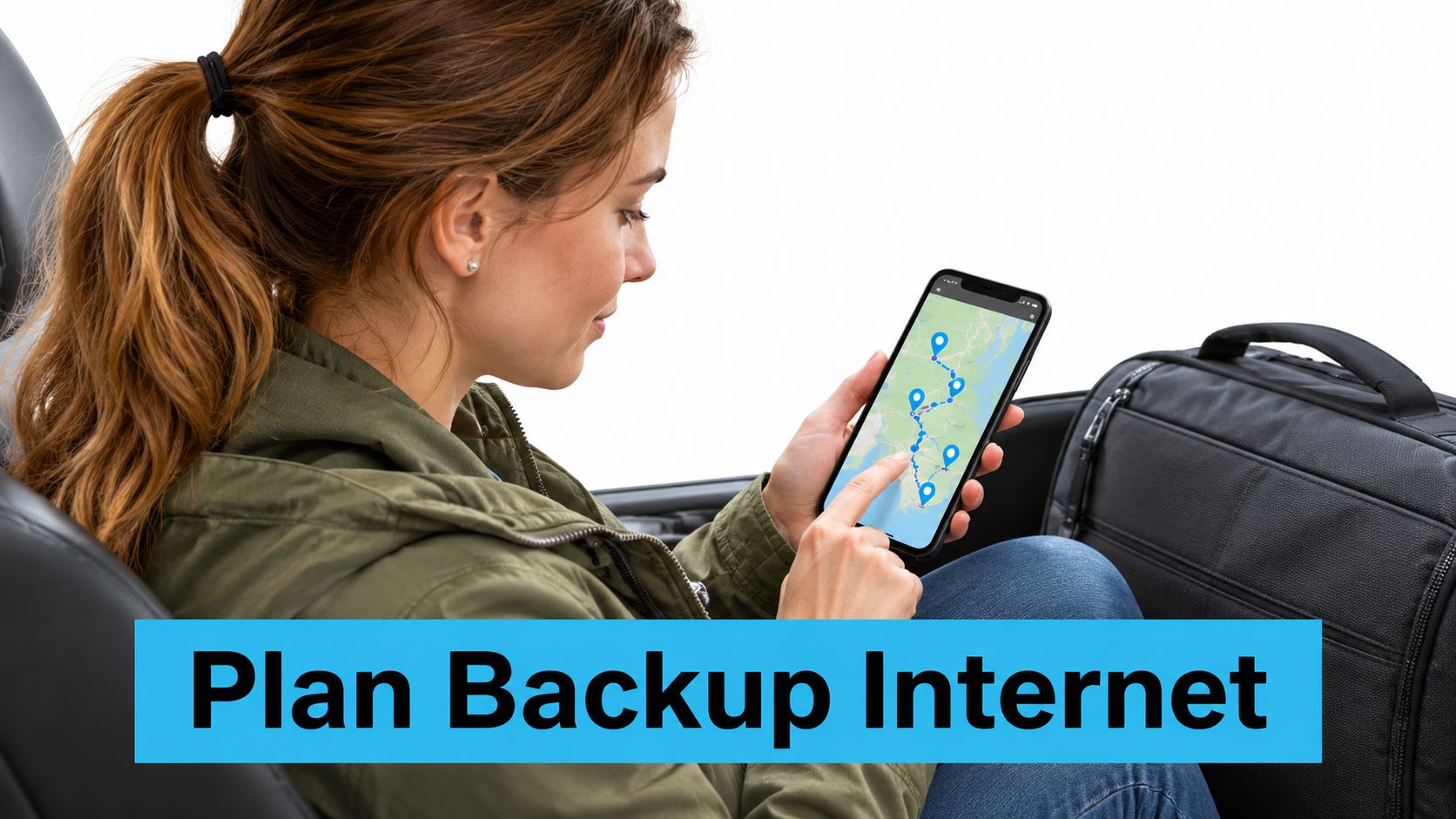
Decide the scope next. A portable hotspot suits one or two devices, while a router covers a whole RV or house. SwiftNet's 4G Bronze is a pocket-sized, no-contract hotspot built for RV, travel and remote work on AT&T, Verizon and T-Mobile 4G LTE, and the 5G Diamond router arrives pre-activated, so you plug it into a wall outlet and you're online in about 60 seconds.
Test the option at home before the trip. Join it, sign in, load a heavy page, run a video call, then repeat the test at the times you'd use it. The limit here is honest: our service only works when you're within the operating range of the provider's network, so no hotspot or router manufactures coverage where none exists.
If you're weighing a hotspot against tethering your phone, this hotspot setup guide for travelers covers the pairing and password steps. And if you're starting from nothing at all, read what to do when you don't have Wi-Fi before the outage, not during it.
SwiftNet Wifi exists for exactly the situation where the local network won't cooperate: multi-carrier 4G and 5G home and mobile internet that switches between AT&T, Verizon and T-Mobile to find the strongest signal at your spot, whether that's a rural house, a motorhome or a job site. Our hotspots arrive pre-activated and our routers are ready to plug in, so the setup is a name and a password rather than an afternoon of configuration. Visit SwiftNet Wifi to check coverage against the places you stay and pick the connection that keeps working when the campground Wi-Fi doesn't.
Find more of these field-tested fixes and RV internet guides on our connected social accounts, filed under the tags below.


