

You're shopping for a router because video calls freeze, the TV buffers, or the connection disappears when you park at a different campsite. The boxes all promise faster Wi-Fi, but none tells you whether the problem starts at the cell tower, the modem, or the wall between your laptop and the router.
How to know what router to buy starts with location, not the biggest speed printed on the box. Identify how internet reaches your home or vehicle, find the best place to receive it, and choose equipment that can distribute that connection where you use it.
Match the Router to Your Setup First
What's the connection, and where will the router sit? Answer that before comparing specifications. A router distributes the connection it receives; a cellular gateway also includes the modem that receives service from the mobile network.
Routers are common, but that doesn't make them interchangeable. According to Parks Associates, 80% of U.S. internet-connected households owned a network router in 2024. Your choice still needs to match your particular connection and installation.
Identify your setup
A fixed home on fiber, cable or DSL generally needs an Ethernet WAN connection from the provider's modem, gateway or fiber terminal, Wi-Fi 6, and enough LAN ports for wired equipment.
A rural home on fixed wireless or 5G home internet needs a compatible cellular modem or Ethernet WAN input, plus an external antenna option where reception requires it.
An apartment in a shared building usually suits a compact Wi-Fi 6 router, provided the building's network allows personal routers and supplies a usable connection.
An RV or motorhome needs compact equipment suited to its intended sources, whether campground Wi-Fi, cellular service or satellite, with appropriate vehicle power and carrier flexibility.
A truck cab or travel trailer used for remote work needs a mobile router or hotspot with dependable upload performance and a backup connection that doesn't rely on the same failing service.
Router class by setup
| Setup | Connection source | Router must have | Likely router class |
|---|---|---|---|
| Fixed home on fiber, cable or DSL | Wired modem or gateway | Wired WAN port, Wi-Fi 6, enough LAN ports | Single unit, or mesh if the home is large |
| Rural home on fixed wireless or 5G | Cellular or fixed wireless modem | Cellular or Ethernet WAN, antenna connectors, carrier support | Single 5G router with external antenna option |
| Apartment in a shared building | Building fiber or cable | Compact Wi-Fi 6 unit, WPA3 support | Single unit |
| RV or motorhome | Campground Wi-Fi, cellular or satellite | 12V power, carrier switching, antenna placement | Compact mobile 5G router |
| Truck cab or travel trailer for remote work | 4G/5G signal or hotspot | Backup connection, 12V power, stable upload | Mobile router or hotspot with a backup plan |
Treat these as shopping categories, not assurances that every product in a category supports every input. Receiving campground Wi-Fi requires Wi-Fi-as-WAN capability; connecting a satellite terminal requires a compatible Ethernet handoff. A cellular router doesn't automatically offer both.
Choose the class before the model
Write down where the modem or cellular signal arrives, how many people connect simultaneously, and whether the router will move between sites. Those answers distinguish a stationary home router from a mobile gateway much faster than advertised wireless speed does.
If you manage connections across a workshop, office and additional premises, CloudOrbis Inc.’s guide to scalable networks for multi-site businesses provides useful context for treating each location as part of a planned network rather than buying unrelated boxes.
Practical rule: Choose the connection type and installation location first. Compare models only within the router class that fits.
Size Bandwidth to Your Real Household Load
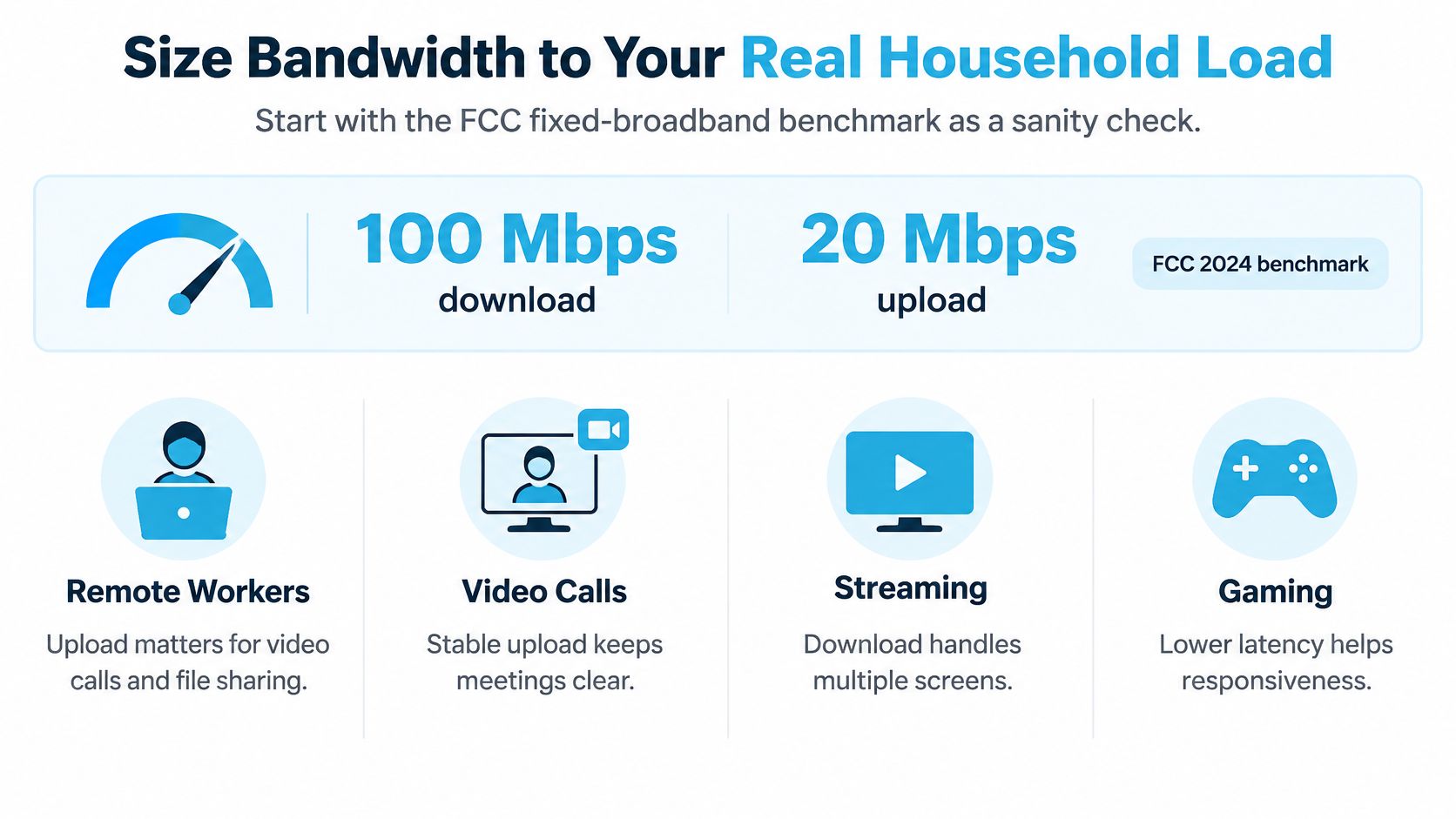
The FCC raised its fixed-broadband benchmark in March 2024 to 100 Mbps download and 20 Mbps upload. Use that as a sanity check, not a guarantee that every household needs exactly that service or that every campsite can deliver it.
Upload deserves equal attention. Work calls, cloud backups, livestreaming and internet-connected cameras all send traffic outward, so a connection that downloads comfortably can still struggle during a meeting.
Use the benchmark to separate download capacity from upload capacity.
Build a busiest-hour estimate
- Count simultaneous users and devices. List what operates during your busiest period, not everything you own. Separate streaming televisions and work computers from phones, sensors and idle devices.
- Assign the actual workload. Mark each active device as browsing, streaming, making calls, uploading files or sending camera footage. A laptop uploading project files places a different demand on the connection than a phone checking email.
- Choose a planning row and leave headroom. Don't design around a connection running at its limit throughout the workday. In a hypothetical calculation, adding about 20% headroom gives you room for an unexpected stream or background download, but it isn't a universal performance guarantee.
- Compare the target with the service and hardware. Check the plan's advertised download and upload speeds against measured results, then confirm that the router's WAN port or cellular modem can accommodate the service. Buying faster local Wi-Fi won't increase the capacity of the subscribed connection.
Planning targets by household load
The following are illustrative shopping targets, not measured requirements for every application. The heavy-use row deliberately uses a workload-based rule rather than pretending that household size alone determines speed.
| Load profile | Typical use | Download target | Upload target |
|---|---|---|---|
| Light, 1–2 people | Browsing, email, one HD stream | 25 Mbps | 5 Mbps |
| Moderate, 2–4 people | Two streams, video calls, cloud sync | 100 Mbps | 20 Mbps |
| Heavy, 4+ people or remote work | Several HD streams, video calls, backups, cameras | Above the moderate target, sized to simultaneous demand | Above the moderate target, sized to concurrent uploads |
| RV with remote work | Video calls, uploads and streaming at one campsite | 100 Mbps | 20 Mbps |
Test the workload, not just the device count
Say a family of four runs two HD streams, a video call and a backup upload together. That hypothetical household belongs in the heavy row, especially if the backup competes with the call for upload capacity.
Our router supports up to 32 connected devices. That's a useful compatibility limit, but it doesn't mean every connected device can perform a demanding task simultaneously without affecting the others.
For a work-heavy network, Nutmeg Technologies' office Wi-Fi fixes for growing businesses offers relevant context for managing crowded connections. Finish your sizing exercise with a named load row and hardware capable of carrying that target through both its internet-facing connection and its local network.
Confirm Modem, Carrier and Signal Before Buying
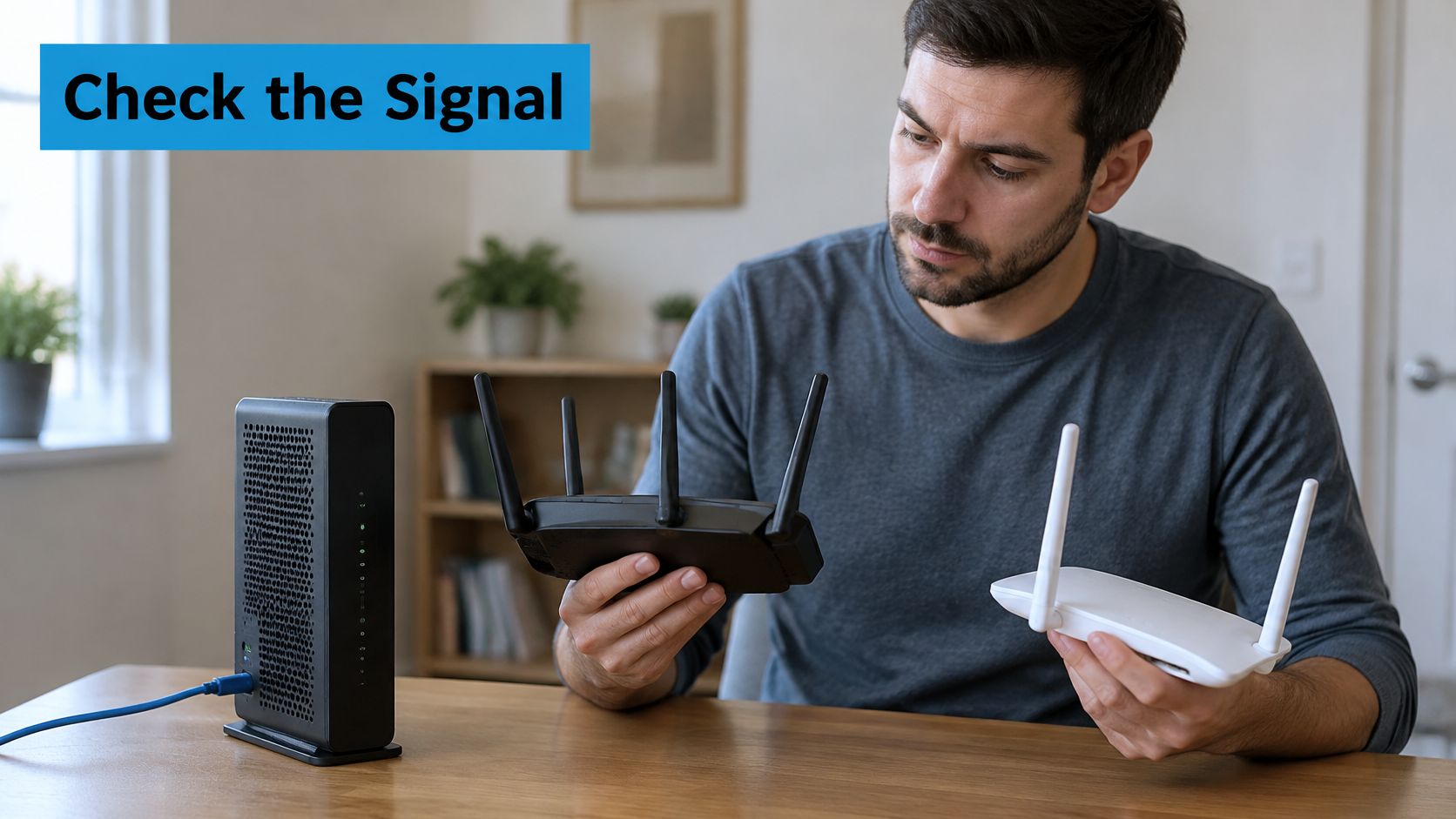
Check the input before the output. For fiber or cable, that usually means an Ethernet WAN connection from the provider's equipment. For cellular internet, it means a compatible modem, supported carrier bands and usable reception at the installation spot.
Compare the equipment behind the label, not just the label itself.
Verify the modem and carrier
For an external modem or gateway, confirm a gigabit Ethernet connection and a workable routing arrangement. The Wi-Fi Alliance's technical guidance supports checking wired connectivity and bridge or IP-passthrough capability when evaluating this type of setup.
If the provider's gateway already performs routing, you'll usually configure bridge or IP passthrough on that gateway, where supported, or use access-point mode on the downstream router. Otherwise, double NAT can complicate inbound connections, some games and remote-access applications. A bridge-mode checkbox on the wrong device doesn't solve the arrangement.
For cellular equipment, check the supported carrier list and bands, not merely whether a SIM fits. One of our routers works on AT&T, Verizon and T-Mobile. Its Virtual SIM switches between those networks, allowing it to maintain a connection where a single phone carrier has no signal, provided another supported network is available.
Use our cellular coverage comparison to narrow the candidates, then test the actual address. Blowfish Technology's guide to choosing a business internet provider also helps remote workers frame the decision around usable service rather than headline speed.
Check antenna options and placement
External antenna connectors matter only if they connect to the cellular modem and support the intended antenna. Check the connector type, supported frequencies, mounting location and cable route before ordering accessories.
A metal RV can make an otherwise promising installation difficult. A window position may improve reception, while a correctly mounted external cellular antenna can move the receiving point outside the vehicle. Keep antenna cable runs sensible and follow the antenna manufacturer's installation guidance.
The location-first approach in SwiftNet's RV internet router guide is particularly useful here: local Wi-Fi capability can't compensate for terrain, tower congestion or an unsuitable cellular antenna.
Use the video alongside the physical checks, then record your own results.
Run a field test
- Check coverage at the exact site. Use the carrier map for the address or campsite, not just the nearest town.
- Establish a baseline. Record signal bars, download, upload and latency where you initially plan to place the router.
- Change the receiving position. Move it to a window or test the properly installed external antenna, keeping the test device and workload consistent.
- Log the comparison. Record Mbps, latency, location and time, then repeat during the hours you'll work.
Signal bars alone aren't a buying verdict. A newer Wi-Fi generation won't repair weak tower reception, so keep the router only if its incoming connection supports the work you need to do.
Choose Mesh or a Single Unit for Your Space
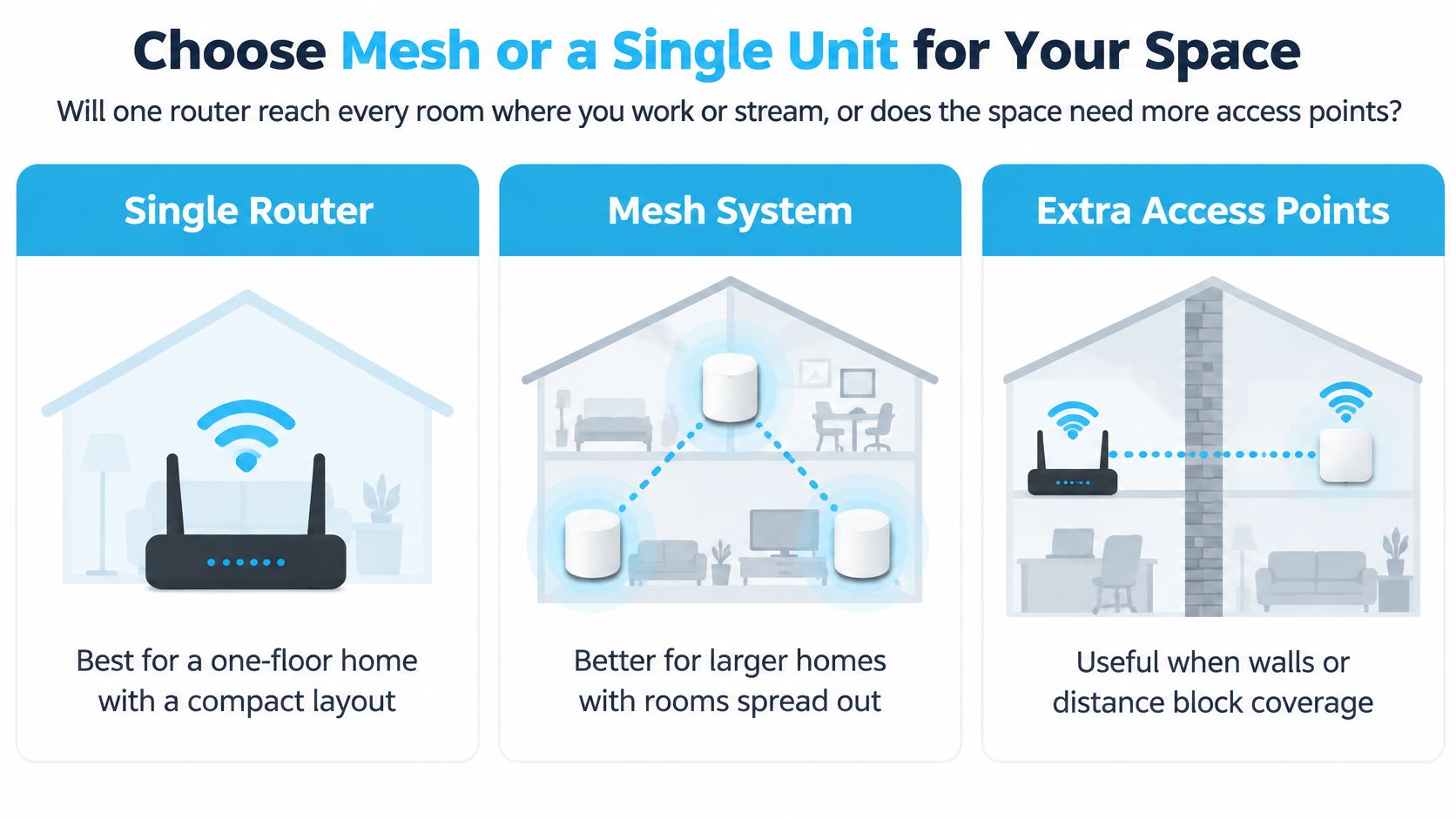
Will one router reach every room where you work or stream, or does the space need more access points? That's a coverage question, separate from whether the internet service itself is adequate.
A standalone router remains a normal choice. In PCMag's 2024 Readers' Choice survey, 65% of respondents used a standalone router rather than a mesh system. That describes the respondents, not a reason to force the same layout onto your property.
Use the physical layout to compare your options.
Compare the layouts
A single router is simplest to configure and troubleshoot. It suits compact homes, apartments and many motorhomes, provided you can place it somewhere reasonably open rather than inside a cabinet or behind equipment.
A wired access point gives you a second wireless coverage area connected by Ethernet. For a home with an available cable route, this is often the strongest practical choice because traffic between the access point and router doesn't depend on another wireless hop.
A mesh system helps distribute coverage through larger or awkwardly shaped spaces. You pay for additional nodes, need suitable power locations, and must account for the airtime used by wireless links between nodes.
Single unit, wired access point or mesh
| Layout | Best for | Main limit | Setup effort |
|---|---|---|---|
| Single router | One floor, apartment, motorhome | Signal weakens behind walls and metal panels | Low, plug in and place |
| Router with wired access point | Two-story home with Ethernet run | Needs a cable run between units | Moderate |
| Mesh system | Large home, separated rooms, outbuildings | Extra cost, wireless link shares airtime | Moderate |
| Single router with external antenna | Rural site with weak signal at the window | Needs mounting and antenna cable | Moderate to high |
Place expansion equipment where it can connect
Don't put a wireless mesh node directly in the dead zone and expect it to recover a connection it can barely receive. Place it where the upstream signal is still usable, then check the room beyond it. For a detached outbuilding, first establish whether Ethernet, a suitable outdoor link or another supported backhaul is practical.
Our mesh Wi-Fi network guide can help you evaluate expansion. The Wi-Fi Alliance's coverage guidance also explains why radio features don't remove the importance of placement and building obstructions.
Mesh extends your local network. A cellular antenna improves reception from the mobile network. They solve different problems.
In an RV, start with a single well-positioned unit rather than filling the vehicle with nodes. Test at the desk, bed, seating area and outdoor work spot; add an access point only where the local coverage test fails.
Check Security and Features Before You Pay
A router that's fast but no longer receives security updates is a poor foundation for work, banking and connected cameras. Encryption, administrative control and ongoing support are essential buying criteria, not optional setup extras.
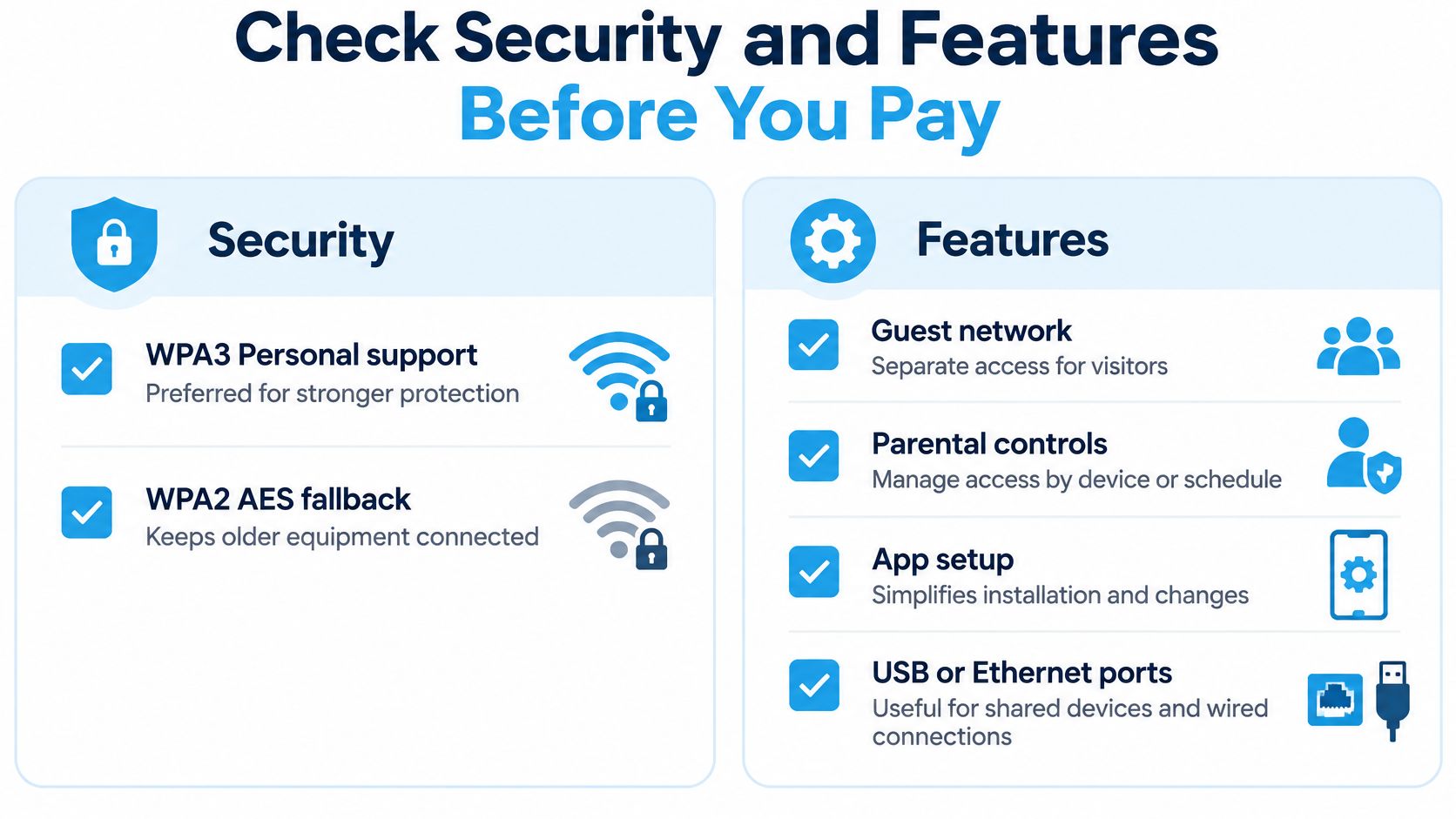
Use this checklist while comparing product pages and manuals.
Security requirements
CISA's home-network security guidance recommends WPA3 Personal, with WPA2 AES as the fallback for older equipment, along with changed administrator credentials and current firmware.
- Encryption: Confirm the supported security modes and whether older devices can connect without weakening protection unnecessarily.
- Administrator access: Make sure you can replace the default administrator password and change the network name immediately.
- Firmware support: Look for automatic or straightforward updates, a published support policy and a clear end-of-support process.
- Exposed services: Confirm that remote management, WPS and UPnP can be disabled when unnecessary.
- Firewall and guest access: Look for an enabled firewall and a separate guest network with isolation controls, not merely an additional network name.
The FTC's home Wi-Fi security checklist supports these controls. Our guide to securing your Wi-Fi network helps turn those buying requirements into setup actions.
Check whether administration works locally or requires a cloud account. App setup can be convenient, but you should understand what happens when the internet is unavailable or you lose account access.
Features worth paying for
For busy homes and RVs, Wi-Fi 6 is a sensible baseline. As HPE's Wi-Fi 6 explanation describes, OFDMA schedules clients within a channel and MU-MIMO supports concurrent transmissions, helping compatible devices share airtime.
- Radio compatibility: Check spatial streams and whether both router and clients support 160 MHz channels. Treat Wi-Fi 7 as a bonus only when your equipment can use it.
- Wired connections: Count the computers, consoles, access points and other devices you'll connect by Ethernet. Match WAN capability to the modem handoff.
- Capacity: Ensure the supported device count exceeds your actual inventory, including smart-home equipment.
- Vehicle power: Verify input voltage, polarity and the approved adapter rather than assuming any vehicle plug will work.
- Useful extras: Consider parental controls, USB sharing and app management only when you have a specific use for them.
Our router has Wi-Fi 6 with dual-band 2.4 and 5 GHz, WPA3 security, and 4 Gigabit LAN ports plus a WAN port. It runs on a 12V DC adapter, with an optional vehicle/RV adapter available.
External antenna connectors remain a separate purchase check where reception requires them. Keep models that meet your security requirements and setup-specific features; eliminate the rest before comparing prices.
Decide to Buy, Rent or Test Your Router
Turn your requirements into a shopping sentence: Rural RV, moderate workload, cellular modem with compatible antenna options, single unit positioned for reception. Add your measured bandwidth target and carrier results so you can compare any product page against the same criteria.
Compare ownership costs
We offer router rental for $15 per month after the 7-day trial, or purchase for $349 after the trial. Router rental totals $180 over 12 months and $360 over 24 months, so buying becomes cheaper during month 24, excluding service charges from both sides of the comparison.
Renting suits uncertain or temporary needs. Buying makes more sense when the field test succeeds and you expect to keep the equipment long enough.
Let the site test decide
Our router arrives pre-activated, needs no professional installation, and connects after you plug it into a wall outlet, with setup designed to get you online in 60 seconds. The 7-day money-back guarantee lets you test at your site and return it for a full refund if it doesn't outperform your current setup.
Record download, upload, latency and signal at consistent locations during the trial. Compare return deadlines and money-back terms before committing, and judge the router by that log rather than its packaging.
For social sharing, place these hashtags after the article link:
#rv #rvlife #rvliving #rvlifestyle #rvrenovation #rvremodel
#rvtravel #rvcamping #rvadventures #ruralwifi #5gwifi
#5ginternet
SwiftNet Wifi offers pre-activated, multi-carrier internet equipment for rural homes and RV travel, with rental and purchase options. Visit SwiftNet Wifi to compare the options against your setup, then use the site trial to check reception and real working performance before deciding what to keep.


