

You've backed into a campsite, leveled the rig, opened your laptop, and there's nothing. No network list, no bars that mean anything, and a work call in forty minutes. Or you're parked in a rural driveway, the router lights are dead, and your phone says you're connected while every page times out. Those are two different problems. One is a total outage. The other is a connection that's technically up but unusable for work or calls. I don't have Wi-Fi usually means one of them, and the first fix is different for each.
Quick Ways to Get Online Without Home Wi-Fi
When the home connection is down, the fastest workable option is usually the one already in your pocket. When a connection is available but too weak for a call, changing where or how you connect may help more than buying equipment. Compare setup time with the main trade-off before choosing.
Connection Options When You Have No Wi-Fi
| Option | Works When | Setup Time | Main Limit |
|---|---|---|---|
| Phone hotspot | You have a cellular signal where you sit | Under 2 minutes | Drains phone battery and uses your plan data |
| Phone USB tethering | Phone is plugged into a laptop | Under 5 minutes | Needs a cable and the phone charging |
| Library or cafe Wi-Fi | Building is open and in range | Immediate | Limited hours, shared bandwidth, weaker privacy |
| Campground or RV park Wi-Fi | Park provides it and signal reaches your pitch | Immediate | Evening congestion and weak signal at back sites |
| Dedicated 4G or 5G hotspot | Carrier coverage exists at the site | Under 10 minutes | Separate data plan and device to keep charged |
| Satellite internet | Clear view of the sky | Hours to set up, plus shipping time | Higher monthly cost and dish must be placed and aimed |
Try your phone first if it has cellular service and enough data. In 2024, 5.5 billion people, or 68% of the global population, were online, according to the ITU internet use report. A phone hotspot can get a laptop online quickly: turn it on, connect the laptop, and check whether the tasks you need to do will load reliably.
For a short email session, that may be enough. For a video call, battery and data become practical limits. Pause photo syncing and other background activity before connecting; otherwise, another device can consume data while the call is competing for the same phone connection. USB tethering keeps the phone charging, but you need a suitable cable and the phone remains the connection source.
Public Wi-Fi avoids using your cellular allowance, but it has different drawbacks. A library or cafe may close before your work is finished, and shared bandwidth can make calls unreliable. Treat a public network cautiously when handling sensitive logins. Campground Wi-Fi may be available immediately, yet a distant site or busy evening can leave you with a weak or crowded connection. If the network is technically connected but pages stall, moving closer to the access point or switching to cellular may be more useful than repeatedly reconnecting.
A dedicated hotspot separates laptop use from your phone and can preserve the phone for calls or navigation. It still needs cellular coverage, power, and a separate plan. Satellite can serve as an alternative where cellular coverage is unusable, but the equipment takes longer to arrange, costs more, and needs a clear sky view and a suitable dish position. Compare the cost with how often you will need the connection. Do not borrow for equipment before proving that the cheaper fallback will not work; an instant cash advance is borrowing, not an internet connection, and can make a temporary outage more expensive.
Thirty-second test: Stand where you will actually work, not beside the door or a window. Turn on your phone hotspot, connect the laptop you plan to use, and run a speed test there.
A steady result and a page that loads cleanly suggest the connection can handle email, documents, and messaging. A result that swings between tests or stalls mid-load is a poor sign for a video call. Try USB tethering if the phone battery is the weak point, or use public Wi-Fi for a heavy session if it is available and reliable enough. Testing at your work spot prevents a strong signal in the parking lot from misleading you about the connection at your desk.
Diagnose a Dead Connection Before You Replace Anything
Rebooting a router five times without writing anything down tells you nothing except that you're frustrated. You end up unable to say whether the failure changed, when it started, or which devices it hit. A short, ordered diagnosis is faster than guessing, and it stops you buying a new router for a problem that was a bad saved password. The infographic below lays out that order.
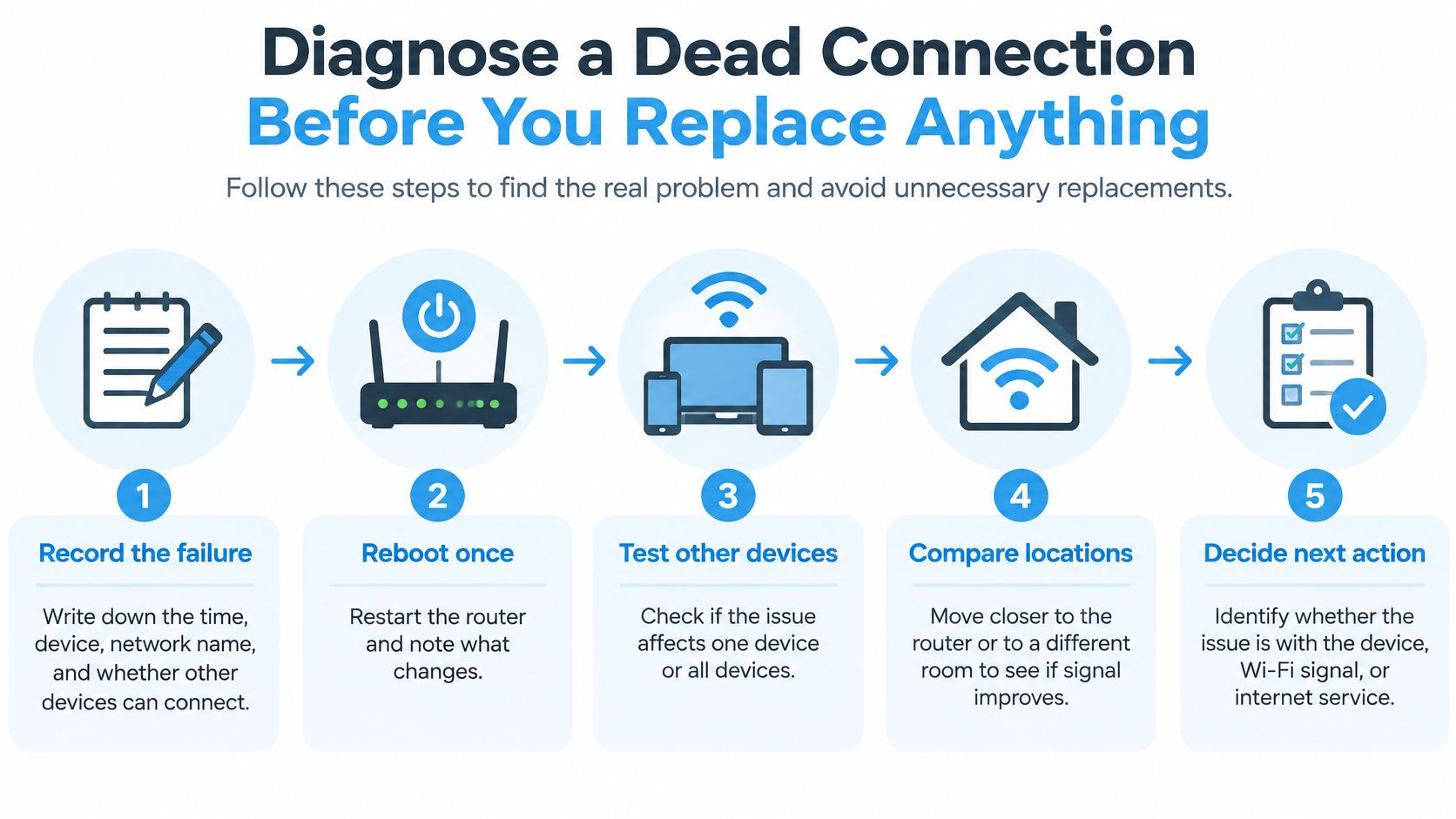
Run the Checks in This Order
- Record the failure first. Write down the time, device, network name, and whether other devices can connect. That baseline tells you later whether a fix changed anything.
- Confirm the basics are on. Check that Wi-Fi is enabled and airplane mode is off, then confirm the device is joined to the network you intended, not a neighbor's or a remembered hotspot. A surprising share of outages end here.
- Check for a valid local IP address. If you're connected but pages fail, look at the assigned IP address and DNS server. A valid local IP with failed DNS reachability points to name resolution, not weak radio coverage, as Microsoft's Windows Wi-Fi troubleshooting guide explains when separating a radio problem from an internet problem.
- Test in sequence, gateway, public IP, domain name. Gateway failure points to Wi-Fi association, DHCP, or the router itself. A numeric public IP that works while a domain name fails isolates DNS. Failure at every stage points upstream to your service or equipment.
- Only then reset the network stack. On Windows, run netsh winsock reset, netsh int ip reset, ipconfig /release, ipconfig /renew, and ipconfig /flushdns, then restart and retest. Don't change DNS settings before you've confirmed the device has an IP address.
Save a full network reset for last. It can remove saved profiles and adapter settings, which turns one fixable fault into several new setup jobs. Collect your baseline before anything destructive, and you'll know whether you're chasing a device fault, a router fault, or an outage you can't fix from your chair. If every light behaves oddly but nothing connects, the walkthrough for router lights flashing but no internet helps you read what the router is reporting.
Symptoms, Likely Causes and First Fixes
| Symptom | Likely Cause | First Fix |
|---|---|---|
| No Wi-Fi networks listed | Wi-Fi off, airplane mode on or no router in range | Turn Wi-Fi on, disable airplane mode and move within range |
| Connected but no pages load | DNS failure or missing IP address | Run ipconfig /release and /renew, then flush DNS |
| Connected but pages load slowly | Weak signal or a crowded channel | Move closer to the source and reduce connected devices |
| Only one device fails | Saved profile or device-specific setting | Forget the network and rejoin with the password |
| Every device fails and router lights are off | Power cut or provider outage | Check power, then switch to a phone hotspot |
Phones and tablets follow the same chain, just through settings screens instead of commands. Confirm the Wi-Fi and mobile data toggles are on, forget and rejoin the network, and toggle airplane mode once to reset the radio. If the phone reaches the gateway but websites still fail, set Private DNS to automatic before you touch any router settings.
Know where help stops, too. Our technical support staff doesn't assist with installing or troubleshooting third-party modems, network cards, routers, complex network configurations, telephone lines, or third-party software, so take those faults to the device maker or your line provider. That's not a brush-off. It's how you avoid spending an hour with the wrong support desk while the actual fault sits in hardware nobody on that call can touch.
How to Tether and Hotspot Without Draining Data
A laptop on a phone hotspot can eat a monthly allowance in one afternoon. The laptop doesn't know it's on a metered link, so it happily pulls system updates, syncs cloud folders, and backs up photos while you're reading email. You find out when the carrier text arrives. Setting up carefully takes two minutes and prevents most of that damage.
Set Up Tether and Mobile Hotspot
- Turn the hotspot on and lock it down. Enable Personal Hotspot on iPhone or Mobile Hotspot on Android, and set a password of at least eight characters. An open hotspot in a campground invites strangers onto your allowance.
- Join only the device you need. Connect the laptop, then check what's sharing the link. A tablet or a partner's phone auto-joining doubles your drain without telling you.
- Use USB tethering for longer sessions. Plug the phone into the laptop and choose tethering. You get a steadier link and the phone charges instead of dying mid-call.
- Pause background consumption before you start. Turn off automatic app updates and cloud backups, and set the connection as metered if your laptop offers it. Do this first, not after an update is halfway down.
For button-by-button setup on different phones, the guide to how to mobile hotspot covers the menus in order. The setup itself is easy. The skill is knowing what your next hour will cost, which is where users get caught out.
Typical Data Use Per Hour by Activity
| Activity | Typical Data Per Hour | Planning Tip |
|---|---|---|
| Email and messaging | 0.01 to 0.05 GB | Light enough for most hotspots |
| Web browsing | 0.1 to 0.3 GB | Turn off autoplay on news and social sites |
| Music streaming | 0.05 to 0.15 GB | Lower the quality setting to save more |
| Standard-definition video | 0.7 to 1 GB | Download before you leave Wi-Fi |
| HD video | 2-3 GB | Avoid on a small monthly allowance |
| 4K video | 6-7 GB | Treat as a Wi-Fi-only activity |
| Video calls with camera on | 0.5 to 1.5 GB | Switch camera off for long calls |
| Large software updates | Often 1-5 GB each | Schedule on library or campground Wi-Fi |
Read that table as a budget, not a curiosity. One hour of HD video can equal weeks of email, and a single operating system update can cost more than a full day of documents and calls. The ITU reports the median entry-level mobile broadband basket fell to 1.4% of monthly GNI per capita in 2025, yet subscribers in low-income economies spend about 22 times more of their income on mobile broadband than those in high-income economies, according to the ITU affordability of ICT services page. Cheap per month doesn't automatically mean cheap per hour of video.
Device count multiplies everything. Two people streaming on one hotspot aren't sharing a fixed cost, they're stacking two full streams on one allowance and one radio. Fair-use policies and congestion then slow you down even if gigabytes remain, which is why a hotspot that works beautifully for one remote worker fails as a whole-household replacement on a Friday night.
Plan the session by hours and activity, not by gigabytes. Decide you're doing two hours of email and one audio call, and you've already answered the data question.
Move the heaviest task to real Wi-Fi whenever a library or campground is in range. Download films, updates, and big files there, then spend your hotspot allowance on work that needs to happen at your pitch or your kitchen table.
Getting Usable Signal in Rural and Remote Areas
Your phone shows one bar, the video call freezes on a client's half-finished sentence, and the router gets blamed. Most of the time the network isn't broken. The signal reaching your exact chair is too weak or too unstable to carry what you're asking of it. Treat it as a signal problem first and you'll stop changing settings that were never wrong. The photo below is the moment to recognize, a device connected in name only.
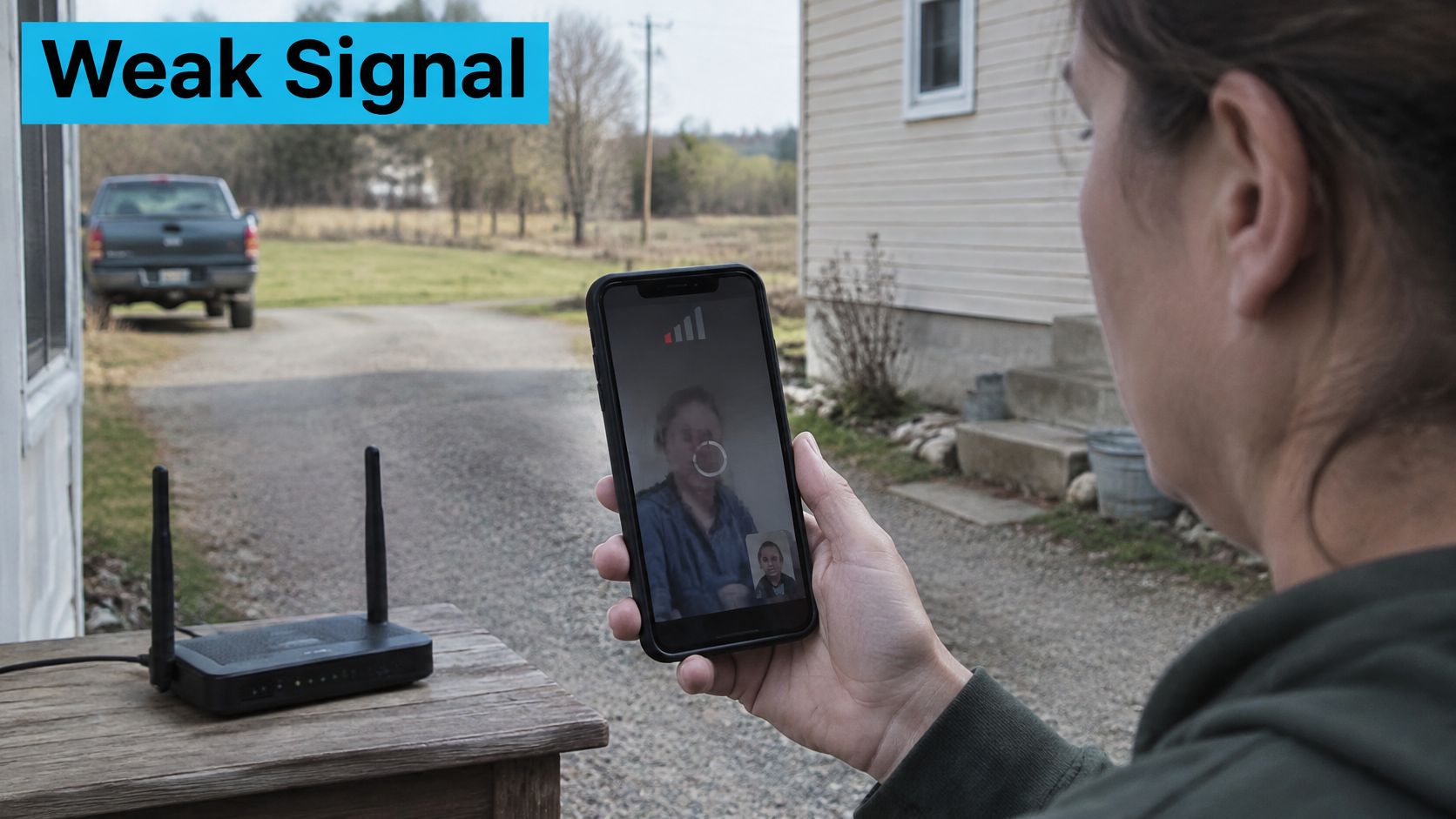
Check Signal Before You Change Equipment
- Verify coverage at the exact spot: Open your carrier's coverage map and look at your specific road or valley, not the nearest town. Then confirm it with a speed test where you'll sit, because maps describe an area and you live at an address.
- Compare a second carrier: Coverage differs sharply by road, valley, and tree line. A second carrier's SIM or hotspot can work well on a ridge where the first carrier has nothing, and vice versa half a mile away.
- Raise and reposition the device: Move the phone or hotspot to a window or a higher point, away from metal walls, trailers, and metal roofs that block radio waves. Inside an RV, the difference between the dinette and a cab window can be the whole connection.
- Aim an external antenna properly: Use a phone app that shows tower direction, point the antenna at the nearest cell site, and check every cable and connector is tight. A loose connector wastes the gain you bought the antenna for.
- Walk the site and test several spots: Tree cover and awnings can cut signal within a few metres. Test the pitch corners, the cab, and the picnic table before you commit to where the office goes.
For the wider picture on what's realistically available outside town networks, the overview of internet access for rural areas sets out the trade-offs without promising coverage that doesn't exist. That honesty matters, because a plan sold on a coverage map still has to survive your tree line.
The short video below walks through checking signal in the field, which is worth watching before you spend money on antennas or a second plan.
Hold one limit in mind through all of this. Our service only works within the operating range of the network provider's network, and that coverage can change. So test at the exact spot, at the time of day you'll work, before you commit to any plan. A strong result at noon in an empty campground doesn't guarantee a usable call at 7 p.m. when the park fills up.
Keeping Work and Calls Running When Internet Fails
A dead connection and a connection that cannot carry a meeting need different first fixes. If nothing connects, switch to another network or move to a place with service. If pages load but calls freeze or uploads stall, reduce demand on the link before changing equipment. That distinction can save a deadline.
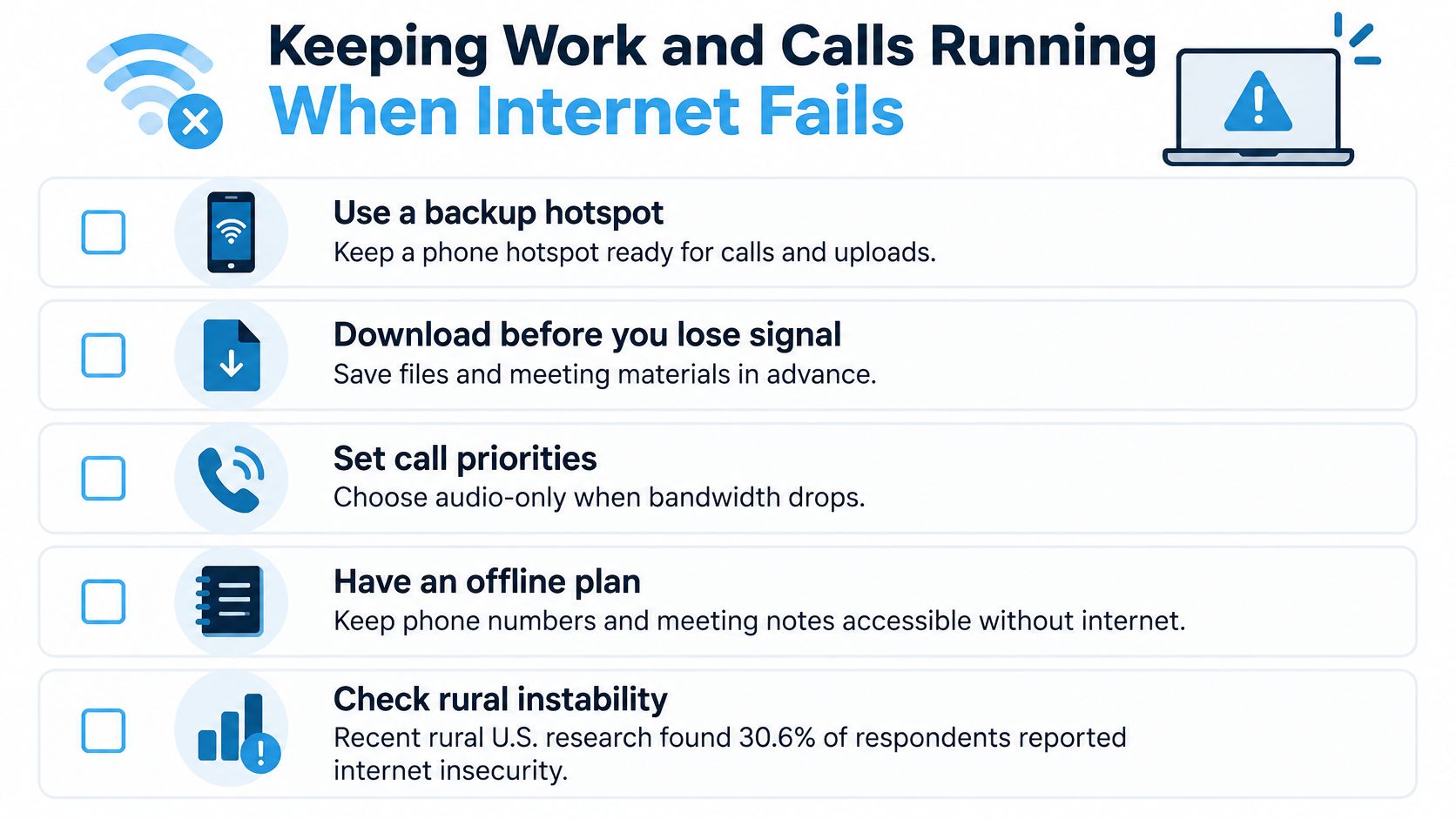
Rural households can face unreliable or unaffordable internet even where service is nominally available, as described in the Benton Institute summary of internet insecurity in rural America. An address listed as covered does not guarantee a connection will hold through a work call.
Identify the Failure Before Choosing a Fix
| What you notice | Likely problem | First response |
|---|---|---|
| No device can connect | Total outage or no service | Try a separate network or relocate |
| Messages work, video freezes | Weak or congested connection | Turn off video and pause other traffic |
| Connection repeatedly drops | Intermittent service | Switch to a backup link |
| Service works, but data runs out | Insufficient allowance | Save heavy tasks for other Wi-Fi |
| Service is available but unaffordable | Cost problem | Reduce data use and compare practical options |
Weak service can still carry email, messaging, and audio calls, even when video or large files fail. An empty data allowance will not improve with an antenna, and a larger plan will not help if there is no signal. Name the problem first, then choose the response.
Build a Failover Plan Before a Deadline
- Keep a second connection on a different network. A phone hotspot alongside your primary router gives you an alternative when the main link drops. A different carrier can reduce the chance that both connections fail together, though it cannot guarantee service where neither network reaches.
- Know how to switch before a call starts. If your laptop does not change connections automatically, keep the backup network ready and practise selecting it. Waiting until a client is on the line adds pressure and wastes time.
- Pause downloads and background sync during meetings. File transfers and cloud backups compete with calls for a weak connection. Pause them before joining, rather than splitting limited capacity among several tasks.
- Keep power available for the router and hotspot. Charge a power bank before travel or unsettled weather. A connection is no use if the device supporting it has run out of power.
Continuity rule: Test the backup when you do not need it. Join a real call and upload a work file, so you know whether it handles the tasks that matter.
Match Data Use to the Connection
| Task | Relative data demand | Practical choice on a weak link |
|---|---|---|
| Email and text messaging | Low | Keep working |
| Audio call | Lower than video | Turn off the camera |
| Video meeting | Higher | Use only when the connection holds |
| Large upload or download | High | Pause or wait for stronger Wi-Fi |
These are relative comparisons, not fixed allowances. Actual use varies with the app, call settings, and file size. When data is limited, handle email and messages first, keep calls audio-only if needed, and postpone large transfers.
Congestion can make a connection less usable when nearby people are online, and severe weather may affect a link. Download meeting files in advance, save essential phone numbers offline, and switch to audio before frozen video disrupts the conversation. Reliable work depends on having a tested fallback and a low-data way to continue, not on expecting one connection to handle every condition.
Pick Your Connection for Today
Choose by situation, not by spec sheet. The right answer for a traveler working three hours a day is wrong for a household streaming every night, and buying for the wrong case is how people end up with expensive gear and the same dropped calls. Match the setup to the day you live.
Three Situations, First Setup Each
Traveler who needs a few hours of work a day. Start with the phone hotspot on your own plan, since it's already paid for and sets up in minutes. Keep campground or library Wi-Fi as the backup for video calls and big downloads, and do the heavy tasks there. You'll spend nothing extra until the phone proves it can't cope.
Rural household that needs steady streaming and calls. Fix the signal at the site first with a dedicated 4G or 5G hotspot or router where carrier coverage reaches the home, positioned at the best-tested spot in the house. Keep the phone hotspot as the outage backup rather than the main link, because a household of devices will drain a handset and its allowance fast. Test in the evening, not just at midday, before you call it solved.
Truck driver who needs a backup on the road. Use phone tethering as the primary link for simplicity, then carry a dedicated hotspot as the second line. That way navigation and calls stay available if your phone's data is needed elsewhere or its battery runs low in the cab. Two modest links beat one link you're afraid to use.
If you do decide a dedicated device fits your case, our 4G Bronze hotspot requires no contract and no credit check, and it arrives pre-activated, so you only switch it on and connect your devices. That removes the setup barrier, but it doesn't remove the coverage check. Test it where you'll use it, the same as any other option in this guide.
Your next step is the same whichever case sounds like you. Run the diagnosis steps so you know whether you're fixing a device, a DNS fault, or a genuine outage. Test the option you've chosen at the exact spot and time you'll rely on it. Then save the working settings, passwords, and placement so the next failure starts from a known good state instead of from scratch.
Saying I don't have Wi-Fi stops being a dead end once you know which kind of failure you're in and which fallback you've already proven works. Share this article with your traveling and rural-living crew so they've got a plan before their next dropped call. #rv #rvlife #rvliving #rvlifestyle #rvrenovation #rvremodel #rvtravel #rvcamping #rvadventures #ruralwifi #5gwifi #5ginternet
If you're tired of treating every dropped call as an emergency, SwiftNet Wifi offers 4G and 5G home and mobile internet built for rural households, RV travelers, and remote workers who need a connection that works where fixed broadband doesn't reach. Check coverage for your road or your route, pick the hotspot or router that fits how you live and work, and get set up without a dish, a contract, or an installer visit.


