

Across 209 countries and territories, average upload speed measured 47.2 Mbps in 2024, according to Internet Analysis. A single 4K live stream running at 60 frames per second is recommended at a higher bitrate than that, before audio, before protocol overhead, and before anyone else in the rig sends a photo to the cloud.
Upload is the direction that fails without warning. A connection pulls a film without a stutter, then drops frames the second you open the encoder, because the outbound path carries less capacity and far less consistency than the download path most plans are sold on.
Three numbers decide whether a broadcast holds. The bitrate you set, the sustained upload your connection delivers at that spot, and the headroom you keep free for everything else that sends data out. Line those up and the platform settings stop being guesswork.
Why Upload Speed Now Decides Stream Quality
Most plans advertise download speed. Live streaming and video calls run on the opposite direction, and that's where the limit shows up first.
In March 2024, the Federal Communications Commission raised its fixed-broadband benchmark from 25 Mbps download and 3 Mbps upload to 100 Mbps download and 20 Mbps upload, replacing a standard set in 2015. The agency tied the change to two-way applications: video conferencing, cloud collaboration, remote work and live video streaming. It also set a long-term goal of 1 Gbps down with 500 Mbps up, where upload would count for half the download figure instead of a fifth.
Think of a shop with a wide front door and a narrow loading dock. Deliveries roll in through the front, but every outbound shipment has to clear the dock, and one busy morning turns into a queue.
A camper streams a film at 8 pm without a hiccup. Ten minutes later, the same person goes live to show the sunset, and the picture stutters, audio drifts, and the platform steps the resolution down. Nothing on the download side changed. The outbound path was always the smaller pipe.
That's why the numbers below matter more than the plan's headline speed. The table ahead converts every common resolution and frame rate into a connection target, so a stream stops being a test of luck.
Upload Speeds Needed for Each Resolution and Frame Rate
YouTube publishes recommended bitrates for H.264 live streams, and those figures become connection targets once you add room for overhead.
| Resolution and frame rate | Recommended bitrate | Minimum bitrate | Connection target with headroom |
|---|---|---|---|
| 720p at 30 or 60 fps | 4 Mbps | Not specified | 4.8 Mbps |
| 1080p at 30 fps | 10 Mbps (14 Mbps in a second guide) | 5 Mbps | 12 Mbps (16.8 Mbps from the second guide) |
| 1080p at 60 fps | 12 Mbps (17 Mbps in a second guide) | 6 Mbps | 14.4 Mbps (20.4 Mbps from the second guide) |
| 1440p at 60 fps | 34 Mbps | Not specified | 40.8 Mbps |
| 4K at 30 fps | 42 Mbps | 11 Mbps | 50.4 Mbps |
| 4K at 60 fps | 50 Mbps | 14 Mbps | 60 Mbps |
Reading the table in three steps
- Find your row. Match the resolution and frame rate your encoder will output, not the resolution your camera can record.
- Use the recommended figure as your bitrate. These are stream bitrates, so the encoder setting and the table should agree. If your software offers preset quality levels, set the bitrate manually to hold the number steady.
- Multiply by 1.2. That's the connection target. YouTube's live encoder guidance advises leaving roughly 20% additional upload capacity and warns that total bitrate should never exceed available outbound bandwidth, so the extra fifth is not padding. It's the working margin.
Say your channel runs 1080p at 60 fps at 12 Mbps. Multiply by 1.2 and the target is 14.4 Mbps of sustained upload, on a link that's also carrying everything else in the rig.
The span of the table is worth sitting with. Moving from 720p at 30 fps to 4K at 60 fps raises the recommended bitrate more than twelvefold, and the connection requirement rises with it.
Two rows need a flag. A second YouTube encoder settings page lists higher figures for 1080p: 14 Mbps recommended at 30 fps and 17 Mbps recommended at 60 fps, plus the minimums of 5 and 6 Mbps shown above, and 11 and 14 Mbps for the 4K rows. Those higher numbers produce targets of 16.8 and 20.4 Mbps. Where the connection allows, plan to the larger figure and treat the smaller one as a floor.
Every target in that column covers the stream and nothing else. Cloud backups, a second laptop on a call, a security camera uploading clips, and a phone syncing photos all draw from the same outbound pipe.
Watching Video Versus Broadcasting Which Speed Matters
Watching and broadcasting share one link and pull in opposite directions. The most-quoted figures in streaming advice describe only the inbound half of that link.
The FCC broadband speed guide puts one HD video stream at 5 to 8 Mbps of download and one 4K stream at 25 Mbps of download. Both numbers describe traffic flowing toward the viewer. Neither says anything about whether the same connection can carry a camera feed outbound, and outbound capacity is provisioned separately on residential and cellular plans, usually far below the download figure printed on the plan.
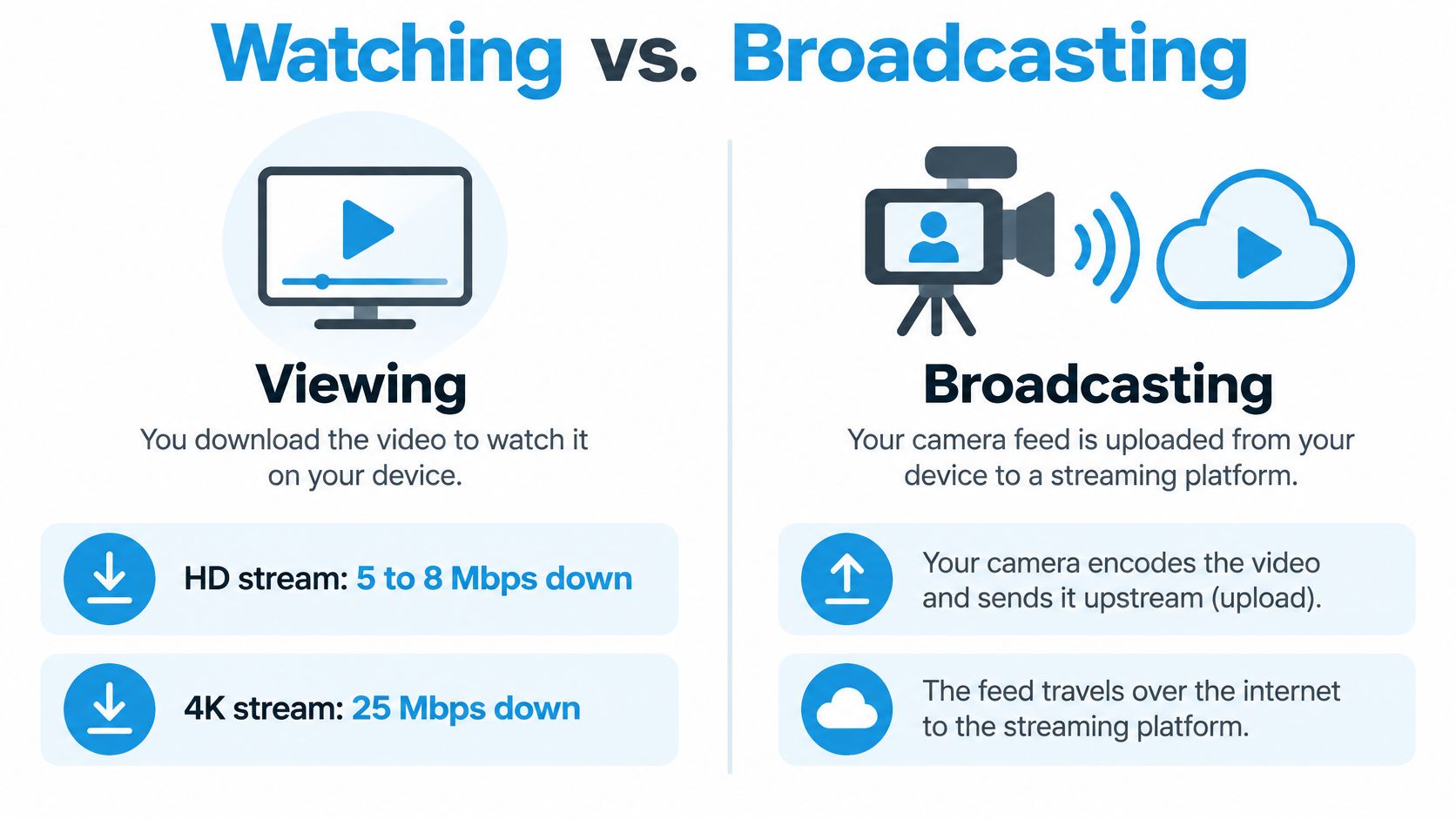
Broadcast figures come from a different kind of source: encoder and platform guidance, not viewing guides. Set against the download numbers, the direction of the gap is the point. At 1080p and 30 fps, the published upload requirement for a clean live stream runs above the 5 to 8 Mbps the same resolution needs to play back. At 4K the two figures move closer together, but the upload side scales with frame rate and motion in a way the viewing figure never does.
| Activity | Traffic direction | Published figure | Source |
|---|---|---|---|
| Watching one HD stream | Download | 5 to 8 Mbps | FCC broadband speed guide |
| Watching one 4K stream | Download | 25 Mbps | FCC broadband speed guide |
| Broadcasting 1080p at 30 fps | Upload | above the playback figure for the same resolution | YouTube encoder guidance |
| Broadcasting 4K | Upload | rises with resolution and frame rate, with no fixed viewing equivalent | YouTube encoder guidance |
The width of the broadcast ranges is the useful part. The bitrate a clean picture needs swings by a factor of several at the same resolution. Codec choice, encoder efficiency, motion in the frame and frame rate all move it, and a talking head needs far fewer bits than a mountain bike descent shot from a moving rig. A single "Mbps needed for 1080p" figure misleads in both directions: too generous for a static interview, too thin for fast action.
The rule that settles it: match the direction of the speed figure to the activity. A download result tells you a film will play. A sustained upload measurement tells you a broadcast will hold.
A traveler watching a movie at a campsite is pulling about 5 Mbps down. Going live from the same picnic table needs an outbound rate the download figure never revealed, and on a cellular link that rate has to survive tower load and signal changes through the whole session. If your evenings are mostly viewing, the internet speed requirements for Netflix are the better comparison, because that's the load you're placing on the link.
Test with the encoder and the platform you'll really use. A browser speed test and an RTMP push take different paths to different servers, and only one of them is your broadcast.
Why Peak Speed Tests Overstate Dependable Upload
A brief speed test can show far more upload capacity than a live stream can depend on for an entire session. Signal conditions, tower load and competing traffic can all reduce the rate available to the encoder, especially on cellular connections.
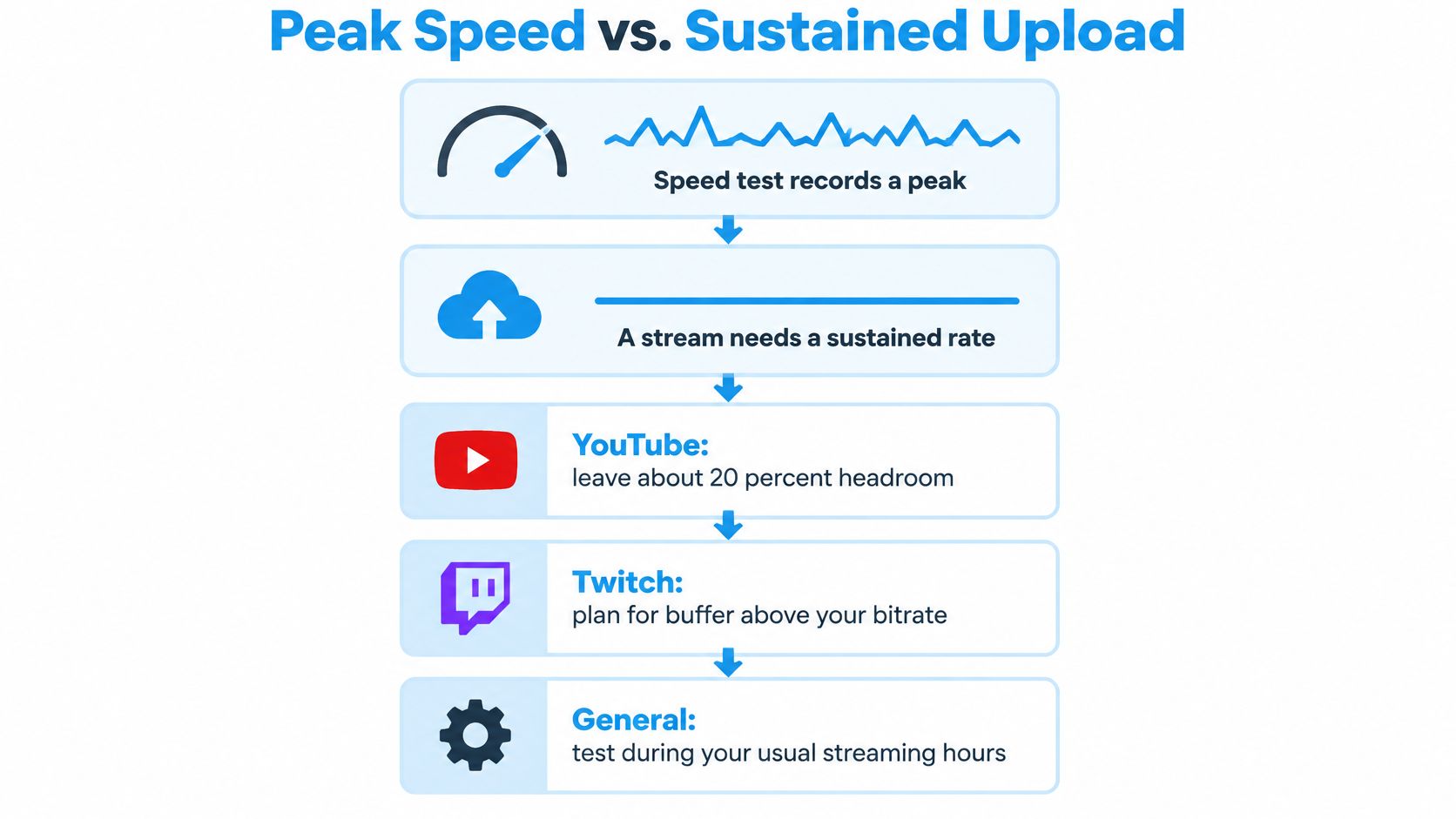
YouTube's live encoder guidance advises leaving about 20% of upload capacity unused. Test under the conditions you expect to stream in, with other household devices active: their traffic competes for the same outbound capacity.
| Source | Rule | Worked example |
|---|---|---|
| YouTube guidance | Leave about 20% of measured upload unused | 10 Mbps measured leaves about 8 Mbps usable |
| Twitch setup guidance | Upload at least the bitrate plus about 30% | A 6 Mbps stream needs about 8 Mbps upload |
| Twitch setup guidance | Keep bitrate at or below 80% of consistent upload | 10 Mbps steady upload supports about an 8 Mbps bitrate |
The 80% ceiling and 20% headroom express the same practical limit. Set the stream bitrate at or below 80% of the lowest steady upload reading at the broadcast location.
Run several tests at the planned location and time. Use the lowest steady result, multiply it by 0.8 to set a bitrate ceiling, then subtract other upload traffic expected during the stream. Choose a resolution and frame rate whose target fits the remaining capacity.
A 10 Mbps peak reading does not support a 10 Mbps stream reliably: that would use the entire measured capacity, leaving nothing for fluctuations or other traffic. An 8 Mbps bitrate is the upper planning limit from that reading, before accounting for uploads from other devices.
Sharing One Upload Budget Across Devices and Users
One outbound pipe serves everything that sends data: the stream, video calls, cloud backups, phone photo sync, security cameras and every other device in the household or the campground.
The viewing side shows how fast shared load adds up. Netflix recommends at least 3 Mbps for 720p HD, 5 Mbps for 1080p Full HD and 15 Mbps for 4K Ultra HD, and those figures apply per stream, so screens multiply the total. Netflix also notes that a slow or unstable connection can cause the service to step quality down on its own. Upload works the same way, except nothing steps down gracefully. The encoder just drops frames.
Worked subtraction on a 25 Mbps link
Take a 1080p60 stream sized at the 14.4 Mbps connection target. On a steady 25 Mbps upload link, that leaves about 10.6 Mbps for everything else.
A single cloud backup kicking off mid-broadcast can take most of that remainder, and the stream absorbs the loss as stutter. Two laptops on video calls, a phone backing up a day of photos, and a camera uploading motion clips will do it faster.
Run this tally before you go live:
- The stream target, taken from the resolution table. The bitrate you entered already includes the audio track, so don't add it twice.
- Every video call that will run during the broadcast, at the rate its app reports.
- Every backup or sync scheduled for that window, including automatic ones nobody remembers setting.
- Other devices on the network, cameras and neighbours at the campground included.
The test that matters: the sum of all four has to stay under the ceiling you calculated from your lowest steady reading. If it doesn't, something moves, and scheduling the backup for after the broadcast is almost always the cheapest thing to move.
Fixing Dropped Frames and Unstable Live Uploads
Dropped frames mean one thing: the encoder is pushing more data than the connection is carrying at that moment. The fix is a lower bitrate, less competing traffic, or a steadier link, and the symptom usually tells you which.
| Symptom | Likely cause | Fix |
|---|---|---|
| Dropped frames only when someone else uploads | Shared upstream traffic from backups, sync or calls | Pause cloud backups and sync during the stream |
| Speed test looks fine but the stream still drops | Wireless link or interference on the encoder | Connect the encoder by Ethernet and retest |
| Stream holds in the morning and fails at night | Cellular congestion from tower load | Test at the same time of day you plan to stream |
| High speed test result but the stream falls over | Peak speed, not sustained upload | Run several tests over an hour and use the lowest steady reading |
| Quality drops on its own while the rig is moving | Signal strength changes with position | Stop the stream to reposition, or lower the bitrate |
| Frames still drop after all fixes | Bitrate above what the link sustains | Lower the bitrate to 80 percent of steady upload or drop one resolution step |
Some of these take two minutes. Pausing a backup, plugging in a cable, and moving a laptop off the Wi-Fi are all quick. Others cost a site: if evening congestion is the cause, the useful options are streaming earlier, parking closer to a stronger signal, or accepting a lower resolution for the evening slot. If the wireless internet keeps slowing down at exactly the hour you broadcast, that pattern is congestion, not a settings problem.
Lowering resolution sits last on the list for a reason. A 1080p stream that drops frames every 40 seconds looks worse than a clean 720p one, but it's worth exhausting the free fixes first, because moving the competing traffic and wiring the encoder costs nothing.
Watch the encoder's dropped-frame counter, not the speed test. That counter is the only readout that knows what your side of the connection is doing while the broadcast runs.
Confirm Your Upload Budget Before You Go Live
Four checks turn the arithmetic into a plan you can trust at a new campsite or a rural address.
- Set the bitrate from the table and add 20%. That's your connection target, for the stream alone.
- Measure sustained upload at the exact spot and hour, over several tests, and confirm the lowest steady reading clears the target with room for the rest of the tally.
- Run the shared-budget tally and pause backups and sync for the duration of the broadcast.
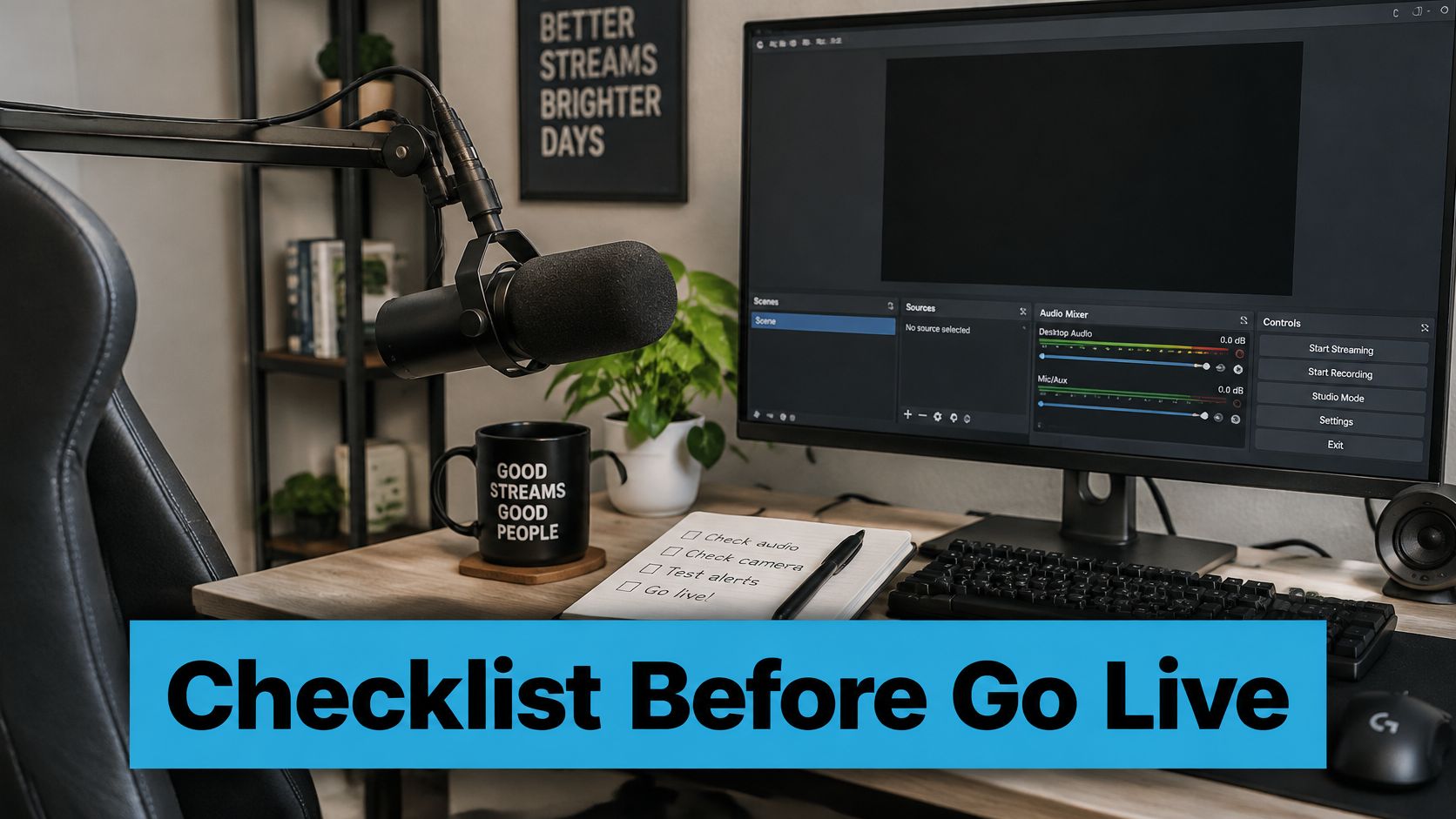
- Push a 15-minute test stream and read the dropped-frame count before you invite anyone.
SwiftNet Wifi supplies cellular internet to RV travelers and rural households, and the hardware figures are worth reading carefully. The 4G Bronze hotspot is advertised with speeds up to 100 Mbps, and the router supports speeds up to 300 Mbps on 5G and up to 100 Mbps on 4G networks. Those are maximums under optimal conditions and may vary significantly, plans may carry speed limits imposed by the network provider, and no minimum speed is offered, disclosed or guaranteed. The published figures also don't state upload capacity, which is exactly why the checklist above decides whether a site can carry your stream: treat the advertised maximum as a ceiling and size your bitrate from the steady reading.
Getting the encoder side right is the other half of the job. If you're adjusting settings for the purple platform, this walkthrough on how to tune your Twitch stream bitrate covers the encoder fields that match the numbers in the table above.
When you're comparing service options for a rig or a rural property, internet plans with high upload speed are the ones worth shortlisting, because download figures alone won't tell you whether the outbound path carries a 1080p60 feed.
SwiftNet Wifi builds cellular internet for the people this problem hits hardest: RV travelers, remote workers and rural households without fiber. The 4G Bronze hotspot and 5G router plans connect to the major nationwide carriers, with no contracts and support when a stream won't hold. Visit SwiftNet Wifi to compare plans and test the connection at your own site before you broadcast.


