

Selecting High Priority isn't a speed upgrade. The popular advice to pick your laptop in the router app and expect faster internet skips the part that matters: priority helps when devices compete for a connection, and the router must control the right queue.
For an RV office or rural household, the useful outcome is a clear work call while someone else downloads an update. Learning how to prioritize devices on router networks starts with identifying your critical device, choosing the appropriate setting, and testing it under load, not chasing a bigger speed-test result.
Priority Settings Your Router Offers and What Each Does
Start with device priority for the laptop or handset you depend on. Look for Advanced, QoS, Device Priority, or Traffic Management in the router's app or browser interface. Menu names differ, so identify what the control changes before enabling it.
Router priority settings compared
| Setting | What it controls | Where to look | What it cannot do |
|---|---|---|---|
| Device priority | Ranks one client above others during congestion | Advanced, QoS or Device Priority | Add bandwidth or guarantee a fixed speed |
| Application or traffic-class QoS | Ranks services such as video calls or backups | QoS or Application Priority | Work on apps the router cannot identify |
| WMM (Wi-Fi Multimedia) | Sorts Wi-Fi traffic into Voice, Video, Best Effort and Background | Wireless settings | Fix weak signal or a congested channel |
| Bandwidth limit (shaper) | Caps upload and download so queues form in the router | QoS or Bandwidth Control | Work correctly with the advertised plan speed instead of a measured one |
| Airtime fairness | Shares channel time between fast and slow clients | Advanced wireless options, where offered | Add capacity or be available on routers that lack the option |
Device priority treats the selected client as important, including its background activity. Application QoS is more selective: it can favor the call without elevating the same laptop's cloud backup, provided the router recognizes that traffic.
WMM works at the wireless layer. The MaxLinear explanation of Wi-Fi QoS mechanisms-mechanisms-in-wi-fi) describes its four access categories, Voice, Video, Best Effort, and Background, which receive different opportunities to transmit. That's preferential access, not a reserved internet speed.
Choose the control that matches the problem
A shaper controls how quickly traffic leaves a queue. It's useful when heavy transfers otherwise leave packets waiting upstream, beyond the router's scheduling control. Airtime fairness addresses wireless channel occupancy instead, so it isn't interchangeable with internet traffic shaping.
Practical rule: Start with device priority for a critical laptop, add shaping when transfers flood the connection, and leave WMM enabled unless the router's documentation specifically directs otherwise.
Coverage is a separate purchasing decision. If rooms remain unreachable, HearSmart's top mesh wifi systems compared provides a useful starting point for comparing coverage equipment, but adding access points isn't a substitute for managing a constrained internet connection.
How to Prioritize a Device Step by Step
Before changing anything, run the baseline measurements described under Measure Before and After to Confirm the Change. Save a screenshot of your current QoS settings so you can undo an unsuccessful adjustment without guessing.
Connect to your router's local network, then open its management app or browser interface using the access details supplied with the equipment. If you haven't completed the initial configuration, use our guide to setting up a Wi-Fi router before editing traffic rules.
Identify the client before adding a rule
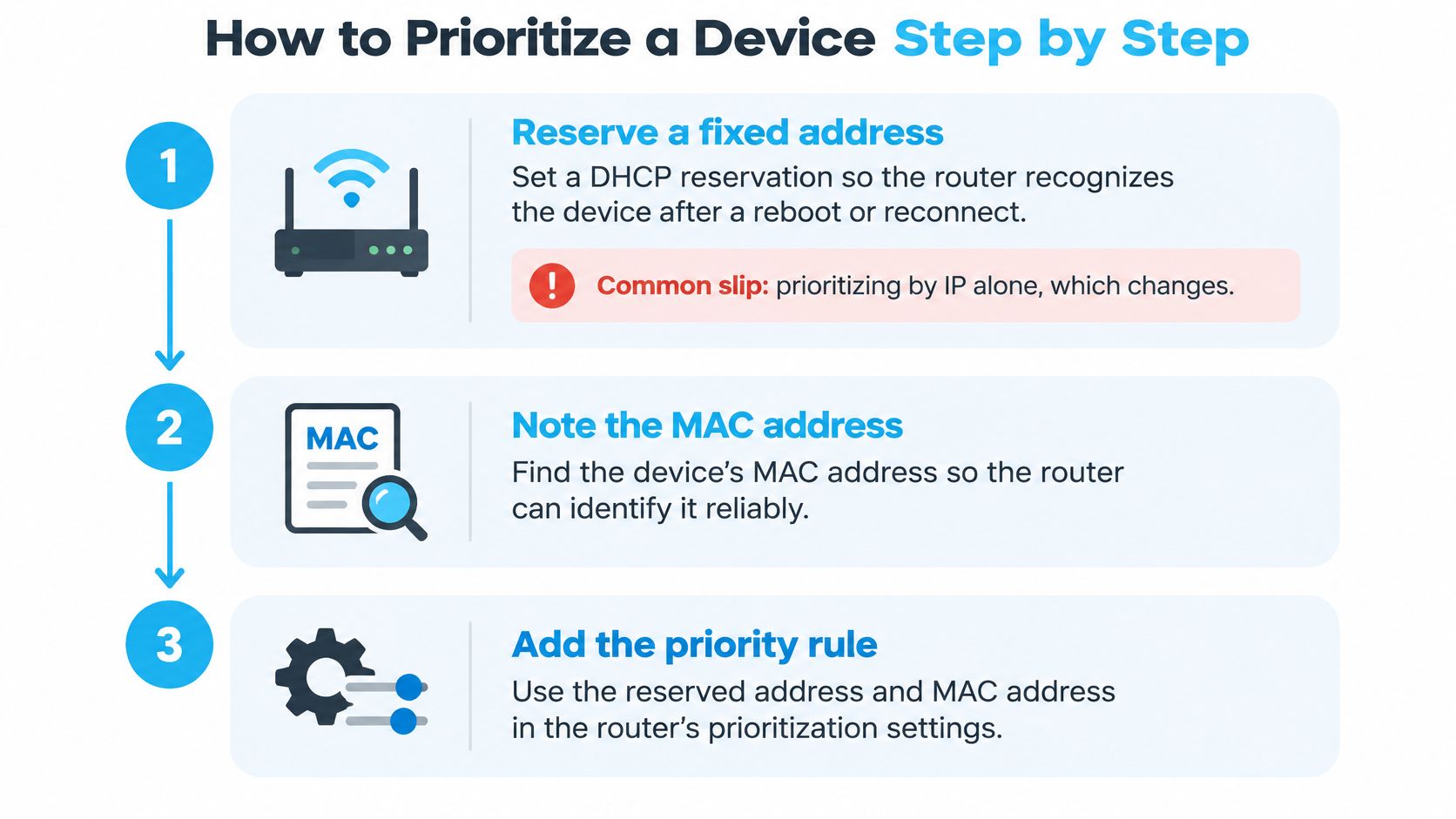
- Reserve the device's address. Open LAN, DHCP Server, Address Reservation, or Static Lease, select the work device, and save a DHCP reservation. This keeps an address-based rule attached to the intended client; the common slip is entering its current address in QoS without reserving it.
- Find the device's MAC address in Connected Devices or Clients, then match it to the reservation. Don't trust a vague name such as Android or Unknown, and check whether the device uses a private Wi-Fi address that changes for this network.
- Check firmware and WMM. Install the router manufacturer's current supported firmware and confirm WMM remains enabled under wireless settings; Cisco's WLAN QoS configuration guide explains that non-WMM operation can cap usable rates at 54 Mbps. Don't disable wireless multimedia support as a shortcut for fixing an unrelated connection problem.
The reservation and client identity form the foundation of the priority rule.
Apply the smallest useful rule
- Open QoS, Device Priority, or Application Priority, enable the feature, and select the reserved work laptop or VoIP handset. Assign High rather than elevating every familiar device, and check whether the app makes the priority temporary or persistent.
- Set the upload and download shapers below measured sustainable capacity, using the measurement target below. Match each field to the correct direction and unit; copying the package's advertised speed into both fields is a common reason shaping fails.
- Save the configuration, reboot the router to confirm persistence, and place bulk transfers or software updates in a lower class where supported. Reopen the device list afterward, because a saved screen doesn't prove the rule still matches the reconnecting client.
A working configuration has recognizable signs: the device retains its reserved address, its priority remains active, and it stays responsive while another client starts a substantial transfer. If the router offers only a simple priority toggle, use that control and test it rather than inventing bandwidth fields the firmware doesn't provide.
Keep a short configuration note with the device name, reservation, priority class, and any shaping values. That makes troubleshooting much easier when a replacement laptop appears under a different client identity.
Measure Before and After to Confirm the Change
A quiet-network speed test can't tell you whether priority works. Record the baseline during normal peak household use, then reproduce the same workload after making changes. Use the same test device, location, and test service so you aren't comparing unrelated conditions.
Cisco's wireless QoS guide explains that QoS benefits become most apparent under load; a practical shaping starting point is 90–95% of measured sustainable upload and download capacity, rather than the plan's advertised maximum.
Metrics to record before and after changes
| Metric | How to measure | Healthy sign |
|---|---|---|
| Download and upload throughput | Speed test during peak household use | Holds near the shaped rate at the starting range above |
| Idle latency | Ping a public server with no other traffic running | Low and steady before any load is added |
| Loaded latency | Ping while a large download and upload run together | Rises only modestly, and calls stay usable |
| Jitter | Repeat the latency test several times in a row | Small variation between samples; use the calling app's quality guidance rather than a universal cutoff |
| Packet loss | Check during a controlled saturation test | Near zero for calls and video |
Record throughput in Mbps, latency and jitter in milliseconds, and packet loss as a percentage. Keep those units identical in the before-and-after columns of your notes.
Test responsiveness while the connection is busy
Start a large download and an upload on a noncritical device while the priority device runs a call. Watch the calling application's connection statistics if available, and use your operating system's ping utility to observe latency during the same workload.
A basic ping sequence helps reveal uneven response times, but it isn't a complete measurement of application jitter. If Teams, Zoom, or your VoIP application exposes jitter and loss statistics, record those alongside the ping results.
A successful adjustment can reduce peak download speed while making conversation easier. Judge the call, not just the speedometer.
Check the rest of the household too. A protected work call isn't an acceptable result if everyone else's pages stop loading or background transfers never progress.
For cellular internet, repeat the comparison at different times and, when traveling, at different locations. Keep router placement consistent within each comparison, because changing the radio conditions while changing QoS makes the result difficult to interpret.
Write the baseline and adjusted results in the same note, with the test location and workload. You'll have a known reference when firmware changes, another device joins, or a campground connection behaves differently.
Mistakes That Undo Your Priority Settings
Putting every TV, console, and phone in the highest class removes the useful distinction between them, so promote only devices with delay-sensitive work. A favorite device isn't automatically a priority device. A television can usually buffer entertainment, while a person speaking on a work call can't buffer a conversation.
An equally subtle mistake is prioritizing an entire laptop while letting it perform an unrestricted backup. Use application-level classification when the router identifies the service reliably, or pause the backup during important calls instead of assuming every packet from that laptop deserves urgent treatment.
Fix the rule, not just its label
- Unstable client identity: An address-only rule can miss its target after a reconnect, so create the DHCP reservation and verify the matched MAC address before trusting it.
- Wrong shaping direction: Restricting downloads won't resolve an upload bottleneck, so inspect traffic activity and adjust the saturated direction.
- Advertised-speed settings: A limit above the connection's sustainable capacity leaves the bottleneck upstream, so enter a rate based on your own measurements.
- Idle-only testing: An unloaded connection gives the scheduler little to choose between, so repeat the test with competing transfers.
- Temporary priority: Some apps expire a selected boost, so inspect the rule's duration and use a persistent setting when you need ongoing protection.
Don't change every wireless option while troubleshooting QoS. If you alter channel selection, router placement, priority classes, and shaping together, you won't know which adjustment helped or which introduced a new problem.
Fairness check: While the important call is running, ask another user to browse and start a routine transfer. Both should remain usable.
Separate scheduling from basic connection repairs
An outdated firmware build or poor placement needs its own fix. Our practical ways to boost internet speed can help you work through those broader issues without treating every slowdown as a priority-rule failure.
Keep ordinary browsing in Best Effort unless a specific application needs different treatment. Don't move unfamiliar traffic into Background just because you don't recognize its name; it may belong to a service somebody relies on.
After each adjustment, check both the selected client and an ordinary household device. If the priority device improves but everyone else becomes unusable, narrow the rule or ease the restriction rather than declaring the setup finished.
Why a Prioritized Device Is Still Slow
A prioritized device that remains slow often has a capacity or radio-link problem, not a missing priority badge. Start by locating the bottleneck instead of adding another high-priority rule.
A loading screen alone doesn't reveal whether the trouble is local Wi-Fi or the internet connection.
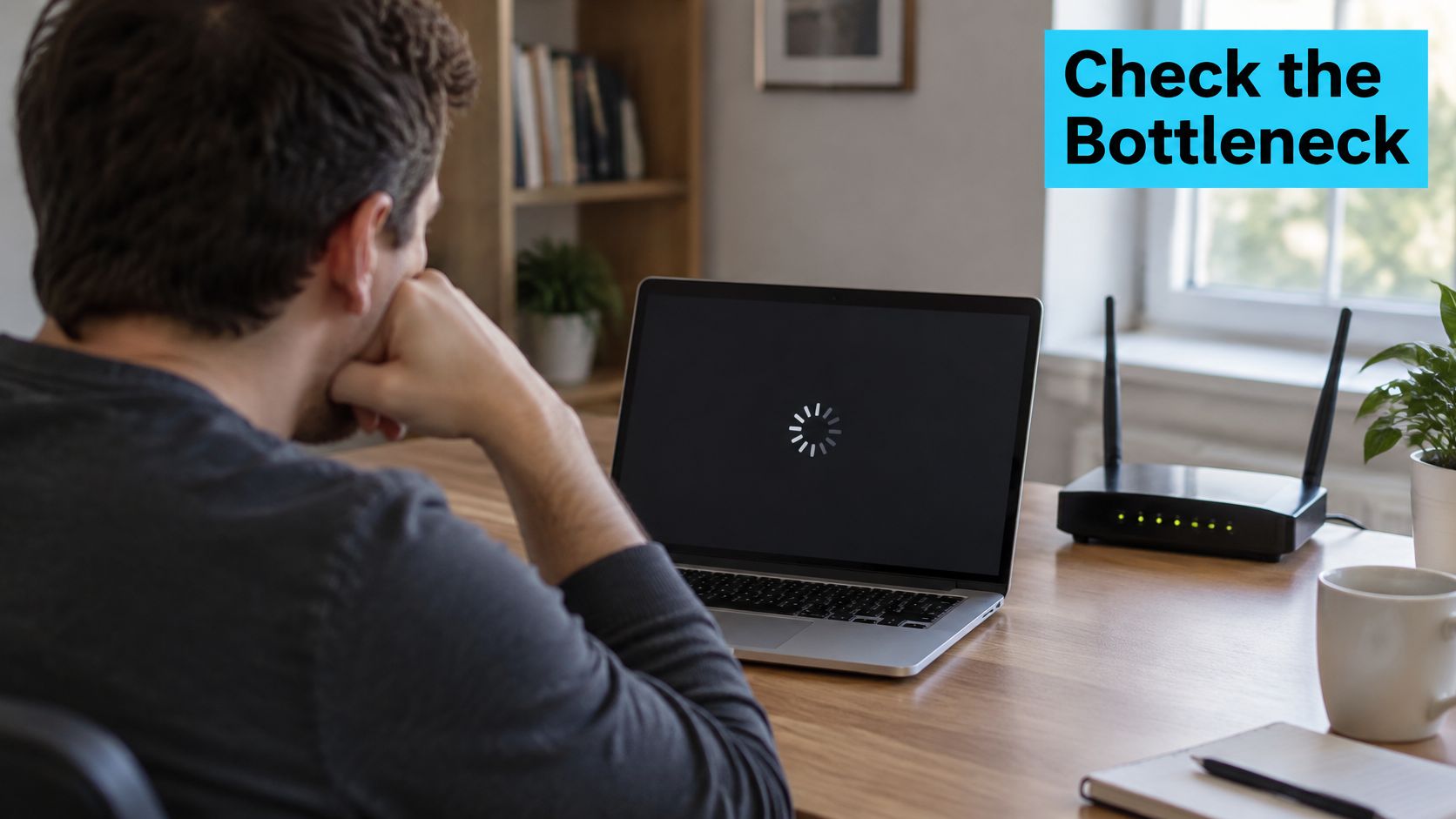
The Tech Times explanation of router bandwidth distribution distinguishes packet priority from wireless airtime management and identifies weak signal, limited backhaul, and cellular congestion as constraints priority cannot overcome. Compare a router-side speed test, if available, with an Ethernet test or a test close to the router.
Priority symptoms, causes and fixes
| Symptom | Likely cause | Fix |
|---|---|---|
| Prioritized laptop still slow during downloads | Upload or download link is saturated | Cap bulk transfers and check the shaper direction |
| Video call drops on Wi-Fi | Weak signal or crowded wireless band | Move closer to the router or switch to its supported higher-frequency band |
| Priority rule stops working after a day | Device address changed without a DHCP reservation | Reserve the lease and reapply the rule by MAC address |
| Speed test looks fine but calls stutter | High loaded latency | Lower the shaper toward the conservative end of the measured-capacity range |
| Slow only at certain times on cellular | Tower congestion | Retest at other times; priority cannot add radio capacity |
| No priority option in the menu | Router has no QoS or device-priority feature | Use WMM and fewer heavy streams, or upgrade the router |
Separate wireless trouble from internet trouble
If Ethernet performs well but the nearby wireless test doesn't, investigate the local radio connection. If both are poor, focus on the upstream connection, heavy traffic, or cellular conditions before replacing Wi-Fi equipment.
Move the laptop closer as a diagnostic test, not as proof that it must permanently live beside the router. Where supported, try a less crowded band and compare the same application in the same position.
This video provides an additional reference while you work through connection troubleshooting.
For a broader diagnostic path, use our guide to why wireless internet is slow. Pay attention to whether the problem follows a location, a time of day, or a particular transfer.
A clear call alongside a slower background download is the intended trade-off. But if the reservation and shaper are correct and controlled tests still show insufficient capacity, stop multiplying rules: a connection with more usable capacity or a second independent connection is the next practical step.
Choose Your Priority Devices Before Your Next Trip
Choose priority devices according to what people need to do, not what the equipment costs. A work laptop deserves special treatment during a client call, but it does not need privileged access while downloading entertainment overnight.
For a remote worker in an RV, reserve the work laptop's address and leave the streaming television in Best Effort. Schedule large synchronization jobs outside working hours so the priority policy is not compensating for avoidable competition.
Match the policy to the people traveling
- A family at a campground: Favor the phone handling an important video call, and move cloud photo uploads and large downloads out of its way.
- A rural household using VoIP: Put the handset's recognized voice traffic in the appropriate class and keep backups in Background.
- A traveling worker with several computers: Prioritize the computer doing interactive work rather than assigning the same standing priority to every computer in the vehicle.
The SwiftNet router supports up to 32 connected devices, and its Virtual SIM switches between AT&T, Verizon, and T-Mobile, so it keeps a connection where a single phone carrier has no signal. That expands who can stay online and which tower can serve the router. It does not mean 32 clients can all push video, backups, and game updates through the same congested cell at once.
Check newer wireless features before relying on them
This router class is Wi-Fi 6 with dual-band 2.4 and 5 GHz, so Multi-Link Operation is not the feature to count on here. If a separate Wi-Fi 7 router and client both claim MLO, verify support on each end instead of trusting the laptop label; IEEE-published research on adaptive MLO describes approaches that classify traffic and watch latency, jitter, and loss when deciding how to use extra links.
A device-level priority rule and link selection solve different problems. If congestion is on the wireless channel, fix classification and link conditions before repeatedly raising the client's rank.
Before leaving home, complete a priority check: list the devices that cannot wait, reserve their addresses, record a baseline, apply the rules, and run the loaded comparison. Save the results with your travel notes so you can tell a configuration problem from changing conditions on the road.
SwiftNet Wifi offers home and mobile internet for RV travelers and rural households using multi-carrier connectivity. Visit SwiftNet Wifi to explore a connection for your setup, then pair it with a measured priority policy that protects work calls without sidelining everyone else.


