

Your video call freezes, the television stops streaming, and everyone reaches for the router. Its lights blink, the internet comes back, and you get back to work, until it happens again. In an RV or rural home, it's tempting to blame the cellular signal, but the interruption may have started at the power outlet, inside the router, or upstream on the provider's network.
If you're asking, “Why does my router keep restarting?”, the timing of each incident is your best starting clue. Before buying equipment or repeatedly unplugging it, find out what stopped working and what happened immediately beforehand.
Match Your Restart Pattern to a Likely Cause
When the router restarts matters more than how often you notice it. Use this table to choose a starting test, not to declare a final diagnosis. Several faults can produce the same outward symptom.
Restart pattern and likely cause
| Restart pattern | Likely cause | First check |
|---|---|---|
| Restarts at regular intervals, such as every few hours | Scheduled auto-restart or memory leak | Check the router's reboot schedule and note the interval |
| Restarts during streaming, gaming or many connected devices | Overheating or capacity limit | Feel near the vents and check the room temperature, then reduce load |
| Restarts when a heater, refrigerator or air conditioner switches on | Power sag from a shared circuit or worn adapter | Move the router to a different outlet and check the adapter label |
| Restarts after a firmware update or settings change | Firmware bug or corrupted configuration | Compare the firmware version and review recent setting changes |
| Wi-Fi name stays visible but internet access drops | Modem or upstream connection drop | Check whether the uptime counter kept counting |
| Restarts with unexplained setting changes or new admin logins | Possible security compromise | Disable remote access and review administrator and DNS settings |
| Restarts on a model the manufacturer no longer supports | End-of-support hardware | Look up the model's support status on the manufacturer's site |
Use the trigger to choose your test
Say your connection fails whenever the RV's air conditioner starts. Testing the power supply is more useful than changing wireless channels because you've identified an electrical trigger. If it happens only during evening streaming, compare workload and ventilation before assuming the nearby tower is overloaded.
TP-Link's restart troubleshooting guidance identifies heavy traffic, inadequate power adapters, blocked airflow and firmware faults as separate possibilities. A busy network is a test condition, not proof of weak cellular signal.
Record the pattern before changing anything. Include what you were doing, which devices lost service, and whether the router appeared to start from scratch. Change a single variable during each test so you can tell which intervention helped.
Choose hands-on help when needed
If the outlet, adapter and router settings are difficult to assess safely, in-home tech help from Computer Daddy offers a useful resource for understanding when hands-on troubleshooting makes sense. Don't open an adapter or investigate household wiring yourself.
Work in diagnostic order: confirm a real reboot, test power and cooling, investigate software and security, then decide whether support or replacement is justified.
How to Tell a Real Reboot From a Connection Drop
An internet outage doesn't necessarily mean the router restarted. Your router can keep connecting local devices while its modem, cellular connection or upstream service stops carrying internet traffic.
Use the visual sequence as an initial check, then confirm it with the router's uptime counter, which measures how long the system has been running.
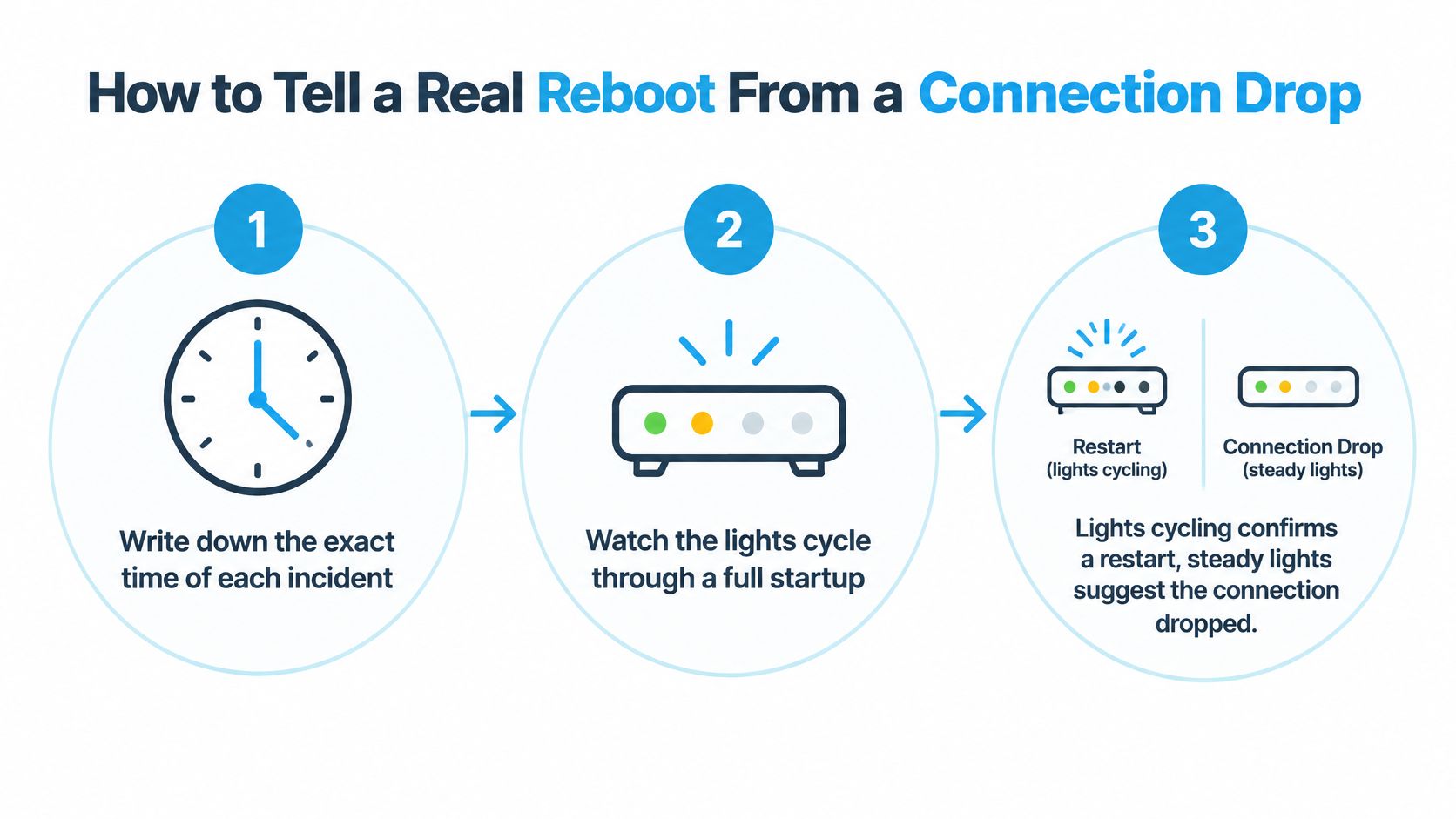
Capture what happens during the interruption
- Record the exact time and watch the lights. A full startup sequence strongly supports a restart, while steady system lights suggest a connection interruption. A flashing internet indicator alone isn't enough because manufacturers assign different meanings to their lights.
- Read the system uptime. Open the router's administration page or manufacturer's app and look under system status or device information. If uptime has reset to near zero, the router rebooted; if it kept counting, the whole system didn't restart.
- Check whether the Wi-Fi name remains visible. If your phone still sees the network but websites won't load, try opening the router's local management page. Successful local access shows that part of your network is still operating, even without internet service.
- Compare connected devices. A complete restart typically disconnects devices together and reconnects them after startup. If only a laptop loses service while other devices continue working, investigate that laptop rather than treating the event as a router-wide reboot.
- Match the timestamp to a trigger. Note streaming, large downloads, video calls, appliance starts and recent settings changes. These observations help distinguish a workload-related failure from an electrical interruption or a scheduled event.
Interpret the result before unplugging anything
The FCC's home network guidance explains that switching a router off and back on can resolve some network problems, while persistent trouble may indicate outdated equipment or another equipment fault. A successful restart therefore tells you that service recovered, not necessarily what caused the failure.
If the system stays running but the indicators suggest connection trouble, use our guide to router lights flashing with no internet to interpret that narrower symptom.
Diagnostic rule: Reset system uptime sends you toward the router's power, hardware or software. Intact uptime sends you toward the modem, cellular connection or upstream service before you blame a complete router reboot.
A Wi-Fi-only failure is another separate branch. If a wired device remains connected while wireless devices disconnect, don't classify the incident as a full system restart without supporting evidence.
Power Faults That Look Like Router Crashes
A router can react to a brief electrical dip much like a computer during a power flicker: it shuts down and starts again. You might not notice the interruption elsewhere, but the router still has to complete its boot sequence.
Start with the visible power path, including the adapter, connector and outlet.
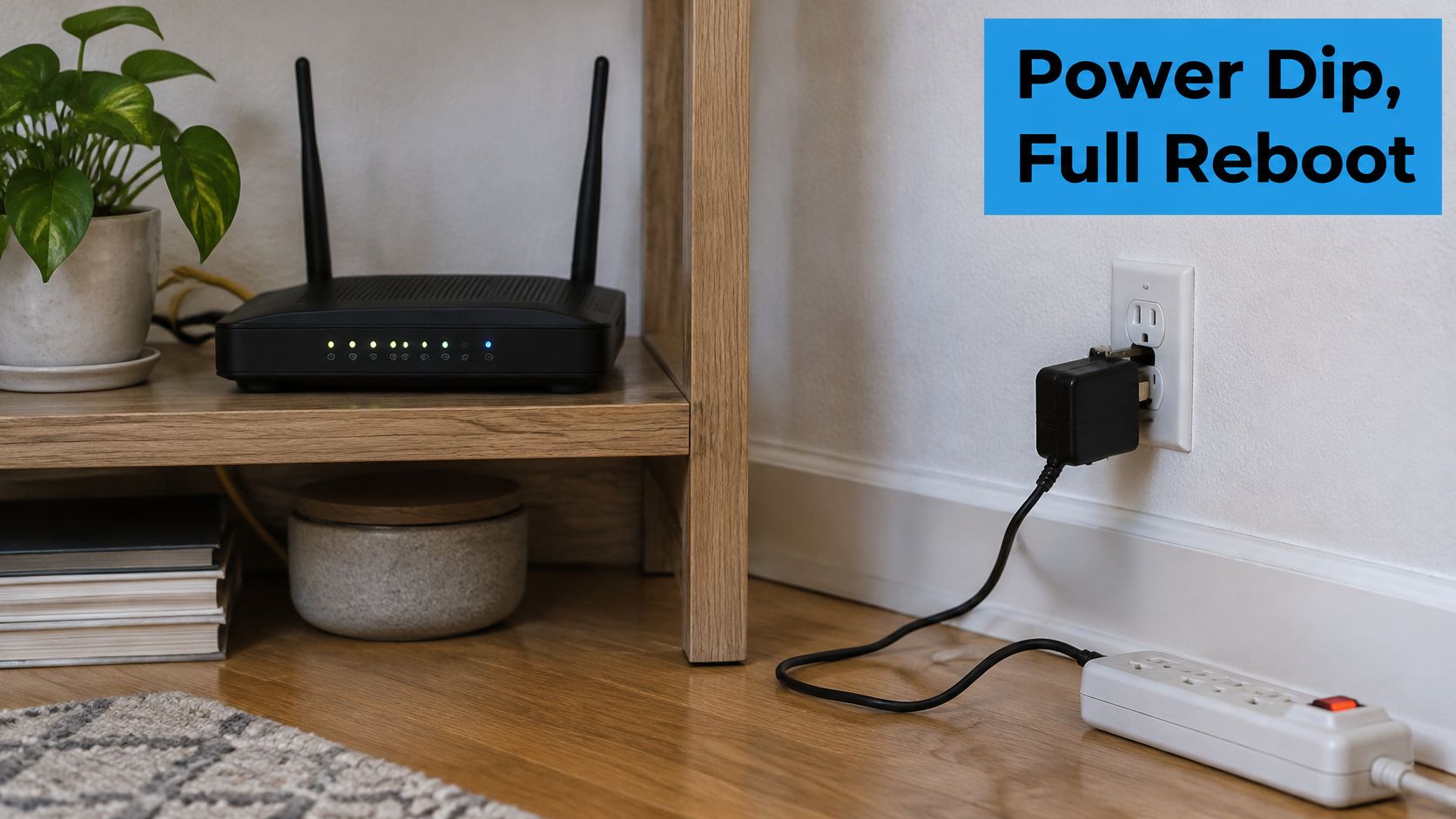
A worn adapter, loose barrel connector or voltage dip can interrupt the router's input long enough to cause a boot cycle, as described in WikiRouter's power troubleshooting guide. Look for log entries indicating power loss or unexpected shutdown. A missing crash record can also support a power-delivery explanation, although it doesn't prove one by itself.
Test the supply without guessing
- Inspect the connection. With the equipment powered down, check for a loose plug, damaged cable or connector that won't seat securely. Stop using visibly damaged equipment.
- Use a known-good outlet. Temporarily bypass the existing power strip or surge protector and connect directly to a suitable wall outlet. An outlet elsewhere may help separate the router from a heavily loaded circuit.
- Match the replacement adapter correctly. Use the exact specified voltage, matching connector polarity and an equal-or-higher current rating, with a compatible connector and manufacturer approval. Physical fit alone doesn't establish compatibility.
- Observe appliance starts. Compare restart times with heaters, refrigerators and air conditioners switching on. Don't repeatedly provoke a suspected electrical fault to reproduce it.
Change the outlet and adapter separately when practical. If you replace both simultaneously and the problem stops, you've improved reliability but haven't isolated the failed component.
This video provides a visual troubleshooting companion while you inspect the setup.
Include the RV's power conversion equipment
In an RV or remote installation, include the 12 V converter, shore-power connection and any inverter in the inspection. A fluctuating conversion supply can produce the same symptoms as a faulty household adapter. Have a qualified technician assess suspect electrical equipment rather than opening it yourself.
A stable supply that stops the restarts is strong evidence that power delivery was responsible. If restarts continue, retain the test results instead of repeatedly swapping accessories.
Our service and equipment may not function during a power failure. Afterward, you may need to reset or reconfigure your modem or other hardware before service works again.
Overheating and Memory Leaks That Trigger Resets
A router that fails after sustained streaming needs a different investigation from one that restarts immediately after being plugged in. Heat buildup and gradual memory exhaustion can both take time to reach the point where the system stops responding.
Closed cabinets, stacked electronics, dust and direct sunlight restrict cooling. Rising temperatures can destabilize the processor, memory or radios until the router resets. Heavy streaming, VPN use, many connected clients and sustained cellular activity can make that pattern easier to reproduce.
Separate temperature from resource exhaustion
A memory leak occurs when software keeps consuming memory without properly releasing it. The router may work normally after startup, then become unstable after hours or days as available memory runs out.
A watchdog is a recovery mechanism that restarts an unresponsive system or service. As XDA's explanation of router resets and erased logs describes, thermal stress and resource exhaustion can produce similar resets, and volatile logs may disappear during reboot.
That makes a warm case or a watchdog message a clue, not a complete diagnosis. Compare conditions before the failure, not just after the router has recovered.
Improve cooling and preserve evidence
- Relocate the router. Use an open, shaded surface with clearance around its vents. Don't stack it on another heat-producing device.
- Reduce nonessential processing. Temporarily disable unused guest networks, aggressive Quality of Service rules or unnecessary VPN services. Keep essential security protections enabled.
- Enable persistent logging. Use persistent logs or remote syslog where supported, so a restart doesn't erase the preceding events. Save existing logs before making further changes.
- Avoid condensation. Don't use ice packs, refrigeration or other cooling methods that can introduce moisture.
Log evidence and the cause it supports
| Log entry or pattern | Points to |
|---|---|
| Entries mentioning thermal | Cooling fix: relocate the router and reduce load |
| Watchdog timeout or kernel panic | Firmware or hardware diagnosis |
| Resets at a consistent interval | Memory leak or scheduled auto-restart |
| Power loss or unexpected shutdown | Power delivery; use the power test in the earlier section |
A watchdog message describes the recovery action. Read the entries immediately before it to investigate why recovery became necessary.
If better ventilation prevents failures under comparable use, cooling becomes a stronger explanation. If the same interval persists in a cool location, examine scheduled tasks and software behavior rather than assuming the case temperature tells the whole story.
Firmware, Settings and Security Checks
Start by looking up the exact model and hardware revision on the manufacturer's support site. Check whether it still receives firmware and security fixes. An unsupported router can continue passing traffic while leaving you without a supported remedy for recurring software faults.
Support status doesn't prove why a router restarts. It tells you whether continued troubleshooting can lead to a maintained, secure configuration.
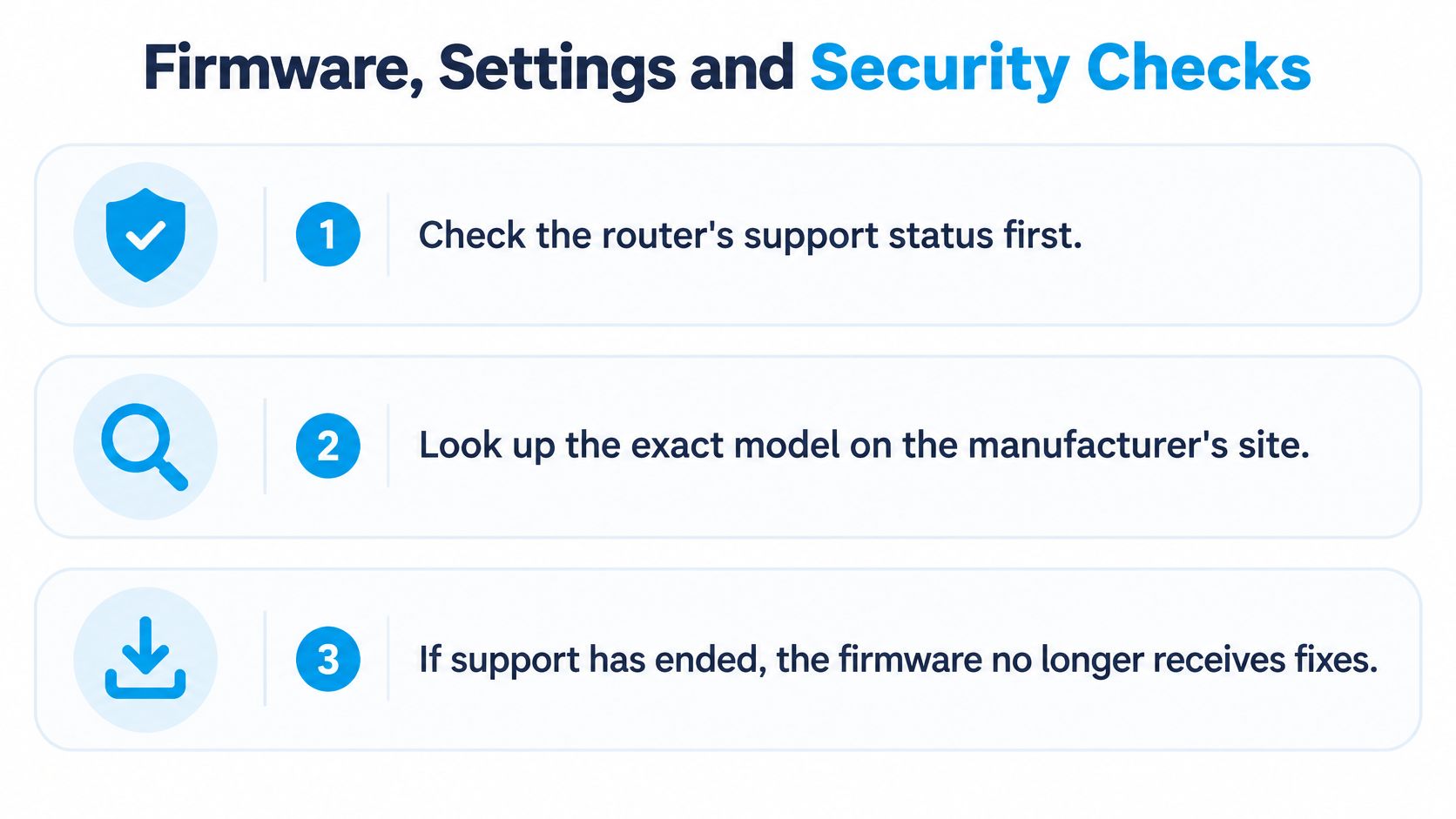
Check firmware and configuration in order
-
Compare the installed release with the official release. Record the existing firmware version, then check the manufacturer's page for your exact hardware. Use only official firmware and read the installation instructions before starting.
Don't begin an update while power is unstable, and don't interrupt it. CISA's home-and-office router alert recommends current firmware because updates often contain security patches, and explains why rebooting alone may provide only temporary relief.
- Investigate the last change. If restarts began after an update or configuration change, record your internet settings and save the logs. Before a factory reset, make sure you have the information needed to restore service, particularly cellular or provider-specific settings.
Restore a clean factory configuration only through the manufacturer's documented procedure. Reapply settings in groups and observe the result; if instability returns with a particular group, you've identified a useful lead rather than restoring the entire problem.
- Review administrator activity. Look for unfamiliar administrator logins, reboot commands and configuration changes. Match timestamps against your own actions so an update you initiated isn't mistaken for unauthorized activity.
A software fault isn't necessarily a security incident. Historical CISA industrial-router vulnerability documentation nevertheless shows that vulnerabilities can permit configuration deletion, firmware upload or device reboot. That establishes why exposed management functions deserve attention, not that your particular router has the same flaw.
Tighten access and check for tampering
- Use a unique administrator password. The router's management password should differ from passwords used elsewhere. Turn off unnecessary internet-facing remote administration and remove port-forwarding rules you no longer need.
- Inspect DNS settings. Check whether they match the settings you intentionally selected or those expected for your service. Unexplained changes matter because they indicate configuration activity beyond an ordinary connection failure.
For broader protective steps, use our guide to securing your Wi-Fi network. Keep a record of changes so security improvements don't become another source of troubleshooting uncertainty.
In 2025, legacy TP-Link vulnerabilities included an authentication-bypass flaw and a high-severity remote-command-execution flaw, while CISA separately warned that compromised network devices could contain implants surviving reboots and upgrades, as summarized by TechRadar's router security coverage. These findings don't establish that a restarting router is hacked.
Security precaution: Unfamiliar logins or unexplained DNS changes justify temporarily disconnecting the router from the internet, preserving evidence and changing passwords from a trusted device.
Install official updates and seek equipment-provider guidance when tampering is suspected. A factory reset isn't a universal guarantee that a compromised device is clean, especially when the hardware is unsupported.
Routine checks such as unique passwords and current firmware are sensible for everyone. Stronger incident precautions belong with evidence of compromise, not an ordinary power fault. Once a cause is confirmed, correct it and observe stability before introducing unrelated changes.
Decide Whether to Replace the Router or Call Support
Replace an unsupported router when restarts persist after controlled power, cooling, configuration and security checks. Continued manual restarting won't restore manufacturer support, and buying accessories indefinitely can leave the underlying problem unresolved.
For a supported router, escalate persistent restarts after the basic physical tests rather than guessing at internal hardware failures. Reboots accompanied by changed settings, unexplained traffic or repeated loss of administrator access deserve prompt attention instead of another routine power cycle.
Prepare a useful support record
Build a restart log covering at least three days, if the fault allows you to observe it safely. Treat that as a practical evidence-gathering target, not a reason to delay reporting suspected compromise or damaged electrical equipment.
Include these details:
- Incident history. Record timestamps, workload and whether multiple devices were affected.
- Uptime observations. Note whether the system counter reset or continued running.
- Power-test results. Identify the outlet and compatible adapter tested, and whether either changed the behavior.
- Software details. Include the exact model, hardware revision, firmware version and recent settings changes.
- Cooling conditions. Describe placement and whether improved ventilation changed the outcome.
Keep passwords and other sensitive information out of screenshots you share publicly. Send relevant logs through the support channel rather than posting an unreviewed export.
Match the support request to the equipment
Identify which device we supplied before requesting troubleshooting for the entire network. Our technical support doesn't help install or troubleshoot third-party modems, network cards, routers, complex network configurations, telephone lines or third-party software. For those components, use the manufacturer's or installer's support.
If a supported reset is appropriate, our guide to how to reset your router can help you distinguish restarting from erasing its configuration. Don't factory-reset equipment merely to prepare for a support call, because doing so may remove useful evidence.
A replacement decision should follow the identified failure. A router that never rebooted may need an upstream-service investigation, while a supported device that still restarts on stable power deserves equipment-level diagnosis.
Today, choose the matching pattern in the first table, run its first check and record the result. That gives your next support conversation or replacement decision a factual starting point.
#rv #rvlife #rvliving #rvlifestyle #rvrenovation #rvremodel #rvtravel #rvcamping #rvadventures #ruralwifi #5gwifi #5ginternet
SwiftNet Wifi offers home and mobile internet for rural households and RV travelers, with pre-configured equipment designed for straightforward setup. If your troubleshooting points toward a new connectivity setup, visit SwiftNet Wifi to explore the available options and discuss your connection needs.


